- One-time code (TOTP)
- A sign-in that does not get in the way of the team
- Mandatory profiles and grace period
- My two-factor authentication and the dashboard
- Security journal
- Emergency access
- License and technical notes
- Protect critical accounts within a week
- A fixed workstation
- A shared workstation or a sensitive connection
- A lost phone
- What is the purpose of two-factor authentication (2FA) in the back-office?
- What type of 2FA is used (SMS, email, app)?
- Which apps are compatible (Google Authenticator, Authy, Microsoft...)?
- Can 2FA be forced only for certain profiles (e.g., SuperAdmin)?
- How to avoid slowing down the team with a code at every login?
- What happens if an employee loses their phone?
- Which emergency recovery methods are available?
- Does the module protect against brute force attacks?
- Is there a history of logins and security events?
- Does the check also protect forms and AJAX calls of the back office?
- What happens to 2FA if the license expires?
- Which PrestaShop and PHP versions are supported, and how to update from version 1.0.0?
- Does uninstalling delete the data?
- Can 2FA be turned off for the whole shop?
- Does the module change the theme or the display of the shop?
- Is the 2FA data protected?
- Is a trusted device safe?
- The code is never accepted
- I can no longer open the back office
- The code is asked too often
- The "My two-factor authentication" link does not appear
- After a command-line installation, the check does not seem to apply
- The settings page reports scripts to delete
- An employee can no longer validate their code after a shop migration
Two-Factor Authentication (2FA) — Two-factor authentication for the back office
Two-Factor Authentication (2FA) adds a second step to the PrestaShop back-office sign-in: after their password, each employee enters the 6-digit code of an authenticator app installed on their phone (TOTP). With a stolen password, no page, no form and no AJAX call of the back office runs without that code.
The module looks for the balance between security and comfort: a trusted device remembered for 30 days, a verified session of 12 hours, mandatory profiles with a grace period, a dashboard and a journal for super administrators, and several ways back in when a phone is lost.
Highlights:
- TOTP codes compatible with Google Authenticator, Microsoft Authenticator, Authy, 1Password and Bitwarden
- One code per month and per browser: a 30-day trusted device, independent of the IP address (adjustable)
- Verified session of 12 hours (adjustable), ended at sign-out
- 2FA mandatory by profile, with a grace period and a warning banner
- "My two-factor authentication" for every employee; dashboard, journal, reset and unlock for super administrators
- 10 recovery codes per employee, reset by an administrator,
DISABLE_2FAfile and console command for emergency access - Lockout after wrong codes, stored in the database
- The license never switches the protection off
- Interface in French, English, Spanish, Italian and Polish, with no override and no third-party PHP library
Overview
A password alone no longer protects an e-commerce administration: phishing, data leaks, reused or shared passwords. Yet the back office gives access to prices, orders, customer files and the creation of administrator accounts.
With Two-Factor Authentication (2FA):
- The employee enters their login and password as usual.
- A stand-alone code page, with no menu or back-office link, asks for the 6-digit code of their app.
- The code is checked before any action of the back office. If the Remember this device box is ticked, this browser does not ask for a code for 30 days; otherwise the verification stays valid for 12 hours.
The check covers pages, forms (POST) and AJAX or JSON calls: with the password alone, a page is redirected to the code page and an AJAX call gets a 401 answer with no data. Known limit on PrestaShop 1.7: three legacy stand-alone PrestaShop scripts are outside the check (see "Troubleshooting").
Features
One-time code (TOTP)
- TOTP standard (RFC 6238): a 6-digit code renewed every 30 seconds, generated offline by the app
- Compatible with Google Authenticator, Microsoft Authenticator, Authy, 1Password, Bitwarden and any TOTP app
- A code is accepted only once; the phone clock may be off by one 30-second period
- The code is sent as soon as the sixth digit is typed
- Secrets stored in an encrypted and authenticated format; recovery codes kept as hashes
A sign-in that does not get in the way of the team
- Trusted device: one cookie per employee and browser (HttpOnly, SameSite=Lax), valid for 30 days by default whatever the IP address; tying it to the IP address is optional
- Verified session: the code entered stays valid for 12 hours by default (1 to 168 hours); signing out cancels it
- The "Remember this device" box is ticked by default (adjustable)
- Each employee sees their devices (browser, system, last use, validity) and removes the ones they no longer use; 20 devices at most per employee
Mandatory profiles and grace period
- Choose the profiles for which 2FA is mandatory (for example SuperAdmin); the other employees turn it on freely
- Grace period of 7 days by default, counted from the day the profile becomes mandatory: during this delay, a banner shows the days left and the employee can choose "Not now"
- After the delay, the employee is sent to the set-up page and cannot open the back office until it is completed
My two-factor authentication and the dashboard
- Each employee manages their 2FA from "My two-factor authentication": turn it on, change phone, create new recovery codes, manage trusted devices and, outside a mandatory profile, turn it off
- Super administrators have a dashboard: number of employees, protected employees, mandatory set-ups pending, locked accounts, and a table with the profile, status, recovery codes left, devices and last code entered of each employee
- Resetting (lost phone) or unlocking a colleague is done from the table, after confirming with your own code
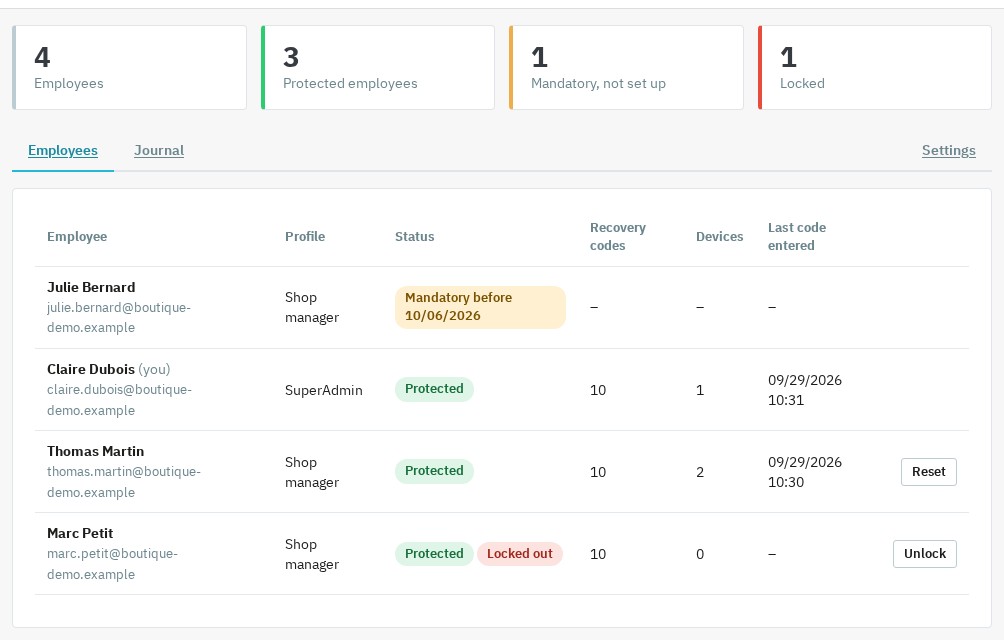 Employee dashboard
Security journal
- Accepted or wrong codes, recovery codes used, lockouts and unlocks, phone changes, new recovery codes, devices added or removed, resets, deactivations
- Filter by employee, paging, IP address and detail of each line; no code or secret is recorded
- Automatic purge once a day (90 days by default)
Emergency access
- 10 recovery codes per employee, single use
- Reset by a super administrator from the dashboard
- Console command
wepresta:2fa:disable(one employee or the whole shop, with a dry run) DISABLE_2FAfile in the module folder: suspends the code request for everybody as long as it exists, with a red banner for super administrators
License and technical notes
- The license never switches the protection off: at expiry only the settings and the dashboard are locked
- No override of the PrestaShop core, no third-party PHP library, archive of less than 250 KB
- Interface available in French, English, Spanish, Italian and Polish
Requirements
- PrestaShop: 1.7.8, 8.2+ or 9.1+. PrestaShop 1.7.7, 8.0, 8.1 and 9.0 are not supported.
- PHP: 7.4 minimum, in a version supported by your PrestaShop, with the
json,opensslandmbstringextensions. - An authenticator app on the phone of each employee concerned (Google Authenticator, Microsoft Authenticator, Authy, 1Password, Bitwarden or equivalent) and a phone clock set automatically.
- HTTPS recommended for the back office.
Installation
Method 1 — from the back office (recommended)
- Download the archive from your WePresta customer area
- Go to Modules > Module Manager
- Click Upload a module
- Select the downloaded ZIP archive
- Wait for the installation to finish, then click Configure and activate your license
Method 2 — via FTP
- Unzip the archive
- Upload the
wepresta_admin_2fa/folder to/modules/ - In the back office: Modules > Module Manager
- Find the module and click Install
- Click Configure and activate your license
What the installation does
- Creates the module tables (enrolments, trusted devices, journal)
- Registers the required hooks and opens the code page and "My two-factor authentication" to every profile, including those created later; the dashboard stays reserved for super administrators
- Initializes the settings: 2FA on, no mandatory profile
Note: as long as you have not chosen a mandatory profile, nobody is forced to set up 2FA. Each employee can turn it on themselves; the settings page and the dashboard warn you if your own account is not protected yet.
Updating from version 1.0.0
- Back up your shop (files and database).
- Upload the 2.0.0 archive in Modules > Module Manager: PrestaShop runs the update.
- The enrolments, recovery codes, journal and your settings are kept. The files of version 1.0.0 that are no longer needed are deleted.
- The trusted devices of version 1.0.0 are no longer recognized: each employee enters their code once per browser.
- The grace period of profiles that are already mandatory restarts on the day of the update.
- If the license check of version 1.0.0 had switched the module off, the update switches it back on.
- Open the settings, check the mandatory profiles and the durations, then check your own sign-in.
Configuration
Access: Modules > Module Manager > Configure. The My two-factor authentication and Open the dashboard buttons are in the same panel.
Settings
- Enable two-factor authentication: when off, nobody is asked for a code; enrolments are kept
- Mandatory for these profiles: profiles for which 2FA is mandatory
- Grace period: 0 to 365 days (7 by default), counted from the day the profile becomes mandatory
- Remember a device for: 0 to 365 days (30 by default); 0 turns trusted devices off
- Tick "remember this device" by default: preselects the box on the code page
- Tie a trusted device to its IP address: stricter check, the code is asked again at every change of address
- Ask the code again after: 1 to 168 hours (12 by default), duration of the verified session
- Wrong codes before a lockout: 1 to 20 (5 by default)
- Lockout duration: 1 to 1440 minutes (15 by default)
- Name shown in the authenticator app: the shop name by default
- Keep the journal for: 7 to 3650 days (90 by default); older events are deleted automatically
License
Activate your license in the module settings. Without an active license, 2FA stays enforced, but the settings and the dashboard are locked behind the license form; a banner invites you to renew the license. Activating or renewing the license reopens the settings.
Turning on your 2FA (employee)
- Open My two-factor authentication in your profile menu (top right of the back office), then click Set it up.
- Install an authenticator app on your phone if you have not already.
- Scan the QR code with the app. On the phone itself, use Open in the app on this phone; otherwise, type the key shown under the QR code.
- Enter the code shown by the app to confirm, then click Turn on two-factor authentication.
- Keep your 10 recovery codes (copy, download or print), then click I saved my recovery codes. They will not be shown again.
During the grace period of a mandatory profile, a banner offers to set up 2FA; afterwards, the set-up page opens by itself. A typing mistake does not change the QR code.
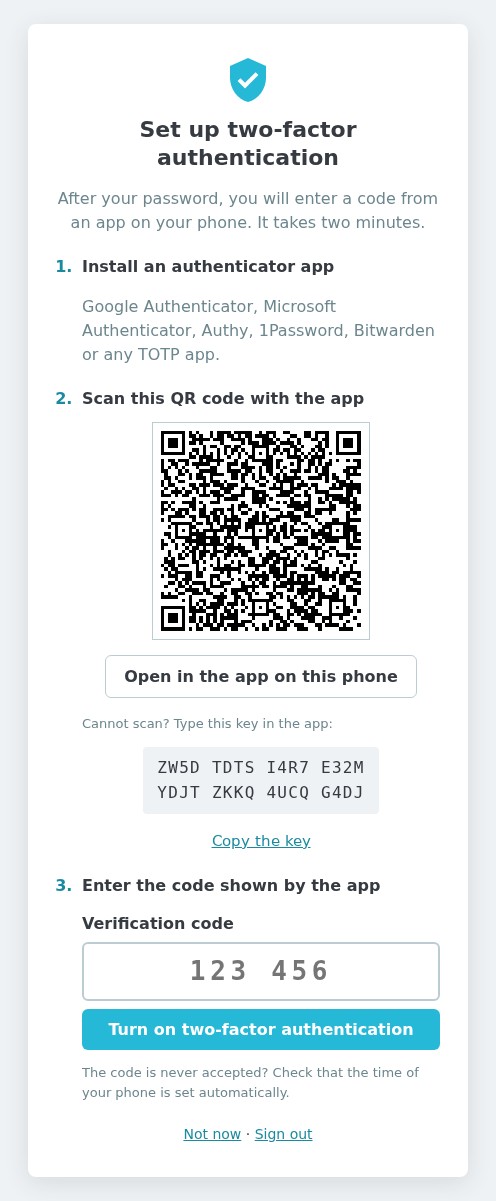 Three-step set-up
At every sign-in
After the password, enter the 6-digit code; it is sent as soon as the sixth digit is typed. Tick Remember this device to skip it on this browser for 30 days. With a recovery code, click Use a recovery code instead.
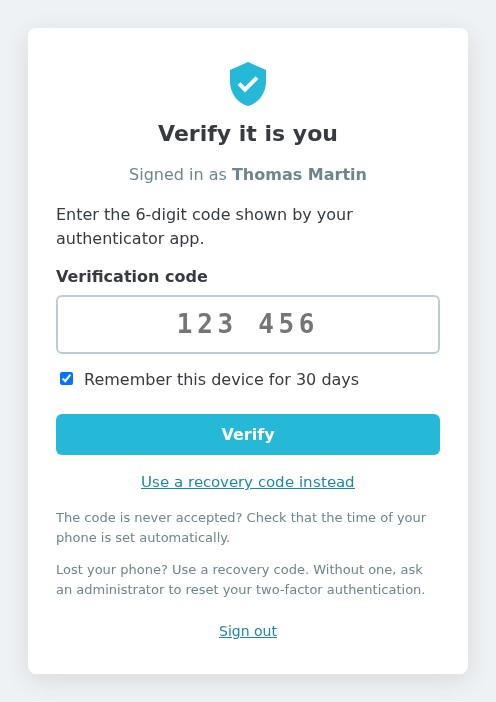 Code page after the password
Managing your 2FA
The My two-factor authentication page lets you:
- Change my phone: a code from the current app (or a recovery code) is asked, then the set-up starts again
- Create new recovery codes: a code is asked and the previous codes are cancelled; an alert appears when few are left
- Remove a trusted device or all devices
- Turn off two-factor authentication, unless your profile is mandatory
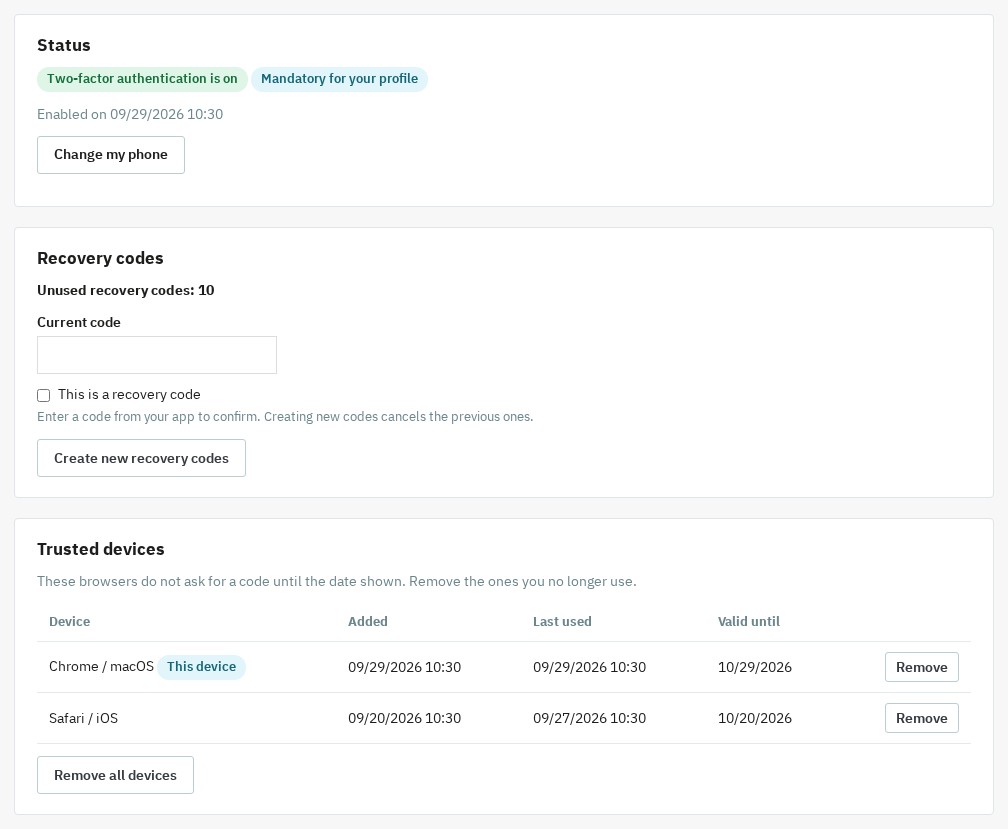 My 2FA: recovery codes and trusted devices
Managing the team (dashboard)
Access: Modules > Module Manager > Configure, Open the dashboard button (super administrators only).
- The four counters give the number of employees, protected employees, mandatory set-ups not done and locked accounts.
- The Employees tab shows for each one: profile, status (Protected, Mandatory before …, Mandatory, to set up now or Off), recovery codes left, devices and last code entered.
- Reset removes the 2FA of an employee who lost their phone; they set it up again at their next sign-in. Unlock lets them try again right away.
- Each action asks for your current code (or a recovery code) in a confirmation panel, and is written to the journal.
- The Journal tab lists the events, with a filter by employee.
Emergency access
From the simplest to the most radical:
- Recovery code: the employee enters one of their 10 codes on the code page.
- Reset by another super administrator from the dashboard.
- Console command, from the shop folder:
php bin/console wepresta:2fa:disable --employee=ID_OR_EMAILremoves the 2FA of one employeephp bin/console wepresta:2fa:disable --allturns the protection off for the whole shop- the
--dry-runoption simulates without changing anything
DISABLE_2FAfile: create an empty file of that name inmodules/wepresta_admin_2fa/. Nobody is asked for a code as long as it exists; a red banner reminds super administrators. Delete it to restore the protection.
To run the purge of the journal and of expired devices on demand: php bin/console wepresta:2fa:purge.
Common use cases
Protect critical accounts within a week
Choose the SuperAdmin profile (and those that reach payments or exports) in Mandatory for these profiles, keep the 7-day grace period, then follow the adoption in the dashboard.
A fixed workstation
The 30-day trusted device limits entry to one code per month and per browser, whatever the IP address.
A shared workstation or a sensitive connection
Set the duration of trusted devices to 0: the "Remember this device" box disappears and the code is asked again after the duration of the verified session (12 hours by default, can be shortened). You can also tie devices to the IP address for a stricter check.
A lost phone
The employee uses a recovery code, or a super administrator clicks Reset in the dashboard.
FAQ
What is the purpose of two-factor authentication (2FA) in the back-office?
2FA adds a second check when signing in to the administration. Even if a password is stolen (phishing, data leak, reused password), the back office stays closed without the temporary code generated on the employee’s phone. It is a direct protection against a store takeover: price changes, order diversion, creation of administrator accounts or export of customer data.
What type of 2FA is used (SMS, email, app)?
The module uses the TOTP standard (Time-based One-Time Password, RFC 6238): a 6-digit code that changes every 30 seconds, generated by an authenticator app. No SMS (costs, deliverability) or email (compromised mailbox) is needed, and the code is generated without a network connection. A phone whose clock is off by one 30-second period is still accepted; a given code works only once.
Which apps are compatible (Google Authenticator, Authy, Microsoft...)?
All TOTP apps: Google Authenticator, Microsoft Authenticator, Authy, 1Password, Bitwarden and their equivalents. Each employee uses the app of their choice, with no proprietary tool imposed. The QR code is scanned with the app; on a phone, the "Open in the app" button or typing the setup key avoids the scan.
Can 2FA be forced only for certain profiles (e.g., SuperAdmin)?
Yes. In the settings you choose the profiles for which 2FA is mandatory, for example SuperAdmin and the profiles that reach payments, modules or exports. The other employees can turn it on themselves from "My two-factor authentication". A grace period (7 days by default) leaves time to get equipped: it runs from the day the profile becomes mandatory, and a banner shows the days left.
How to avoid slowing down the team with a code at every login?
Two mechanisms add up. The trusted device remembers a browser for 30 days (adjustable), whatever the IP address: the employee enters one code per month and per browser, with the "Remember this device" box ticked by default. On a browser that is not remembered, the verification stays valid for 12 hours (adjustable from 1 to 168 hours): a single code per working day. Signing out or removing the device from "My two-factor authentication" asks for the code again. You can also tie a device to its IP address for a stricter check.
What happens if an employee loses their phone?
They sign in with one of their 10 recovery codes (single use), then set up their new app with "Change my phone". If they have no code left, a super administrator opens the dashboard, clicks "Reset" on their row and confirms with their own code: the employee’s 2FA is removed and they set it up again at their next sign-in. Every reset is written to the journal.
Which emergency recovery methods are available?
Four ways, from the simplest to the most radical: the employee’s recovery code; the reset by another super administrator; the console command wepresta:2fa:disable (option --employee with the employee’s ID or email, or --all for the whole shop, and --dry-run to simulate); the empty DISABLE_2FA file placed in the module folder, which suspends the code request for everybody as long as it exists. A red banner reminds super administrators that it is there.
Does the module protect against brute force attacks?
It locks the second step: after 5 wrong codes (adjustable from 1 to 20), the employee is locked out for 15 minutes (adjustable from 1 to 1440 minutes). The lockout is stored in the database: signing in again with the password does not reset the counter. A code is accepted only once. The module does not limit password attempts.
Is there a history of logins and security events?
Yes. The journal of the dashboard, reserved for super administrators, lists with the date, the employee, the IP address and the detail: accepted or wrong codes, recovery codes used, lockouts and unlocks, phone changes, new recovery codes, devices added or removed, resets and deactivations. It can be filtered by employee and never contains a code or a secret. Lines older than 90 days (adjustable from 7 to 3650 days) are deleted automatically.
Does the check also protect forms and AJAX calls of the back office?
Yes. The code is checked before the back office runs anything: pages, forms (POST), AJAX and JSON calls, pages without a menu. With the password alone, a page is redirected to the code page and an AJAX call gets a 401 answer with no data. Known limit on PrestaShop 1.7: the legacy stand-alone scripts backup.php, pdf.php and get-file-admin.php answer to a signed-in employee without going through the PrestaShop core; the settings page points it out and asks you to delete them.
What happens to 2FA if the license expires?
It stays enforced. The license never switches the protection off: at expiry (end of trial, due date, suspended license or license server error), only the settings and the dashboard are locked behind the license form, with a banner. Employees keep signing in with their code. Activating or renewing the license reopens the settings.
Which PrestaShop and PHP versions are supported, and how to update from version 1.0.0?
The module works with PrestaShop 1.7.8, 8.2+ and 9.1+, and PHP 7.4 minimum, with a single archive; PrestaShop 1.7.7, 8.0, 8.1 and 9.0 are not supported. To update, upload the 2.0.0 archive in the module manager: the enrolments, the recovery codes and the journal are kept. The trusted devices of version 1.0.0 are no longer recognized: each employee enters their code once per browser.
Does uninstalling delete the data?
Yes. Uninstalling the module stops the protection and deletes the enrolments, trusted devices, journal and settings of the module; PrestaShop asks for a confirmation first. Once the module is uninstalled, the back office is protected by the password alone again.
Can 2FA be turned off for the whole shop?
Yes, temporarily. The "Enable two-factor authentication" switch in the settings suspends the code request for everybody without deleting the enrolments; turn it back on to restore the protection. For a single employee, use "Reset" in the dashboard or, if their profile is not mandatory, "Turn off two-factor authentication" from their page.
Does the module change the theme or the display of the shop?
No. The module only acts in the back office: it adds nothing to what your customers see, replaces no PrestaShop file (no override) and therefore works with every theme.
Is the 2FA data protected?
Yes. TOTP secrets are stored in an encrypted and authenticated format, recovery codes and trusted-device tokens as digests, and the journal never contains a code or a secret. The keys derive from the PrestaShop encryption key, which is not in the database: a database export alone cannot produce a valid code.
Is a trusted device safe?
It relies on a cookie specific to the employee and the browser (HttpOnly, SameSite=Lax) of which the database keeps only a digest. It expires on the chosen date (30 days by default), the employee can remove it at any time from "My two-factor authentication", and you can tie it to the IP address for a stricter check. On a shared workstation, turn trusted devices off (duration 0).
Troubleshooting
The code is never accepted
- Check that the phone clock is set automatically: a drift of more than 30 seconds makes the code fail
- Wait for the next code if the displayed one has just been used: a code is accepted only once
- After 5 wrong codes, the account is locked for 15 minutes by default: the message shows the time left, or a super administrator clicks Unlock
I can no longer open the back office
- Use a recovery code, or ask a super administrator for a reset
- Otherwise, apply the emergency access: the
wepresta:2fa:disablecommand or theDISABLE_2FAfile
The code is asked too often
- Are trusted devices on (duration above 0) and is the "Remember this device" box ticked?
- Does the browser delete its cookies when it closes, or does the employee use private browsing?
- Is the IP address binding on? The code is then asked again at every change of address
- Was the device removed from "My two-factor authentication"?
The "My two-factor authentication" link does not appear
- Clear the cache: Advanced Parameters > Performance > Clear cache
- The link is in the profile menu, top right, next to "Sign out"
- Check that the module is installed and enabled
After a command-line installation, the check does not seem to apply
- Clear the PrestaShop cache: the module also rebuilds it by itself as soon as it notices the problem (at most once every 10 minutes)
The settings page reports scripts to delete
- On PrestaShop 1.7, the legacy
backup.php,pdf.phpandget-file-admin.phpscripts answer to a signed-in employee without going through the PrestaShop core, so without the check of the module. Delete them if they exist at the root of your shop.
An employee can no longer validate their code after a shop migration
- If the PrestaShop encryption key (
_COOKIE_KEY_) has changed, the stored secrets are no longer readable: the journal shows "Secret unreadable". Reset the employee from the dashboard or with the console command, then they set up their 2FA again.
Changelog
Version 2.0.0
New features
- The module works on PrestaShop 1.7.8, 8.2+ and 9.1+, with PHP 7.4 minimum, in a single archive.
- Every employee has a "My two-factor authentication" page: turn on 2FA, change phone, create new recovery codes, manage trusted devices and, outside a mandatory profile, turn it off.
- The dashboard of super administrators lists the employees (status, due date, recovery codes left, devices, last code entered) and shows the security journal, filterable by employee.
- A super administrator resets or unlocks a colleague from the dashboard, after confirming with their own code.
- A trusted device is remembered for 30 days per browser, whatever the IP address; tying it to the IP address becomes an option.
- The verification stays valid for 12 hours (adjustable from 1 to 168 hours) and ends at sign-out.
- The grace period of a mandatory profile runs from the day it becomes mandatory, with a banner showing the days left.
- The set-up takes two minutes: the QR code is kept after a mistake, the setup key is readable and a button opens the app on a phone.
- The journal and the expired devices are purged automatically once a day; the
wepresta:2fa:purgeconsole command runs the purge on demand.
Improvements
- The code is required before any action of the back office: pages, forms, AJAX and JSON calls.
- Changing phone or creating new recovery codes requires a valid code.
- A code is accepted only once and the phone clock may be off by one 30-second period.
- Secrets are stored in an encrypted and authenticated format; those of version 1.0.0 remain readable.
- The code page is stand-alone, with no menu or back-office link, and is submitted at the sixth digit.
- The license never switches 2FA off anymore: at expiry, only the settings and the dashboard are locked, with a banner.
- Trusted devices show the browser and the system, for example "Chrome / macOS".
- The number of recovery codes left is shown, with an alert when only a few remain.
- Every profile, including those created later, can open the code page and "My two-factor authentication".
- The interface is complete in French, English, Spanish, Italian and Polish, including the license form.
- The module uses no third-party PHP library; the archive weighs less than 250 KB.
Fixes
- With the password alone, it is no longer possible to replace an employee's phone or to display new recovery codes.
- Forms, AJAX calls and pages without a menu no longer run without a code.
- An expired license, an ended trial or a license server error no longer switch the protection off.
- The lockout after wrong codes is no longer reset by a new sign-in.
- The clock tolerance is one 30-second period instead of one second.
- The
wepresta:2fa:disableemergency console command works, and the PrestaShop 9 console no longer stops when the module is active. - The dashboard is reserved for super administrators on every version.
- The grace period no longer depends on the age of the account.
- The automatic purge of the journal and of expired devices runs on PrestaShop 9.
After updating: your enrolments, recovery codes and journal are kept. The trusted devices of version 1.0.0 are no longer recognized: each employee enters their code once per browser. The grace period of profiles that are already mandatory restarts on the day of the update. If the license check of version 1.0.0 had switched the module off, the update switches it back on.
Version 1.0.0
- Initial release
- TOTP authentication
- Backup codes
- Trusted devices
- Admin dashboard
- Audit log
- Emergency recovery methods
Support
For any help, contact us through your WePresta customer area or by email at mail@wepresta.shop, depending on the support option of your plan.
Before contacting us, prepare:
- PrestaShop version
- PHP version
- the event concerned in the dashboard journal
- screenshots
- PrestaShop logs if available