- Scan every text, in every active language
- A dictionary grouped by risk family
- Context lowers the severity, never hides the finding
- A findings table built for the work
- Review each finding and keep the evidence
- Decisions survive the next scan
- Your dictionary, your exceptions
- Scan large catalogues without blocking the back office
- Review log and CSV exports
- Settings and diagnostics
- Read-only by design, with PrestaShop rights
- Is my shop compliant after using the module?
- Which environmental claims does the dictionary detect?
- Is “green” alone flagged?
- What does “severity lowered” mean?
- What happens when I change a text?
- Can I exclude my brand or product name?
- Does the module change my shop or slow down the storefront?
- Does it work in multistore and on PrestaShop 1.7.8?
- What happens without an active license?
- Which languages are covered?
Green claims on PrestaShop: find, review and document the wording to check
Since 27 September 2026, Directive (EU) 2024/825, known as EmpCo, has amended the European rules on unfair commercial practices. A generic environmental claim such as “environmentally friendly” or “eco-responsible” is no longer allowed unless the trader can demonstrate recognised excellent environmental performance, and a product can no longer be presented as “carbon neutral” on the basis of emissions offsetting. The rule concerns product pages, categories, CMS pages, brand descriptions and delivery promises — everywhere your shop talks about the environment, in every language.
EmpCo Green Claims Checker finds that wording in the PrestaShop back office: it reads the texts, groups the findings by risk family, lets you justify, fix or set a permanent exception, and exports the review as evidence. This guide explains what it scans, how to install it, how to run a first scan and how to use it month after month.
Highlights:
- Every text of the shop, in every active language: products, categories, CMS pages, brands, suppliers, features and carrier delivery delays
- A built-in dictionary in six languages, grouped into five risk families, each with its reference to the directive
- Context-aware severity: a percentage, a figure with a unit, a recognised label or a negation lowers the severity, with the reason shown
- A documented review: To do, Justified, Permanent exception or Fixed, with author, date, evidence note and a log that keeps every decision
- Read-only by design: no shop text is changed, nothing is displayed on the storefront, no catalogue data leaves the shop
- Compatible with PrestaShop 1.7.8, 8.0+ and 9.0+, PHP 7.4 minimum, back office only
Discover the module and its plans
Overview
A shop that has been running for a few years has thousands of texts: product names, summaries, descriptions, meta titles and descriptions, category pages, CMS pages, brand texts, supplier texts, feature values, image captions and carrier delays. They were written by several people, sometimes in several languages, and they often contain environmental wording that made sense at the time: “eco-friendly”, “green product”, “CO2-neutral delivery”, “environmentally friendly”, “good for the planet”.
Finding that wording by hand is slow and unreliable. The module gives you an inventory: it reads the selected shop's texts, looks for the expressions of its dictionary and lists what to check, with the excerpt, the object, the field, the language and a link to the edit page in the back office. You then decide: change the text, keep it with evidence, or accept it as a permanent exception.
The module does not decide whether a claim is lawful, does not certify anything and does not replace legal advice. Its references point to Directive 2005/29/EC as amended by Directive (EU) 2024/825; national laws may add their own rules. When in doubt, ask a legal professional. What it does give you is a repeatable way to know what your shop claims, and a log that shows what you checked and when.
It is aimed at B2C shops in the European Union that mention the environment in their texts: cosmetics, fashion, home, baby, garden, food, zero waste, and any shop that advertises carbon-neutral delivery. Agencies managing several shops can scan each one and export a status report per client.
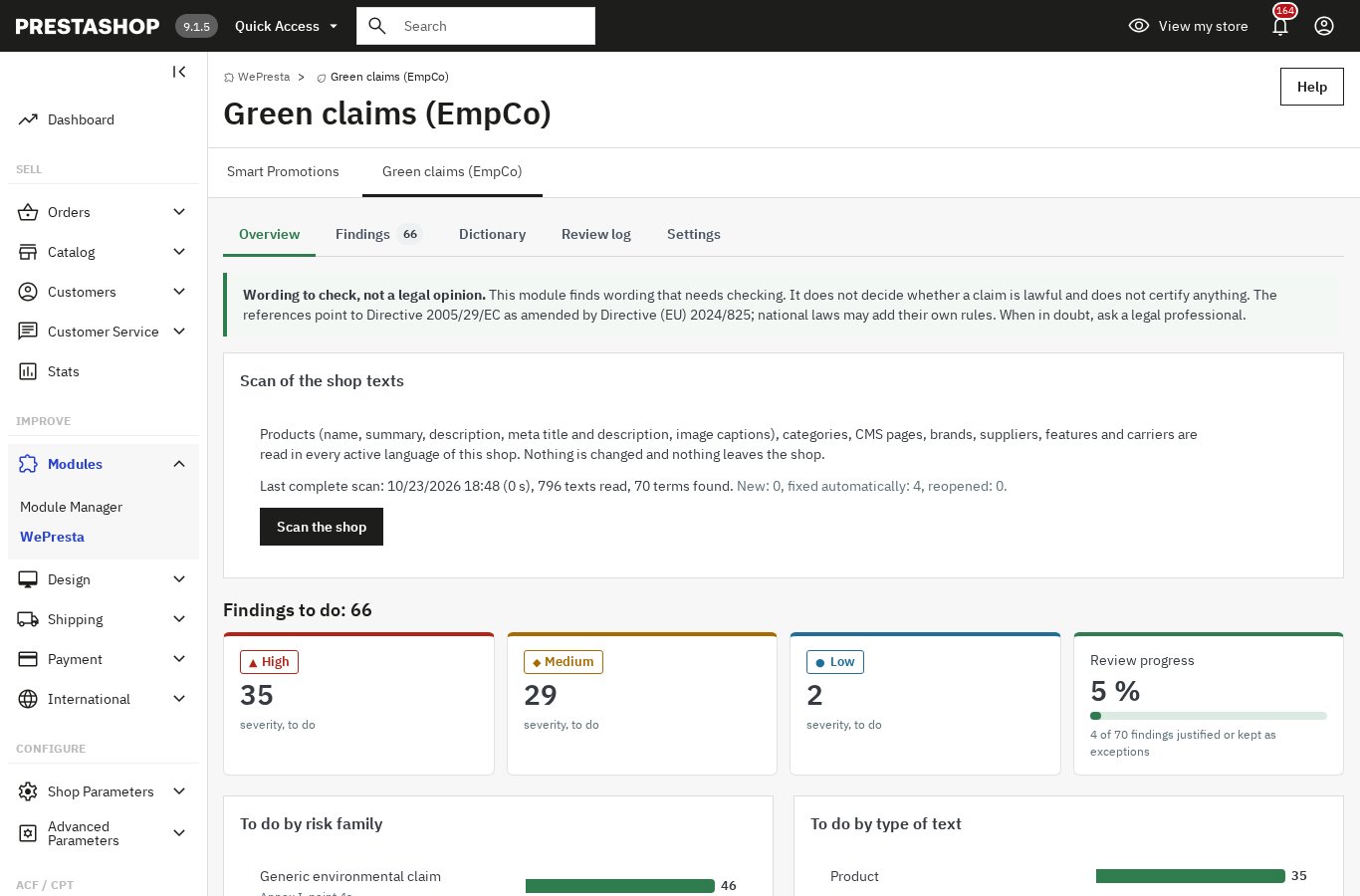 The scan result at a glance: findings to check, by severity, family and type of text
Features
Scan every text, in every active language
For the shop selected in the back office, the module reads each active language of that shop and covers:
- products: name, summary, description, meta title, meta description and image captions;
- custom feature values attached to products;
- categories: name, description, additional description when the PrestaShop version provides it, meta title and meta description (the root category is skipped);
- CMS pages: meta title, SEO title when present, meta description and content;
- brands: name, short description, description, meta title and meta description;
- suppliers: name, description, meta title and meta description;
- features: name;
- feature values that are not custom;
- carriers: name and the delivery delay shown to customers.
Disabled products, categories and pages are scanned too: they may be enabled later, and their findings carry a “disabled” badge so that you can fix them before they go live. Names that are not translated (brands, suppliers, carriers) are stored for all languages and checked against the dictionary of every active language.
Nothing is written to the shop. The module only reads the columns that exist on the running PrestaShop version, so a missing column never breaks the scan.
A dictionary grouped by risk family
The built-in dictionary exists in French, English, German, Spanish, Italian and Polish. Each term belongs to a family, displayed with every finding and its legal reference:
- generic environmental claim — Annex I, point 4a;
- carbon neutrality based on offsetting — Annex I, point 4c;
- sustainability label without certification — Annex I, point 2a;
- future environmental performance without a verifiable plan — Article 6(2)(d);
- legal requirement presented as a distinctive feature — Annex I, point 10a.
(“Annex I” is Annex I to Directive 2005/29/EC as amended by Directive (EU) 2024/825; “Article 6(2)(d)” is the same directive.)
Ambiguous words are handled as phrases, never alone: “green” is not flagged, “green product” is; the French “durable” (long-lasting) is only checked inside phrases such as “mode durable”; “bio” alone is never flagged, “biodegradable” is. Matching works on whole words, ignores accents and case, and recognises inflected forms, so “klimaneutral”, “klimaneutrale” or “ekologiczny”, “ekologiczna” are found by one entry. By default, English terms are also looked for in the texts of the other languages, because “eco-friendly” or “carbon neutral” often appear in a French or German product page; a setting switches this off.
Context lowers the severity, never hides the finding
In the sentence around the match (at most 150 characters on each side), the module looks for a specification that changes how the claim should be read:
- a percentage (“30 %”) or a figure with an environmental unit (kg, g, t, kWh, l, CO2, CO2e, km, ppm) — years do not count;
- a recognised label or certification: EU Ecolabel, Blauer Engel, Nordic Swan, Austrian Ecolabel, NF Environnement, ISO 14024, FSC, PEFC, GOTS, OEKO-TEX, Cradle to Cradle, the EU organic logo, Ecocert, Demeter, Naturland, COSMOS, NATRUE;
- a negation in the five words before the term (“not”, “no”, “never”, and their equivalents in the other languages).
When one of these is found, the severity drops by one level (high to medium, medium to low, low stays low) and the reason is displayed: “Figure or percentage nearby”, “Label or certification nearby”, “Negation before the term”. The finding remains in the list and in the counts. The module never decides that a claim is fine on its own; it gives you the context to judge faster.
A findings table built for the work
The Findings screen filters by severity, family, object type, language, term, status and a free search in the object name, the term or the excerpt. The table shows 50 findings per page, sorted by severity and then by object, with:
- the severity badge, the original severity when it was lowered, and the reasons as text;
- the term and its family, with the legal reference;
- the object (type, name, id) and a “disabled” badge when relevant;
- the field and the language;
- the excerpt with the term highlighted, and the number of occurrences in that field;
- the status, the reviewer and the date;
- two actions: Edit the text (opens the back-office edit page in a new tab) and Review.
A bulk action sets a status, with a note, for the selected rows or for all the findings that match the current filters. The confirmation shows the count, and a single action is limited to 5,000 findings so that a filter is narrowed first.
Review each finding and keep the evidence
The review dialog shows the term, family and reference, the severity and its reasons, the object and field, the excerpt, the status choices and the history of the finding. It is a native dialog, usable with the keyboard, and focus returns to the table when it closes.
Four statuses are available:
- To do: the default status; the wording still needs a decision.
- Justified: you hold the evidence (a certificate, a measurement, a recognised label). A note is required and describes that evidence.
- Permanent exception: the wording is accepted for a durable reason and stays accepted even if the text changes.
- Fixed: you changed the text; the next complete scan confirms it.
Each change records the employee (id and name), the date and the note, and the log is append-only: an earlier review is never overwritten.
Decisions survive the next scan
At the end of a complete scan, the module compares the findings with the current texts:
- a term that has disappeared (object deleted, field emptied, term removed, language deactivated) is automatically set to Fixed;
- a Justified finding whose text has changed goes back to To do, with the log entry “Text changed: to review again”; the evidence note stays in the history;
- a Permanent exception stays a permanent exception even if the text changes;
- a Fixed finding whose term is still present goes back to To do, with the log entry “Reopened: term found again”.
“Text unchanged” means the same fingerprint of the field text (HTML removed, spaces collapsed) as when the status was set. A status changed by the scan shows “Scan” and the date as the reviewer.
Your dictionary, your exceptions
The Dictionary screen lists the built-in terms, filtered by language and family. Each term shows its readable pattern, family, severity and an Active switch; disabling a term takes effect at the next scan and asks for no confirmation.
Three tools adapt the dictionary to your shop:
- My terms: add a phrase, for one language or all languages, with a family and a severity. A term must be 3 to 120 characters and may end with
*to match any ending; regular expressions are never accepted. - Built-in terms: switch off a term that does not concern your shop.
- Allow-list: add a brand or product name such as “Green Valley”; a match inside an allow-listed phrase is ignored, and those matches are counted in the scan summary.
The dictionary and the allow-list are global to the shop installation, not per shop of a multistore.
Scan large catalogues without blocking the back office
A scan is started from the Overview by an employee with the edit right, for the shop of the context. In an “All shops” or group context, the module asks you to select one shop.
The scan processes the object types in batches, with a time budget per request, and shows a progress bar with the number of objects done, the total counted at the start and the current object type. If you close the page, the scan stays “running” and the Overview shows where it stopped and offers Resume the scan or Start again. A database lock per shop prevents two tabs from processing the texts of the same shop at once; the second tab waits and retries.
At the end of a complete scan, the summary shows the texts read, the findings (new, still present, fixed automatically, reopened), the matches ignored by the allow-list and the duration. Cancelling a scan keeps the findings already written and closes nothing automatically.
Review log and CSV exports
The Review log lists every action: date, employee, action (review, automatic fix, reopened, text changed, removed because the term was disabled or allow-listed), status before and after, note, term, object, field and language. It filters by period and action, shows 50 entries per page and exports to CSV.
Two CSV exports are available: the findings with the current filters (severity, original severity, context, family, reference, term, matched text, object type, id and name, field, language, excerpt, occurrences, status, note, reviewer, review date, first and last seen) and the review log with the current filters. Files are UTF-8 with a BOM and a semicolon separator, open directly in a spreadsheet, and protect against formula injection; no back-office link, and therefore no token, is included.
Settings and diagnostics
The configuration page shows the license form first when the license is inactive, then the disclaimer and the settings:
- Also look for the English terms in every language (on by default, per shop);
- Delete the findings, the review log and the dictionary when the module is uninstalled (off by default);
- Delete the findings and the review log of this shop, with a confirmation and the delete right;
- a diagnostic with the PrestaShop and PHP versions, mbstring, Unicode PCRE, the shop languages with or without a built-in dictionary, the number of findings and the date of the last scan.
Read-only by design, with PrestaShop rights
The module never writes a shop text. It has no storefront hook, adds no file to the shop and makes no outgoing request, apart from the license check of the licensed edition, which sends no shop text. The storefront is unchanged.
Access follows the PrestaShop rights of the menu entry: view for the pages and exports, edit for the scan, the review and the dictionary, delete for the reset. Buttons are hidden without the right, and every action is checked server-side. Every action that changes data is protected by a token tied to the employee.
Installation
- Download the module archive from your WePresta customer account.
- In the back office, open Modules > Module Manager and click Upload a module.
- Upload the ZIP file.
- Click Configure to activate your license, then open the module from the button on the page or from WePresta > Green claims (EmpCo) (Modules > Green claims (EmpCo) when the shop does not have the WePresta menu).
Installation creates four tables (scans, findings, review log, dictionary terms) and the menu entry. It does not modify any shop text or theme file. If a table cannot be created, the installation is rolled back, leaving no half-installed module.
Configuration and first scan
- In Settings, activate the license and check the diagnostic: PrestaShop and PHP versions, mbstring, Unicode PCRE and the languages of the shop. A language without a built-in dictionary is listed: its texts are still scanned with your own terms and the English terms.
- Open Overview, check that the right shop is selected at the top of the page, and click Scan the shop.
- Keep the page open while the progress bar runs. On a large catalogue you can close it and resume later from the Overview.
- Open Findings and start with the high severity. Use the filters (family, object type, language, term, status) and the search to work by batch.
- For each finding, either change the text with Edit the text, or open Review and set Justified with the evidence note, or Permanent exception. After changing a text, you can also mark the finding Fixed: the next scan confirms it.
- Run a new scan after your corrections: the terms that have disappeared are set to Fixed automatically, and the Justified findings whose text changed come back for a new review.
- Export the findings and the review log to CSV and keep them with your evidence.
In a multistore, select the shop at the top of the page before scanning or reviewing. The dictionary, the allow-list and the “delete on uninstall” setting are shared by the installation; the “English terms everywhere” setting is per shop.
Use cases
Preparing a new collection or a catalogue update. Run a scan before publishing: the wording of new products, categories and CMS pages is checked in every language, and you correct it before it reaches customers.
Answering a customer, a marketplace or an authority. The findings and the review log export to CSV with author, date and evidence note. You can show what you checked, what you changed and what you decided to keep, with the reason.
Working in several languages. A French shop that also sells in German, Spanish and Italian can scan every language with the same dictionary, and check language-neutral brand and carrier names against all of them. German texts are covered by the German dictionary even if the interface is used in English or French.
Auditing delivery promises. Carrier names and delivery delays are scanned like product texts: “carbon-neutral delivery”, “green shipping” and similar phrases in a carrier name or delay appear in the findings with a link to the carrier settings.
Agencies and multistore. Each shop has its own findings, log and scan; an agency can scan a client's shop and export a status report without mixing it with another client's data.
Requirements and compatibility
- PrestaShop 1.7.8, 8.0+ and 9.0+
- PHP 7.4 or later, with the mbstring extension and Unicode support in PCRE
- Back office only: no theme dependency, no storefront change
- Interface in English, French, Spanish, Italian and Polish; built-in dictionary in French, English, German, Spanish, Italian and Polish
- Multistore: findings, scans and the log are per shop; the dictionary and the allow-list are global
- An active license is required to scan, review and change the dictionary; without a license, the findings and the review log stay readable and exportable
What is not scanned: product tags, attachments, availability and delivery messages, texts added by third-party modules (reassurance blocks, blogs, e-mails), images and other content languages without a built-in dictionary (Dutch, Portuguese, Czech, and others — their texts are only checked with your own terms and the English terms). These limits are deliberate: the module checks the texts it can read reliably, and says so.
FAQ
Is my shop compliant after using the module?
The module cannot guarantee it and does not claim to. It finds wording that needs checking, shows the risk family and its reference, and records your decision. A claim can be lawful when it is backed by a certification, a measurement or a recognised label; documenting that evidence is your responsibility. The module does not give legal advice or certify anything. For a legal opinion, consult a professional.
Which environmental claims does the dictionary detect?
Five families: generic environmental claims (Annex I, point 4a), carbon neutrality based on offsetting (4c), sustainability labels without certification (2a), future environmental performance without a verifiable plan (Article 6(2)(d)) and legal requirements presented as a distinctive feature (10a). The dictionary contains 40 to 60 entries per language; you can add your own terms and disable entries that do not concern your shop.
Is “green” alone flagged?
No. Ambiguous words are handled as phrases: “green” alone is not flagged, “green product” is. The same applies to the French “durable” (long-lasting), which is only checked inside phrases, and to “bio”, which is never flagged alone but is found in “biodegradable”. Matching uses whole words, ignores accents and case and recognises inflected forms.
What does “severity lowered” mean?
When the sentence around the term contains a percentage, a figure with an environmental unit, a recognised label or certification, or a negation, the severity drops one level and the reason is displayed. The finding stays in the list and in the counts; the module only helps you judge faster, it does not hide anything.
What happens when I change a text?
At the next complete scan, a finding whose term has disappeared is automatically set to Fixed. A Justified finding whose text has changed goes back to To do so that you check the new text; the earlier note stays in the history. A Permanent exception stays an exception even if the text changes.
Can I exclude my brand or product name?
Yes, with the allow-list. Add a phrase such as “Green Valley” once; any match inside that phrase is ignored by the scan, and the ignored matches are counted in the scan summary. You can also disable a built-in term, or add your own terms by language and family.
Does the module change my shop or slow down the storefront?
No. It is read-only: it rewrites no text and changes no shop content. It has no storefront hook, displays nothing to customers and adds no script to your pages. No data leaves the shop, apart from the license check of the licensed edition, which sends no catalogue text.
Does it work in multistore and on PrestaShop 1.7.8?
Yes. Each shop has its own findings, log and scan; when several shops are selected, the module asks you to choose one. It works on PrestaShop 1.7.8, 8.0+ and 9.0+ with PHP 7.4 minimum, in the back office only, so it is independent of the theme.
What happens without an active license?
Your findings, the review log and their CSV exports stay readable: they are your evidence of due diligence and do not disappear. The license form appears first in the settings, and scanning, reviewing and changing the dictionary are disabled until activation. The module never disables itself.
Which languages are covered?
The interface is available in English, French, Spanish, Italian and Polish. The dictionary covers French, English, German, Spanish, Italian and Polish, and English terms are also searched in the other languages by default. A shop language without a built-in dictionary (Dutch, Portuguese, Czech, and others) is still scanned with your own terms and the English terms; the diagnostic lists it.
Support
For help, contact us from your WePresta customer account or by e-mail at mail@wepresta.shop, according to the support option of your plan.
Before writing, prepare:
- the PrestaShop and PHP versions;
- the theme used;
- the address of the page concerned and a screenshot of the finding.
Changelog
Version 1.0.0
- Scan the products, categories, CMS pages, brands, suppliers, features and carriers of a shop, in every active language.
- Find risky wording with a built-in dictionary in six languages, grouped into five risk families with their legal reference.
- Lower the severity, with the reason shown, when a percentage, a figure with a unit, a recognised label or a negation is nearby.
- Filter the findings by severity, family, object, language, term and status, search them and open the edit page in one click.
- Review each finding as To do, Justified with evidence, Permanent exception or Fixed, with author, date and history.
- Keep your decisions from one scan to the next; findings whose term has disappeared are set to Fixed automatically.
- Add your own terms, disable built-in terms and allow-list brand or product names.
- Export the findings and the review log to CSV for your evidence file.
- Scan large catalogues in batches, resume an interrupted scan and work per shop in multistore.
- Use the module on PrestaShop 1.7.8, 8.0+ and 9.0+ with PHP 7.4 minimum, in the back office only.
