- Track thresholds and compute the quantity to order
- Prepare a purchase order
- Send it to the supplier, in their language
- Receive, fully or partially
- Supplier returns and purchase cost
- Track open orders and late deliveries
- Reports
- Rights, action log and multistore
- CSV import and export
- How does the module compute the quantity to order?
- Does the module order from the supplier automatically?
- Do I need Advanced Stock Management or warehouses?
- Can I manage several suppliers for one product or combination?
- What happens if the delivery is incomplete or differs from the order?
- Is the purchase cost updated on receipt?
- How is the purchase order sent to the supplier?
- Does the module work in multistore?
- Which rights can I give my employees?
- What happens without an active license or after uninstalling?
Supplier restocking on PrestaShop: reorder points, purchase orders and receiving
A stock-out is often discovered too late: the product has been sold, the parcel is being packed, and nobody saw the threshold being crossed. Supplier restocking is the work of deciding what to order, preparing the purchase order, sending it to the supplier and recording the delivery while updating stock. In PrestaShop, this still often happens in a spreadsheet and an e-mail inbox.
Supplier restocking brings that cycle into the back office: it computes the quantity to order from your thresholds, the available stock and the stock already on order, prepares the purchase order, sends it to the supplier as a PDF and updates stock on receipt, partial deliveries included. It works on PrestaShop’s simple stock, with no warehouse to configure and no third-party account to open.
The module computes and prepares; a person decides. It never places, sends or receives an order on its own.
Highlights:
- The suggested quantity: target stock minus available and incoming stock, never below safety stock, rounded to the supplier’s minimum order quantity and pack size
- The purchase order: draft, sending, reprint, duplication and status tracking
- Sending to the supplier: PDF and e-mail in their language, or CSV export
- Receiving: full or partial, line by line, with discrepancy, reason and stock movement
- Monitoring: open and late orders, returns, purchase cost, reports and per-employee rights
Discover the module and its plans
Overview
Restocking relies on three pieces of information: what is left in stock, what is already on order and the level at which you need to reorder. When those three live in different places, two mistakes keep coming back. You order too late, because nobody saw the threshold. Or you order twice, because the order sent the day before is not visible when you take stock again.
The module brings that information together in one dashboard, per product and per combination. It does not replace the way you negotiate with suppliers: it prepares the documents, computes the quantities and updates stock. You keep the decision, the validation and the sending.
It is made for shops that hold and replenish stock, especially those that still order by e-mail or spreadsheet and do not use PrestaShop’s Advanced Stock Management. Products managed by Advanced Stock Management warehouses remain visible but cannot be received through the module: their stock is managed elsewhere.
The module is back office only. It adds no page and no script to the storefront: Classic, Hummingbird and custom themes need no adaptation.
Features
Track thresholds and compute the quantity to order
Each product without combinations, and each combination of a product, is a stock unit tracked separately. For each unit you set a reorder point, an optional target stock and an optional safety stock, or you disable restocking. A product without a threshold is not tracked.
The Restocking dashboard shows, for each tracked unit:
- the available stock;
- the incoming stock from open orders, drafts included;
- the reorder point, target stock and safety stock;
- the suggested quantity, which you can edit before creating the draft;
- the proposed supplier and its unit cost;
- a state: to order (out of stock, below safety stock or below the reorder point), covered by incoming deliveries, sufficient, or restocking disabled.
The suggested quantity starts from the target stock (or the reorder point when no target is set), removes the available and incoming stock, never falls below safety stock and is rounded to the supplier’s minimum order quantity and pack size. Drafts count as incoming stock: a product already in a draft is not suggested a second time.
Tiles and filters show what to order, what is out of stock, below safety stock, covered by incoming deliveries, in an open purchase order or late. A daily e-mail alert repeats the products to order, with the drafts created the same day. No restocking order is triggered automatically.
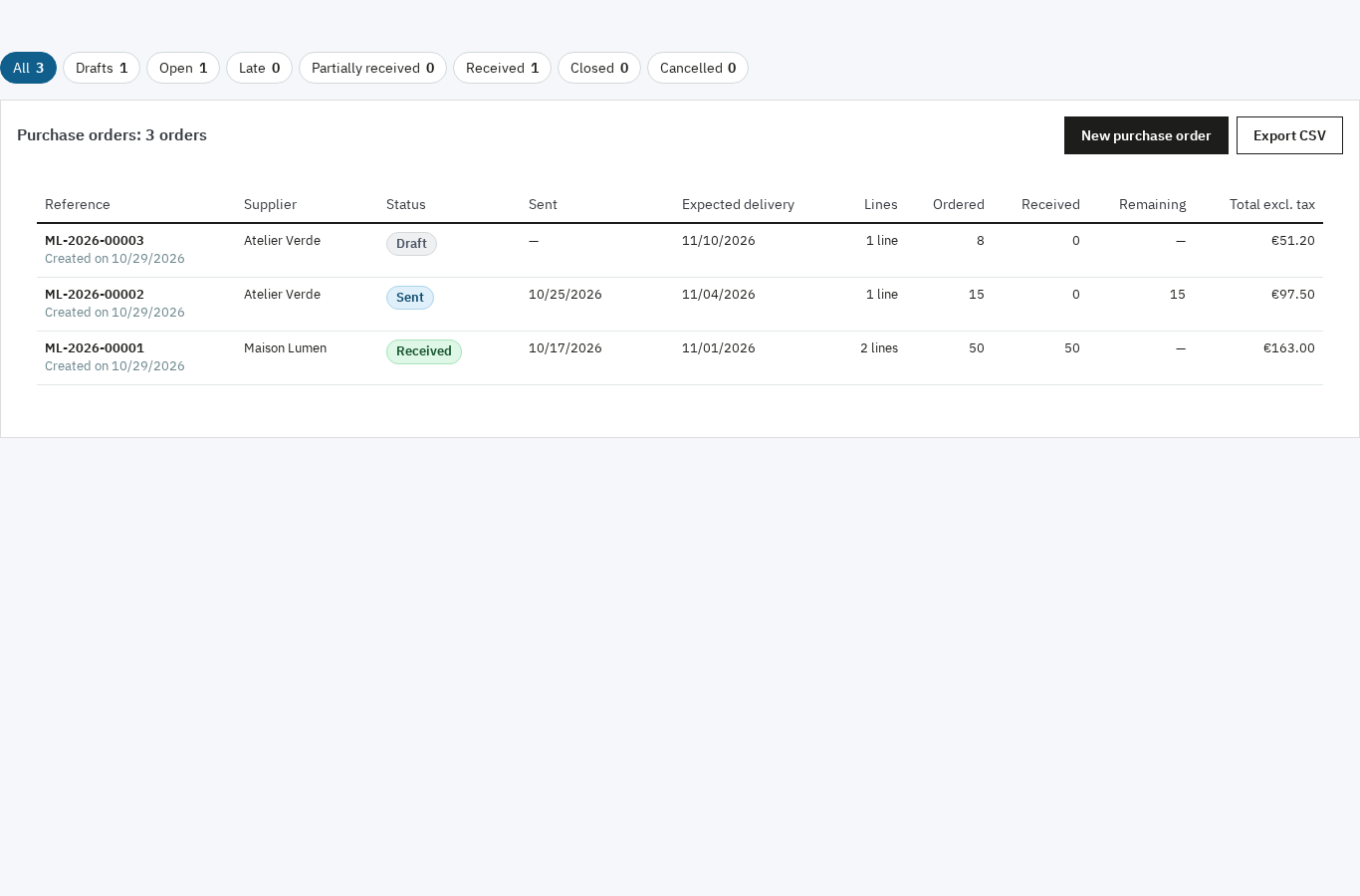 Every purchase order and its status at a glance
Prepare a purchase order
From the suggestions, select the lines to order. The module groups them by supplier and adds them to the supplier’s open draft, or creates a new draft. You can also create an order manually and add products one by one.
Each line carries the quantity, unit cost excluding tax, discount and tax rate. Tax-excluded and tax-included totals are recalculated by the server, including shipping and its tax. The reference is automatic, for example PO-2026-00042, and the exchange rate is frozen when the order is sent.
The module flags, without ever blocking:
- a total below the supplier’s minimum order value;
- the amount remaining to reach the free-delivery threshold;
- a quantity below the minimum order quantity or not a multiple of the pack size;
- an inactive product.
A product or combination can have several suppliers, each with its own supplier reference, cost, minimum order quantity, pack size and lead time. The preferred supplier is suggested by default. Module suppliers are your PrestaShop catalogue suppliers: a supplier created here is also a native supplier of the shop.
Send it to the supplier, in their language
The purchase order downloads as a PDF at any time. It contains your details, the supplier’s details and reference, the dates, the currency and frozen rate, the lines with quantities, costs, discounts and tax, the totals and your message. The PDF is generated in the supplier’s language.
The e-mail is sent from the shop with the PDF attached and, if you wish, the CSV. The subject and message are prefilled in the supplier’s language and remain editable. A copy can be sent to you. If sending fails, the status does not change and the error is shown.
You can also export the order as CSV, or mark it as sent if you pass it on by phone or another channel. A sent order can be reprinted, resent or duplicated for the next restock; its lines can no longer be edited, only the expected delivery date and internal notes remain editable.
Receive, fully or partially
On delivery, open the order and enter the quantities received line by line. Each line shows the quantity ordered, already received, already closed, remaining, and the quantity received now. One button fills the remainder, another clears the input.
The module accepts a partial receipt, an over-delivery and a discrepancy. When the received quantity differs from the remaining one and the line stays open, a reason is required: short delivery, damaged, wrong item, over-delivery or other. You can also tick “Nothing more expected” to close a line’s remaining quantity, or close all remaining quantities of the order.
On saving, available stock is updated immediately with a “Supplier order receipt” stock movement. Each receipt is recorded only once: a resubmitted or refreshed form is not applied twice. The order status becomes “Partially received”, “Received” or “Closed” depending on what remains.
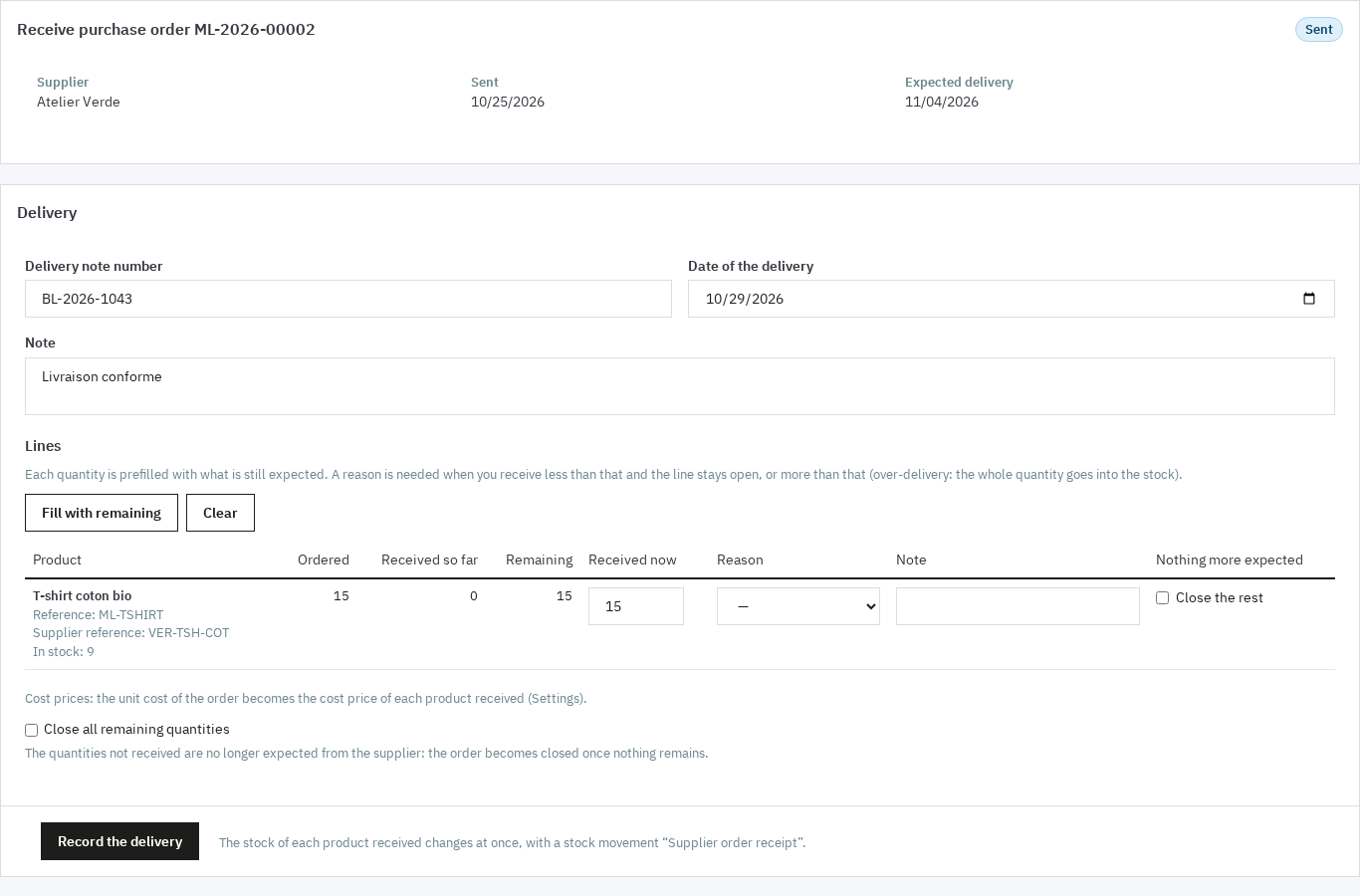 Receive a delivery line by line and update stock in the same form
Supplier returns and purchase cost
A return is entered from a partially received, received or closed order. For each line, the module shows the quantity received, already returned and still returnable. You enter the quantity to return and the reason: damaged, wrong item, excess, quality or other. By default the quantity is removed from available stock with a “Return to supplier” movement; you can untick the option if the goods have already been taken out another way. A return slip PDF is available in the history.
On receipt, the product’s purchase cost can be updated according to the chosen setting: last cost, weighted average cost, or no change. The cost used is the order’s unit cost, after discount and converted into the shop currency. Each update leaves a history entry with the old and new cost, the received quantity, the stock before and the employee. Returns do not change the cost.
Track open orders and late deliveries
The purchase order list filters by status: all, drafts, open (sent and partially received), late, partially received, received, closed, cancelled. It shows the reference, supplier, shop, status, sending date, expected delivery date with days late, number of lines, ordered, received and remaining quantities, and the total excluding tax.
The Open lines view gathers every line that still has a remaining quantity, with the product, order, supplier, shop, quantities and expected delivery date. It exports to CSV and serves as a chasing list. The Purchase orders menu badge shows the number of late orders.
Reports
Reports cover a period, with shortcuts for this month, last month, the last three months, this year and the last twelve months. Every report exports to CSV with all its rows.
- Purchases by supplier: number of orders sent, ordered value excluding tax, received value, returned value and outstanding value, with a total row.
- Purchases by product: ordered, received and returned quantities, received value, average received unit cost and number of suppliers.
- Stock value at purchase cost: available quantity, purchase cost and value per product, with products without a cost flagged and a total.
- Receiving lead time: per supplier, number of orders, average time to first receipt, average time to complete receipt, promised lead time and share of first receipts that were late.
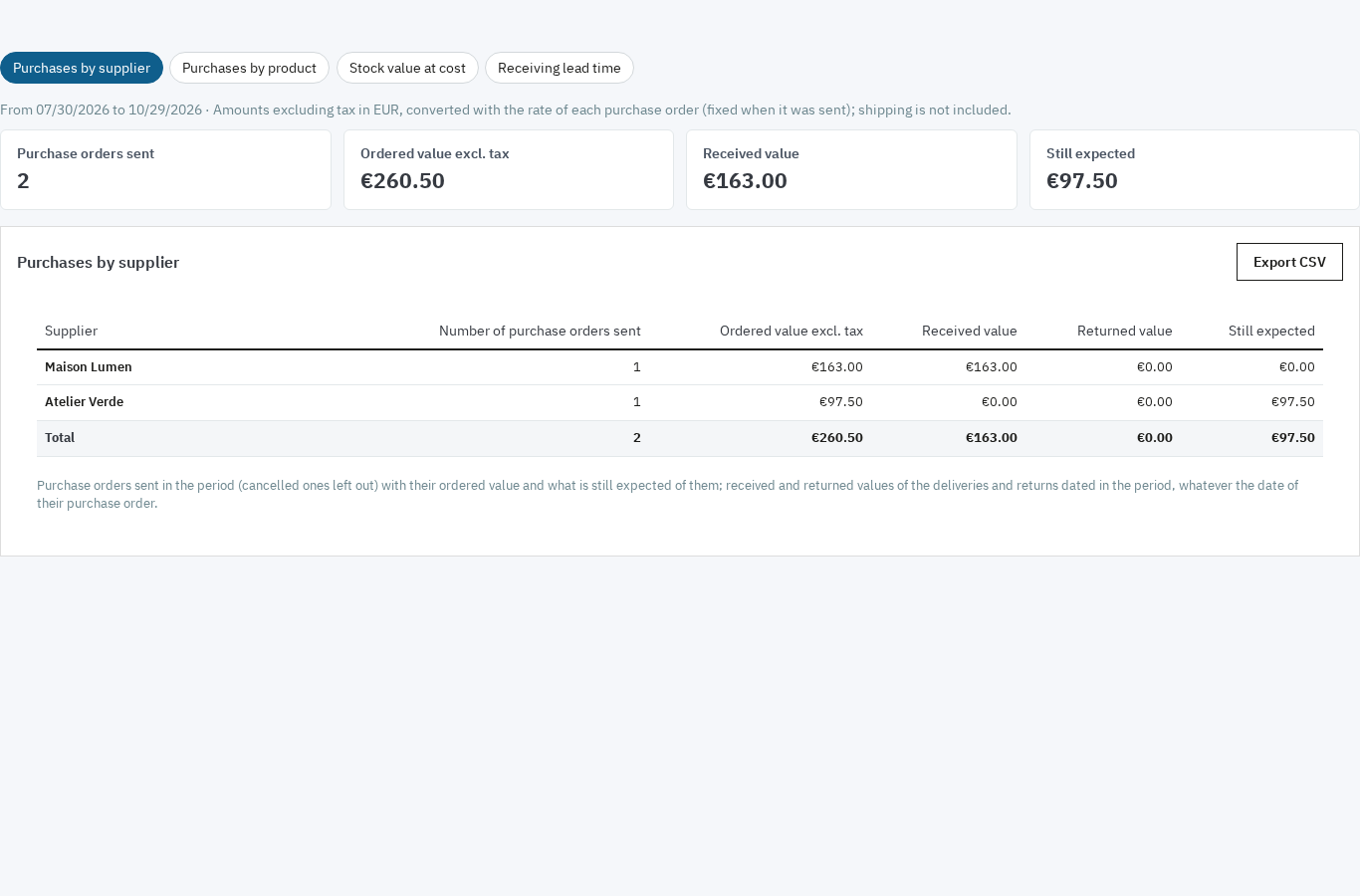 Purchases by supplier over a period: ordered, received, returned and still outstanding
Rights, action log and multistore
Four rights can be given to each employee: view, create, send and receive. Super administrators have every right. Buttons an employee may not use are hidden, and every action is checked on the server. The action log keeps the date, employee, object, action and details of each change; it can be filtered and exported to CSV.
In multistore, thresholds, stock, orders, receipts, returns and costs belong to one shop. Receiving updates the stock of the order’s shop. Suppliers can be shared between shops or specific to some of them, and alert, automatic generation and PDF settings are stored per shop.
CSV import and export
Import and export cover three sets: thresholds, product-supplier links and suppliers. A file is first analysed line by line, with the number of creations, updates, unchanged lines and errors; nothing is saved before you apply the result. Columns can be in any order, the separator is detected and UTF-8 is accepted with or without BOM.
The threshold export gives one line per stock unit, with the reorder point, target stock, safety stock and restocking state. It also serves as a template to equip an existing catalogue. The Import from the catalogue button reuses the suppliers already associated with products in PrestaShop, without ever modifying native data.
Installation
- Download the module archive from your customer account.
- In the back office, open Modules > Module Manager and click Upload a module.
- Select the ZIP file; PrestaShop installs the module, its tables and its menu entry.
- Click Configure and activate your license.
- Open the module from the configuration page or from the Modules > Supplier restocking menu (on PrestaShop 9, WePresta > Supplier restocking).
Installation also creates the two stock movement reasons used by the module: “Supplier order receipt” and “Return to supplier”. No storefront page is changed.
First configuration
- Suppliers: review the suppliers already in your catalogue and complete, for each one, the order e-mail, language, currency, lead time, minimum order value, free-delivery threshold and payment terms. Existing suppliers appear immediately, with a “Not completed” badge while their ordering details are missing.
- Product-supplier links: on the module’s product record, add for each product or combination the supplier, its reference, the unit cost excluding tax, the minimum order quantity, the pack size and the lead time, then choose the preferred supplier. The import from catalogue button reuses the suppliers already associated with products in PrestaShop.
- Thresholds: enter the reorder point, target stock and safety stock on the product record, in the Products list, or through CSV import. Leave the three fields empty to stop tracking a product.
- Settings: enable the daily alert and choose its recipients and hour, enable automatic draft generation if you wish, and choose the cost update mode, reference prefix, default tax rate, delivery address and PDF footer.
- Scheduled task: copy the address with its token or the command shown in the settings and have your host call it every hour. The task sends the alert, creates automatic drafts and cleans old files and logs. The last run is shown in the settings.
- Test: use Send the alert now to check that the e-mail arrives, then create a test purchase order and download its PDF.
Day-to-day use
In the morning. Open the dashboard and the alert e-mail. Products to order are ranked by urgency. Check the suggested quantity, choose the supplier when there are several, then create drafts for the selected lines.
Before sending. Open each draft and check the quantities, costs, discount, tax and expected delivery date. Minimum order and free-delivery warnings help you adjust without blocking you.
Sending. Download the PDF for a final check, then send the order by e-mail from the module. The status becomes “Sent” and the exchange rate is frozen. If the supplier confirms by phone, mark the order as sent with a note.
Delivery. Open the order and enter the quantities received. For a partial delivery, enter the reason and leave the line open for the remainder. Stock is updated immediately. If the supplier will not deliver the rest, close the remainder.
Chasing. The Open lines view lists everything still due, with the expected date and days late. Export it to CSV for your follow-up or use it to chase suppliers.
Returns. From a received order, enter the returned quantities and their reason. Stock is adjusted and the return slip PDF is available.
Month end. Open the reports to compare purchases by supplier, stock value at cost and receiving lead times. Export the data for your analysis.
Use cases
Fashion and shoes. A model comes in several sizes and colours. Each combination has its own threshold and target stock. The dashboard shows sizes to reorder separately, with the supplier’s pack size, without ordering a size that is already in a draft.
Food or fresh products. Thresholds are low and deliveries frequent. Partial receiving with a reason records an incomplete delivery without losing the remainder, and the weighted average cost follows purchase price changes.
Garden or seasonal products. Quantities vary widely with the season. Thresholds and target stocks are changed per product or by CSV import, and reports compare purchases from one period to the next.
Multi-shop business. Each shop has its own thresholds, stock and orders. A shared supplier can serve several shops, and receiving updates the stock of the shop concerned.
Agency or manager of several shops. Per-employee rights let some people consult, others create orders, and the logistics team receive, with an action log to see who did what.
Requirements and limits
- PrestaShop 1.7.8, 8.0+ and 9.0+; PHP 7.4 or later.
- Back office only: no theme dependency, Classic and Hummingbird work without adaptation.
- Interface in English, French, Spanish, Italian and Polish; PDFs and e-mails in the supplier’s language.
- PrestaShop’s simple stock. Products managed by Advanced Stock Management warehouses cannot be received through the module; packs and virtual products are restocked through their products.
- No EDI or supplier API connection, no supplier invoice or accounting, no demand forecasting, no dropshipping, no supplier portal, no barcode scanning and no SMS.
- Without an active license, pages remain readable, PDFs and CSV exports stay downloadable and deliveries of orders already sent can still be received. Other changes wait for renewal.
- On uninstall, data is kept unless you tick the option that deletes it.
FAQ
How does the module compute the quantity to order?
It starts from the target stock, or the reorder point when no target stock is set. It removes the available stock and the incoming stock of open orders, drafts included, so nothing is ordered twice. The result never falls below safety stock and is rounded to the supplier’s minimum order quantity and pack size. A product is suggested only when it is at or below its reorder point and something remains to order.
Does the module order from the supplier automatically?
No. It can prepare draft purchase orders, supplier by supplier, and send a daily alert. But no order is sent and no supplier order is placed without your validation. Automatic generation creates drafts that you review before sending.
Do I need Advanced Stock Management or warehouses?
No. The module works on PrestaShop’s simple stock, with no warehouse to configure. Products whose stock is managed by Advanced Stock Management warehouses remain visible but cannot be received through the module. Packs and virtual products are restocked through their products.
Can I manage several suppliers for one product or combination?
Yes. Each product and each combination can have several supplier links, each with its own reference, cost, minimum order quantity, pack size and lead time. A preferred supplier is suggested by default on the dashboard and in automatic generation.
What happens if the delivery is incomplete or differs from the order?
You enter the quantity actually received line by line. A discrepancy or over-delivery requires a reason. Stock is updated with the received quantity and the remaining quantity stays tracked. You can close a line or the whole order if the supplier will not deliver the rest.
Is the purchase cost updated on receipt?
Yes, according to the chosen setting: last cost, weighted average cost or no change. The cost used is the order’s unit cost, after discount and converted into the shop currency. Each update is kept in the product’s cost history.
How is the purchase order sent to the supplier?
The order downloads as a PDF and is sent by e-mail from the shop with the PDF attached. The subject and message are in the supplier’s language. You can also export the order as CSV or mark it as sent if you pass it on another way.
Does the module work in multistore?
Yes. Thresholds, stock, orders, receipts and returns belong to one shop, and receiving updates the stock of the order’s shop. Suppliers can be shared or specific to some shops.
Which rights can I give my employees?
Four separate rights: view, create, send and receive. Super administrators have every right. Unauthorised buttons are hidden and every action is checked on the server. The action log keeps the author and date of each change.
What happens without an active license or after uninstalling?
Without an active license, pages remain readable, PDFs and CSV exports stay downloadable and deliveries of orders already sent can still be received. Other changes wait for renewal. On uninstall, data is kept unless you tick the option that deletes it.
Support
For any help, contact us from your customer account or by e-mail at mail@wepresta.shop, according to the support option of your plan.
Before writing to us, prepare:
- the PrestaShop and PHP versions;
- the module version;
- the purchase order reference or the product name concerned;
- a screenshot of the screen and the exact message.
Changelog
Version 1.0.0
- Compute the quantity to order from thresholds, available stock and incoming stock, with safety stock, minimum order quantity and the supplier’s pack size.
- See products to order, out of stock, below safety stock, covered by incoming deliveries or late.
- Receive a daily e-mail alert and a filterable list of products below their threshold.
- Create draft purchase orders from the suggestions, supplier by supplier, or manually.
- Send the order to the supplier as a PDF by e-mail, in their language, or export it as CSV.
- Receive fully or partially, line by line, with discrepancy, reason and closing of the remaining quantity.
- Update stock and purchase cost on receipt, at last cost or weighted average cost.
- Record supplier returns with a stock movement and a return slip PDF.
- Track open, late and partially received orders, with their outstanding lines.
- Read purchases by supplier and by product, stock value at cost and receiving lead time.
- Import and export thresholds, product-supplier links and suppliers as CSV.
- Give each employee a view, create, send or receive right, with an action log.
- Work shop by shop in multistore, with shared or shop-specific suppliers.
- Use the module on PrestaShop 1.7.8, 8.0+ and 9.0+ with PHP 7.4 minimum.

Related articles
Supplier restocking in PrestaShop: reorder points and purchase orders
A guide to setting reorder points, preparing supplier purchase orders and receiving deliveries without losing track of outstanding quantities.