Supplier restocking in PrestaShop: reorder points and purchase orders
A guide to setting reorder points, preparing supplier purchase orders and receiving deliveries without losing track of outstanding quantities.
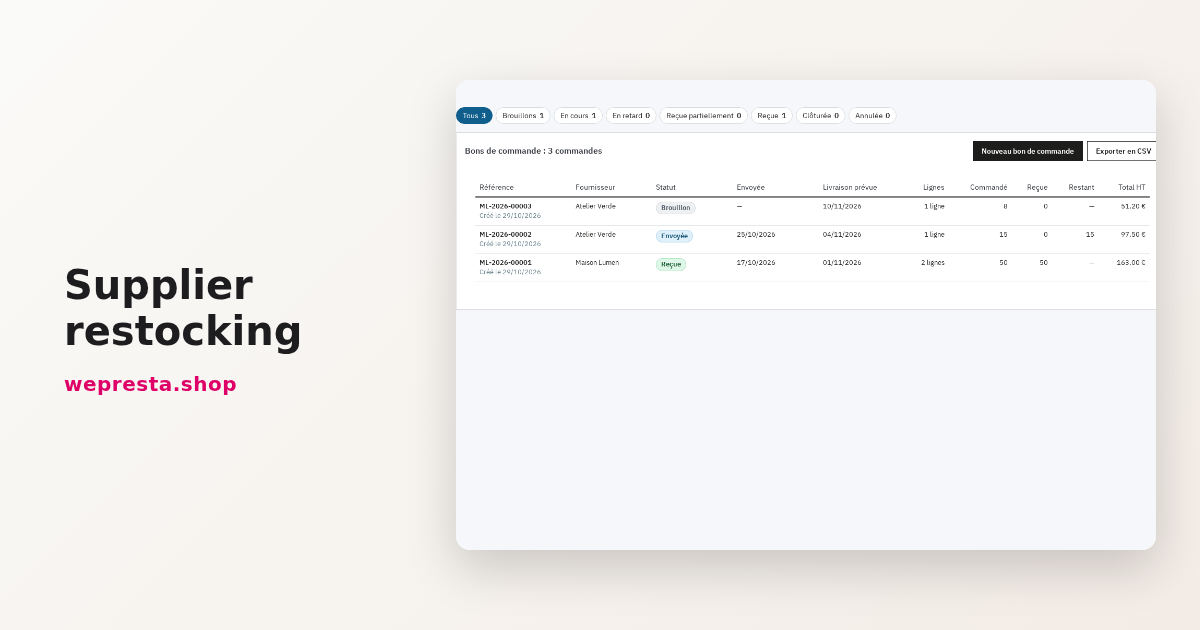
A stock-out usually shows up at the worst moment: the product is sold, the parcel is being packed, and the shelf is empty. The warning signs were there for days. Stock below its reorder point, a purchase order sent last week, a delivery expected on Thursday. When those facts live in a spreadsheet and an inbox, nobody sees them together. The Supplier restocking module brings them into the back office and works out what still has to be ordered.
Who is this restocking module for?
It is for shops that hold stock and send their own orders to suppliers.
You need it when reorder points differ from one product to the next, when one item comes from two suppliers, or when deliveries are still written into a spreadsheet. The module reuses the suppliers already in your PrestaShop catalogue: you complete their order e-mail, language, currency and lead time.
You do not need it if you hold no stock. Dropshipping, marketplaces and direct shipping from the supplier stay outside its scope. Packs and virtual products are restocked through their own products. Products whose stock is managed by Advanced Stock Management warehouses stay visible, but cannot be received here.
Upload the archive in the PrestaShop module manager, open the configuration page and activate the licence. The Supplier restocking menu then opens the Restocking, Purchase orders, Open lines, Suppliers, Products, Reports, Import / export, Action log and Settings pages.
How do you set a reorder point for a product?
You set the reorder point from your sales and the supplier lead time; the module then compares it with the stock available and the stock already on order.
On the product record, the Stock and thresholds page asks for the reorder point, the target stock and the safety stock. Leave the three fields empty to stop tracking the product, or tick Restocking disabled to keep it out of the suggestions. The safety stock stays at or below the reorder point, and the target stock, when set, at or above it.
The target used is the target stock, or the reorder point when no target is set, and it never falls below the safety stock. The suggested quantity is the gap between that target and the stock position — available plus incoming from open orders, drafts included — rounded to the minimum order quantity and pack size.
A product is only suggested when its stock position sits at or below its reorder point and something is still missing. The dashboard then shows one state: Out of stock, Below safety stock, To order, Covered by incoming or Enough stock.
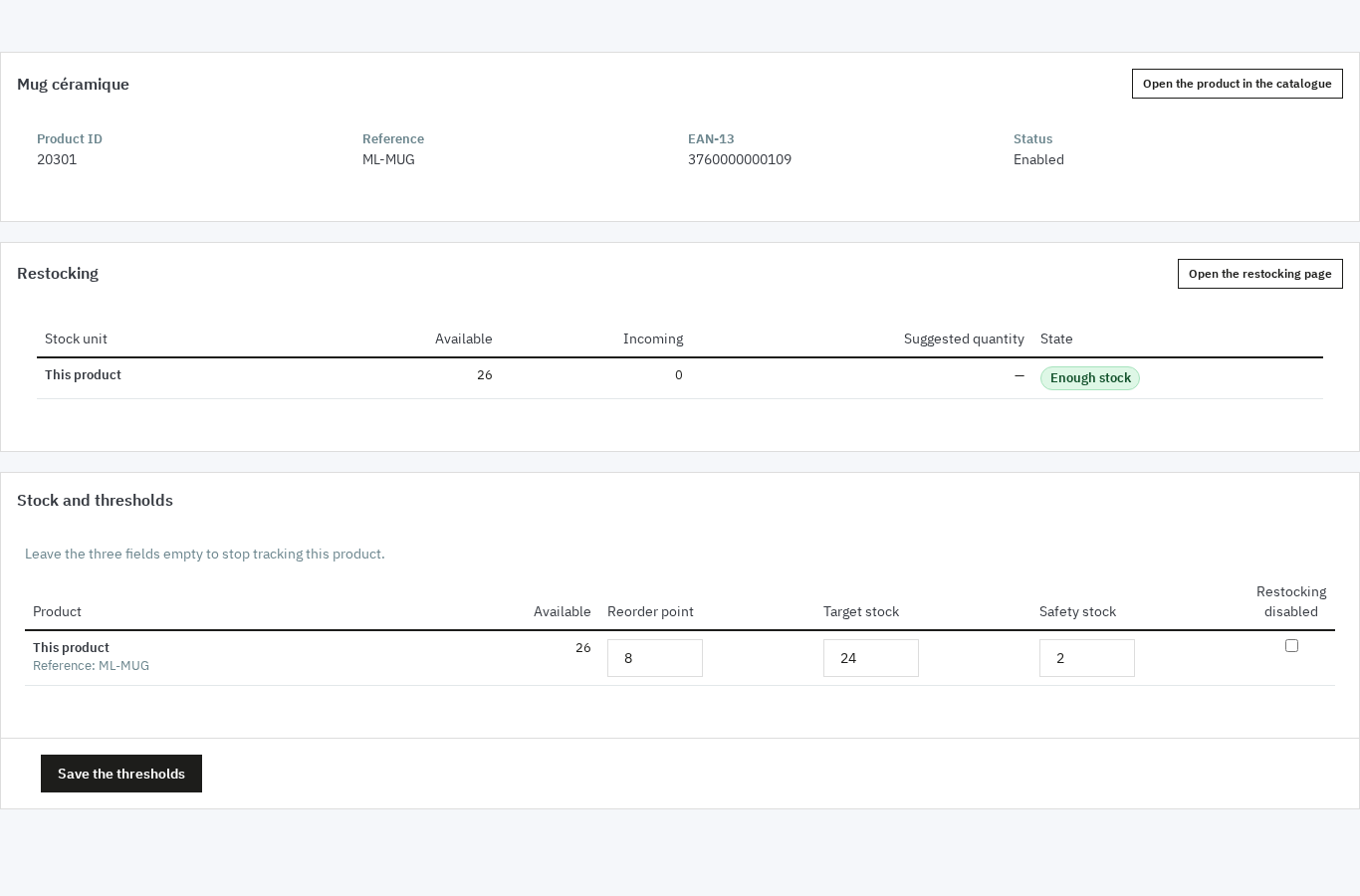
Take a mug with 26 units in stock, a reorder point of 8, a target stock of 24 and a safety stock of 2. Its state is Enough stock and no line is suggested. On the day stock falls to 6, the suggested quantity becomes 18, rounded to the supplier pack size when needed.
Can purchase orders be automated?
Yes for preparation, no for sending: the module can create drafts per supplier and send a daily alert, but no order leaves without your approval.
Two settings work together in Settings. Every day at the chosen hour, the alert e-mails the selected recipients as soon as a product has to be ordered. Automatic draft purchase orders, off by default, put the products that need ordering into one draft per supplier.
Generation runs at most once a day per supplier. A product already in a draft is not added twice, because drafts count as incoming. Every automatic draft carries the note “Created automatically on …: check it before sending.”
Generate drafts now runs the same generation on demand, and Send the alert now sends the e-mail without waiting for the set hour. The scheduled task runs from the address with its token shown in Settings, or from the command-line script.
How do you manage several suppliers for one product?
Each product or combination can have several suppliers, each with its own reference, cost, minimum quantity, pack size and lead time; you pick the one proposed by default.
On the product record, Link a supplier adds one row per supplier. The Preferred box selects the one shown first on the dashboard. The module's suppliers are the PrestaShop catalogue suppliers, and Import from the catalogue copies the links already entered in PrestaShop without changing the native data.
The lead time is set on the supplier and can be refined on each link. The minimum quantity and pack size feed the rounding of the suggested quantity. The Receiving lead time report then compares the promised lead time with the real one over a period.
An item out of stock at one supplier can therefore still be ordered from another. The dashboard proposes the preferred supplier, and you switch supplier line by line before creating the draft.
How do you prepare and send a purchase order?
You select the lines to order on the dashboard, the module groups them into drafts per supplier, then you check the draft, download the PDF and send the e-mail.
In Restocking, filter on To order. Each line shows the available stock, the incoming quantity, the suggested quantity and the supplier. Tick the lines, then click Create draft purchase orders. The box Add to the open draft of the supplier when there is one avoids a second draft for the same supplier.
The draft holds the automatic reference, for example PO-2026-00042, the lines with their unit cost excluding tax, discount, tax rate, shipping and its tax. Totals are recomputed on the server. Messages warn, without blocking, about a total below the supplier minimum, the amount left for free delivery, a quantity below the minimum or outside the pack size, or an inactive product.
The PDF can be downloaded at any time, in the supplier's language. The e-mail is sent from the shop with the PDF attached; subject and message are prefilled and editable. On the first send the status becomes Sent and the exchange rate is frozen. Mark as sent makes the same change without an e-mail. A sent order keeps its lines; only the expected delivery date and the internal notes remain editable.
What happens when a delivery is partial or damaged?
You enter the quantity actually received line by line, with a reason for any gap; stock is updated once and the outstanding quantity stays tracked.
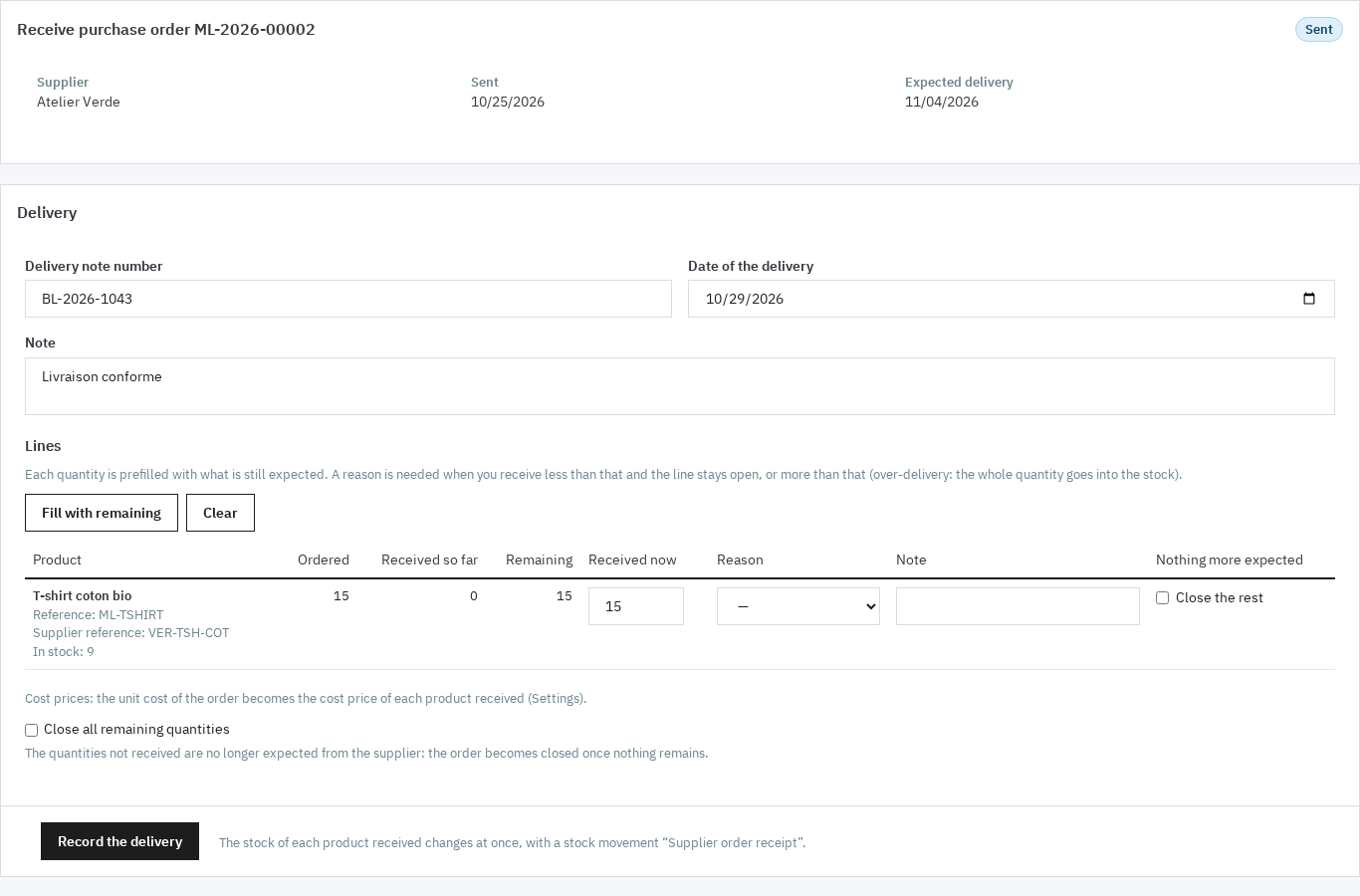
From a Sent or Partially received order, Receive opens the delivery form. Fill in the Delivery note number and the Date of the delivery, then the Received now quantity for each line, prefilled with what remains. Fill with remaining puts it back, Clear empties the field.
When the received quantity differs from the remaining one and the line stays open, a Reason is required: Short delivery, Damaged, Wrong item, Over-delivery or Other. An over-delivery is accepted and the whole quantity goes into stock. The Close the rest checkbox closes a line, and Close all remaining quantities does the same for the order. Recording the delivery updates stock with the Supplier order receipt movement.
The form applies once: a double submit is refused, and so is a simultaneous receipt by another employee. The status becomes Partially received, Received or Closed depending on what is left.
For a damaged item, the Supplier returns page of the order records the quantity to send back and its reason: Damaged, Wrong item, Excess quantity, Quality problem or Other. The option Take the quantities out of the available stock creates the Return to supplier movement. The return slip can be downloaded from the history. To get a replacement, Duplicate into a new draft copies the same lines.
To prepare the shelves, Picking List Pro builds a picking list from the customer orders.
How do you catch late orders and review purchases?
The order list flags delays with a day count, the Open lines view shows every outstanding quantity, and the reports compare ordered, received and returned amounts per supplier.
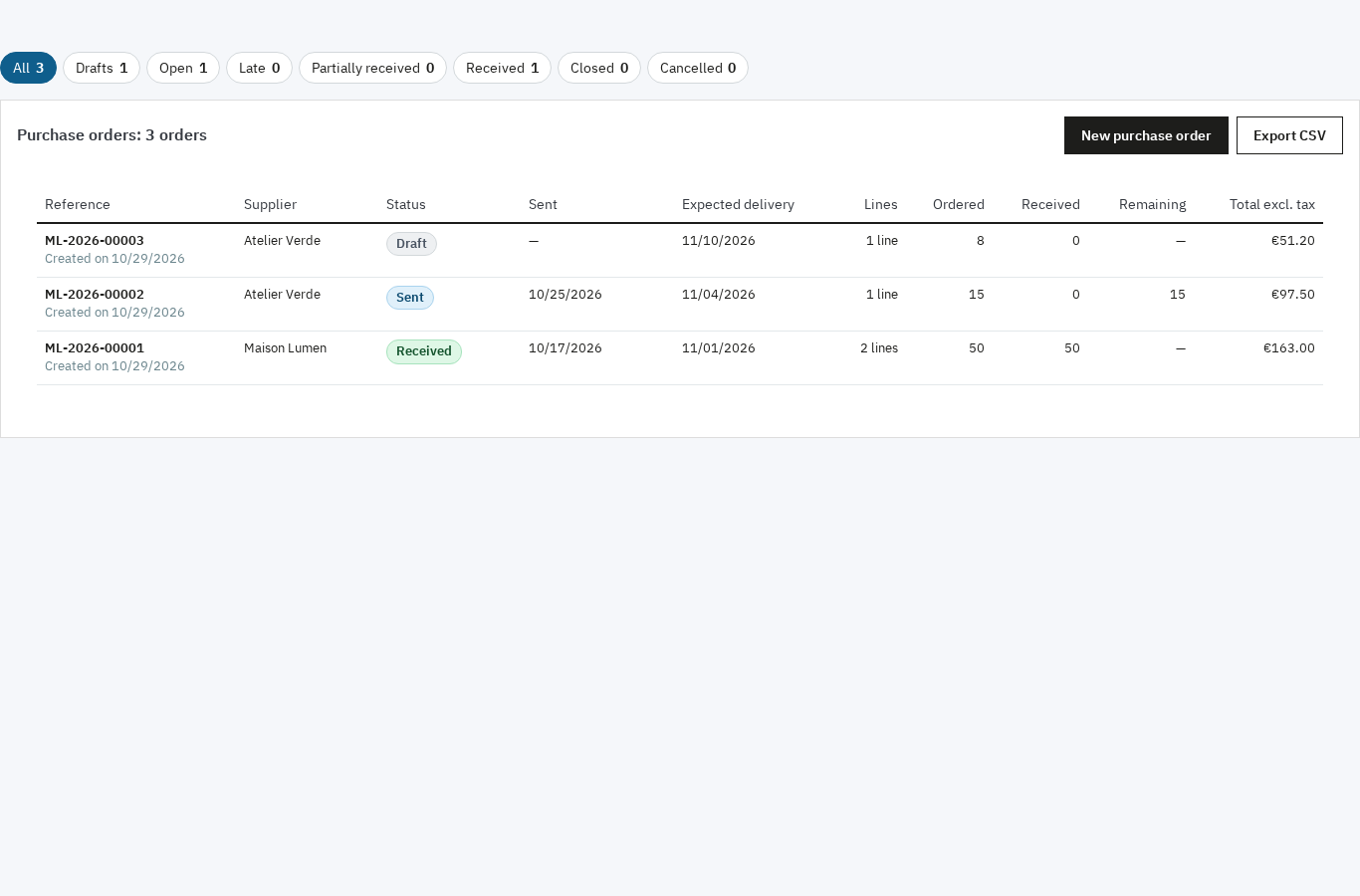
In Purchase orders, the tabs separate Drafts, Open, Late, Partially received, Received, Closed and Cancelled orders. The Expected delivery column shows the expected date and a badge with the number of late days. Open lines gathers every line that still has a remaining quantity, with its expected date, and exports to CSV for chasing suppliers.
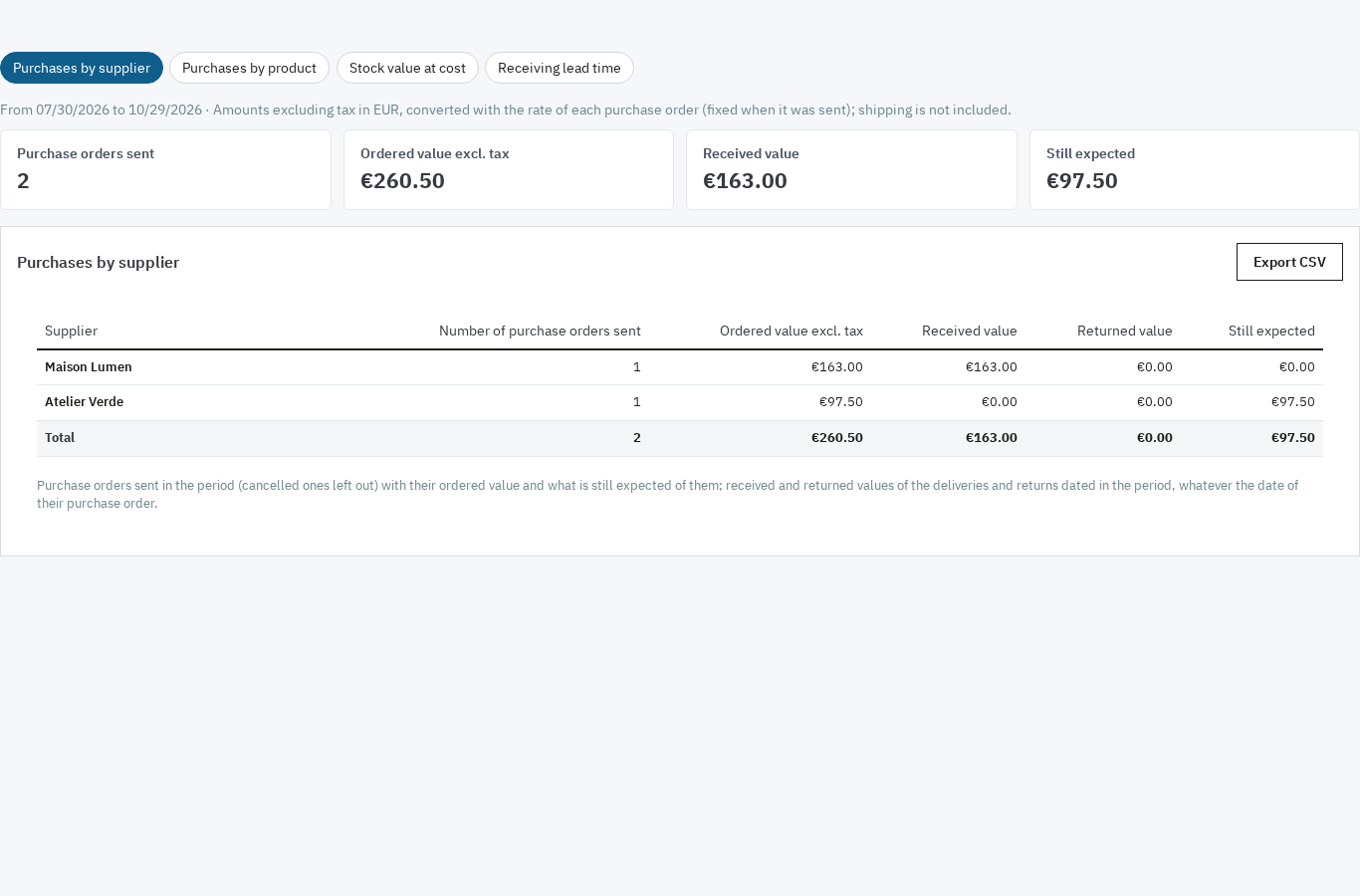
Reports cover a period, with shortcuts from this month to the last twelve months. Four tabs: Purchases by supplier, Purchases by product, Stock value at cost and Receiving lead time. Each report exports all its rows to CSV.
Thresholds change product by product, or through a CSV import for a whole catalogue. The module documentation lists the file columns. To warn customers before a product runs out, a conditional message on the product page can show the remaining stock; Conditional product messages sets it without touching the theme.
What the module does not do
The module computes and prepares; a person decides. It never places, sends or receives an order by itself. It sends no EDI or API order to a supplier, handles no supplier invoice or accounting, forecasts no demand and offers no supplier portal. It does not touch the shop either: no page, no script, no theme setting. Without an active licence, pages stay readable, PDFs and CSV exports stay downloadable, and deliveries of orders already sent can still be received.
Frequently asked questions
How do you manage several shops or locations with different suppliers?
Can the module send purchase orders on its own?
How do you handle several suppliers with different lead times?
What happens when an item arrives damaged?
How do you spot a late purchase order?
Products in this article
Supplier restocking: reorder points, purchase orders & receiving
Finds products below their reorder point and computes the quantity to order, incoming stock and safety stock...

Picking List Pro: logistics dashboard + PDF templates
Transform your back-office into a logistics command center. Picking lists, real-time tracking, carrier pickup view,...

Conditional product messages & CTAs
Personalized messages on your product pages based on conditions: stock, price, sale, brand, customer or country...
Read also
How to set shipping costs by postal code in PrestaShop
Create zones by postal code, range and prefix, refuse an area, keep store pickup and back up the configuration: the full path through the PrestaShop back office.
EU Deforestation (EUDR) on PrestaShop: products, suppliers and DDS
How to find the products covered by EUDR in a PrestaShop catalogue, collect supplier DDS and plot geolocation, and prepare each order's file without blocking the…