- Delivery zones by postal code
- Advanced pricing per carrier
- Delivery checker for your customers
- Administration and productivity
- Technical aspects
- Overseas territories / islands / remote areas
- Local free delivery
- Block delivery to unserved areas
- Percentage-based fees
- Local courier with a minimum order
- What is the "Shipping Cost by Zip Code" module for?
- How do postal zones and zone priority work?
- Can I configure rates per carrier with weight or price ranges?
- Can I apply percentage-based fees and enable free shipping?
- How to block shipping to certain zones or zip codes?
- What happens if a zip code doesn't match any zone?
- Does the module create carriers? How does it appear at checkout?
- How to import/export rules via CSV and avoid duplicates?
- Technical compatibility: versions, multistore, performance?
- What are the limitations and best practices for setup?
- The module does not appear in the Shipping menu
- Fees do not change at checkout
- The carrier disappears at checkout
- The checker does not appear
Shipping Cost by Zip Code — Shipping fees by postal code
Shipping Cost by Zip Code is a PrestaShop module that lets you apply accurate shipping fees based on the customer’s postal code. You create custom postal zones (unlimited), add postal codes, ranges or prefixes to them, then set rates per carrier with weight-based or cart amount-based brackets.
Unlike native pricing (zones/countries), this approach is ideal when costs vary strongly between city centers, rural areas, islands, mountains or overseas territories. The module does not create carriers: it prices the existing carriers you hand over to it, based on the postal code of the delivery address.
Highlights:
- Unlimited postal zones: exact codes, numeric ranges and prefixes (
75*,SW1*) - Rates per carrier, unlimited weight or amount brackets
- Fixed price, percentage or surcharge on the carrier price, entered tax excluded or included
- Free shipping, refused delivery and minimum order amount per zone
- Delivery checker on product pages and estimate in the cart
- Postal code tester, coverage checks and CSV import/export with preview
- Multilingual, no overrides
Overview
By default, PrestaShop calculates shipping fees by geographic zones and countries, which quickly becomes too imprecise. A shop may need a different rate depending on distance, accessibility or the actual transport cost, even within the same country.
With Shipping Cost by Zip Code, you define rules at the postal code level:
- You choose the managed carriers (e.g. your express carrier and your local courier).
- You create a postal zone (e.g. “Central Paris”, “Overseas”, “Mountain area”).
- You add postal codes, ranges (e.g. 75001-75020) or prefixes (e.g.
SW1*in London). - You set up pricing per carrier based on weight or cart amount.
At checkout, the module finds the zone of the delivery address and calculates the price of each managed carrier. PrestaShop then applies the carrier tax, the customer’s currency and the shop rounding. If no zone matches the postal code, the behavior is configurable: apply standard PrestaShop fees, or refuse delivery with managed carriers.
Features
Delivery zones by postal code
- Unlimited postal zones, with a name and a message translated into each language
- Postal codes:
- Exact (
75011,00-950,SW1A 1AA) - Numeric ranges (
75001-75020,00-001 - 04-999) - Prefixes (
75*,SW1*,1011*)
- Exact (
- Several codes entered at once, with a duplicate check before adding them
- Several countries in the same zone
- Zone activation / deactivation
- “Refuse delivery” option: managed carriers are not offered in the zone, store pickup remains available
- Priority system to handle overlapping zones
Advanced pricing per carrier
- Rates per carrier and per zone, or for all managed carriers
- Calculation basis:
- Weight (kg)
- Cart amount (tax included after discounts)
- Unlimited brackets, from the lower value (included) to the upper value (excluded); the last bracket can stay open-ended
- Fixed price or percentage
- Replacement of the PrestaShop price or surcharge added to it (e.g. +€8 for an island)
- Free shipping per bracket, or automatically from a cart amount
- Per carrier and per zone: carrier refused or minimum order amount
- Prices entered tax excluded or tax included, depending on the chosen setting
Delivery checker for your customers
On the product page, the Delivery to your postal code block lets customers enter their postal code and see the available carriers, their price for the cart with this product, the free shipping threshold and, when needed, the zone message. In the cart, Estimate my delivery gives the same information before the Address step. The estimate uses the same rules as checkout; the final price is the one shown when ordering.
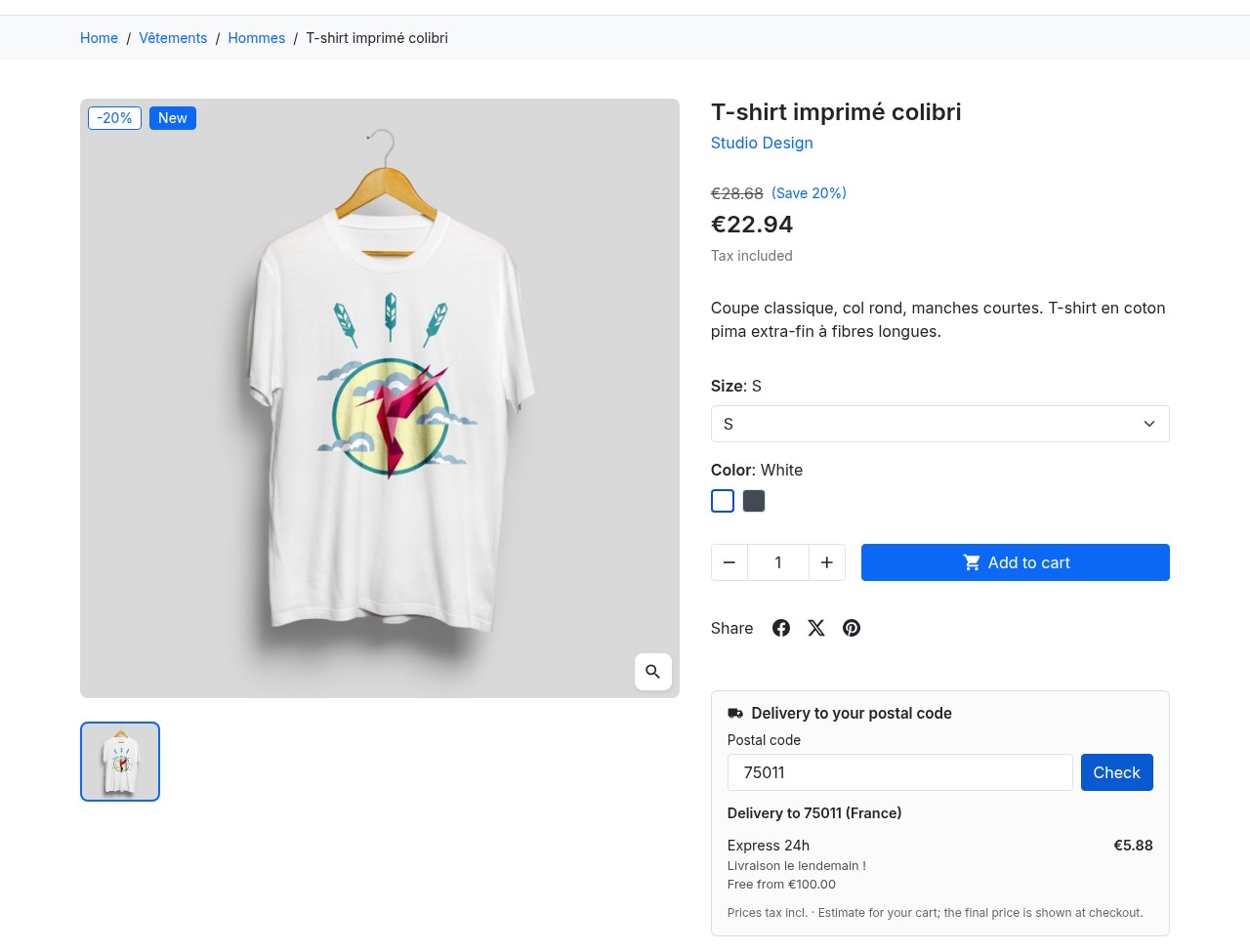 Delivery checker on the product page
Administration and productivity
- Back-office interface under Shipping > Shipping by postal code
- Zone list with search, filters, a Checks column and a priority set by drag and drop
- “All-in-one” editor: settings, postal codes and rates on the same page, editable in place
- Postal code tester: zone found, rule used and price tax excluded/included per carrier
- Rate copy to other zones or other carriers, with a price change
- CSV import with preview, merge or replace, and automatic backup
- Full CSV export of the configuration and a sample CSV file
Technical aspects
- Carrier module (CarrierModule): PrestaShop applies tax, currency and rounding, and hides a refused carrier
- No overrides of the PrestaShop core; the original carrier settings are restored when you remove them from the module
- Carriers are followed by their reference (
id_reference): your rates survive carrier updates - Package-by-package calculation when an order is split into several shipments
- One zone lookup per address, reused while the page loads
- Interface available in English, French, Spanish, Italian and Polish
Requirements
- PrestaShop: 1.7.8, 8.2+ or 9.1+. PrestaShop 1.7.7, 8.0, 8.1 and 9.0 are not supported.
- PHP: 7.4 or later, in a version supported by your PrestaShop.
- Carriers: PrestaShop only offers a carrier if it is enabled for the PrestaShop zone of the delivery country and has at least one price range for that zone. The amount of that range does not matter: the module replaces it or adds to it. The tester flags these missing prerequisites.
Installation
Method 1 — from the back office (recommended)
- Download the archive from your WePresta customer area
- Go to Modules > Module Manager
- Click Upload a module
- Select
wepresta_shipping_cost_by_zip.zip - Wait for the installation to finish, then click Configure and activate your license
Method 2 — via FTP
- Unzip the archive
- Upload the folder
wepresta_shipping_cost_by_zip/into/modules/ - In the back office: Modules > Module Manager
- Search for the module and click Install
- Click Configure and activate your license
What the installation does
- Creates the module tables (zones, postal codes, rates, managed carriers)
- Registers the required hooks, including the shipping step, the product page and the cart
- Adds a “Shipping by postal code” tab under Shipping
- Initializes a default configuration
Note: the module does not create any carrier and does not change any price until you choose your managed carriers.
Updating from version 1.0.0
- Back up your shop (files and database).
- Upload the 2.0.0 archive in Modules > Module Manager: PrestaShop runs the update.
- Your zones, postal codes and rates are kept. Files of version 1.0.0 that are no longer needed are removed.
- On PrestaShop 9.1+, the carriers covered by your rates are managed automatically and your amounts are treated as tax included: your customers pay the same price as before.
- On PrestaShop 1.7.8 and 8.2+, tick your managed carriers in the configuration: no price changes until you do.
- Enable the checker if you wish, then check a few postal codes with the tester.
Configuration
Access:
- Modules > Module Manager > Configure
- or Shipping > Shipping by postal code, Settings button
Managed carriers
Tick the carriers whose price depends on the postal code. The module takes them over through the official carrier module mechanism and saves their original settings, which are restored if you untick them or uninstall the module. Free carriers (store pickup) and carriers of other modules cannot be managed and keep their own prices.
Calculation
- Apply postal code prices: when disabled, managed carriers use their PrestaShop prices
- Prices entered in rates are: tax excluded (the carrier tax is added) or tax included (the amount paid by the customer)
- Postal code outside every zone: use the PrestaShop price or refuse delivery with managed carriers. Refusal only applies to countries in which at least one zone exists.
- Zone found but no rate for a carrier (for example beyond the last bracket): use the PrestaShop price or hide this carrier
- Add handling fees and product additional shipping costs to the zone price
- Message when delivery is refused: general text, translated into each language, shown at the shipping step and in the checker. Each zone can have its own message.
Delivery checker
Show the checker on product pages and Show the estimate in the cart are enabled separately. The checker appears when at least one carrier is managed and an active zone contains postal codes.
Data
Keep zones and rates when uninstalling (recommended): a reset or a reinstallation keeps your configuration. Untick this option only if you want to delete everything when uninstalling the module.
License
Activate your license in the module configuration. Without an active license, shipping fees keep being applied at checkout, but zones and settings can no longer be changed; a banner invites you to renew the license.
Managing zones
Access: Shipping > Shipping by postal code
Create a zone
- Click Add a zone
- Fill in:
- Name (multilingual; it is also used to recognize the zone in CSV files)
- Active (Yes/No)
- Refuse delivery (Yes/No)
- Customer message (optional, otherwise the general message is used)
- Click Save
Add postal codes
In the zone editor, Postal codes section:
- Choose the country (its PrestaShop format is shown)
- Enter the codes, separated by commas or line breaks:
- code:
75011or00-950 - range:
75001-75020or00-001 - 04-999 - prefix:
75*orSW1*
- code:
- Click Check to verify the codes and duplicates, then Add
Dashes and spaces are ignored when comparing: 00-950 and 00950 are the same code. Ranges only accept digits; for codes with letters, use a prefix.
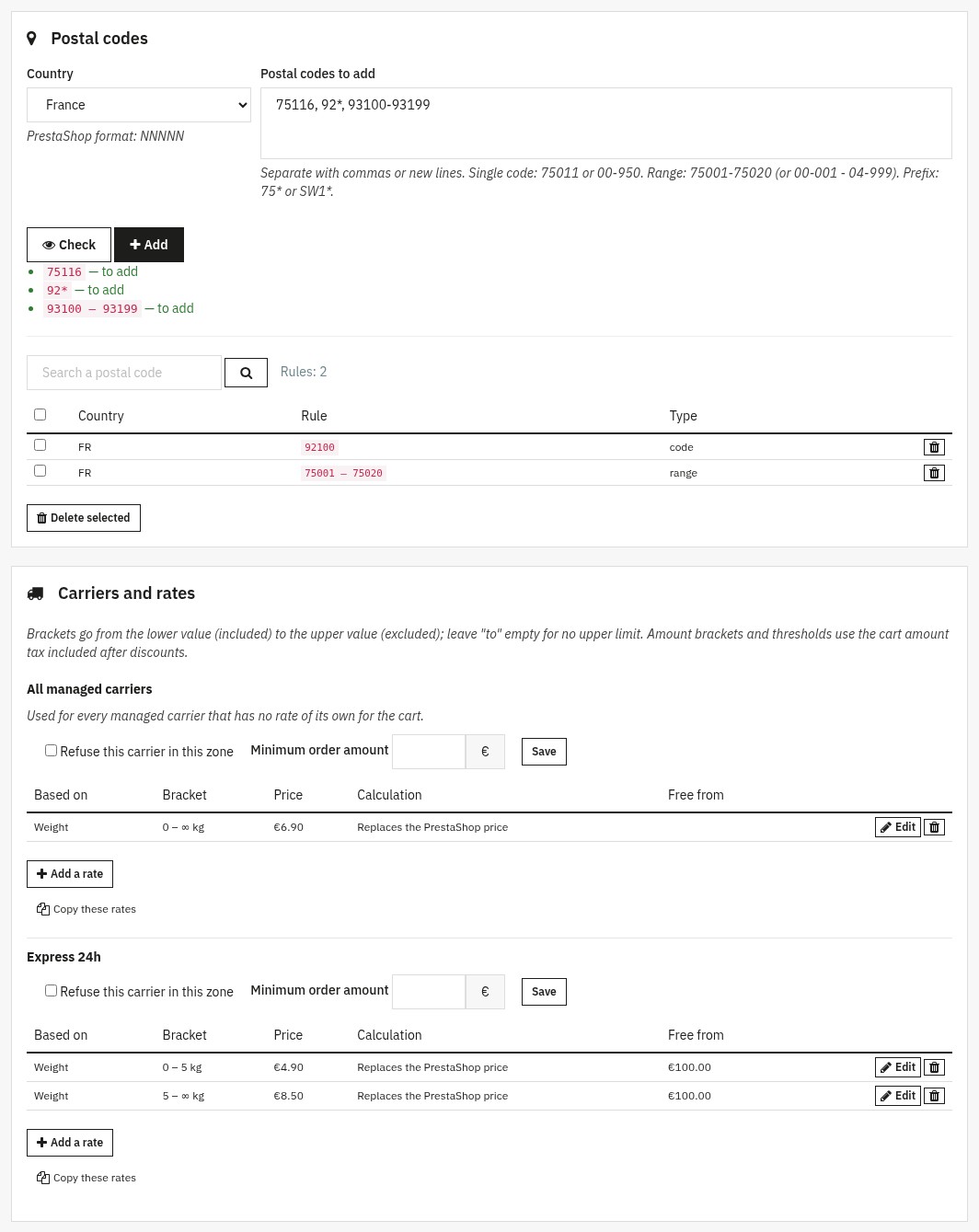 Postal codes and rates of a zone
Configure carriers and rates
The Carriers and rates section shows an All managed carriers block (used when a carrier has no rate of its own for the cart), then one block per managed carrier:
- Click Add a rate
- Choose the basis: Weight or Cart amount
- Set the bracket: From (included) and To (excluded) (empty = no limit)
- Enter the price, fixed or as a percentage
- Choose the calculation: Replaces the PrestaShop price or Added to the PrestaShop price
- Options: Free shipping and Free from (cart threshold)
In each block, you can also refuse this carrier in this zone or set a minimum order amount. An existing rate is edited in place with Edit.
Copy rates
Copy these rates reuses a carrier’s grid for another carrier or other zones. Enter a price change (e.g. +€2) and choose whether to replace existing rates.
Test a postal code
The Test a postal code block simulates an order: choose a country, a postal code, a weight and a cart amount tax included after discounts. The module shows the zone found and the rule that selected it, then, for each managed carrier, the price tax excluded and included or the reason it is missing: carrier refused in the zone, minimum amount not reached, carrier disabled, PrestaShop zone not enabled or PrestaShop price range missing.
The Checks column of the zone list also flags zones without postal codes or rates, uncovered brackets, rates for a carrier that is not managed and codes handled by a higher-priority zone.
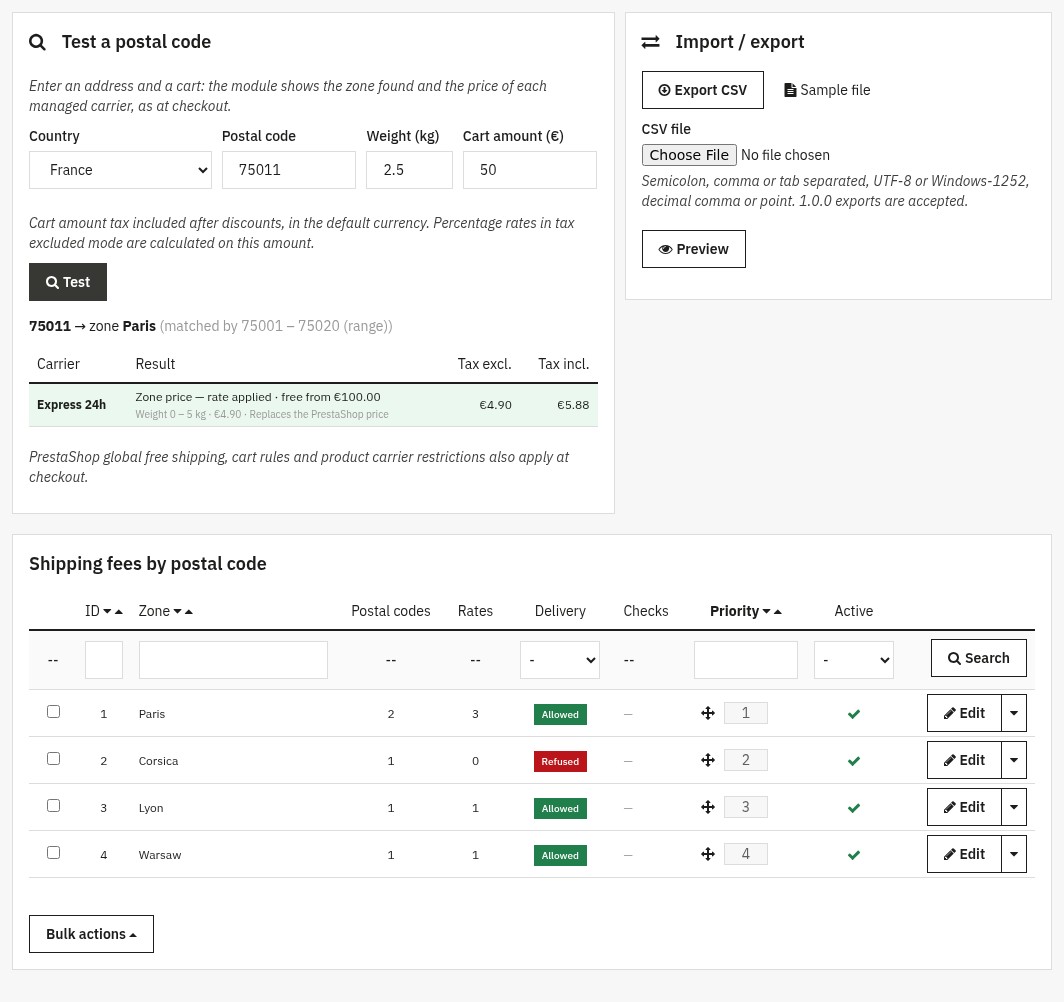 Postal code tester and zone list
CSV import / export
CSV format
- Separator: semicolon, comma or tab (detected automatically)
- Encoding: UTF-8 or Windows-1252
- Numbers with a decimal comma or point
- Exports from version 1.0.0 are accepted
Each line has a type:
zone:zone,position,active,blockedpostcode:zone,country(ISO code, e.g. FR),postcode(code, range or prefix)rate:zone,carrier(reference, exact name or*for all managed carriers),basis(weightorprice),from,to,price,mode(replaceorsurcharge),percent,free,free_fromcarrier:zone,carrier,blocked,min_amount
The sample file you can download from the module contains an example of each line type.
Import
- Shipping > Shipping by postal code, Import / export block
- Select the file and click Preview
- Check the summary (new zones, updated zones, codes, rates) and the flagged lines with their number
- Choose the mode:
- Merge: add new codes, update rates with the same bracket
- Replace the zones present in the file
- Replace all zones of this shop
- Click Import (or Import the valid lines)
Useful behaviors:
- An existing zone with the same name is reused (no duplicate)
- Existing postal codes are not duplicated
- A rate with the same bracket is updated
- If an error occurs during the import, nothing is changed
Export and backups
- Export CSV downloads the whole configuration of the shop, in the import format
- Before each import, an automatic backup of the configuration is saved and remains downloadable under Automatic backups
Priority system
Each address belongs to a single zone. Resolution order:
- Exact postal code
- Prefix
- Range
- Between two rules of the same type, the zone placed higher in the list (priority 1 first); you set the order by drag and drop
Example: with a “Mainland France” zone (range 01000-95999) placed after a “Paris” zone (range 75001-75020), the code 75011 is handled by the Paris zone.
Multistore
In multistore, select a shop at the top of the back office before editing zones: zones, postal codes, rates and settings are saved for the selected shop. To reuse a configuration on another shop, export it and import it into that shop.
Customer-side behavior
At checkout:
- The customer enters their delivery address
- The module finds the zone of their postal code and calculates the price of the managed carriers
- PrestaShop shows the available carriers with their price, tax and currency included
The customer sees:
- fees adapted to their postal code
- free shipping if configured
- fewer carriers if a zone or a carrier is refused, with the zone message at the shipping step
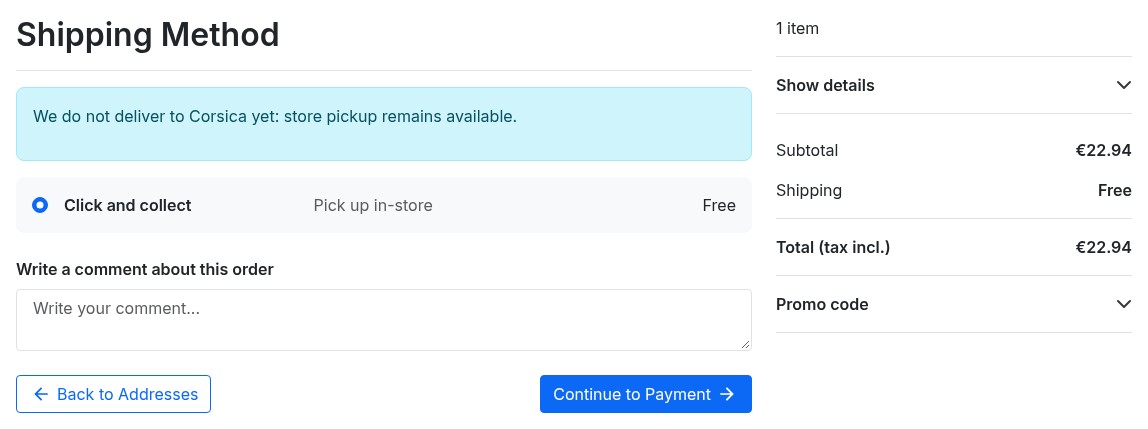 Message shown when a zone is not delivered
Before ordering, the product page checker and the cart estimate give the same information for the postal code entered.
Common use cases
Overseas territories / islands / remote areas
Define a specific zone (e.g. 97100-97490) with higher rates than the mainland, or a surcharge on the carrier price.
Local free delivery
Create a “local” zone (nearby postal codes) and enable free shipping, while keeping standard fees for everything else.
Block delivery to unserved areas
Create a “no delivery” zone and enable Refuse delivery to hide managed carriers; store pickup is still offered and the zone message explains the situation.
Percentage-based fees
Useful for high-value carts: e.g. 3% of the amount, then free shipping above a threshold.
Local courier with a minimum order
Create a city-center zone, manage your courier and set a minimum order amount for it: it is only offered from that amount, and the checker shows the amount still needed.
FAQ
What is the "Shipping Cost by Zip Code" module for?
It calculates shipping fees from the customer's postal code, whereas PrestaShop works by country and geographic zone. You group postal codes into zones (city center, mountain area, islands, overseas territories…), then give each zone its own rates per carrier. At checkout, the module finds the zone of the delivery address and PrestaShop shows the matching price, tax included. Your customers see fees consistent with their address, and you handle exceptions (islands, remote areas, local delivery) without workarounds.
How do postal zones and zone priority work?
An address belongs to a single zone. An exact postal code wins over a prefix, and a prefix over a range. Between two rules of the same type, the zone placed higher in the list wins; you set the order by drag and drop. You can therefore create a broad "France" zone and a more precise "Paris" zone. The Checks column flags codes handled by a higher-priority zone, and the tester shows the zone found together with the rule that selected it.
Can I configure rates per carrier with weight or price ranges?
Yes. For each zone, add rates for a specific carrier or for all managed carriers. Each rate covers a weight or cart amount bracket, from the lower value (included) to the upper value (excluded); the last bracket can stay open-ended. The price is fixed or a percentage, and it replaces the PrestaShop price or is added to it. Amount brackets use the cart amount tax included after discounts. This lets you reproduce your carriers' actual price grids or your own costs.
Can I apply percentage-based fees and enable free shipping?
Yes. A percentage rate is calculated on the cart amount, or on the carrier's PrestaShop price in surcharge mode (for example +15% for an island). For free shipping, tick "Free shipping" on a bracket or set a "Free from" threshold: the checker then shows the customer the threshold to reach. Native PrestaShop rules, such as global free shipping or cart rules, still apply at checkout.
How to block shipping to certain zones or zip codes?
Tick "Refuse delivery" on the zone: managed carriers are no longer offered to its customers, while store pickup and carriers not managed by the module remain available. You can also refuse a single carrier in a zone or require a minimum order amount. A translated message explains the situation to the customer at the shipping step and in the checker, for example "We do not deliver to Corsica yet: store pickup remains available."
What happens if a zip code doesn't match any zone?
You choose: use the carrier's PrestaShop price or refuse delivery with managed carriers. Refusal only applies to countries in which you created at least one zone; other countries keep PrestaShop prices. A separate setting handles a zone found without a rate for a carrier, for example beyond the last weight bracket: PrestaShop price or hidden carrier. A good practice is to start with PrestaShop prices, then switch to strict mode once your zones are complete.
Does the module create carriers? How does it appear at checkout?
No, it relies on your existing carriers. In the configuration, tick those whose price depends on the postal code: the module prices them through PrestaShop's official carrier module mechanism, without overrides, and restores their original settings if you remove them or uninstall the module. Free carriers and carriers of other modules are not changed. At checkout, customers see the available carriers with their price, and a message when delivery is refused.
How to import/export rules via CSV and avoid duplicates?
Download the sample file or export your configuration, edit it, then click Preview. The module accepts semicolon, comma or tab separators, UTF-8 or Windows-1252, and a decimal comma or point; exports from version 1.0.0 remain readable. The preview counts zones, codes and rates and flags each line in error with its number. Then choose to merge (zones are recognized by name and existing codes are not duplicated) or to replace. A backup is saved automatically before the import and remains downloadable.
Technical compatibility: versions, multistore, performance?
The module works with PrestaShop 1.7.8, 8.2+ and 9.1+, and PHP 7.4 or later; PrestaShop 1.7.7, 8.0, 8.1 and 9.0 are not supported. It contains no overrides and follows carriers by their reference: your rates stay attached to a carrier when PrestaShop creates a new version of it after an edit. Zone names, messages and the interface are available in English, French, Spanish, Italian and Polish. In multistore, zones and rates are saved for the selected shop. The calculation looks up one zone per address and reuses it while the page loads.
What are the limitations and best practices for setup?
Ranges only accept digits: for codes with letters (United Kingdom, Canada, Netherlands), use a prefix such as SW1* or 1011*. PrestaShop only offers a carrier if it is enabled for the PrestaShop zone of the country and has a price range for that zone; the tester flags these missing prerequisites. Start with a few zones, keep PrestaShop prices for uncovered addresses while you complete your coverage, and check your typical cases with the tester before enabling the checker for your customers.
Troubleshooting
The module does not appear in the Shipping menu
- Check that it is installed and enabled
- Clear the cache: Advanced Parameters > Performance > Clear cache
- Check employee permissions
Fees do not change at checkout
- Is the carrier ticked in Managed carriers?
- Is Apply postal code prices enabled?
- Is the zone active and does it contain the postal code? Check with the tester
- Does a rate cover the cart weight or amount?
- Are prices entered tax excluded or included as you expect?
The carrier disappears at checkout
- Zone set to Refuse delivery, or carrier refused in the zone
- Minimum order amount not reached
- No zone matches and the outside-zone setting refuses delivery
- No rate for the cart and the setting hides the carrier
- Carrier not enabled for the PrestaShop zone of the country, or without a PrestaShop price range
The tester gives the exact reason for a given postal code.
The checker does not appear
- Enable it in the Delivery checker section of the configuration: it is disabled after an update from version 1.0.0
- At least one carrier must be managed and an active zone must contain postal codes
- Clear the shop cache
Changelog
Version 2.0.0
New features
- Choose the carriers whose price depends on the postal code: the module prices them on PrestaShop 1.7.8, 8.2+ and 9.1+.
- Your customers check delivery to their postal code on the product page and in the cart.
- Show customers a translated message when a zone is not delivered.
- Refuse a carrier in a zone or set a minimum order amount for it.
- Add a surcharge to the carrier's PrestaShop price, as an amount or a percentage.
- Test a postal code in the back office to see the zone found and the price of each carrier.
- Copy rates to other zones or other carriers, with a price change.
Improvements
- Use postal codes with dashes, spaces or letters, and prefixes such as
75*orSW1*. - Enter your prices tax excluded or tax included: PrestaShop applies the carrier tax, currency and rounding.
- Store pickup, free carriers and carriers of other modules keep their own prices.
- Add several postal codes at once and edit a rate without deleting it.
- The zone list flags codes handled by another zone, uncovered brackets and zones without rates.
- The CSV import shows a preview, offers merge or replace, and backs up your configuration before importing.
- Zones and rates are kept when you uninstall the module, unless you ask for their deletion.
- When the license expires, your shipping fees keep being applied; only configuration changes are locked.
- The module archive weighs less than 1 MB.
Fixes
- Prices and weights entered with a decimal comma are saved correctly.
- An order shipped in several packages is priced package by package.
- The zone order changed by drag and drop is saved on the right zones.
After updating: on PrestaShop 9.1+, the carriers covered by your 1.0.0 rates are managed automatically and your amounts are treated as tax included, so your customers pay the same price. On PrestaShop 1.7.8 and 8.2+, choose your managed carriers in the module configuration. The checker stays disabled until you enable it.
Version 1.0.0
- Unlimited postal zones
- Single postal codes + numeric ranges
- Weight-based or price-based pricing
- Percentage of cart total
- Free shipping (per bracket / threshold)
- Shipping blocking per zone
- Zone priorities
- CSV import / export
- Multistore + multilingual
Support
For any assistance, contact us through your WePresta customer area or by email at mail@wepresta.shop, according to the support option of your plan.
Before contacting support, please provide:
- PrestaShop version
- PHP version
- postal code, country and cart concerned
- result of the postal code tester
- screenshots
- PrestaShop logs if available
License
Academic Free License (AFL 3.0).
Copyright © WePresta. All rights reserved.
