- Payment terms per customer, per group and by default
- A credit limit checked before every order
- Approving a first order or an over-limit order
- Recording full or partial payments
- Settlement discount and native credit note
- Reminders before and after the due date
- Aging report, dashboard and customer statement
- “My invoices” on the customer side
- CSV import, rights and multistore
- Does the module take payments online?
- Does “Pay on terms” replace the other payment methods?
- Where do the exposure amounts come from?
- What happens when a customer goes over the limit?
- How does the settlement discount work?
- Are reminders really sent automatically?
- Can my customers see their invoices and statement?
- Does the module work in multistore?
- What happens without a licence or after uninstalling?
- Does the module replace my accounting or legal advice?
B2B payment terms on PrestaShop: credit limits, exposure and reminders
Giving a business customer 30, 45 or 60 days is a commercial decision. Following it up every day is another job: knowing how much each customer owes, spotting an overdue invoice, finding the partial payment that arrived last week and chasing everyone without forgetting anyone. When that information lives in a spreadsheet, it goes stale quickly and customer risk becomes invisible.
B2B Net Terms brings that work into the PrestaShop back office. It applies payment terms per customer, per group or by default, checks exposure before every order, records payments against the native invoices, sends reminders for overdue invoices and gives each customer a “My invoices” page with a PDF statement.
The module follows and collects what PrestaShop already knows: orders, invoices, payments and credit notes. It keeps no parallel ledger, takes no payment online and replaces neither your accountant nor your legal adviser.
Highlights:
- Terms per customer: due on receipt, net 15/30/45/60/90, end of month or days end of month, with where each value comes from
- A credit limit checked before every order, without ever blocking upfront payment
- Partial payments allocated to invoices, with the remaining amount recalculated per invoice and per order
- Automatic reminders before and after the due date, with escalation and an optional suspension
- A complete view: dashboard, aging report, PDF customer statement and customer portal
Discover the module and its plans
Overview
Payment terms come down to three questions. Who may pay on terms, and up to which amount? How much does this customer owe today? And what should be chased, when, without pestering a customer who has already paid?
In PrestaShop the orders and invoices exist, but nothing links them to payment terms, a credit limit and a reminder schedule. Merchants rebuild exposure by hand, often at month end, and discover late payments too late.
The module fills that gap without leaving PrestaShop. It adds a “Pay on terms” payment method reserved for allowed customers, calculates the due date of every order, checks exposure before granting a new one, then follows payments and reminders until the balance is settled. The amounts always come from the native tables: an invoice issued, a payment entered or a credit note created elsewhere in PrestaShop is taken into account.
It is made for small and medium businesses, wholesalers and distributors that invoice business customers, including mixed B2B/B2C shops. It becomes useful as soon as several term orders circulate each month and a spreadsheet no longer keeps up with exposure.
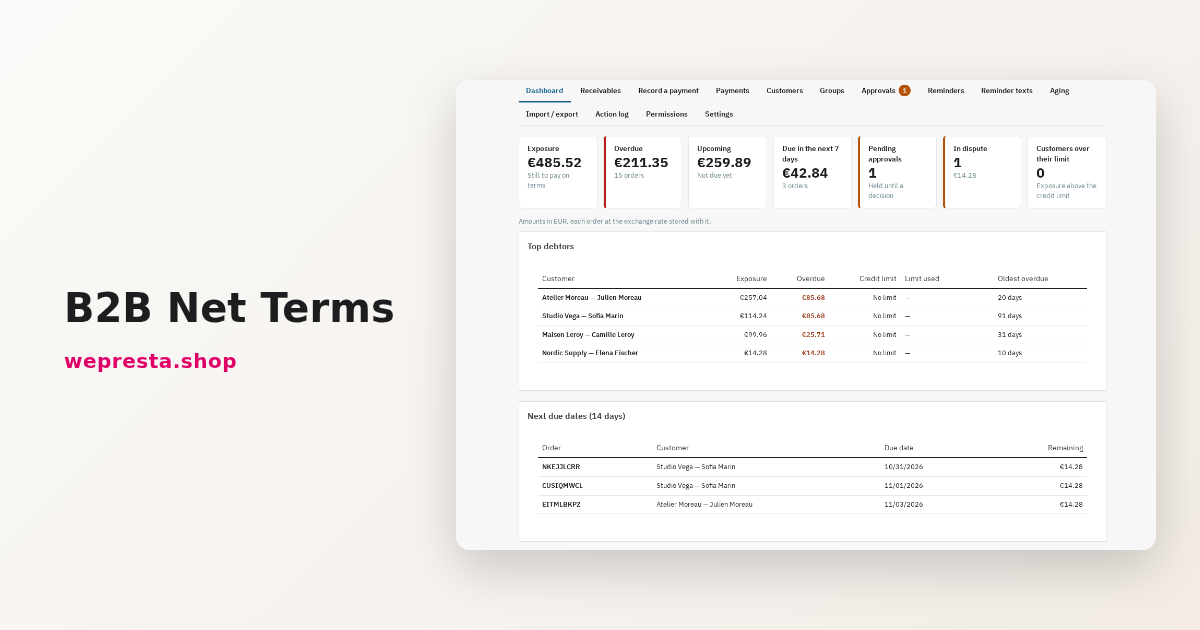
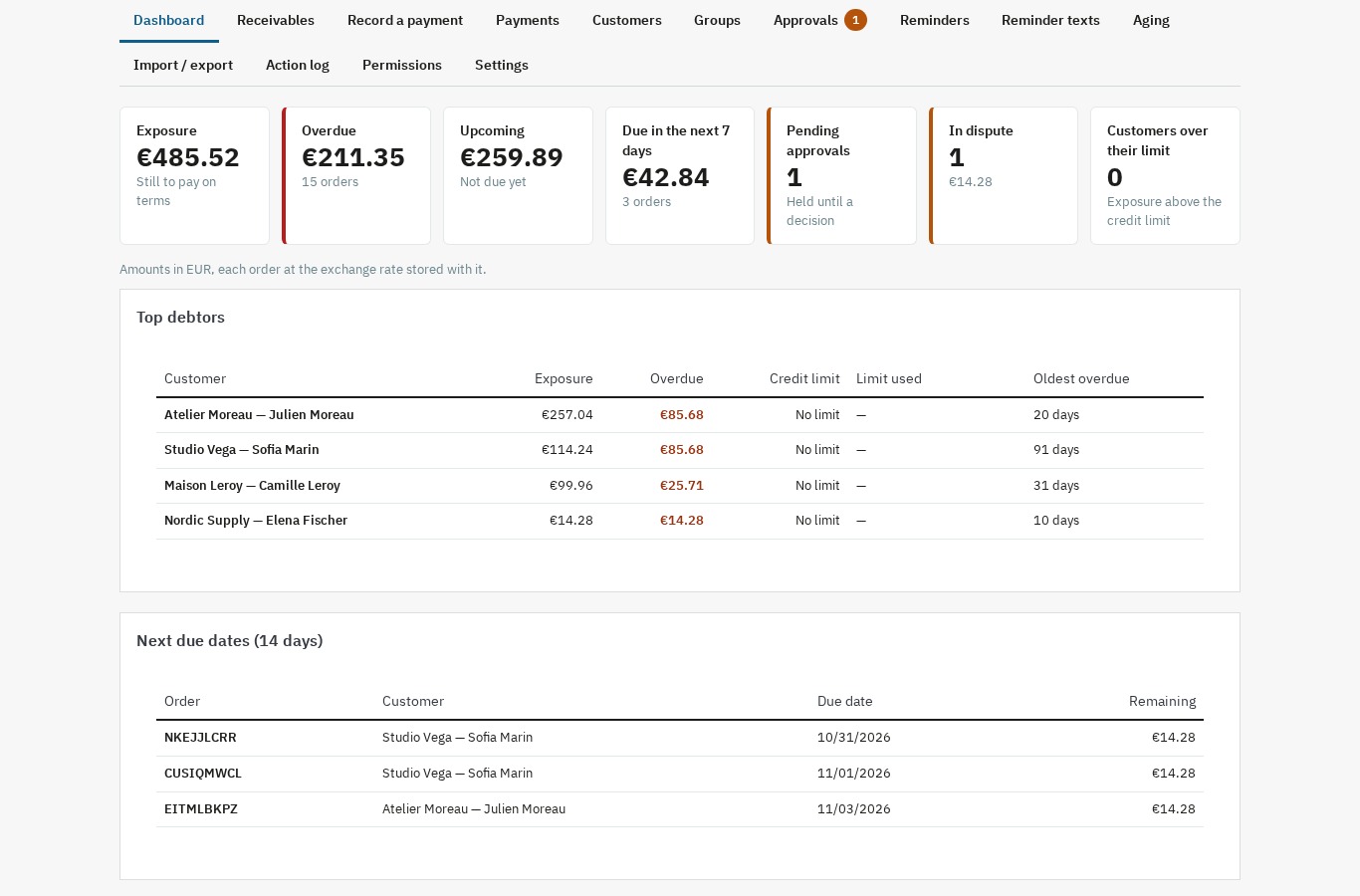 Exposure, overdue amounts and upcoming due dates on a single screen
Features
Payment terms per customer, per group and by default
Each customer can have their own terms: due on receipt, net 15, net 30, net 45, net 60, net 90, end of month, or a number of days end of month. Otherwise the module applies the customer’s default group terms, then the shop defaults. Every screen shows the effective value and its origin — “Own”, “Group Wholesale” or “Default” — so no term is applied by surprise.
Terms and the settlement discount are stored on the order when it is created: changing a customer’s terms later does not change existing due dates. The due date is calculated from the order date, or from the invoice date if you choose that base; in that case it stays provisional until the invoice is created.
The due date appears on the order confirmation, the order page, the invoice PDF and the customer account. An authorised employee can change it with a note; the reminder schedule then restarts from the new date.
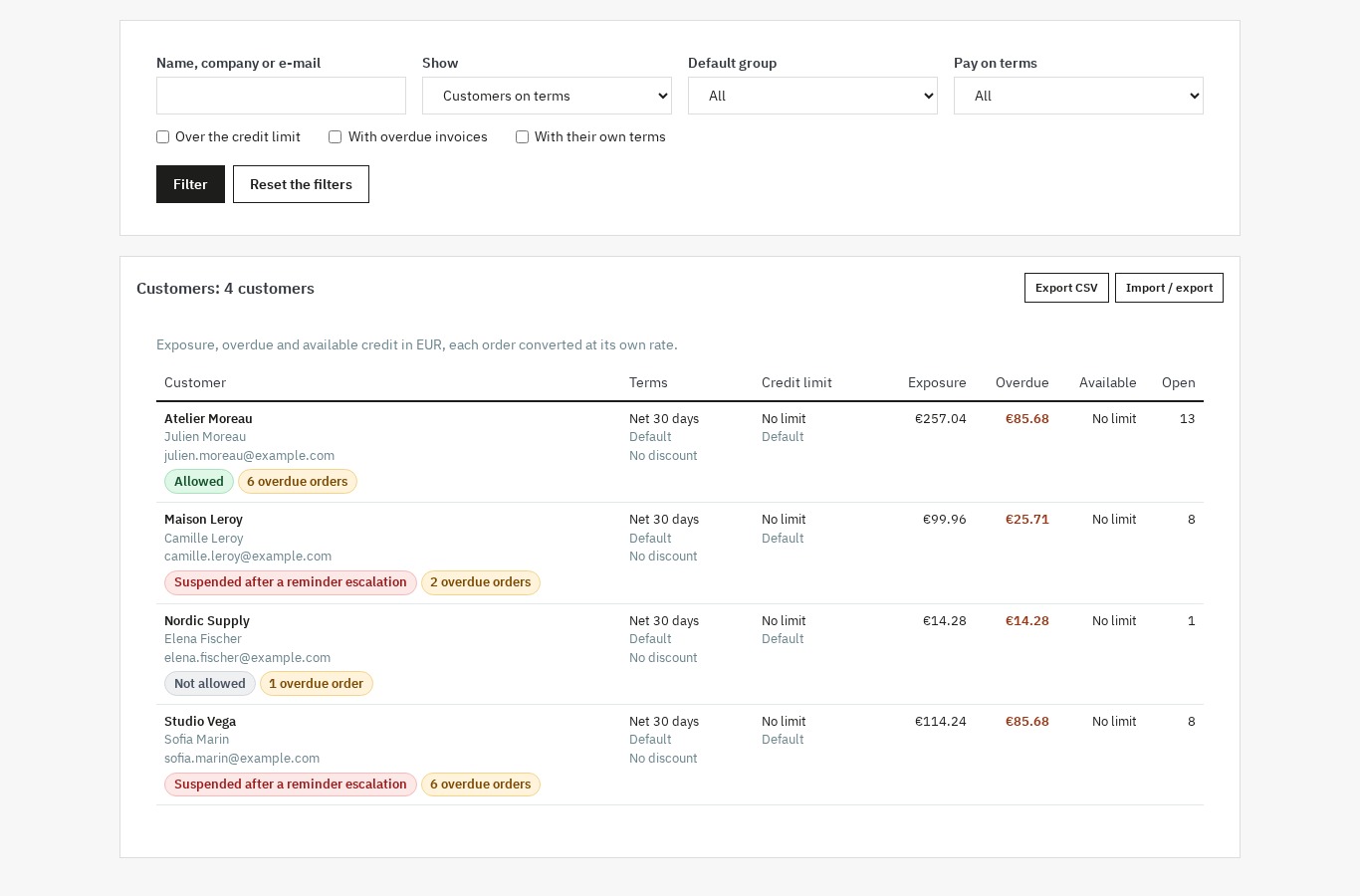 Each customer’s terms, credit limit and available credit
A credit limit checked before every order
The limit is expressed in the shop’s default currency. A customer’s exposure combines unpaid invoices, term orders not yet invoiced and orders awaiting approval. Each amount is converted at the rate stored on its order, and overpayments do not reduce exposure.
At checkout the module compares exposure plus the cart total with the limit. Two behaviours are possible, depending on your setting:
- the “Pay on terms” method is hidden, with a message you write explaining the available credit;
- the order becomes an approval request, with the reason “Over the credit limit”.
In both cases the customer can continue with another payment method: the module never hides or changes the other methods. A suspended customer no longer sees payment on terms; a message invites them to pay with another method.
Approving a first order or an over-limit order
For a first term order or an order above the limit, you can require approval. The order is held in the “Awaiting approval (payment on terms)” state, without an invoice, and your team receives an e-mail. The customer is told that the order will be confirmed after a decision.
An authorised employee approves or refuses with a note. Approval releases the order to “Awaiting payment on terms”; a refusal moves it to the state you chose, “Canceled” by default, which puts the stock back. Every decision is kept with the exposure and limit at that moment, the employee and the note. An approval can also raise the customer’s limit in the same step.
Recording full or partial payments
The “Record a payment” page lists the customer’s open invoices with their due date, overdue days and remaining amount. You enter the date, amount, method and a reference, then choose the allocation:
- to the oldest due date, invoice after invoice;
- manually, amount by amount on the invoices you select.
A preview shows the split before you confirm. The module then writes into PrestaShop’s native payments, invoice by invoice, and recalculates the remaining amount per invoice and per order. Payments entered from the order page, by another module or by an ERP count the same way for exposure.
A receipt can be undone as long as no credit note is attached to it; undoing deletes the native payments it created and puts the paid total back. It does not change an order status back, and the confirmation says so.
Settlement discount and native credit note
You can grant a settlement discount, for example 2% if the invoice is paid within 10 days. The rate and the delay are set per customer or by default. The discounted amount and the deadline appear on the invoice PDF, in the customer account and in the payment form while the date has not passed.
When a payment is recorded within the delay and leaves exactly the discount on the order, the module offers to create the matching native credit note. The credit note is split across the order lines, without refunding any quantity and without moving stock; its number and PDF are PrestaShop’s.
Please note: PrestaShop’s order page still shows the invoice as unpaid, because PrestaShop never deducts credit notes from an invoice. The remaining amount calculated by the module does take the credit note into account.
Reminders before and after the due date
The reminder schedule is made of levels placed before or after the due date. By default: 3 days before, then 1, 7, 15 and 30 days after, with the last level escalating. You can change the levels, add or remove them, and write a text per level and per language, with variables such as the customer, the order, the invoices, the due date, the remaining amount and the link to the customer account.
The module sends only the latest level that has come due; earlier levels are marked as skipped, so three reminders do not leave at once. Reminders stop as soon as the invoice is paid, cancelled, refused or marked as in dispute. Orders without an invoice are never reminded: they are listed separately as due but not invoiced.
An escalation alerts the addresses you chose and, if you enable it, suspends the customer’s payment on terms until they pay. The suspension is lifted automatically when the customer has no escalated overdue invoice left, or manually by an employee. You can also send a reminder by hand, send a test e-mail and read the send log, including the reason for a failure.
Aging report, dashboard and customer statement
The dashboard brings together total exposure, overdue amounts, upcoming due dates, pending requests, disputes and top debtors. Amounts are shown in the shop currency, with each order converted at its stored rate.
The aging report groups receivables by days past the due date: not due, 0-30, 31-60, 61-90 and over 90 days. It can be filtered by shop, customer group and search, exported as CSV, and shows a total line per currency.
The PDF statement is generated for one customer, one shop, one currency and one period. It shows the opening balance, invoices, credit notes and payments with a running balance, the closing balance, the items still open and the term orders not yet invoiced. It can be downloaded from the customer record and from the customer account.
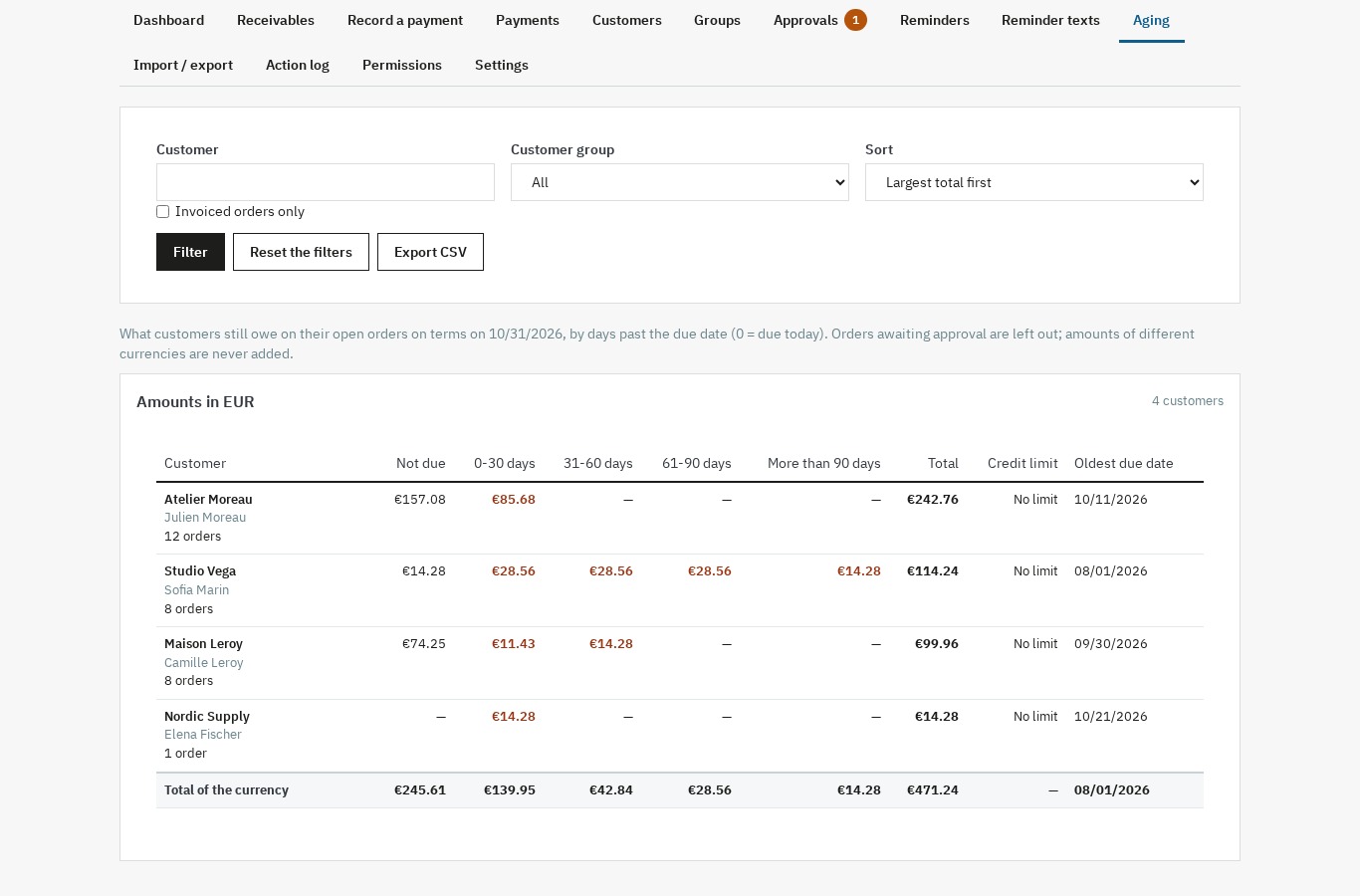 Receivables by age, with the total for each currency
“My invoices” on the customer side
Customers allowed to pay on terms get a “My invoices” page in their account. It shows the number, date, due date, amount, remaining balance and status of each invoice: upcoming, due today, overdue with the number of days, paid or cancelled. The invoice PDF and your payment details are available from the page.
The page also lists term orders not yet invoiced, a “Your account” block with the terms, limit, exposure and available credit, and a form to download a PDF statement for a period. Each customer only sees their own invoices, in the current shop; an order belonging to another customer shows nothing.
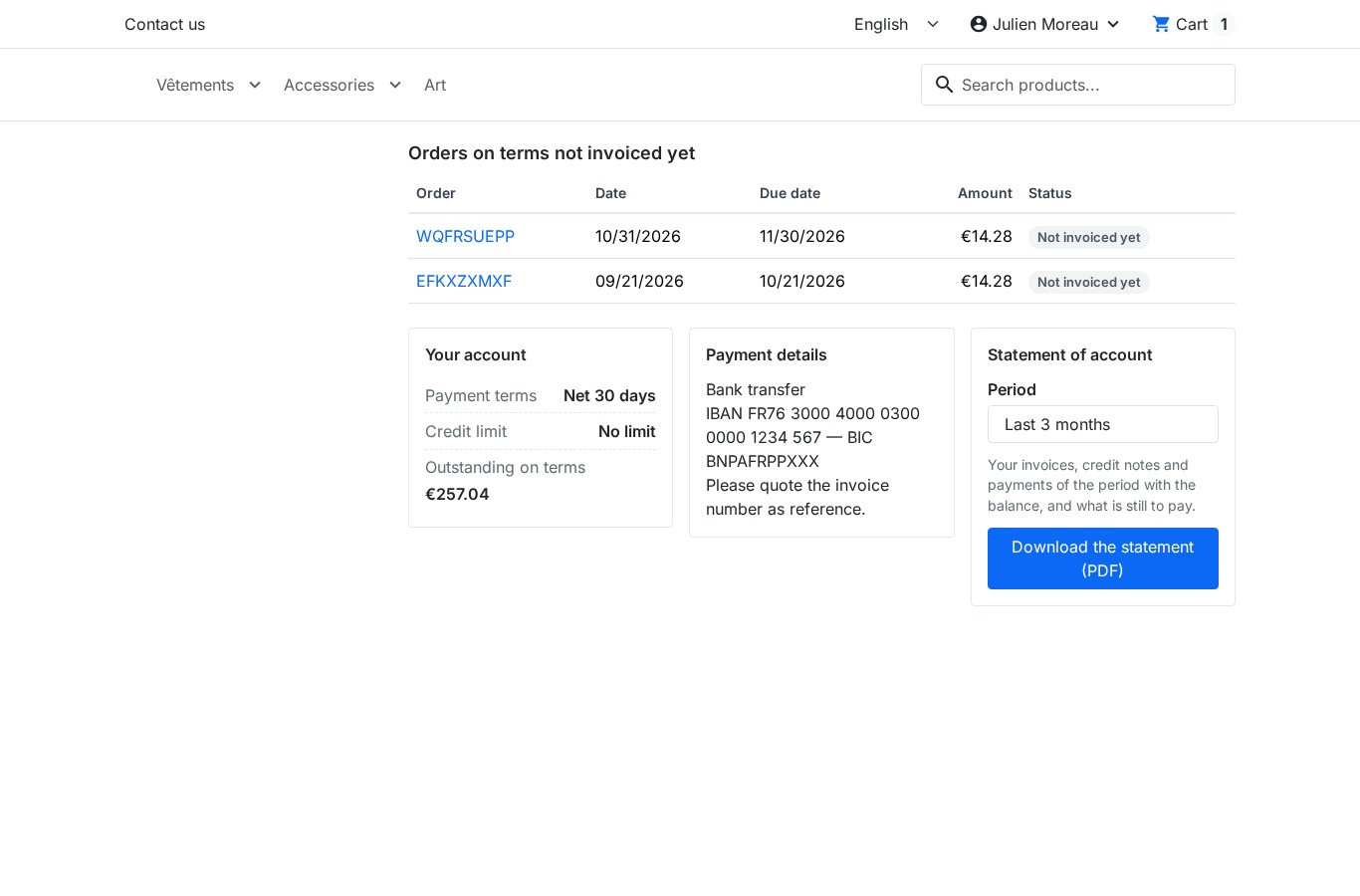 Customers check their account and download their statement without calling the accounts team
CSV import, rights and multistore
CSV import and export cover customer and group terms: a file is first analysed line by line, with creations, updates, unchanged lines and errors, then applied only when you confirm. The export also serves as a template to equip an existing customer base.
Five rights can be given to each employee: view, configure, approve, collect and remind. Super administrators have every right; buttons an employee may not use are hidden and every action is checked on the server. The action log keeps the author, the object, the action and the details of each change.
In multistore, terms and limits can be shared across shops or set per shop. Exposure, reminders and statements are always calculated per shop, and the portal opens in the right shop.
Installation
- Download the module archive from your customer account.
- In the back office, open Modules > Module Manager and click Upload a module.
- Select the ZIP file; PrestaShop installs the module, its tables and its menu entry.
- Click Configure and activate your licence.
- Open the module from the configuration page or from the Modules > B2B net terms menu (WePresta > B2B net terms on PrestaShop 9).
Installation creates the module’s two order states, “Awaiting payment on terms” and “Awaiting approval (payment on terms)”. Native orders, invoices, payments and credit notes are not modified.
First configuration
- Allowed groups: tick the customer groups that may pay on terms. With no allowed group, no customer sees the option.
- Default terms: choose the mode and the number of days, for example net 30, and the base date, order date or invoice date.
- Default limit: leave it empty for no limit, or enter an amount in the shop currency.
- Over the limit: choose between hiding the method with a message or offering an approval request.
- Invoicing: state whether the invoice is created as soon as the term order is placed, or whether you create it yourself.
- Reminders: check the schedule, the sending hour, the sender and the escalation addresses, then send a test e-mail.
- Scheduled task: copy the URL with the token or the command line into your scheduler, then check that the last run appears in the settings.
Daily use
In the morning, the dashboard shows what is overdue and what is coming due. The Receivables page filters by customer, due date, invoicing and source, with tabs for Open, Overdue, Upcoming, Awaiting approval, In dispute, Paid orders and Cancelled.
When a bank transfer arrives, open Record a payment, choose the customer and let the module propose the allocation to the oldest due date. The preview shows what will be settled; confirming writes the native payments.
When an order goes over the limit, the Approvals page shows the request with the exposure, the limit and the credit available after approval. You can approve, refuse with a note, or raise the limit in the same step.
The Reminders page shows the day’s sends, failures and the log. A disputed invoice is marked as in dispute from the receivable or the order panel: reminders stop until the dispute ends.
Use cases
A wholesaler invoicing at 30 days. Business customers order on account, terms are set once per group, and the limit is checked on every order. Partial payments are allocated to the oldest invoices, and reminders follow their course without intervention.
A mixed B2B/B2C shop. Payment on terms is offered only to allowed groups. A private customer never sees the option, and a business customer over the limit can always order by paying by card.
A distributor granting a settlement discount. The 2% within 10 days is shown on the invoice and in the portal. When the transfer arrives in time, the native credit note is created in one click and the remaining amount is immediately up to date.
An unusual first order. The order is held, the team receives the request, a manager approves it with a note, and the customer receives the confirmation with the due date.
Requirements and limits
- PrestaShop 1.7.8, 8.0+ or 9.0+; PHP 7.4 or later.
- PrestaShop invoicing must be enabled for reminders and invoice PDFs; otherwise the module warns you in its settings. An order without an invoice stays visible but is not reminded.
- Automatic reminders need a scheduled task: the URL with a token or the command line provided by the module. Without a run, no automatic e-mail leaves.
- The module reads the native tables and keeps no ledger. It takes no payment online, charges no card, makes no SEPA direct debit, keeps no general accounting, does no bank reconciliation and no VAT return.
- It does not rate a customer’s creditworthiness and does no legal collection. Late-payment interest is informational, calculated pro rata on the days at the rate you enter, disabled by default and never added to the order.
- PrestaShop’s order page still shows an invoice as unpaid after a credit note, because the core does not deduct credit notes. The module’s remaining amount does.
- Without an active licence, payment on terms, payments, credit notes, panels, the customer account and statements keep working; reminders, changes to settings, terms and imports wait for renewal.
- Interface, e-mails and PDFs in French, English, Spanish, Italian and Polish; the Classic and Hummingbird themes work without changes.
FAQ
Does the module take payments online?
No. It records the payments you receive by bank transfer, cheque, cash or another method, in PrestaShop’s native payments. Card payments and SEPA direct debits remain the job of your payment modules.
Does “Pay on terms” replace the other payment methods?
No. It is an additional method, offered to allowed customers. The other methods are neither hidden nor changed, and a customer over the limit or suspended can always pay upfront.
Where do the exposure amounts come from?
From PrestaShop’s native orders, invoices, payments and credit notes. The module recalculates the remaining amount from those tables, including payments entered from the order page, by another module or by an ERP.
What happens when a customer goes over the limit?
Depending on the setting, “Pay on terms” is hidden with a message you write, or the order becomes an approval request. In both cases the customer can pay another way, and you can grant an exception by raising their limit.
How does the settlement discount work?
You enter a rate and a delay. The discounted amount and the deadline appear on the invoice and in the portal. If the payment arrives within the delay and leaves exactly the discount, the module offers to create the matching native credit note, without refunding any quantity.
Are reminders really sent automatically?
Yes, if the scheduled task runs and the licence is active. The default schedule sends 3 days before, then 1, 7, 15 and 30 days after the due date. You can change the levels and texts, send a reminder by hand and read the log.
Can my customers see their invoices and statement?
Yes, from the “My invoices” page in their account: due date, amount, remaining balance, status, invoice PDF, payment details and a PDF statement for a period. Each customer only sees their own invoices, in the current shop.
Does the module work in multistore?
Yes. Terms and limits can be shared or set per shop, exposure is calculated per shop and the portal opens in the right shop.
What happens without a licence or after uninstalling?
Without an active licence the module does not disable itself: payment on terms, payments, credit notes, the customer account and statements remain available; reminders and changes to settings wait for renewal. On uninstall the module’s data is kept unless you tick its deletion, and native orders, invoices, payments and credit notes are never touched.
Does the module replace my accounting or legal advice?
No. It follows due dates and payments and helps you chase them. It keeps no accounting, does no bank reconciliation or VAT return and gives no legal advice. Check the wording and the interest rate that apply to your business with your accountant.
Support
For help, contact us from your WePresta customer account or by e-mail at mail@wepresta.shop, according to the support option of your plan.
Changelog
Version 1.0.0
- Give payment terms per customer, per group or by default: due on receipt, net 15/30/45/60/90, end of month or days end of month.
- Check the credit limit and exposure before every order, with a message or an approval request when the limit is exceeded.
- Hold a first term order or an over-limit order, then approve or refuse it with a note.
- Record full or partial payments against one or several invoices, to the oldest due date or manually.
- Follow the remaining amount per invoice and per order from the native payments, and undo a receipt while no credit note is attached.
- Grant a settlement discount and create the matching native credit note in one click.
- Send reminders automatically before and after the due date, with texts per level and per language, escalation and an optional suspension.
- Stop reminders on payment, cancellation, refusal or dispute, and send a manual reminder or a test e-mail.
- Read the aging report 0-30, 31-60, 61-90 and over 90 days, with CSV export.
- Download a PDF customer statement per customer, shop, currency and period.
- Give each customer a “My invoices” page with due date, remaining amount, status, invoice PDF and statement.
- Import and export customer and group terms and limits as CSV, after a dry run.
- Assign five rights per employee and follow actions in the log.
- Work in multistore with shared or per-shop terms.
- Use the module on PrestaShop 1.7.8, 8.0+ and 9.0+ with PHP 7.4 minimum.

Related articles
B2B payment terms in PrestaShop: net 30, credit limits, reminders
How to apply payment terms per customer, check exposure before each order, record payments on native invoices and remind customers of overdue invoices in PrestaShop.