B2B payment terms in PrestaShop: net 30, credit limits, reminders
How to apply payment terms per customer, check exposure before each order, record payments on native invoices and remind customers of overdue invoices in PrestaShop.
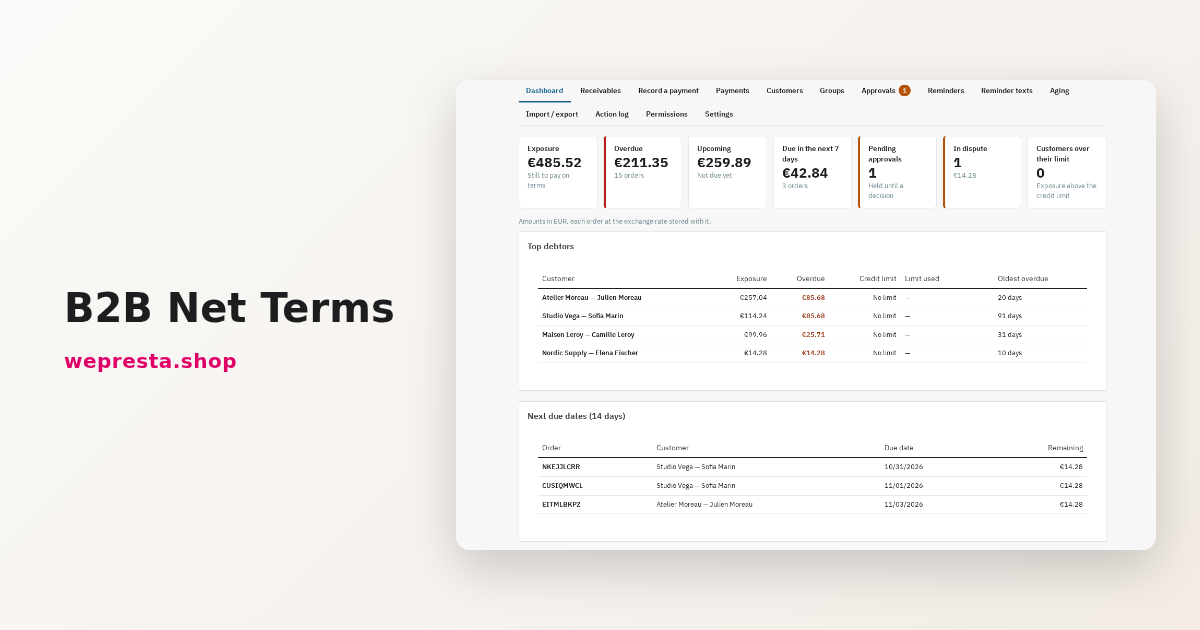
Your business customers order on account with net 30 payment terms. PrestaShop keeps the order and the invoice, but not the due date, the credit limit or the remaining balance in one place: the follow-up ends up in a spreadsheet, and a late payment surfaces when the customer calls. B2B Net Terms brings that follow-up back into the back office.
The module applies payment terms per customer, per group or by default, computes each order’s due date, checks exposure before granting another one, records payments on PrestaShop’s native invoices and sends reminders on overdue invoices. Every amount stays PrestaShop’s own: the module reads your orders, invoices, payments and credit notes.
Who needs net terms, and who can skip them?
The module is for shops that invoice businesses and follow several orders on terms a month; a shop that collects payment at checkout does not need it.
It fits wholesalers, distributors, small manufacturers and mixed B2B/B2C shops that want to grant a delay without losing track of due dates. Customers you do not authorise never see the option: access is set per group or per customer record, and guest accounts never get it.
It replaces neither your accountant nor your invoicing software. It is a follow-up and collection tool inside PrestaShop, not a parallel ledger.
How do you set up net 30 terms?
Net 30 terms are set in six steps, from installing the module to allowing its payment method in PrestaShop.
- Install the module from Modules > Module Manager. Installation creates the “Awaiting payment on terms” and “Awaiting approval (payment on terms)” order states; your orders, invoices, payments and credit notes are not changed.
- Settings > General: enable “Pay on terms at checkout” and tick the groups under “Groups that pay on terms”. The diagnostic flags what still needs fixing, such as invoicing turned off or a scheduled task that never ran.
- Settings > Terms and credit: set “Default terms, discount and limit” (net 30, for example), the base date — Order date or Invoice date —, the “Default credit limit” and what happens “Over the credit limit”. Also set “Make the invoice when the order is placed” to match how you work.
- Groups: give a group its own terms and settlement discount, or leave “Default”.
- Customers: open a record to set own terms, a limit, a note or a suspension. Every value shows where it comes from: Own, Group or Default.
- Payment > Preferences (a native PrestaShop setting): allow the module for the currencies, countries and groups you use, otherwise the option never appears.
Finally set the scheduled task under Settings > Scheduled task: copy the address with its token, or the command line, into your scheduler. Without a run, automatic reminders do not leave.
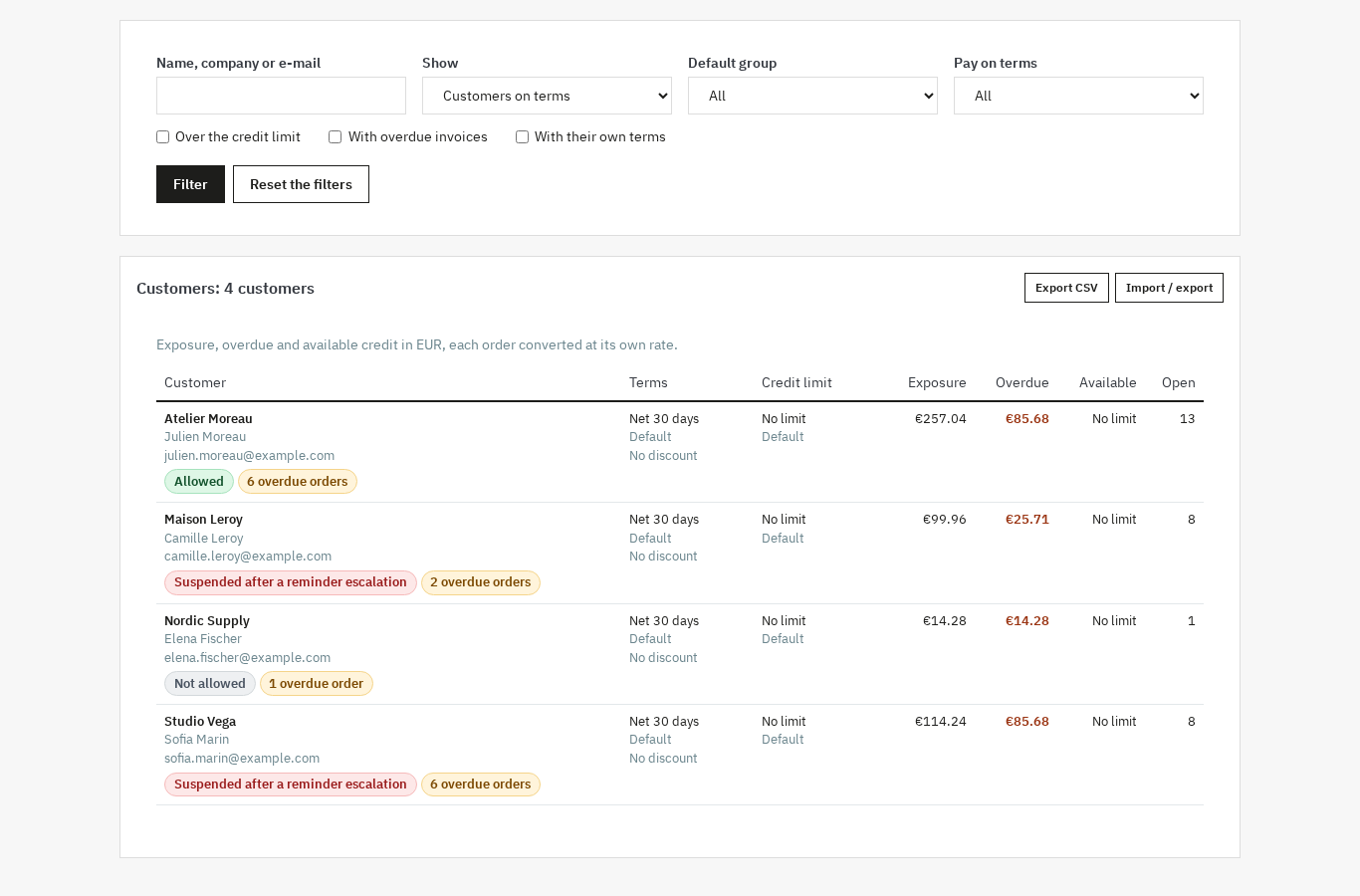
How do you set a credit limit per customer and check it before an order?
The limit is set on the customer record, in the shop’s default currency; exposure adds unpaid invoices, orders on terms not yet invoiced and orders awaiting approval.
Each amount is converted at the rate stored on its order, and an overpayment does not reduce the exposure of another order. At checkout the module compares exposure plus cart total with the limit, then applies your setting: hide the option with a message you write, or send the order as an approval request.
Approval also covers first orders on terms when you enable “First order on terms”. The Approvals page shows exposure, the limit and the credit available after approval; you approve or refuse with a note, and you can raise the limit in the same move. A refusal moves the order to the state you chose, Canceled by default, which puts the stock back.
The module never hides or changes the other payment methods. A customer over the limit can still order and pay upfront, and a suspended customer reads a message that invites them to pay another way.
If your prices are negotiated before the order, the B2B quote request module prepares the quote and turns it into an order; the order can then be paid on terms. For EU customers, OSS EU VAT adapts tax-inclusive prices to the visitor’s country, while the invoice amount stays the one PrestaShop records.
How do you follow exposure and late payments day by day?
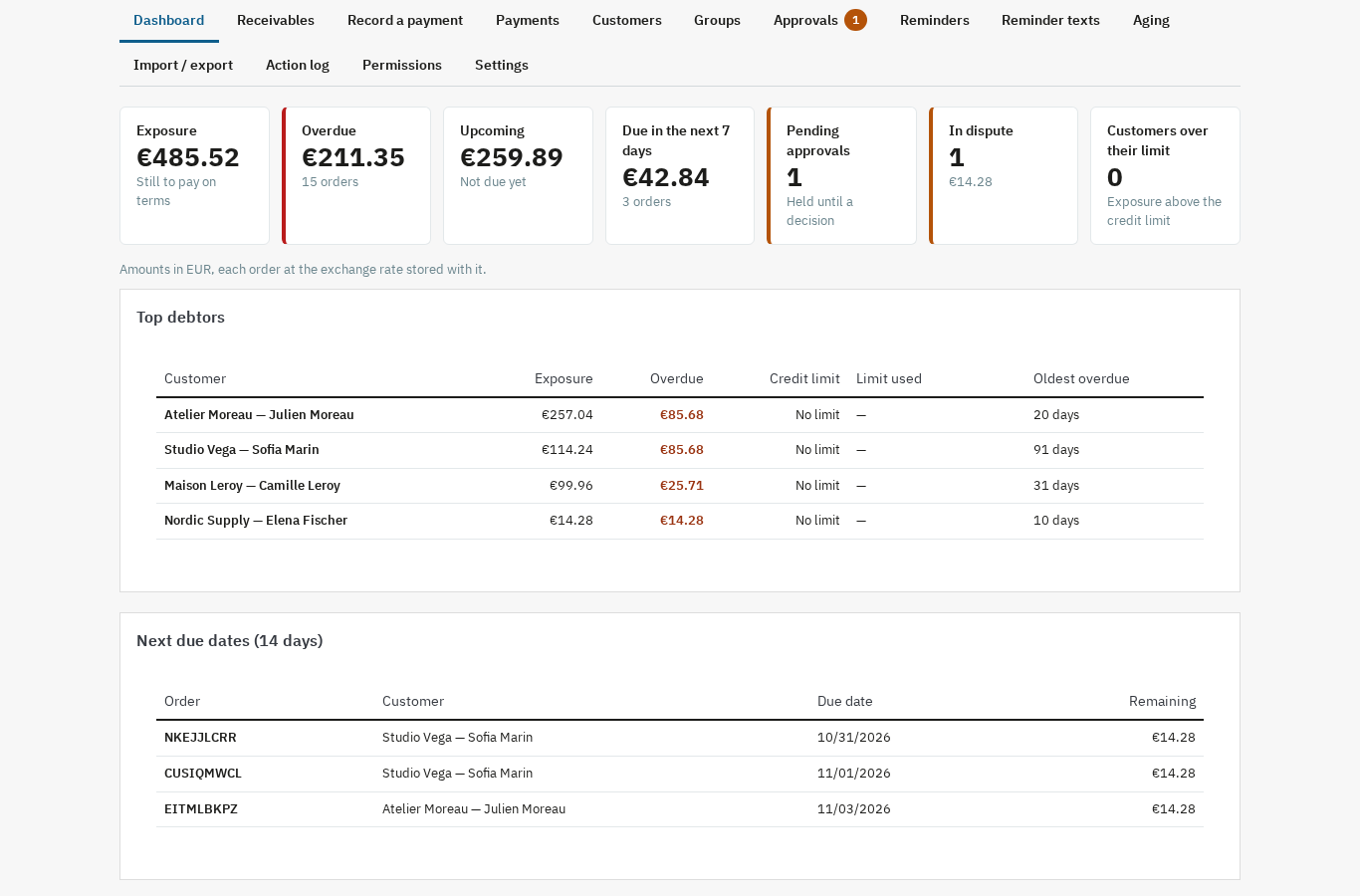
The dashboard brings together exposure, overdue amounts, the next seven days and the top debtors; the Receivables page gives the detail, tab by tab.
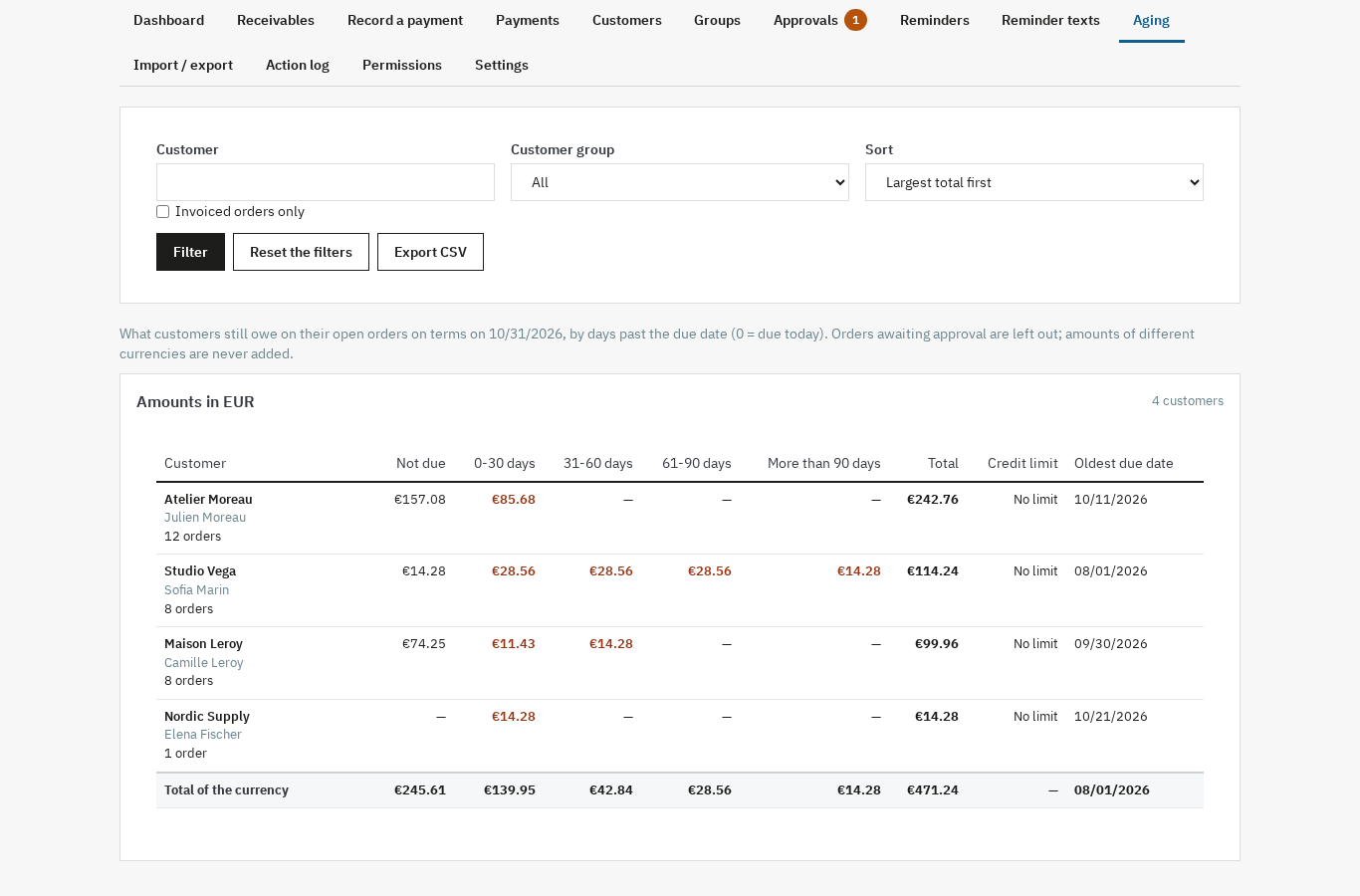
The Open, Overdue, Upcoming, Awaiting approval, In dispute, Paid, Cancelled and All tabs filter orders by customer, due date, invoicing and source. The aging report sorts amounts by days past due — not due, 0-30, 31-60, 61-90 and over 90 days — with a total per currency.
When a transfer arrives, open Record a payment: the module offers to settle the oldest due date first, or an amount per invoice or order. A preview shows the split before you confirm; confirmation records native payments, linked to the invoices where they exist, and the remaining balance is recomputed per invoice and per order. A receipt can be undone as long as no credit note is attached to it.
A settlement discount is set per customer, per group or by default. When a payment arrives within the delay and leaves exactly the discount on the order, the module offers to create the matching native credit note, split over the order lines, with no quantity refunded and no stock movement.
A concrete case: the partial transfer on Tuesday
A customer pays part of two invoices by bank transfer. You enter the amount and the date, split the payment across the two invoices, and check the preview. Both invoices keep a remaining balance, the older one comes first in the next reminders, and the statement PDF you send lists the payments with a running balance.
On the customer side, the “My invoices” page shows the due date, amount, remaining balance and status of each invoice, with the native PDF and your payment details. The customer also downloads a statement for the period they choose.
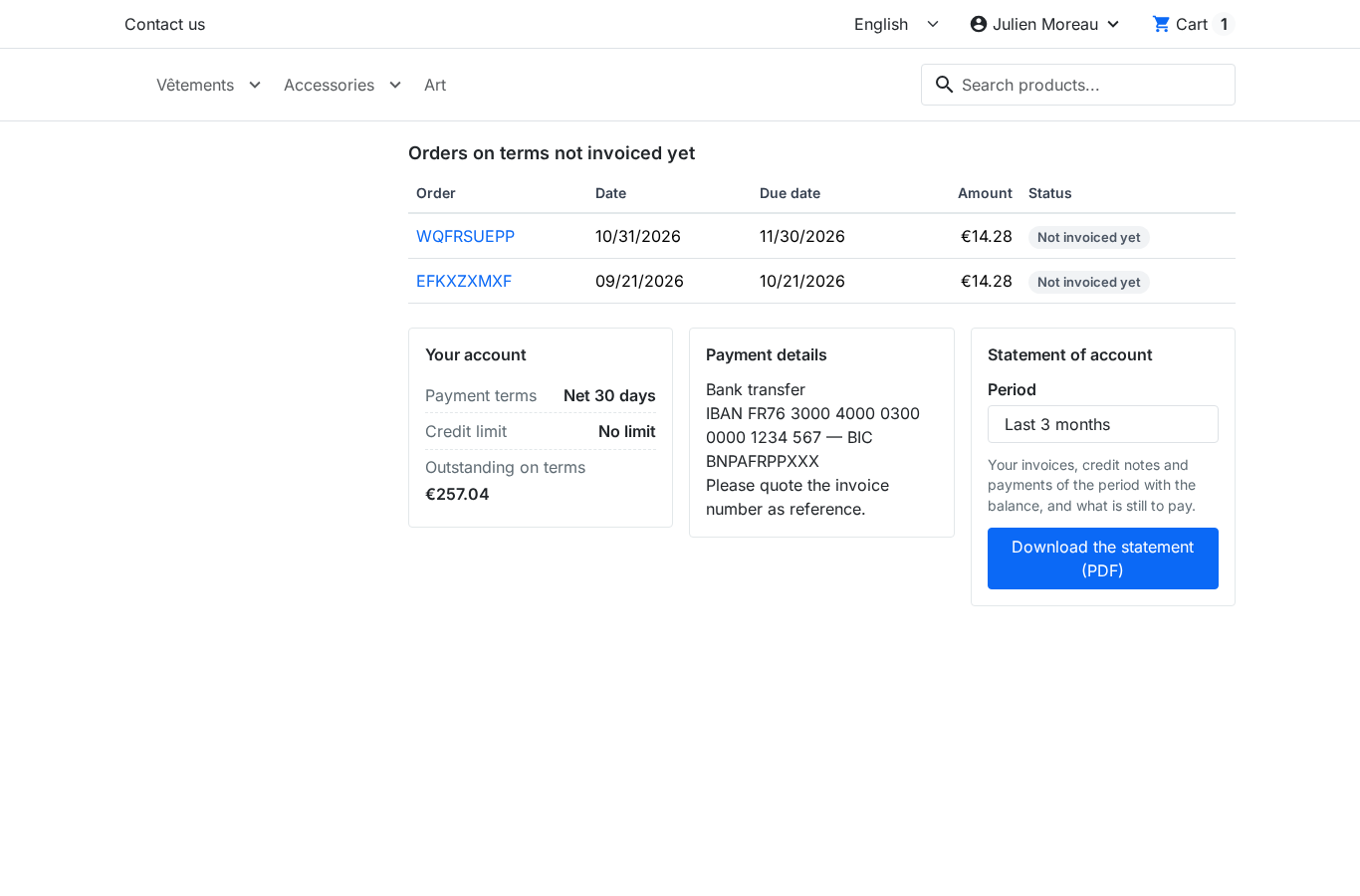
The module documentation describes every screen and setting, with the labels of your language.
How do you chase an unpaid invoice without annoying the customer?
On each run, the module keeps one reminder per order: the latest level reached, not one e-mail per level passed.
The default schedule places levels three days before the due date, then one, seven, fifteen and thirty days after it. The last one escalates. You edit the levels, write a text per level and language in Reminder texts, and insert variables such as the customer, order, invoices, due date, remaining balance and the link to My invoices.
Reminders stop as soon as the order is settled, cancelled, refused or marked in dispute. Orders without an invoice are never reminded: they appear separately as due but not invoiced. An escalation warns the addresses you chose and, when you enable it, suspends the customer’s pay on terms; the suspension lifts by itself when no escalated receivable is left open.
You can also send a reminder by hand, choose the level, read the rendered text and add copy addresses. The Reminders page lists the day’s sends, failures and their reason, and the log keeps every send.
What the module does not do
It takes no online payment, charges no card and keeps no accounts: it records and follows the payments you receive.
It handles no SEPA direct debit, no bank reconciliation and no VAT return, and it does not rate a customer’s creditworthiness. Legal collection stays outside. Late-payment interest is informational, off by default, computed at the rate you enter and never added to an order.
PrestaShop invoicing must be enabled for reminders and invoice PDFs; an order without an invoice stays visible but is not reminded. After a credit note, PrestaShop’s order page still shows the invoice as unpaid, because the core never deducts credit notes; the module’s remaining balance does.
Without an active license, pay on terms, payment recording, credit notes, panels and the customer portal keep working; reminders, settings, terms and imports wait for the renewal. On uninstall, the module’s data is kept unless you tick its deletion.
The module gives no legal advice. Have your accountant check the mentions on your invoices and the interest rate that applies to your business. It runs on PrestaShop 1.7.8, 8.0+ and 9.0+, with PHP 7.4 or later, on the Classic and Hummingbird themes.
For card payments or payment in instalments, the Stripe deposits and partial payments module covers that need.
Frequently asked questions
Can you offer net 30 and net 60 in a PrestaShop shop?
When should you follow up on an unpaid invoice?
How do you set a credit limit per customer?
Should payment terms differ by customer type?
Is there a thirty-day invoice payment method in PrestaShop?
Products in this article

B2B Net Terms: credit limits, receivables & payment reminders
Payment terms per customer, per group or by default: due on receipt, net 15/30/45/60/90, end of month Credit...

B2B Quote Requests: negotiate prices and turn them into orders
A “Request a quote” button on the product page and on the cart, with or without a customer account A negotiated...

Stripe deposits & partial payments
Deposits and partial payments via Stripe, or payment in instalments without fees Automatic balance recovery on...

EU OSS VAT – GeoIP VAT-Included Prices (MaxMind)
Simplify European VAT: prices automatically adapt to the visitor’s country (GeoIP or manual selection). Configure...
Read also
Custom fields and a blog in PrestaShop: the ACF & CPT guide
Specifications, FAQ, badges, a blog: how to add your own fields and content types to PrestaShop without touching the theme, then hand their data entry to Claude or…
How to set shipping costs by postal code in PrestaShop
Create zones by postal code, range and prefix, refuse an area, keep store pickup and back up the configuration: the full path through the PrestaShop back office.
Supplier restocking in PrestaShop: reorder points and purchase orders
A guide to setting reorder points, preparing supplier purchase orders and receiving deliveries without losing track of outstanding quantities.