- A block editor, without touching the theme
- All your e-mails in one dashboard
- Preview on a real order and test send
- Subject, preview text and text version per language
- Quality check, revisions and template updates
- Delivery-country variants, import and export
- Does the module modify my theme files?
- Which e-mails can I customize?
- What happens if my license expires?
- Can I go back to PrestaShop’s original e-mail?
- Will the received e-mail look exactly like the preview?
- How many test e-mails can I send?
- Can I translate the design?
- Can I reuse a design in another shop?
- Does the module track opens or clicks?
- Is it compatible with multistore and employee profiles?
Transactional e-mails on PrestaShop: design, preview and test your order messages
An order confirmation, a shipping notice, a password reset: these messages are opened more often than any newsletter, and they carry the shop’s logo, its colors and its tone. In PrestaShop they live in the theme’s mails folder, in HTML and TWIG files translated language by language. Changing a button or adding an order summary therefore means editing files, and a shop without a developer often keeps the default design.
Transactional Email Designer gives these messages a visual editor in the back office: blocks to drag and drop, colors and fonts to set, a preview on a real order, a test send and a one-click return to the native template. This guide shows how to install it, design a first e-mail and use it day after day.
Key points:
- A block editor for transactional e-mails: header, text, picture, button, order summary, ordered products, totals, footer and more, with no HTML file to edit
- A preview on real data: an order, a customer or a cart, at 600 px and at 390 px, with the variables already filled in
- A test send before the real one: 1 to 10 addresses, a subject prefixed
[TEST], without saving the design - Subject, preheader and text version in each language, with variables and fallback values
- A safety net: quality check before saving, revisions, native restore and comparison when a template changes
Discover the module and its plans
Overview
PrestaShop sends its transactional e-mails through Mail::send(). The method loads a template from the theme, replaces the variables with the order, customer or cart data, translates the subject and the body, then hands the result to the mailer configured in the shop. The templates are files: a shop that wants a branded order confirmation has to edit them, and a module that ships its own e-mails brings its own files.
The module takes another path. It keeps a design in the database, composed of blocks and style settings, and applies it at send time, when PrestaShop is about to send the message. The complete e-mail is replaced, which is why the module works with both PrestaShop mail themes and with the e-mails of installed modules, and why no template file is ever written. The original template of each language stays in place and can be restored at any moment.
This guide covers the five screens of the module: E-mails, Custom e-mails, Library, Import and export and Permissions, plus Settings. It does not cover marketing campaigns, deliverability or PDF documents, which remain outside the module’s scope.
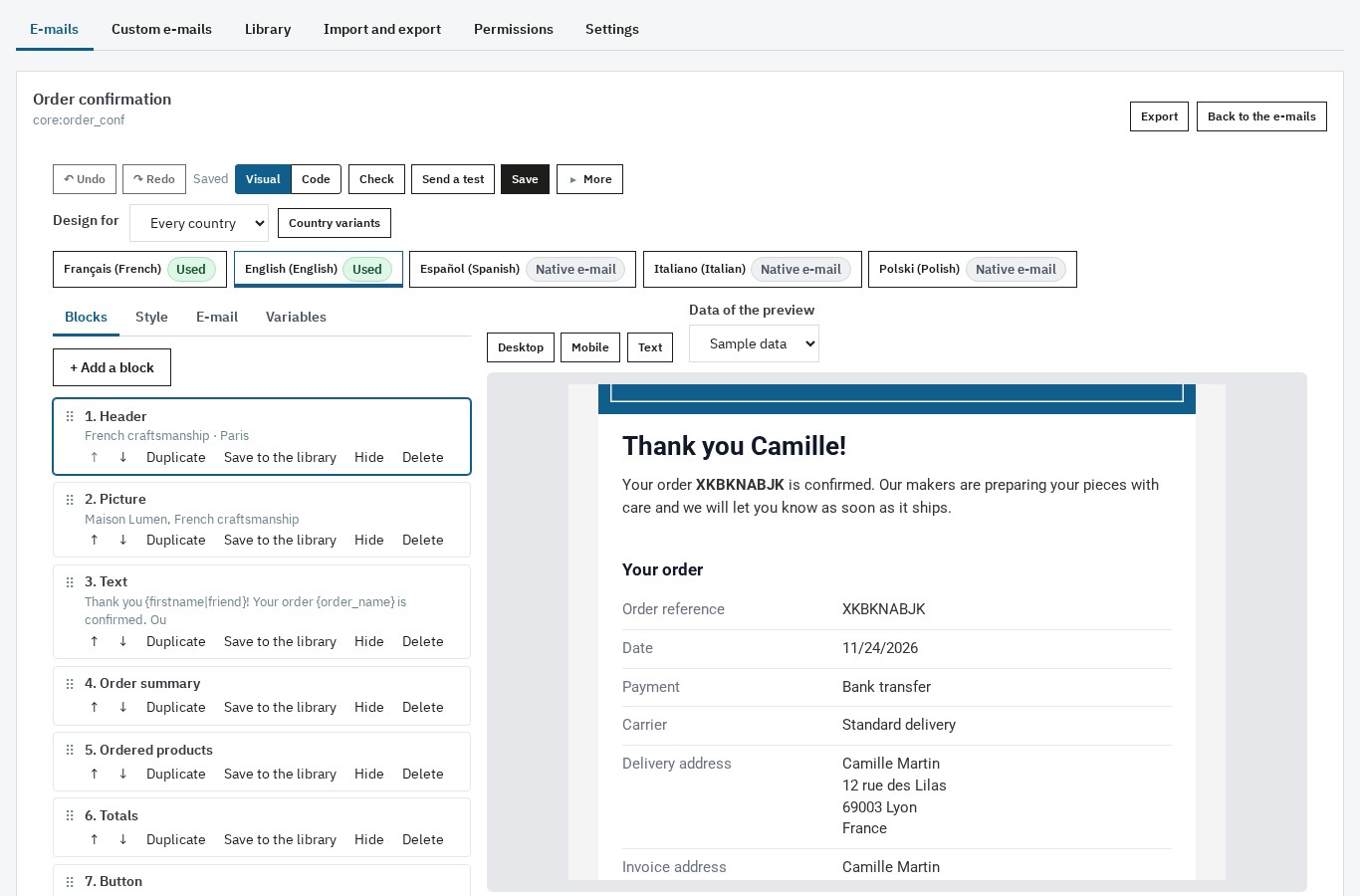 The editor and its preview: the blocks on the left, the preview on the right
Features
A block editor, without touching the theme
The editor offers twelve blocks: header with the shop logo, text, picture, button, order summary, ordered products, totals, separator, spacer, social networks, footer and an HTML block for special cases. A block is added from the left column, moved by drag and drop or with the arrow buttons, duplicated, hidden and deleted. Undo and redo cover the whole editor state, including the texts, the subject and the preview text.
The Style panel sets the page background, the content background, the text color, the heading color, the link color, the button color and its text color, the border color, the footer text color, the font, the heading font, the e-mail width in pixels, the corner radius, the logo width and the line height. Twelve open-license fonts are hosted by your shop: no request is sent to Google when the e-mail leaves, and a fallback font covers the mail clients that ignore web fonts.
A layout and a style can be applied to one e-mail, to all its languages or to every e-mail of the shop. Each application asks for confirmation and creates a revision first.
All your e-mails in one dashboard
The E-mails screen lists the templates your shop really has: PrestaShop’s native e-mails, those of your installed modules and those replaced by a mail theme. For each one, the list shows the origin, the languages covered by a design, the date of the last change and the state: native, customized, update available or draft. Filters search by name or key, origin, state, category, language, and the list sorts by name or last change.
From the same screen you open the editor, the preview of the native template, the revisions, the country variants and the restore action. Custom e-mails are created from a design or a blank page and sent by hand from the order page, to the customer or to another address; thirty custom e-mails per hour at most.
Preview on a real order and test send
The preview is not a frozen picture. Pick a source in the Data of the preview menu: sample data, an order, a customer or a cart. The module fills the variables with the real values of that record and shows the e-mail at 600 px, as on a desktop, and at 390 px, as on a phone. Variables it cannot fill are flagged: those PrestaShop provides only at send time, and those it does not know at all.
Send a test builds the message from the current editor state, without saving it, and sends it to 1 to 10 addresses with a subject prefixed [TEST]. The screen recalls the limit of twenty tests per hour, and reminds you that a message handed to the mailer is not proof of delivery. The test never changes the shop’s real e-mails, the templates or the saved designs.
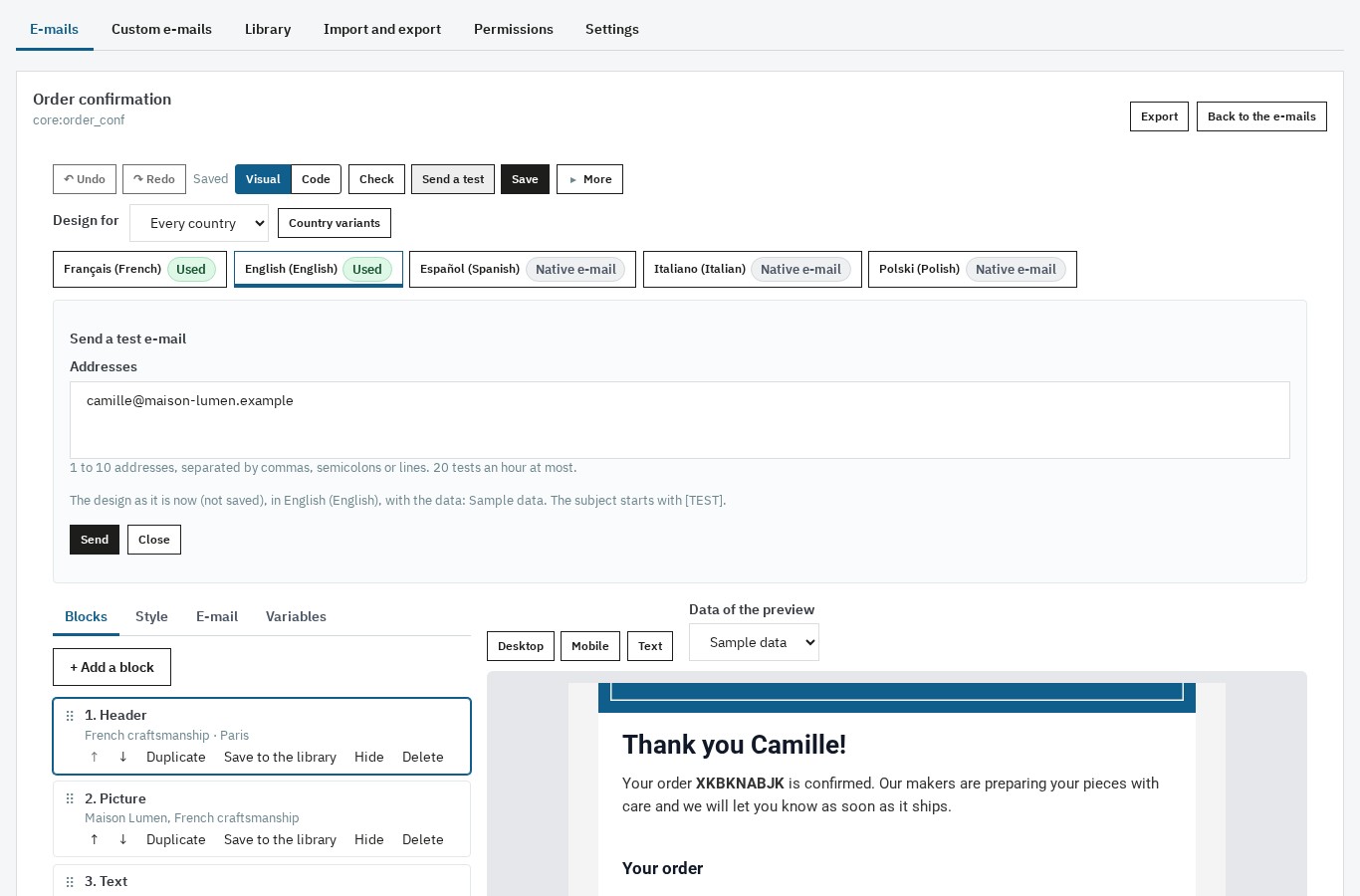 A test send from the current state of the editor, without saving it
Subject, preview text and text version per language
The E-mail tab holds the subject and the preview text, the preheader that mail clients show after the subject. Both are written per language, accept variables and a fallback value, and an empty subject keeps PrestaShop’s own. The text version is generated automatically from the blocks or written by hand; both are checked before saving.
The design is shared by the languages, while the texts, subject, preview text and text version belong to each language. You design once, copy the layout to the other languages, translate in the editor and switch each language on separately. A language left off keeps receiving PrestaShop’s native template. A translation view shows the source language beside the target one, and the language tabs recall which languages use a design and which still use the native e-mail.
Quality check, revisions and template updates
Before saving, Check runs the quality rules. The blocking problems stop the save: a required variable missing, an empty or invalid link, an empty text version, a missing unsubscribe link on a marketing e-mail, a syntax error in code mode, a text/background contrast below 3:1. The warnings let you save but point at a contrast between 3:1 and 4.5:1, a picture without alt text, a width above 600 px, an unknown variable, HTML above 102 KB or a 1 × 1 px picture that looks like a tracking pixel. Each point is tied to a language and a block; clicking it opens the block.
Every save creates a revision that can be previewed and restored. Twenty revisions per design are kept by default, and the number can be set from 5 to 100. Restore the native template applies to one e-mail, one language or the whole shop. When a PrestaShop or module update changes a template you had customized, the dashboard flags it and offers a comparison between the old native template, the new one and your design, with the variables added or removed; nothing is replaced without your decision.
Delivery-country variants, import and export
For order-related e-mails, Country variants lets you give a delivery country its own design, texts, colors and languages. A country belongs to one variant only; a country without a variant receives the common design. At send time the module reads the country of the delivery address and picks the variant that covers the e-mail’s language, otherwise the common design, otherwise the native template.
A design is exported as a JSON file with its variants, texts, settings and the pictures it uses. The import analyzes each design, matches languages and countries by their code, lists what is missing and replaces nothing without an explicit confirmation. In multistore, each shop keeps its own designs, variants and settings.
Installation
- In Modules > Module Manager, upload the module ZIP file and install it.
- Open the module configuration and enter your WePresta license key. Without a valid license the module stays disabled and your e-mails keep using PrestaShop’s native templates.
- Once the license is valid, the module is enabled and its E-mails screen is reachable from the module menu.
The installation creates the module’s tables and reads the templates present in the shop. It writes no file into your theme and changes no existing e-mail. On uninstall, the setting Delete the data when uninstalling decides whether designs, revisions, pictures and logs are removed or kept.
Getting started
- Open E-mails. The dashboard lists the native and module templates found in the shop; the counters at the top recall how many have a design and how many updates are available.
- Find the e-mail you want, for example the order confirmation, and click Customize.
- Choose one of the twelve ready-made designs (order confirmation, shipping, account created, password, invoice, refund, review request, contact, cart, welcome, reminder, newsletter signup), or start from a blank page.
- Add and reorder blocks, then set the colors and the font in Style. Use Undo and Redo freely: they cover texts, subject and preview text as well.
- Open E-mail, write the subject and the preview text in the current language, and check the text version.
- Click Check, fix any blocking problem, then Send a test to one or more addresses.
- When the test looks right, click Save. The design is now applied to every send of that e-mail, in the languages you switched on.
To translate, copy the layout to the other languages, open each language tab and write its texts. To go back, open Restore the native template and choose the e-mail, the language or the whole shop.
Configuration
The Settings screen holds six options:
- Use my designs in the e-mails: switches the module’s designs on or off without uninstalling it.
- Web fonts in the e-mails: includes the self-hosted web fonts in the sent e-mail; turn it off to rely on the fallback font only.
- Write the CSS of the code mode into the HTML: inlines the CSS written in code mode, for mail clients that ignore style sheets.
- Revisions kept per design: from 5 to 100, 20 by default.
- Keep the log of the custom e-mails sent (days): retention of the manual send log, which follows PrestaShop’s GDPR tools.
- Delete the data when uninstalling: removes designs, revisions, pictures and logs when the module is uninstalled.
Permissions sets what each employee profile can do: view e-mails, edit designs, use code mode, restore a revision or the native template, send tests and custom e-mails, transfer a design, and change the settings. A profile without a right does not see the corresponding action.
Use cases
A fashion boutique without a developer. The order confirmation keeps PrestaShop’s header and text but gets the brand colors, a larger logo, a tracking button and an order summary that stacks cleanly at 390 px. The merchant checks the result on a real order, sends a test to the shop address, then saves.
An agency handing over several shops. The design is exported as JSON with its pictures and imported into the next shop. The import matches the languages and the countries by code, lists what is missing, and the agency confirms before anything is written.
A multilingual shop with a Swiss and a French market. The common design covers both countries; a variant for Switzerland changes the texts and the contact details. At send time, the module picks the variant that covers the language of the e-mail.
A merchant preparing a template update. A module update changes the order confirmation template. The dashboard flags the change, the merchant compares the old native template, the new one and the design, sees the variables added or removed, and decides whether to keep the design or adopt the new native template.
Requirements
- PrestaShop 1.7.8, 8.0+ and 9.0+.
- PHP 7.4 or newer.
- The GD extension to upload pictures into designs; the DOM, JSON and mbstring extensions for the code check and the text version.
- A classic front theme and one of the two PrestaShop mail themes: the complete e-mail is replaced at send time, so both work.
- Modules whose e-mails go through PrestaShop’s native send. A module that bypasses it, or replaces the content afterwards, stays out of the module’s reach. Some container templates, which wrap the content of several e-mails, are not customized by the module.
- No external service is called at send time: fonts are hosted by the shop. A valid WePresta license is still required.
FAQ
Does the module modify my theme files?
No. No template file is written: the design is stored in the database and applied at send time, when the complete e-mail is replaced. The original template of each language stays intact and can be restored at any moment. Theme customizations and PrestaShop updates are therefore not affected.
Which e-mails can I customize?
PrestaShop’s native e-mails, those of your installed modules and those replaced by a mail theme. The dashboard shows what the shop really contains, with the origin and the state of each template. A module that does not use PrestaShop’s native send, a module that replaces the content after it, and the container templates that wrap several e-mails are outside the module’s scope.
What happens if my license expires?
Without a valid license the module disables itself: your e-mails go back to PrestaShop’s native templates, and the editor, previews and test sends are no longer available. Your designs, revisions, pictures and settings are kept. Open the configuration page to activate or renew the license; the module is enabled again and your designs are used again.
Can I go back to PrestaShop’s original e-mail?
Yes, for one e-mail, one language or the whole shop. Restore the native template puts the original template back without touching the other designs, and every earlier save remains available as a revision with a preview before restoring.
Will the received e-mail look exactly like the preview?
The preview shows the structure, texts and variables, but it cannot reproduce every mail client. Outlook ignores rounded corners and web fonts, Gmail does not show web fonts, and some clients shrink pictures. The module uses tables, inline styles and a fallback font to limit these differences; rendering still varies from one client to another.
How many test e-mails can I send?
Each test goes to 1 to 10 addresses with a subject prefixed [TEST], and the module accepts at most twenty tests per hour. The test uses the current editor state without saving it, so you can fix and resend without leaving a draft.
Can I translate the design?
The design is shared by the languages; texts, subject, preview text and text version are written for each language, with variables and fallback values. A translation view shows the source language beside the target one, and a language left off keeps receiving the native template.
Can I reuse a design in another shop?
Yes. The design is exported as JSON with its variants, texts, settings and pictures, then imported into another shop or another installation. The import matches languages and countries by code, lists what is missing and replaces nothing without confirmation. In multistore, each shop keeps its own designs.
Does the module track opens or clicks?
No. It adds no tracking pixel and measures neither opens nor clicks. The log of custom e-mails sent by hand follows PrestaShop’s GDPR tools: it is exported and erased with the customer’s data, and its retention period is set in the settings.
Is it compatible with multistore and employee profiles?
Yes. Each shop keeps its own designs, variants and settings, and the rights are set by employee profile: view, edit, code, restore, send, transfer and settings. A profile without a right does not see the corresponding action.
Support
For any help, contact us from your WePresta customer account or by e-mail at mail@wepresta.shop, according to the support option of your plan.
Changelog
Version 1.0.0
- A block editor for transactional e-mails: twelve block types, moved by drag and drop or with the arrow buttons, duplicated, hidden and deleted.
- A style panel for the e-mail colors, typography and width, applied to every block.
- Twelve free fonts hosted by the shop, with no call to Google at send time.
- Undo and redo across the whole editor state, including texts, subject and preview text.
- A dashboard of native, module and theme e-mails, with filters, states and last change date.
- Custom e-mails created from a design or a blank page, sent by hand from the order page.
- A preview at 600 and 390 px on sample data, a real order, a customer or a cart.
- A test send to 1 to 10 addresses, with a subject prefixed [TEST], limited to twenty tests per hour.
- Subject, preview text and text version per language, with variables, fallbacks and a translation view.
- Twelve ready-made designs and six library blocks, translated into the five languages.
- Variants by delivery country, with their own texts, colors and languages.
- JSON import and export of a design, its variants, texts and pictures.
- A quality check that blocks errors before saving and flags warnings.
- Revisions from 5 to 100 per design, twenty by default, with preview and restore.
- Restore the native template, detect template updates and compare them before deciding.
- Multistore and rights per employee profile.
- Without a valid license, the module disables itself and keeps designs, revisions, pictures and settings.

Related articles
How to customize PrestaShop order e-mails without touching code
A merchant guide to the transactional e-mail editor: blocks, style, preview on a real order, test send, languages, country variants and the way back to the native…