How to customize PrestaShop order e-mails without touching code
A merchant guide to the transactional e-mail editor: blocks, style, preview on a real order, test send, languages, country variants and the way back to the native template.
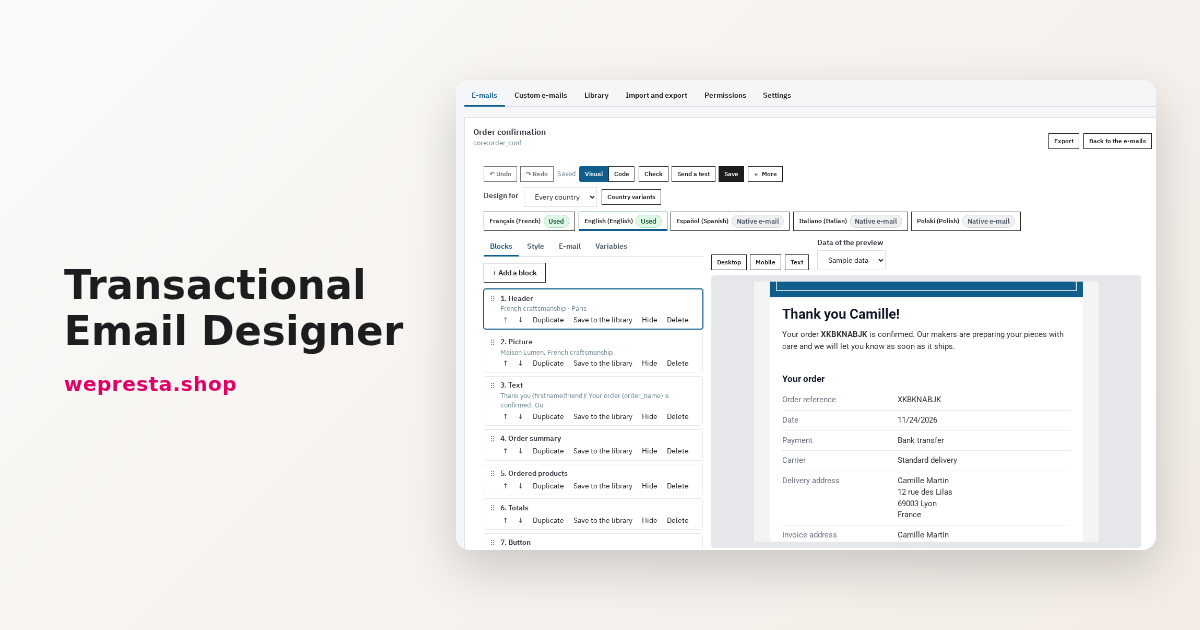
Your order confirmation does not look like your shop, and you do not want to touch the HTML. In PrestaShop these messages live in PrestaShop's mails folder, as HTML and text files translated language by language, so changing a button or adding an order summary means editing files. Transactional Email Designer replaces them at send time with a design built in the back office. This guide covers who it helps, how to set it up and what it does not do.
Do you need a developer to change your order e-mails?
No: colors, logo, texts and the order summary of a transactional e-mail are set from the back office, without writing HTML or changing the theme.
The module is for a shop that keeps the native e-mails because it has no developer, for an agency taking over several shops, and for a multilingual merchant who wants the same design in each language. It also helps when a module installs its own e-mails: the E-mails page lists them next to the native templates.
It is not meant for a shop that only wants e-mail campaigns, nor for one whose e-mails are sent by a module that bypasses PrestaShop's native send. In both cases the module's design does not apply, and a newsletter module or the module's own code is the right answer.
How does a design apply at send time without touching the theme?
The module keeps the design in the database and replaces the complete e-mail at send time, when PrestaShop is about to send the message.
PrestaShop sends its e-mails through Mail::send(), which loads a template file from PrestaShop, replaces the variables with order, customer or cart data, then hands the result to the mail service. The module works on that pass: it builds the e-mail from the saved blocks and substitutes it for the template. No theme file is written, and the original template of each language stays in place.
In practice the module works with both PrestaShop mail themes and with the e-mails of installed modules, as long as they use the native send. A language with no active design keeps receiving the native template, and disabling the module puts every e-mail back on that template.
How do you build an order e-mail, step by step?
Open E-mails, click Customize next to the order confirmation, then add blocks on the left while watching the preview on the right.
Before that, install from Modules > Module Manager: upload the ZIP archive, install it, then enter the license key on the configuration page. Without a valid license the module stays disabled and your e-mails keep leaving with the native templates.
In E-mails, each template shows its origin, the languages covered by a design, the date of the last change and its state, with an unsaved draft or an available update when either applies. Filters cover origin, state, category and language, with a search by name.
Customize opens a starting choice: the starter content of this e-mail, one of the twelve ready-made designs, a blank e-mail, or the native template. In the editor, + Add a block offers the header with the shop logo, text, image, button, order summary, ordered products, totals, separator, spacer, social networks, footer and an HTML block. Each block moves by drag and drop or with the arrows, duplicates, hides and deletes.
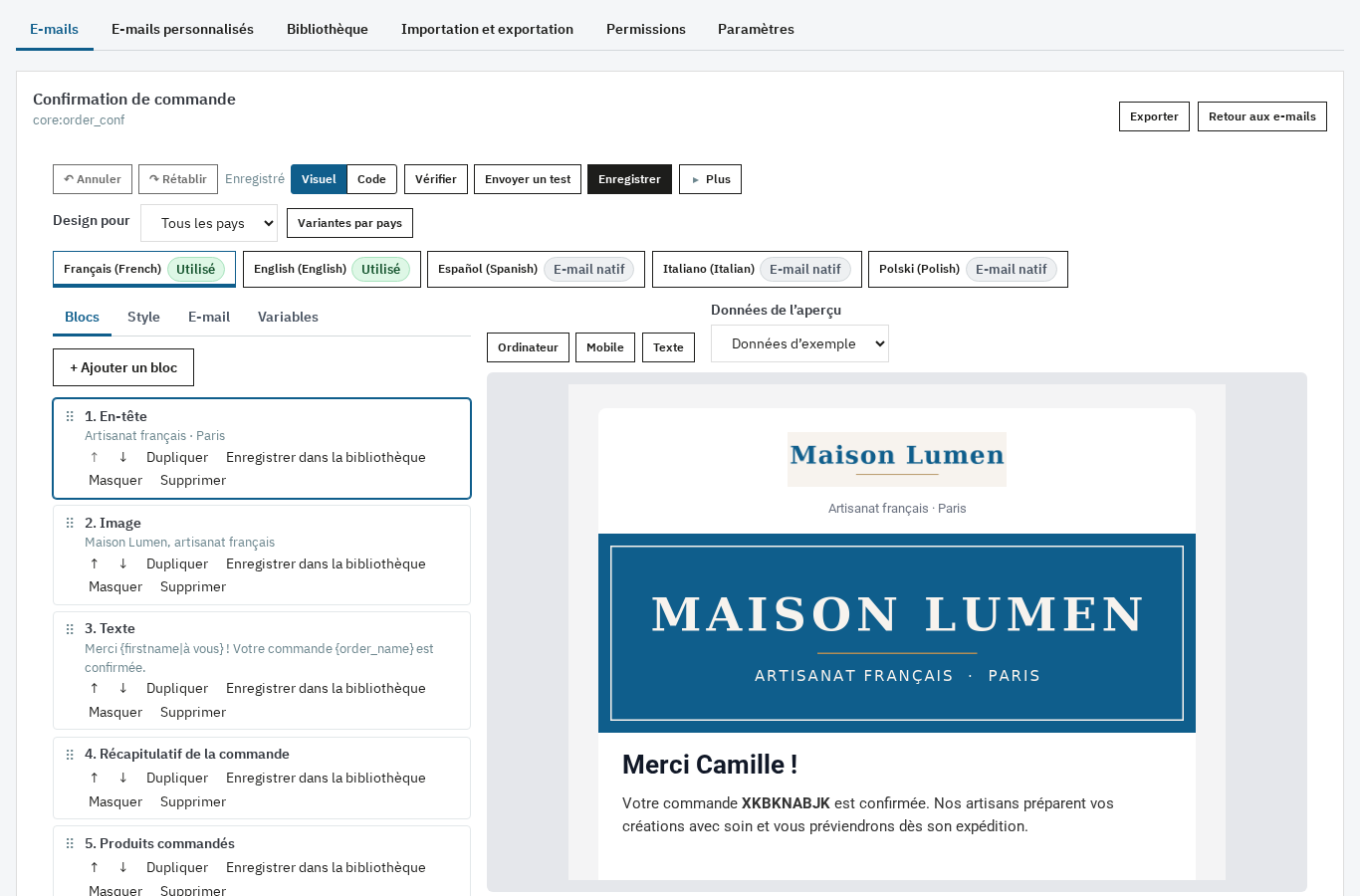
The Style tab sets the page background, text, heading, link, button and border colors, the font, the e-mail width and the corner radii. The twelve fonts come with the module and are served by the shop: no request goes to Google, and a fallback font covers mail clients that ignore web fonts.
A concrete case: a jewelry shop takes its order confirmation, puts the logo in the header, applies its colors to the button, adds the order summary and the ordered products, then a footer with the customer service address. It checks the result on a real order, sends itself a test and saves.
Custom e-mails are created on the Custom e-mails page and sent by hand from the order page, up to thirty sends per hour per employee. Every screen and setting is described in the module documentation.
How do you test the e-mail on a real order before it goes out?
Pick an order, a customer or a cart in Preview data, check the layout at 600 px and at 390 px, then send yourself a test.
The preview is not a fixed image: the module fills the variables with the values of the chosen record, shows the desktop and the mobile version, and flags the variables it cannot fill. The Text button shows the text version of the message.
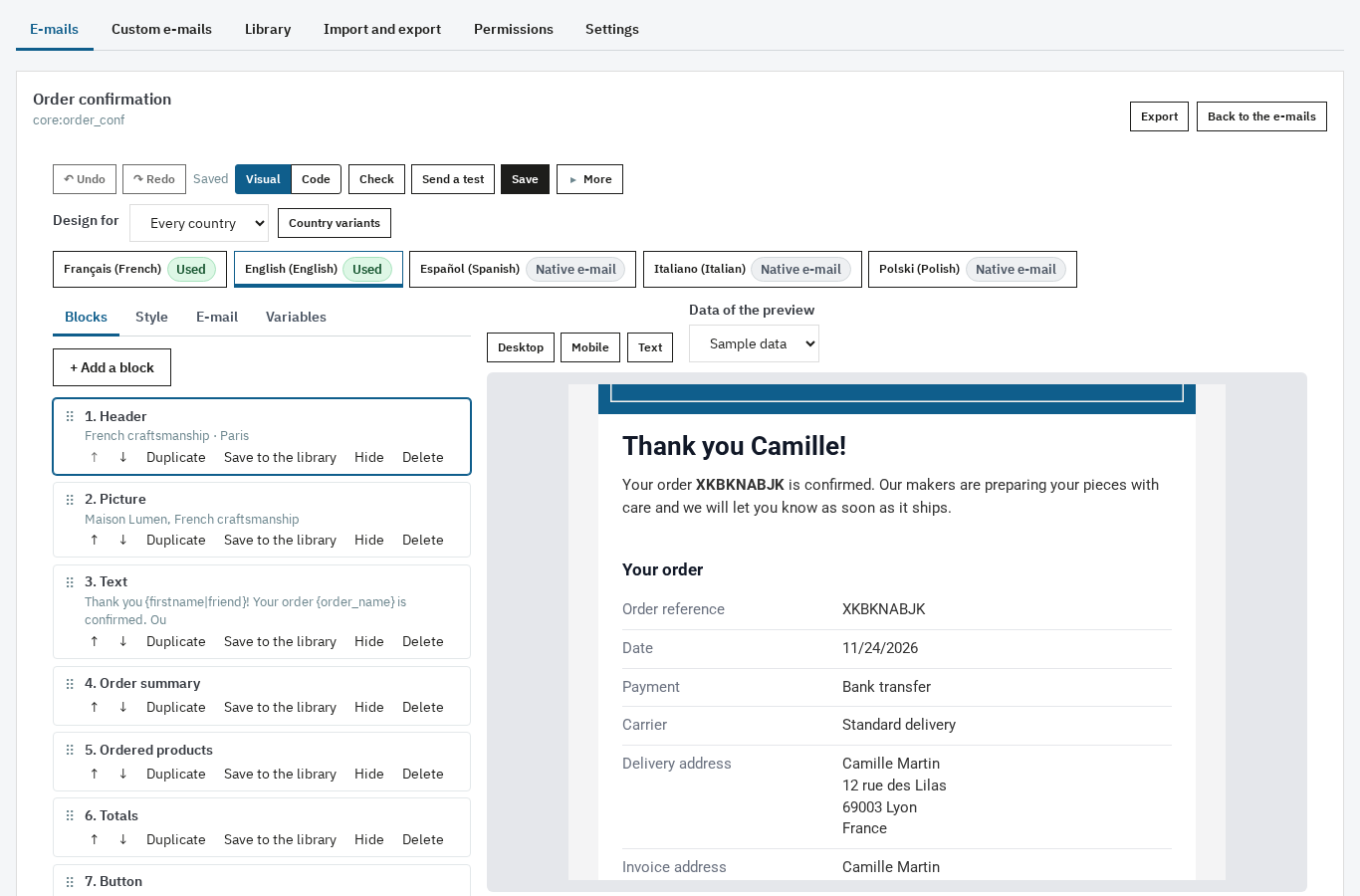
Send a test builds the message from the editor's current state, without saving it, and sends it to between 1 and 10 addresses with a subject prefixed [TEST]. The screen states the limit of twenty tests per hour. The result says "handed to the mailer" or names the failure, and handed to the mailer does not mean delivered.
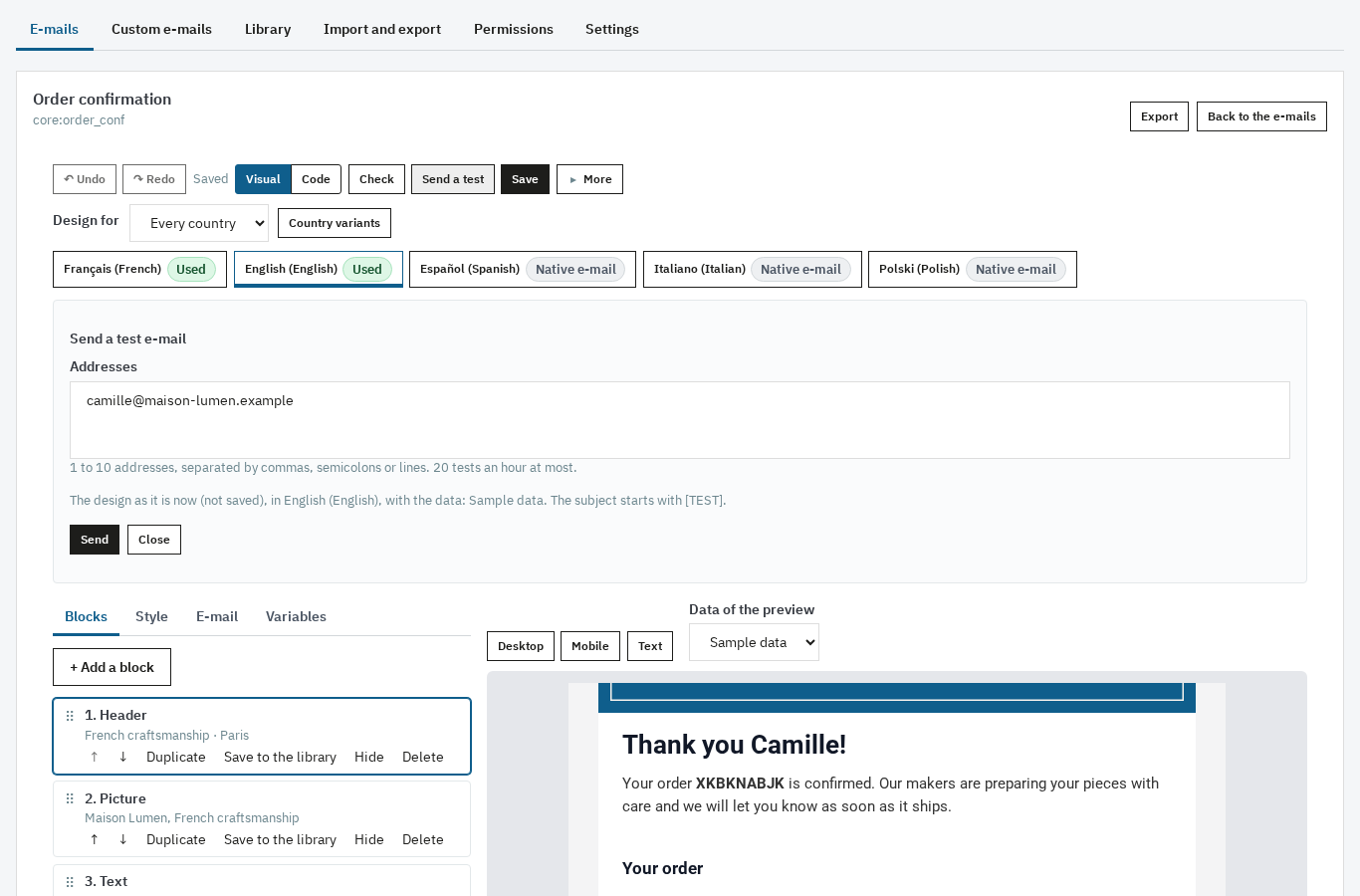
Before saving, Check applies the quality rules. A text/background contrast below 3:1, an empty or invalid link, a missing required variable or an empty manual text version blocks the save. A contrast between 3:1 and 4.5:1, an image without alt text or a width above 600 px is reported without blocking.
How do you handle several languages and countries?
The layout is shared, but the subject, preheader, block texts and text version are written language by language in the E-mail tab, and a country variant can change the design, texts and colors.
You design once, then copy the layout to the other languages: the module fills empty texts or replaces all of them, as you choose. A translation view shows the source language beside the target language. The Languages used checkboxes decide, for each language, whether the design is sent or PrestaShop sends its native e-mail.
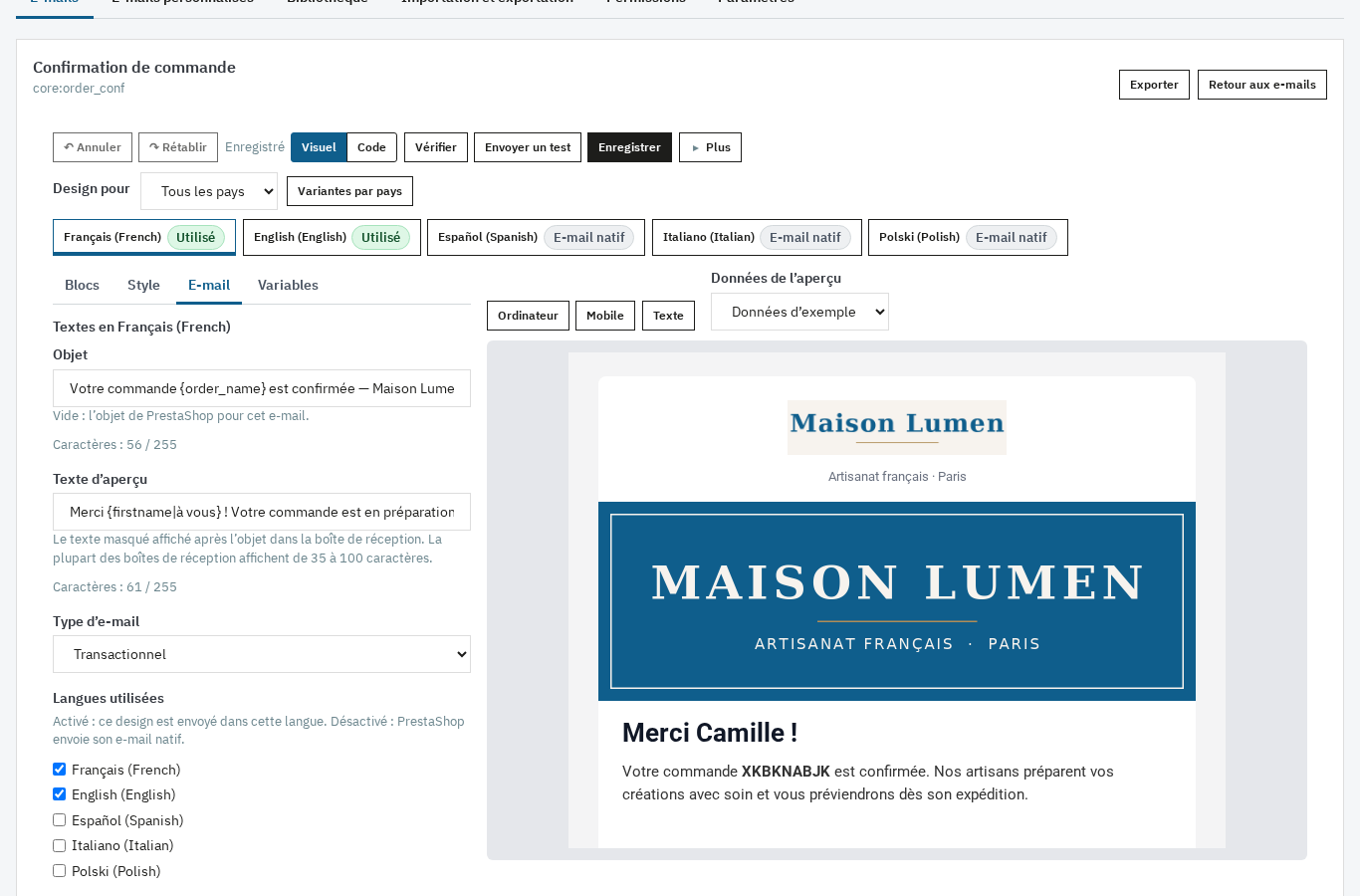
A language switched on without a translated text is flagged in the quality check, block by block. A language switched off keeps receiving the native template, so translations can progress without leaving anyone without a message.
For order e-mails, Country variants give a delivery country its own design, texts, colors and languages. A country belongs to one variant only; at send time the module reads the delivery address country and picks the variant covering the language, otherwise the common design, otherwise the native template.
How do you go back after a mistake or an update?
Every save keeps the previous state as a revision, and Restore the native template puts the original e-mail back in service for one e-mail, one language or the whole shop.
Revisions can be previewed and restored; the current state is itself saved as a revision before the rollback. The number kept per design is set from 5 to 100, twenty by default; older ones are deleted beyond that.
When a PrestaShop or module update changes a template you had customized, the E-mails page flags it and offers a comparison between the old native template, the new one and your design. The module lists the variables that appeared or disappeared and a diff of the visible text. Nothing is replaced without your decision: keep your design, adopt the new native template, or open the editor with the new variables highlighted.
The editor also keeps a draft, saved every sixty seconds and on exit, offered when you reopen it. Undo and redo cover blocks, style, texts, subject and preheader.
Why does the rendering differ between mail clients, and what does the module not do?
Because Outlook, Gmail and Apple Mail do not apply the same CSS: the preview shows the structure and the texts, not the exact rendering of each inbox.
The module uses tables, inline styles and a fallback font to reduce the gaps. Outlook ignores rounded corners and web fonts, and Gmail does not display web fonts. The 600 px and 390 px previews remain a structure check, not a pixel-perfect promise.
The module does not handle deliverability, which depends on the mail service and the domain configuration, nor bulk campaigns, nor PDF documents. It adds no tracking pixel and measures neither opens nor clicks. A module that bypasses Mail::send(), replaces the content afterwards or sends a container template that builds the whole e-mail itself stays outside its scope.
Its custom e-mail log works with PrestaShop's GDPR tools: it is exported and erased with the customer's data, and its retention is set in the settings. Without a valid license the module disables itself, designs and revisions are kept, and e-mails leave with the native templates.
For campaigns and reminders, a dedicated module takes over: Newsletter & e-mail campaigns for bulk sends, Abandoned cart reminder for follow-ups, and Shipping labels when the shipment e-mail has to carry parcel tracking.
Frequently asked questions
Does the module change the files of my theme?
How do I change the order confirmation e-mail?
Why does a variable such as {firstname} stay visible?
Why does the e-mail not look exactly like the preview?
Can I translate the e-mails for each language?
How do I send a test before the real send?
Products in this article

Transactional Email Designer: drag & drop, live order preview, test send
Build your order e-mails block by block, without writing HTML. Preview on a real order, customer or cart, at 600...

Newsletter & email campaigns: segments, automations and tracking
Build precise segments and automated journeys without leaving the back office. Document every consent and let...

Abandoned Cart Reminder
Bring customers back to their carts with up to three personalized reminder emails. Abandoned Cart Reminder combines...
Shipping labels and parcel tracking: multi-parcel, customs and returns
Split an order into several parcels and follow each parcel, its carrier and its tracking number. Import carrier...
Read also
One-page checkout in PrestaShop: set up Express Checkout
How to turn PrestaShop's four-step checkout into a single page: activation, test mode, payment and carrier compatibility, shipping updates when the address changes, and…
Shipping labels and parcel tracking in PrestaShop
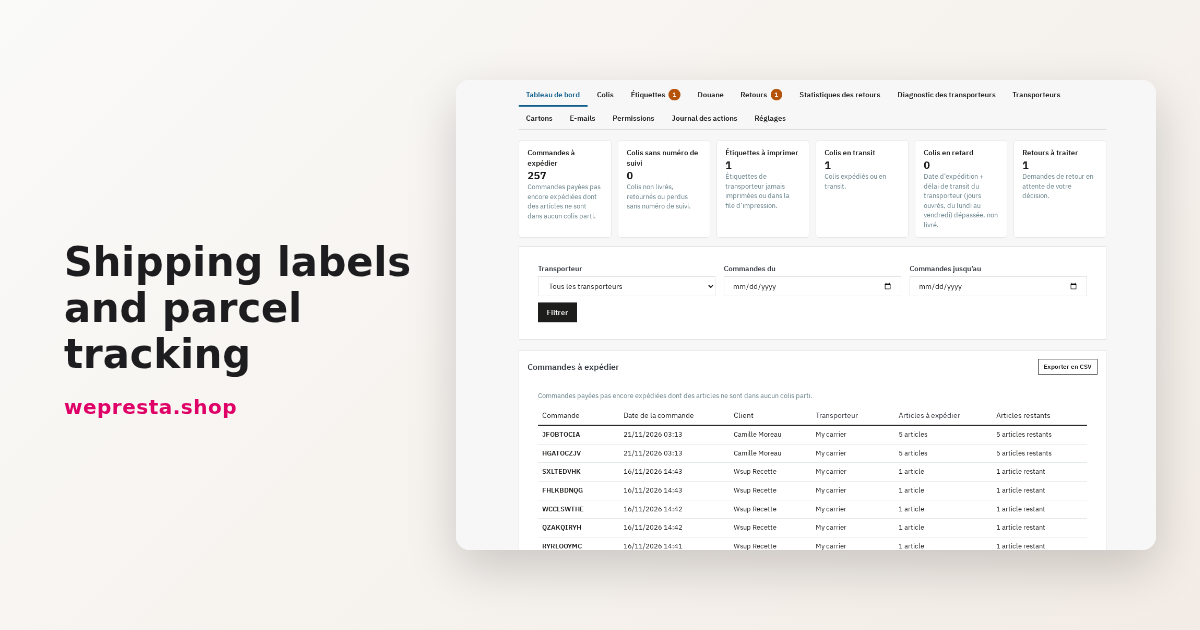
An order leaves in three parcels, carrier labels pile up in a downloads folder and tracking numbers live in a spreadsheet. The module gathers parcels, labels, customs…
SEO audit for PrestaShop: 404 errors, broken links and a fix plan
SEO errors crawls the store in served HTML, ranks issues by severity and traffic, then fixes the 404s, redirects, addresses and robots.txt.