- The button, on the product page and on the cart
- The request form
- The quote list and the quote page
- The proposal and the totals
- The customer area, “My quotes”
- After acceptance, in the cart
- The e-mails
- Settings, security and data
- Is a customer account required to request a quote?
- How do I send a proposal to a customer?
- What happens when the customer accepts?
- How long is a proposal valid?
- What happens if the customer changes their cart after accepting?
- Do the negotiated prices apply to later orders?
- Can I send a PDF, create a quote in the back office or answer a counter-offer?
- Can shipping costs be negotiated?
- Why does a catalogue discount appear next to the negotiated price in the cart?
- Which PrestaShop versions, themes and multistore setup are supported?
B2B quote requests on PrestaShop: from the request to the cart at the negotiated price
Business customers rarely order at the price shown on the product page. They ask for a quote for a few pieces, then for a much larger quantity, and expect a price that matches the volume. When the request arrives by e-mail or phone, the negotiated price disappears into a mailbox, the order is typed into the back office by hand, and the customer sometimes ends up ordering at the catalogue price.
B2B Quote Requests puts that journey inside your PrestaShop shop: the customer requests a quote from the product page or the cart, you answer with a negotiated price per line and a validity date, and their acceptance puts the products in their cart at the negotiated prices, ready to order. This guide explains how to install it, send your first proposal and follow each quote through to the order.
Highlights:
- A “Request a quote” button on the product page (product, combination, quantity) and on the cart page (every line), for the customer groups you choose
- A structured proposal: negotiated unit price excluding tax per line, validity date, message, and tax-excluded and tax-included totals computed with the shop’s tax rules
- An acceptance that leads to an order: the products join the customer’s cart at the negotiated prices, through PrestaShop’s native specific prices
- Full tracking: five statuses, history, filterable list, “My quotes” area and e-mails in the customer’s language
- A self-contained module: no external service, compatible with PrestaShop 1.7.8, 8.0+ and 9.0+, Classic and Hummingbird themes
Discover the module and its plans
Overview
In a B2B shop, negotiation is part of the sale. A wholesaler, a craftsman, a producer or a distributor buying to resell or for a building site wants a price for a specific quantity, and expects a clear answer: how much, for how many, until when.
Without a dedicated tool, that conversation lives outside the shop. The salesperson replies by e-mail, the price is stored nowhere, the order is created in the back office with a hand-edited price, and the customer cannot find the proposal they accepted. The module replaces this patchwork with a three-step journey — request, proposal, acceptance — with a record at every step.
It is meant for shops that sell to professionals and already negotiate, even occasionally: wholesalers, manufacturers, craftsmen, distributors, suppliers of equipment or consumables. A customer account is required to follow a quote; requests from visitors without an account are not covered.
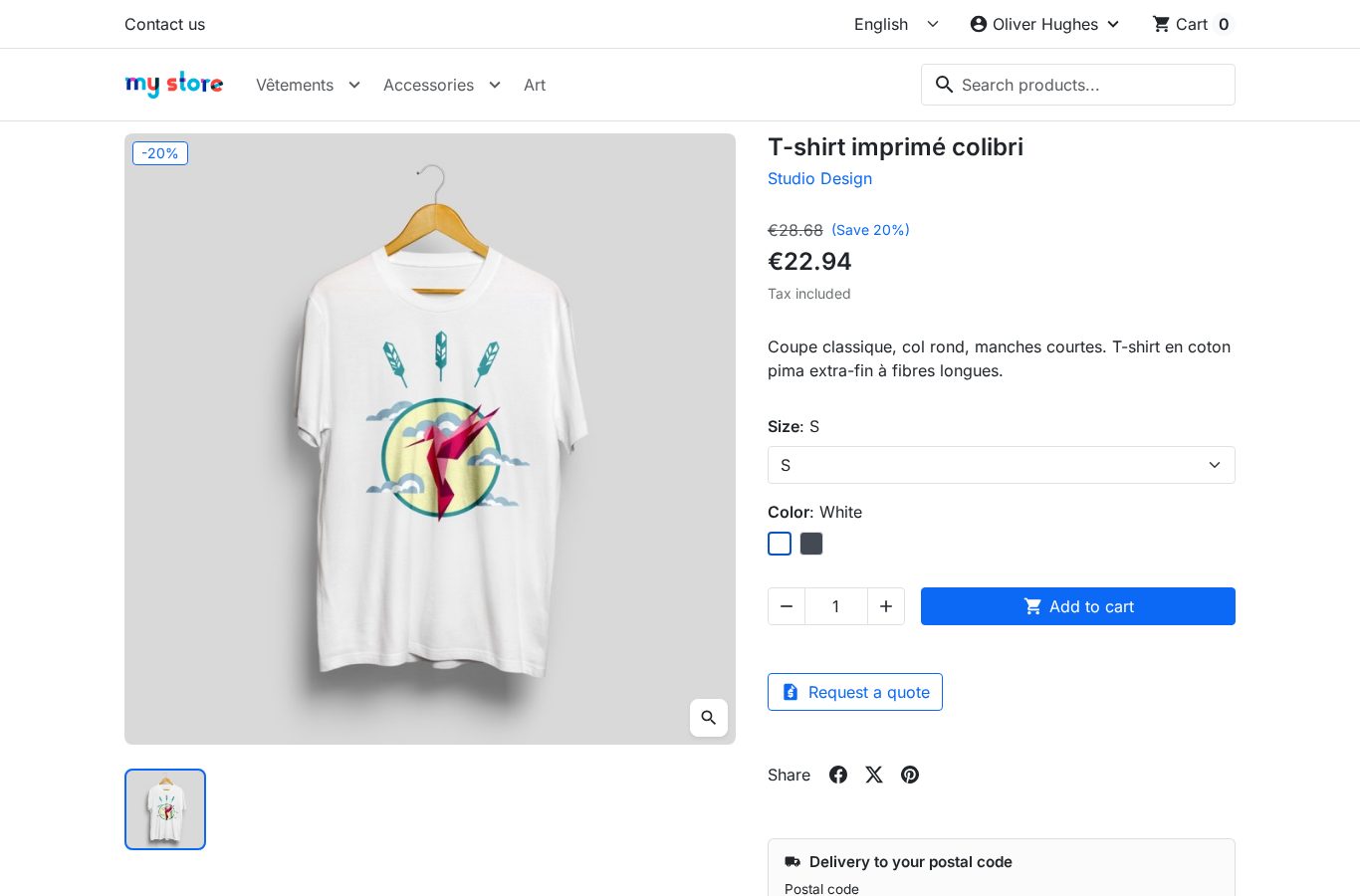 The “Request a quote” button on the product page, with the selected combination and quantity
What the customer sees
On the product page, the “Request a quote” button sits under “Add to cart” and carries the selected combination and quantity. On the cart page, an equivalent button turns every line into a single request. The form shows the products, the catalogue price excluding tax and the quantity; the customer can change the quantity, enter their company, VAT number and a message, then send the request.
Features
The button, on the product page and on the cart
- Product page: the button appears in the purchase area, under “Add to cart”. The link carries the product, the combination and the minimum quantity of the page; on click, the module completes the request with the attributes and the quantity actually selected. The server resolves the combination from the attributes and never takes a price from the browser. Without JavaScript, the link still works with the combination displayed on the page.
- Cart page: a “Request a quote for this cart” button sends every cart line as one request. The lines are read server-side from the customer’s cart; two lines of the same product and combination are added up. Gift lines from cart rules and customized products are left out, and the form says so. A request holds at most 100 lines.
- Who sees the button: the module must be enabled and the matching location switched on. The visitor must belong to an allowed group: a signed-in customer through any of their groups, a visitor who is not signed in through the “Visitor” group. Catalog mode must be off, the product active and available for order, without a required customization, and the cart must hold at least one product that can be quoted.
- Visitor not signed in: they are sent to the sign-in page, then back to the form. Version 1.0.0 requires a customer account.
The request form
The form lists the quote lines (picture, name with the combination, reference, current unit price excluding tax, quantity) and asks for:
- the company, prefilled from the account or the first address, optional, up to 128 characters;
- the VAT number, prefilled from the first address that has one, optional, up to 32 characters, letters, digits, spaces, dots and hyphens only;
- an optional message of up to 5,000 characters, with no HTML kept;
- the consent, required, with your own text or the translated default.
The submission is protected by a hidden trap field, a signed duration (at least 3 seconds, at most 2 hours), a limit of 10 requests per account per hour, a duplicate check over 2 minutes and a CSRF token. For a request from the cart, the quantities come from the cart and a link lets the customer change it first. For a request from a product page, the quantity is set between 1 and 999,999, without going below the minimum quantity of the product or combination.
Once sent, the quote receives a unique reference (the letter Q followed by eight characters), the customer gets an acknowledgement, your team gets a notification, and the customer is redirected to their quote with the message “Your quote request Q7XBLS6TC has been sent. We will answer you by e-mail.” Errors appear above the form and the fields keep what was typed.
The quote list and the quote page
B2B quotes > Quotes lists the shop’s requests with the reference, customer, company, request date, status, tax-excluded total of the proposal, validity date and number of lines. Every column sorts; the filters cover the status, the customer, the company, a date range and a search on the reference. The list shows 50 quotes per page and offers View and Delete, including on a selection. An employee only sees the quotes of the shops in their context.
The quote page brings together:
- the header: reference, status, request date, proposal sent date, answer date, source, language and shop;
- the customer: name with a link to their page, e-mail, company, VAT number and consent date;
- the customer’s message, with its line breaks;
- the lines: product with a link, reference, quantity, catalogue unit price excluding tax at request time, negotiated unit price excluding tax, tax rate and line total excluding tax;
- the tax-excluded, tax and tax-included totals, recalculated live as you type and by the Recalculate button, which also works without JavaScript;
- the validity date, prefilled with the default validity;
- the message to the customer;
- the cart and, once ordered, the order reference with a link;
- the status history.
Price fields are editable only when the status allows a proposal: New, Proposal sent or Expired. On an accepted or refused quote, the page is read-only.
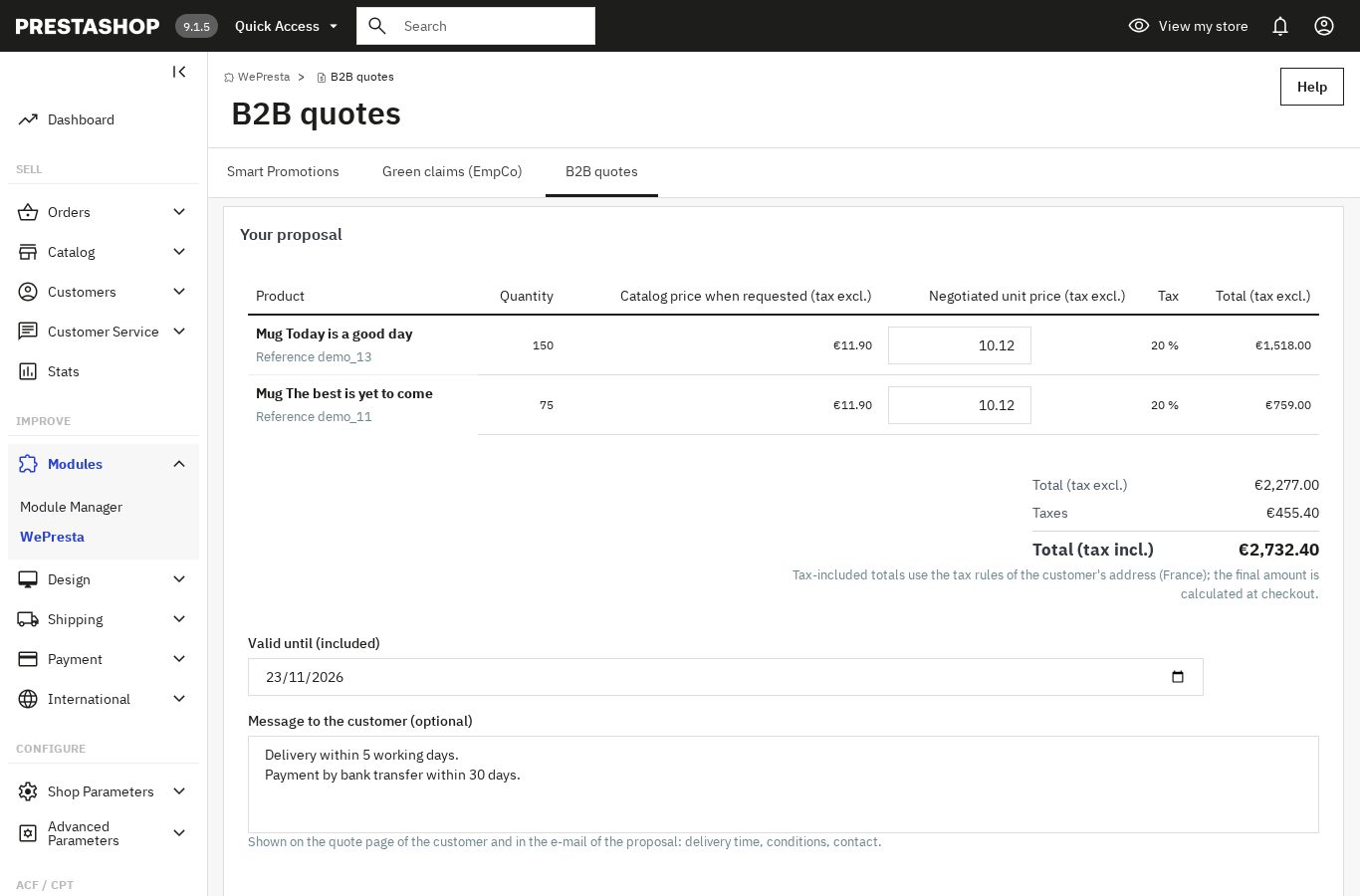 A negotiated price per line, with tax-excluded and tax-included totals computed like the cart
The proposal and the totals
You enter the negotiated unit price excluding tax of each line, the validity date and a message for the customer. The price accepts a comma or a dot as decimal separator; it must be zero or positive, no higher than 1,000,000,000 and no lower than the ecotax of the line. The validity date lies between today and three years ahead. The message holds up to 5,000 characters.
The totals follow PrestaShop rules: the tax rate comes from the product’s tax rules group and the customer’s first address, or the shop’s default country. Rounding uses the rounding type and mode configured in the shop, with the precision of the quote currency. A note under the totals reminds you that tax-included amounts depend on the customer’s address and that the final amount is calculated at checkout. Nothing is sent until every field is valid.
Sending moves the status to Proposal sent and triggers the e-mail to the customer. As long as the customer has not answered, you can send an updated proposal with new prices or a new date: the history keeps every version. An expired quote accepts a new proposal with a new date.
The customer area, “My quotes”
The customer finds their requests in My quotes, reached from their account. They open a quote, read the proposal, then either:
- accept: the quoted products and quantities are added to their cart with the negotiated price of each line, set as a native specific price bound to this cart and this customer, and they are redirected to checkout;
- refuse, with an optional reason of up to 1,000 characters; the status becomes Refused and your team receives a notification.
Before accepting, the module checks that each product still exists, is active and available for order, that the combination belongs to the product, that the quantity reaches the minimum and that stock is sufficient, unless out-of-stock orders are allowed. If a product fails, nothing is added, the quote goes back to “Proposal sent”, and the customer reads the name of the product concerned.
Acceptance does not empty the cart: products already there stay, and a line of the same product and combination is raised to the quoted quantity when it holds less, never lowered. The cart takes the quote’s currency. The negotiated prices are valid until the end of the validity date, or 24 hours after acceptance when that date is later, so a customer accepting late in the evening can still pay. Two simultaneous clicks create one cart only; the second is sent to the cart with a message.
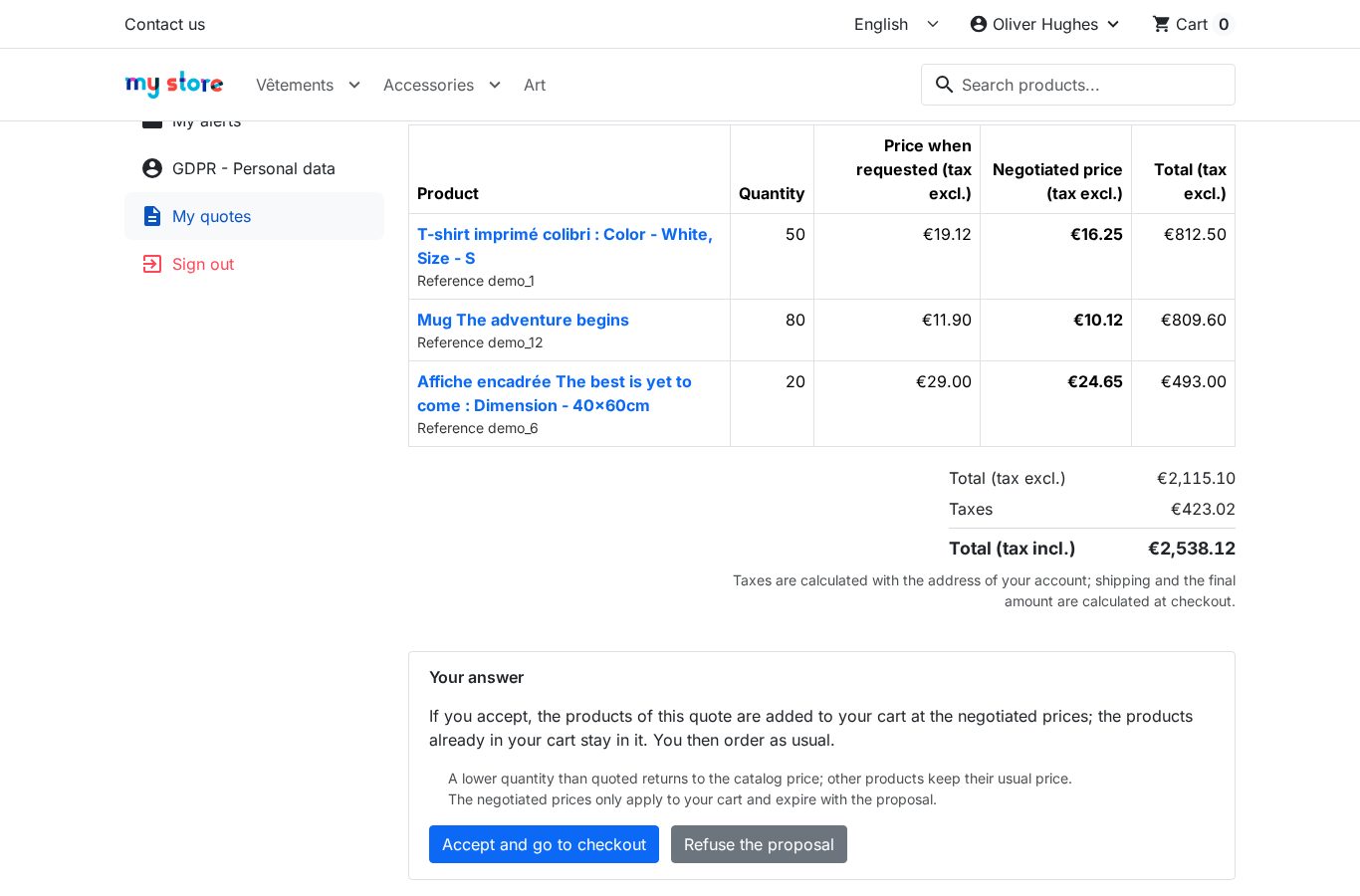 The customer reads the proposal and accepts it from their account
After acceptance, in the cart
The customer can still add other products at the catalogue price, remove a line, lower a quantity or raise it. A quantity below the quoted one returns to the catalogue price; above it, the negotiated unit price stays. The shop’s vouchers apply as they would for an order created in the back office. The negotiated prices only apply to this cart: a new order, including from the order history, starts again at catalogue prices.
An accepted quote that has not been ordered yet offers Put the products in my cart again to a customer who lost their cart: the earlier specific prices are removed and the products are added to the current cart at the negotiated prices, if the proposal is still valid. Once the order is placed, the quote page shows its reference with a link.
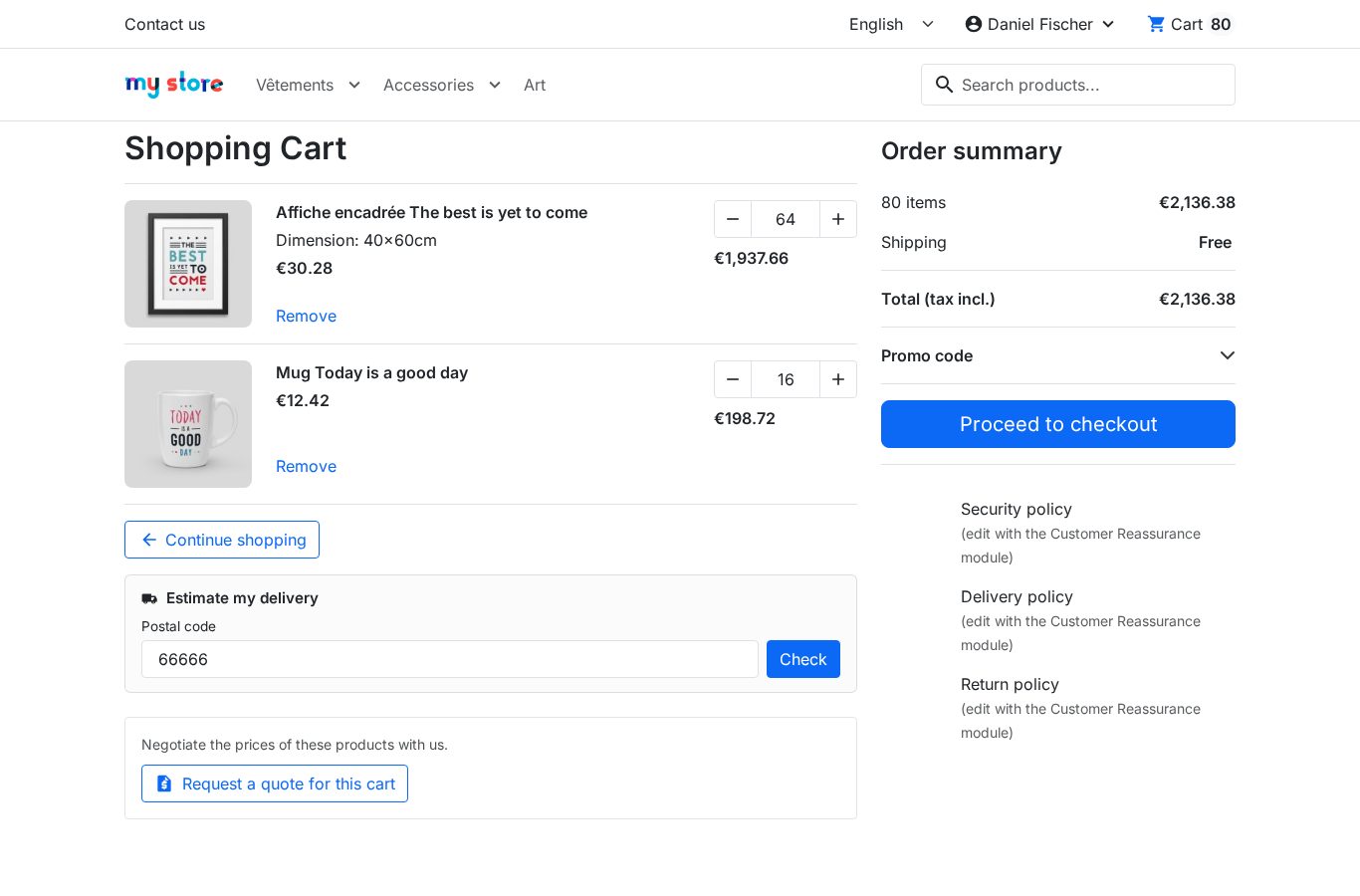 After acceptance, the products are in the cart at the negotiated prices, ready to order
The e-mails
Three e-mails accompany the quote, in the customer’s language:
- Acknowledgement — when the request is stored: reference, lines and a link to the quote. It never repeats the message or the company typed by the sender.
- Proposal — when it is sent or updated: lines with the negotiated prices, tax-excluded and tax-included totals, validity date, your message and a link to accept or refuse.
- Team notification — to the configured recipients, or to the shop address when the list is empty: new request, acceptance or refusal, with the customer’s details and the content.
The customer’s language is used when the template exists; otherwise the English template takes over. The team notification goes out in the shop’s default language. An e-mail that cannot be sent is logged and never cancels the quote.
Settings, security and data
The module Settings let you:
- enable or disable quote requests;
- choose the customer groups allowed to request a quote;
- show or hide the button on the product page and on the cart page;
- set the default validity of a proposal, 30 days at installation, between 1 and 365 days;
- enter up to 10 notification addresses, separated by commas; an empty list uses the shop address;
- customise, in each shop language, the button label (60 characters), the text at the top of the form (1,000 characters) and the consent text (500 characters); an empty field uses the translated default;
- choose whether to delete the quotes when the module is uninstalled, off by default;
- read a diagnostic: PrestaShop and PHP versions, kind of theme, catalog mode, availability of specific prices, mail method and number of quotes by status.
On the security side, every quote is checked by owner and by shop, every action carries a token, no price is accepted from the browser, and the module pages are neither indexed nor cached. On the data side, quotes are kept on uninstall unless you choose to delete them; they are deleted with the customer account, including through PrestaShop’s GDPR tools. In multistore, each shop has its own quotes and settings.
Installation
- Download the module archive from your WePresta customer account.
- In the back office, open Modules > Module Manager and click Upload a module.
- Select the ZIP file; PrestaShop installs the module.
- Click Configure and activate your license, then open the module from the WePresta > B2B quotes menu on PrestaShop 9, or Modules > B2B quotes on PrestaShop 1.7.8 and 8.
Installation creates three tables (quotes, lines, history) and the menu entry. If a table cannot be created, the installation is rolled back: no half-installed module is left behind.
Configuration and first quote
- In Settings, enable the requests, choose the allowed groups and the button locations, set the default validity and the notification recipients, then adapt the shop texts in each language.
- Check the Diagnostic: versions, theme, catalog mode, specific prices and mail method. If e-mails are disabled on the shop, quotes still work but no notification goes out.
- On the customer side, sign in with an account of an allowed group, open a product or the cart and click Request a quote. Check the quantity (adjustable from a product page, carried over from the cart with a link to change it), the company, the VAT number and the message, tick the consent and send.
- In B2B quotes > Quotes, filter on the New status and open the request. Enter the negotiated unit price excluding tax of each line, the validity date and your message, click Recalculate to check the totals, then Send the proposal.
- The customer receives the e-mail, opens My quotes and accepts. The products move to their cart at the negotiated prices; they order with the shop’s carriers and payment methods.
- In the back office, the quote becomes Accepted; the cart and then the order reference appear on the page, and the history keeps every step. A refusal adds the customer’s reason there.
In multistore, select the shop at the top of the page before configuring the module or opening a quote: each shop has its own requests, texts and settings.
Use cases
Volume pricing for a wholesaler. A reseller asks for a price on a large quantity. You answer with a negotiated unit price, a validity date and your delivery terms in the message. They accept from their account and order immediately, without another e-mail exchange.
An order for a building site or a public body. A craftsman builds a cart with several references, then requests one quote for the whole cart. You adjust each line according to the quantities and the agreed discounts. The customer accepts and finds every product in their cart.
A proposal to renew. A customer comes back after the validity date. The quote is now Expired; you send a new proposal with new prices and a new date, and the history keeps the first version.
A customer who lost their cart. They accepted the proposal but did not order, then emptied their cart or switched device. The Put the products in my cart again button restores the products at the negotiated prices as long as the proposal is valid.
A sales team with separate rights. A view-only employee reads the quotes, a salesperson with the edit right sends the proposals, and deletion stays reserved to authorised profiles.
Requirements and limits
- PrestaShop 1.7.8, 8.0+ and 9.0+, PHP 7.4 or later.
- Classic and Hummingbird themes; the button and the customer area follow the theme.
- Interface and e-mails in English, French, Spanish, Italian and Polish; shop texts can be entered in every shop language.
- A customer account is required to request a quote and answer it.
- Catalog mode must be off: without a cart, no quote can complete.
- No external service: e-mails go through PrestaShop and payment uses the methods already installed on the shop.
- Multistore: quotes and settings per shop.
What version 1.0.0 does not do:
- no quote for a visitor without an account and no secure link by e-mail;
- no PDF, signed purchase order or attachments;
- no counter-offer or messaging: the customer accepts or refuses the proposal;
- no quote created by the merchant, and no adding or removing lines in the proposal;
- no price hiding and no replacement of the “Add to cart” button;
- no negotiated shipping: delivery follows the shop’s carriers;
- no automatic reminders and no scheduled expiry: expiry is checked when the quote is opened and when it is accepted;
- no CSV export, group prices, payment terms or multi-level approval.
FAQ
Is a customer account required to request a quote?
Yes. The button is shown according to the allowed groups; a visitor who is not signed in is invited to sign in or create an account, then returns to the form. Quotes for visitors without an account, sent through a secure link, are not part of version 1.0.0.
How do I send a proposal to a customer?
Open the quote in B2B quotes > Quotes, enter the negotiated unit price excluding tax of each line, the validity date and your message, check the totals with Recalculate, then click Send the proposal. The customer receives an e-mail in their language with a link to the quote, and the status becomes Proposal sent.
What happens when the customer accepts?
The quoted products and quantities are added to their cart with the negotiated price of each line, set as a native specific price bound to this cart and this customer. Products already in the cart stay. The customer is redirected to checkout and pays with the shop’s payment methods; the quote page then shows the order reference.
How long is a proposal valid?
The validity date is chosen on each quote; it is prefilled with the default validity, 30 days at installation. The proposal is valid until the end of that date. Expiry is checked when the quote is opened and when the customer tries to accept: no scheduled task is needed.
What happens if the customer changes their cart after accepting?
They can remove a line, lower a quantity or add other products. A quantity below the quoted one returns to the catalogue price; the other products keep their usual price. The negotiated price applies to this cart only and expires with the proposal.
Do the negotiated prices apply to later orders?
No. They are bound to the cart created at acceptance and to the customer. A new order, including from the order history, starts again at catalogue prices.
Can I send a PDF, create a quote in the back office or answer a counter-offer?
No, these features are not part of version 1.0.0. The module covers the request, the proposal, the acceptance or refusal, and the order. It does not produce a PDF, does not accept attachments and does not let the merchant create a quote or change the lines.
Can shipping costs be negotiated?
No. Delivery follows the shop’s carriers and rates; the quote covers the price of the products. Group prices and payment terms are not included either.
Why does a catalogue discount appear next to the negotiated price in the cart?
When a product also has a catalogue discount, PrestaShop displays its discount badge on the cart line, because it reads catalogue prices without knowing about the quote. The amount charged remains the negotiated price of the quote, and the order lines carry that price.
Which PrestaShop versions, themes and multistore setup are supported?
The module works on PrestaShop 1.7.8, 8.0+ and 9.0+, with PHP 7.4 minimum, on the Classic and Hummingbird themes. In multistore, each shop has its own quotes and settings. Without an active license, customers can still request quotes and answer proposals already sent; the quote administration waits for activation.
Support
For help, contact us from your WePresta customer account or by e-mail at mail@wepresta.shop, according to the support option of your plan.
Before writing, prepare:
- the PrestaShop and PHP versions;
- the theme in use;
- the reference of the quote concerned;
- the page address and a screenshot of the problem.
Changelog
Version 1.0.0
- Request a quote from the product page, with the combination and quantity, or from the cart with all its lines.
- Enter the company, VAT number and a message, with consent, anti-spam check and security token.
- Find every request in a list you can filter by status, customer, company, date and reference.
- Send a negotiated unit price excluding tax per line, a validity date and a message to the customer.
- Check the tax-excluded, tax and tax-included totals computed with the shop’s tax rules before sending.
- Let the customer accept or refuse the proposal from their account, in “My quotes”.
- Fill their cart at the negotiated prices on acceptance, with PrestaShop’s native specific prices.
- Follow each quote through a status, a history and the cart and order references.
- Receive a notification for every new request, acceptance or refusal, and an e-mail to the customer in their language.
- Set the allowed groups, button locations, default validity, recipients and texts in each language.
- Work in multistore, with quotes and settings per shop.
- Install the module on PrestaShop 1.7.8, 8.0+ and 9.0+ with PHP 7.4 minimum.
