How to build a PrestaShop popup and measure its conversions
A practical guide to building a PrestaShop popup in the drag-and-drop editor, choosing the right trigger, targeting visitors, tracking conversions and keeping the module active.
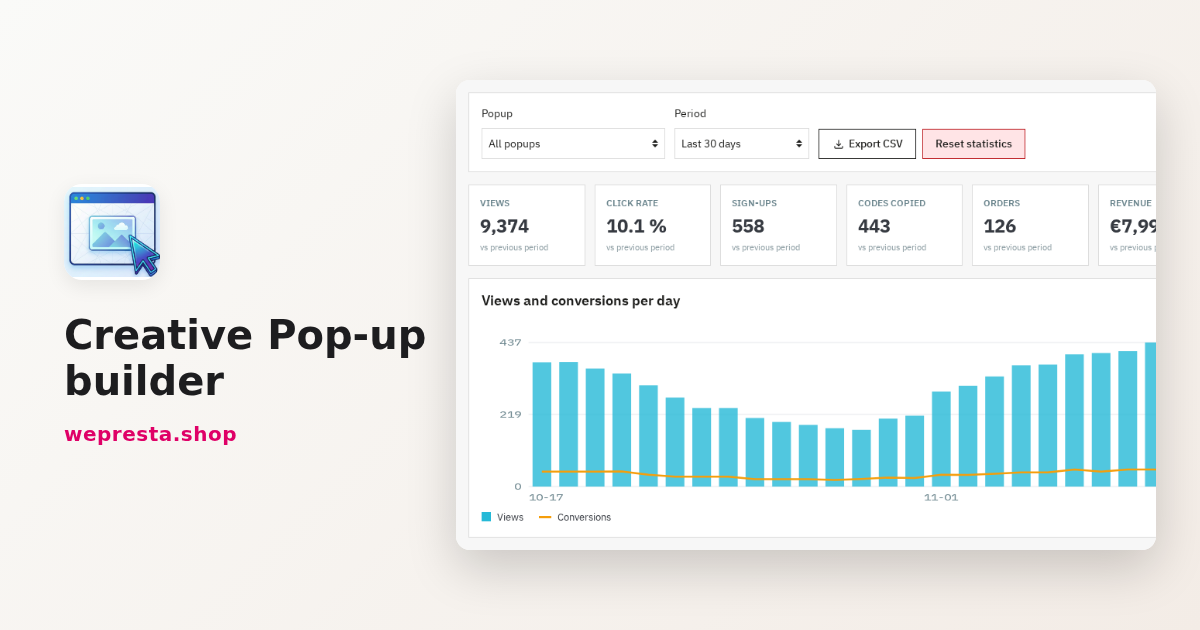
You want to capture a visitor's e-mail address at the right moment, offer a code when the cart stalls, or remind them about free shipping. Creative Popup runs from the PrestaShop back office: a drag-and-drop editor, eight triggers, audience rules, unique codes and statistics tied to orders. This guide covers the setup and the limits worth knowing.
It suits a shop that wants to build and measure its own campaigns. It is not needed for a simple fixed banner in the theme. A valid license is required: without one, no popup is shown.
How do I create a newsletter popup in PrestaShop without code?
Open Creative Popup, click “New popup”, start from the “Newsletter Signup” template, then publish once you have set the trigger, the audience and the display. No line of code is required.
The “New popup” button opens the editor and its six tabs: Design, Trigger, Audience, Display, Discount code and Schedule.
In Design, drag the blocks: title, paragraph, image, button, newsletter sign-up block, discount code, countdown, “No thanks” link, separator and form elements. The Layers and Style panels handle the tree and the typography. The sign-up block relies on ps_emailsubscription; with psgdpr, a consent checkbox is added.
Each language has its own design. “Copy this design to empty languages” saves you from starting over, and a visitor whose language has no design sees the default version.
For a welcome offer, replace the template text and choose “After a delay on the page”. Add the “New or returning visitor” rule on “First visit”, set the status to “Test”, then click “Preview on the shop”. That button opens the popup at once and turns on test mode in your browser for twelve hours, during which only your “Test” popups are shown to you. When the result looks right, switch it to “Active” and save.
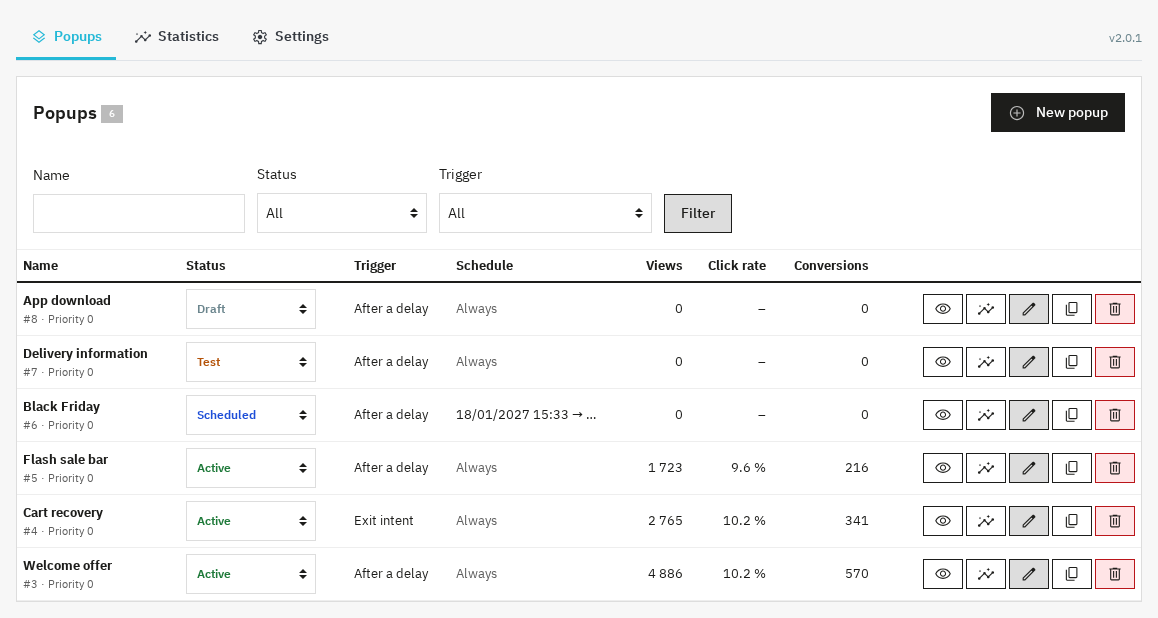
What the module does not do: no A/B test between two variants, no wheel or scratch-card templates, and uninstalling it removes popups and statistics.
How do I make a popup open when a button is clicked?
Choose the “When the visitor clicks an element” trigger, enter the CSS selector of the button or link, and the popup opens only there, on every click from the visitor.
The selector targets an element of your page, for example the size guide link on a product page. Combine it with an audience rule on the page type or on a specific product.
In Display, the mobile variant can stay on “Do not show”. Since version 2.0.1, the tapped link then keeps its normal behavior: no popup opens and no view is counted. Before that fix, the click was blocked on phones.
The Trigger tab also offers exit intent, scroll, inactivity, add to cart, pages viewed and time on the shop. The editor only loads in the back office; on the shop side, no module file loads on a page where no popup is planned.
Can a popup really reduce cart abandonment?
Yes, with two settings: the “When the visitor is about to leave (exit intent)” trigger on the cart page, and the “Empty or filled cart” rule on “Contains products”. Add an offer that reads at once, a code or free shipping.
On a computer, exit intent fires when the mouse leaves the page through the top; on mobile, on a fast scroll up. The “Contains products” rule makes the window appear when the visitor hesitates.
The Discount code tab offers three modes: no code, the same code for everyone, or a unique code per visitor. A unique code is set as a percentage, an amount or free shipping, with a minimum order and a validity period. It can be used once; the same visitor or e-mail address always receives the same code, and a daily cap limits abuse. An order placed with a popup code is attributed to that popup in the statistics.
Another lever: the “After a product is added to the cart” trigger followed by a text containing {free_shipping_remaining}. The amount left before free shipping appears in the visitor's currency and updates on every add. It uses the threshold set in Shipping > Preferences; carrier-specific thresholds are not taken into account.
Set the frequency to “Once per visit” and turn on “Stop showing it to visitors who subscribed or copied the code”. A reminder tab can reopen the popup after a close without conversion.
How do I target new visitors, customer groups and several shops?
Add rules in the “Audience” tab: each one is “is” or “is not”, all of them must match, and the editor summary repeats the trigger, the number of rules, the frequency and the offer.
The rules cover page type, categories, products, the signed-in customer and customer groups. They also include device, new or returning visitor, page address, referrer, UTM campaign, pages viewed and the cart (amount, state, products). Each rule can be inclusive or exclusive.
One limit to know: there is no country rule. The module does not rely on geolocation. For two markets, work with the shop language, UTM campaigns and referrer instead.
In multistore, each popup is linked to one or more shops. Saving a shared popup from one shop keeps its link to the others; version 2.0.1 fixes that defect. An employee restricted to some shops only acts on the popups and statistics of those shops, and deleting a popup only removes it from their shops.
Frequency, priority and global limits prevent stacking: one popup opens at a time, the highest priority first, with a number of popups per page and per visit and a minimum delay between two windows.
Why does my popup look wrong on a phone?
Check the mobile variant in the “Display” tab first: a design built on a wide canvas often becomes unreadable on a phone screen.
Four choices exist: “Same display”, “Panel sliding from the bottom”, “Bar at the bottom” and “Do not show”. The panel and the bar are the easiest to read for a short call to action. The editor offers a desktop, tablet and mobile canvas: build the mobile version there rather than shrinking the wide one.
The “Search-engine friendly on mobile” option, on by default for new popups, applies Google's recommendation: a centered or full-screen popup is not shown on the first page of a visitor coming from a search engine.
For accessibility, the window is announced as a dialog, keyboard focus is handled, the Escape key closes the popup and animations are reduced when the visitor asked for it. Test on a real phone: the back office shows neither the real text size nor the visitor's keyboard.
How do I track conversions and export statistics?
The dashboard gathers views, click rate, sign-ups, copied codes, orders, attributed revenue and conversion rate, with a CSV export for the selected period.
The figures are compared with the previous period; a chart follows views and conversions per day, and a table details each popup. The CSV export keeps the daily and per-popup detail.
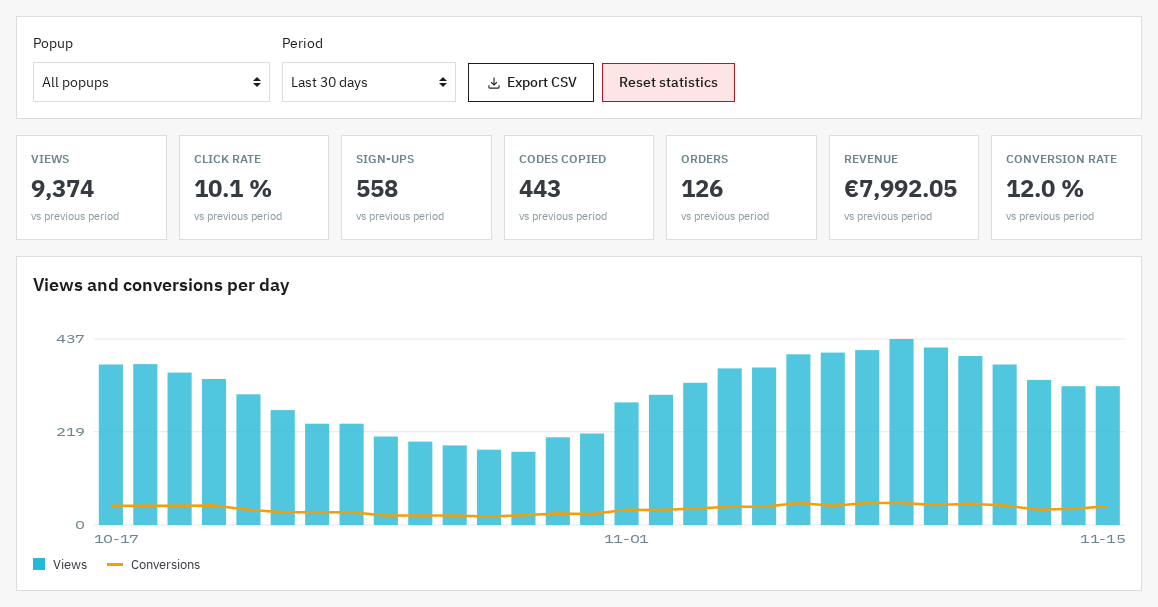
Two precautions explain apparent gaps. Visits from employees signed in to the back office and from search engine robots are not counted. The period and the export end on the shop's local day: since version 2.0.1, “last 30 days” includes the current day, even after midnight.
Statistics, code attribution and customer rules also work when the shop hides the referrer (Referrer-Policy). If you use GA4 or Tag Manager, enable the dataLayer option: the module sends wp_popup_view, wp_popup_click, wp_popup_close, wp_popup_conversion and wp_popup_teaser.
Which license should I choose and what happens when it expires?
The module page presents the license plans; without a valid license, the module disables itself on the shop and its menu disappears, but your popups, statistics, codes and settings stay in place.
The Configure page then shows the license form. Once the key is confirmed, the module is enabled again and the “Go to the popups” button leads to the list.
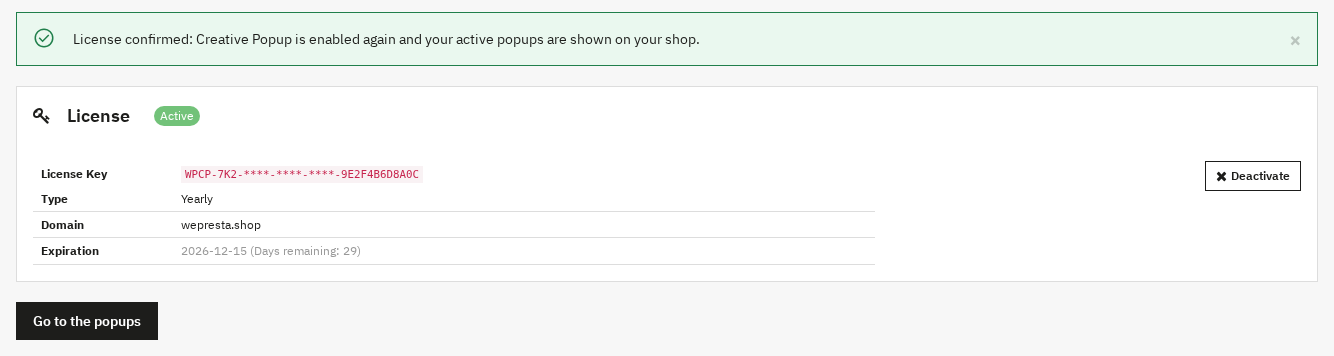
Version 2.0.1 changed how the license is checked. A renewed subscription is no longer cut at the old date: the module keeps seven days after the recorded expiry, then asks the server at most once an hour and stores the new date. A transient answer (rate limit, server error, clock skew, network failure) does not disable a valid license: the seven-day tolerance runs from the first failure. A conclusive answer, such as an expired or revoked license, applies immediately. On PrestaShop 8, deactivation no longer makes the back office unreachable, and the license screens are translated into French, Spanish, Italian and Polish.
Updating from 2.0.0 means uploading the new ZIP: no table, setting, hook or route changes. The module runs on PrestaShop 1.7.8, 8.0+ and 9.0+, with PHP 7.4 minimum. The documentation details every tab. For the next step, Newsletter & email campaigns: segments, automations and tracking uses the sign-ups in its segments and journeys, and Abandoned Cart Reminder follows up by e-mail. The consent checkbox comes from psgdpr; mention local storage in your privacy policy, and GDPR Cookie Banner: real blocking, consent proof and cookie policy collects consent for trackers.
Frequently asked questions
How do I create a newsletter popup without writing code?
How do I show a popup on exit intent?
How do I keep different popups on several shops?
How do I stop popups from annoying visitors while still capturing emails?
Can I show a different popup depending on the country?
Can I export popup statistics to CSV?
Products in this article
Creative Pop-up builder: triggers & smart targeting
Create popups in drag & drop with the built-in visual editor and 22 templates translated into the five shop...

Newsletter & email campaigns: segments, automations and tracking
Build precise segments and automated journeys without leaving the back office. Document every consent and let...
Abandoned Cart Reminder
Bring customers back to their carts with up to three personalized reminder emails. Abandoned Cart Reminder combines...
GDPR Cookie Banner: real blocking, consent proof and cookie policy
Really blocks third-party scripts, iframes and pixels before consent, then loads them by accepted category...
Read also
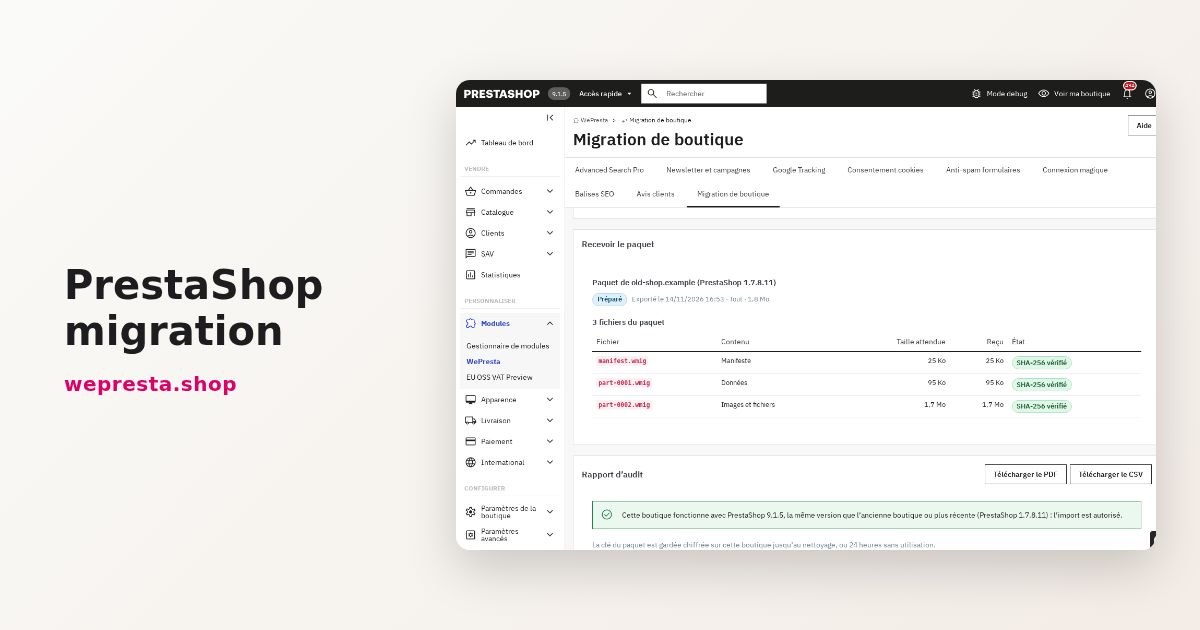
Migrate a PrestaShop store without losing orders, customers or images
Moving an old PrestaShop shop to a fresh installation without re-typing data: encrypted package, audit, preview, resumable import, verification and rollback, plus the…
Picking lists in PrestaShop: prepare orders without errors
A preparation station in the PrestaShop back office: a dashboard of orders to process, picking lists sorted by stock location, a PDF with product images and an optional…
How to set up a 3 for 2 offer and tiered discounts in PrestaShop
Set up a 3-for-2, tiered discounts or a bundle in PrestaShop, find out why an automatic discount is not applied, and read the results per promotion: a practical guide…