Migrate a PrestaShop store without losing orders, customers or images
Moving an old PrestaShop shop to a fresh installation without re-typing data: encrypted package, audit, preview, resumable import, verification and rollback, plus the limits to know.
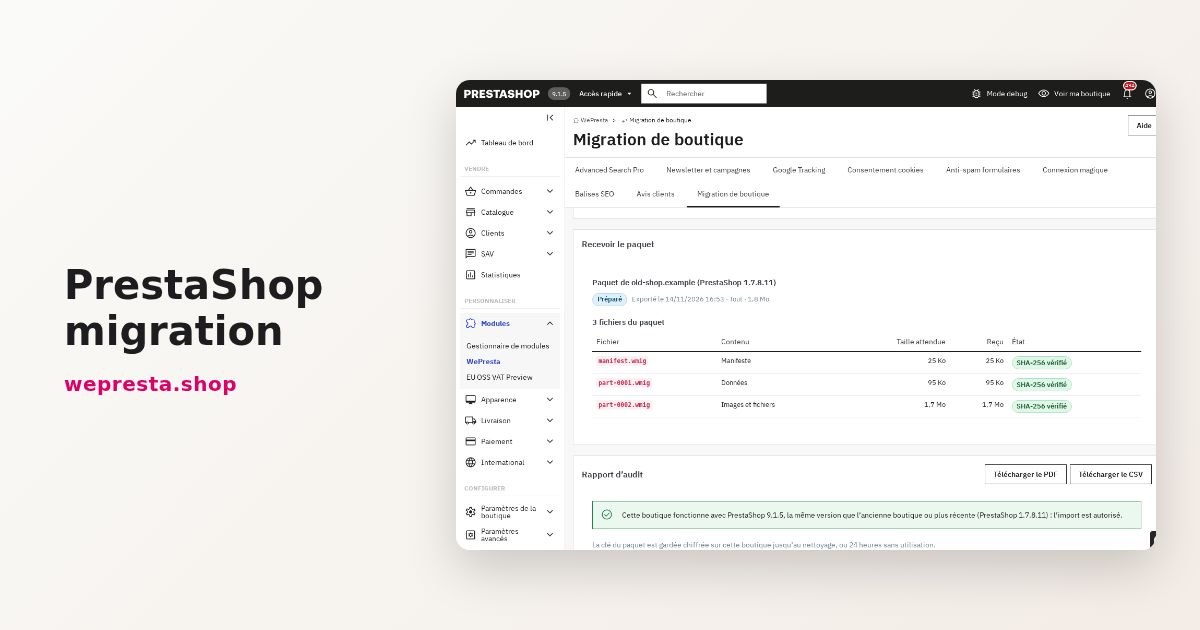
Your shop still runs on an older PrestaShop version and the new installation is ready. Installing PrestaShop is the easy part: the work is getting the products, customers, orders, invoices and images into it without typing anything twice. The PrestaShop migration module moves that data from the old shop into this installation, with an encrypted package, an audit, a preview and a rollback.
How do I migrate a PrestaShop store without losing customers, orders and images?
The module moves the data into a new PrestaShop installation without re-typing it; it does not update the existing shop in place.
The exported package holds the catalog, with products, combinations, attributes, features, brands, suppliers, taxes and categories, plus stock, prices, CMS pages, stores and contacts. It also carries customers and addresses, orders with their lines, payments and invoices, the carts of those orders, returns, credit slips, cart rules and, when those modules are installed and enabled here, the data of the native Product Comments, GDPR and newsletter modules.
Original product images, category, brand, supplier, store and carrier images travel in the same package, with attachments and virtual product files. Thumbnails are not exported: they are regenerated on the new shop with its own image types.
The migration goes from an older version to the same version or a newer one. A target older than the source is refused: the audit report says so, and the preview and import buttons disappear.
Who needs the module, and who can skip it
It is for merchants who open a new installation, on another server or on a newer major version, and want to bring the history along. It also serves a shop that changes host while keeping the same PrestaShop version.
It does not replace an in-place update: to go from 8.0 to 8.2 in the same installation, PrestaShop’s own update scripts remain the right tool. A 1.6 source is refused, because the export needs PrestaShop 1.7.8 or later. A host without a command line or cron jobs cannot run the export script.
How does a migration run, step by step?
The path has four steps: prepare the export on the old shop, receive and open the package, stage and analyse the preview, then import and verify.
1. Prepare the export on the old shop
In the "Package and audit" section, the "Prepare the export" form asks what to export ("Everything" or "Catalog only"), for a password typed twice and for the part size. The password is at least 12 characters and is never stored: you type it again to open the package.
You then download the export kit and put its wepresta-migration-export folder next to the old shop’s folder. The script runs from the command line, over SSH or from a cron job every five minutes with the --max-time=280 option. It reads the database inside a transaction and runs SELECT queries only: the old shop keeps answering during the export.
The kit holds the key to this export. Once the package is complete, delete the kit from the server. The package password is not in the kit.
2. Receive and open the package
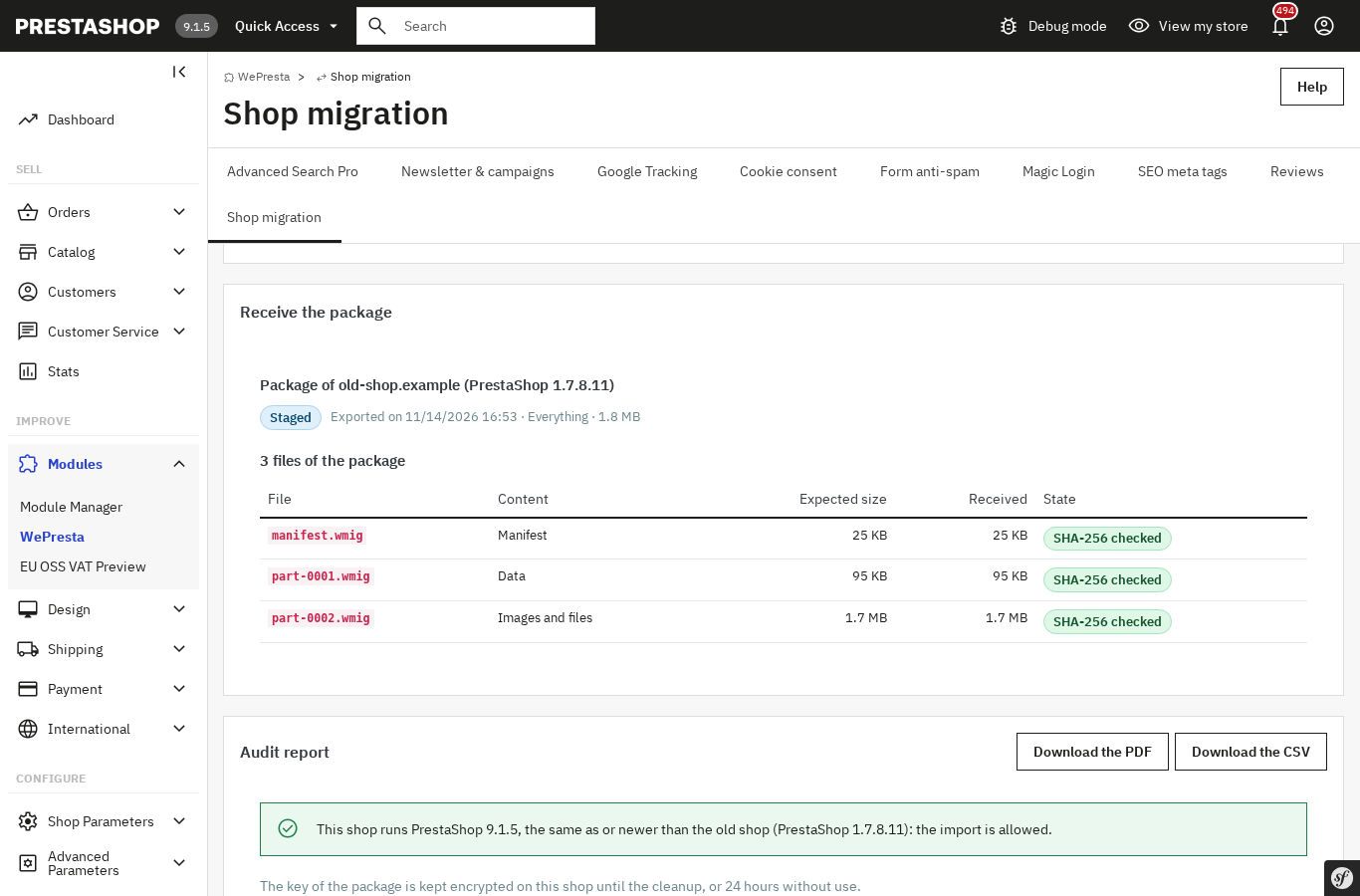
In "Receive the package", you upload package.json and the parts, or use "Look for packages copied to the server" when the folder was copied directly. Each part is checked against its SHA-256, then the password check authenticates the manifest and opens the package.
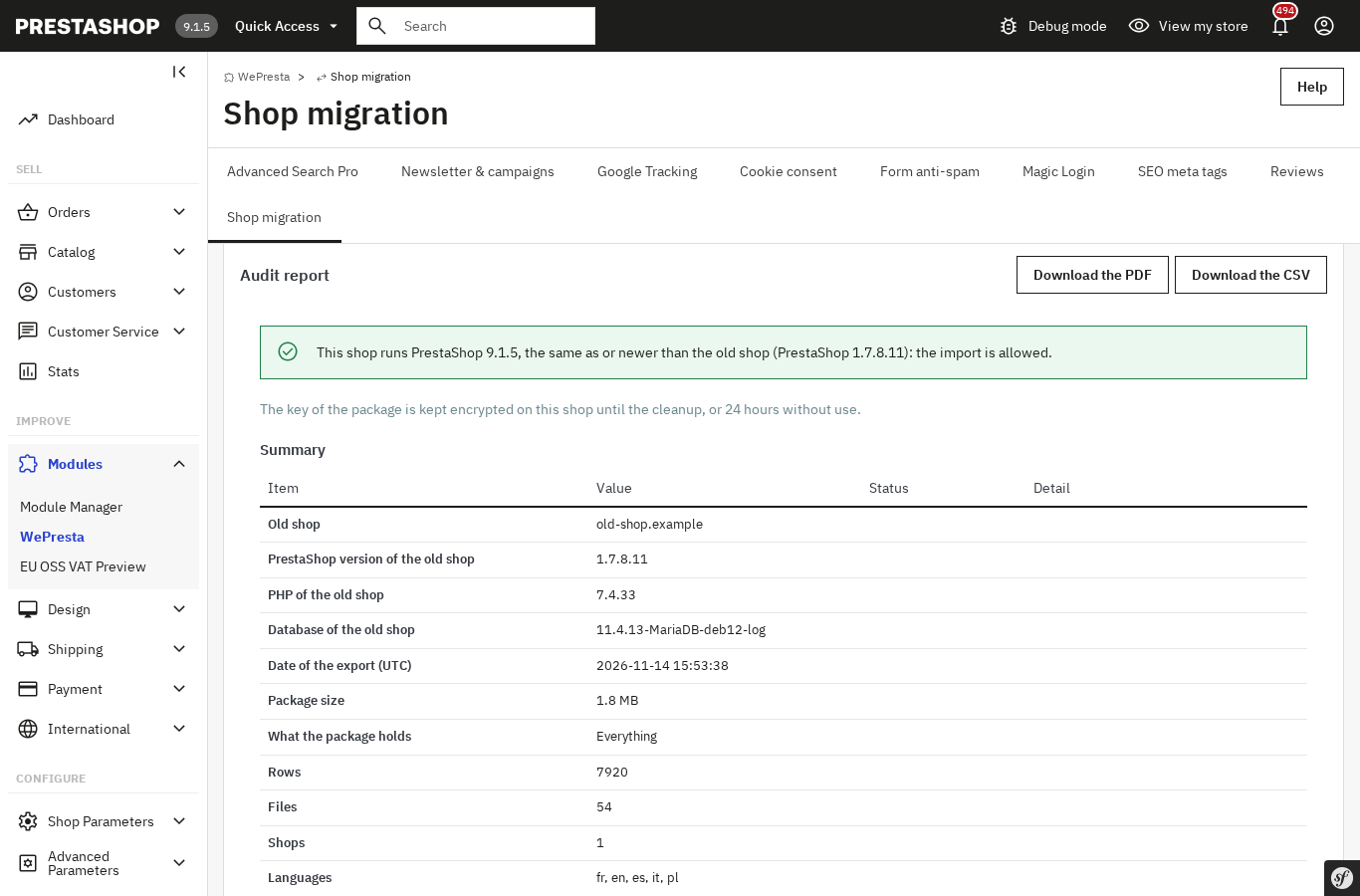
Five attempts are allowed, then the password check waits fifteen minutes. The "Audit report" follows: versions, volume, files, modules of the old shop, overrides and custom e-mails to redo and this shop’s prerequisites. It downloads as PDF and CSV.
3. Stage and analyse the preview
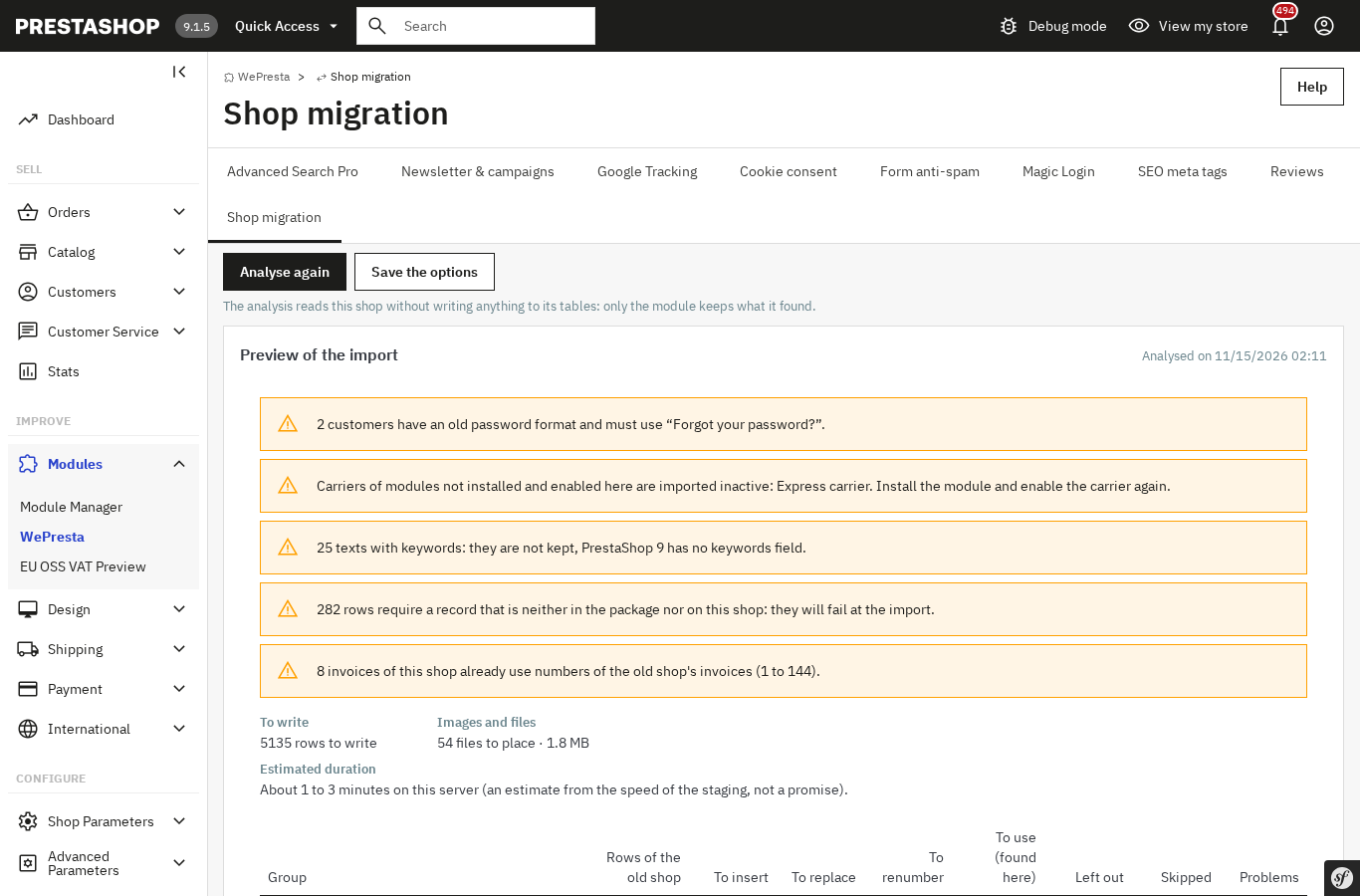
The "Preview" step decides where the data goes. You choose the shop and language maps, then the strategies per group for duplicates and identifiers already in use. Two switches decide the rest: "Copy the shop settings linked to the migrated data" and "Replace the old shop address in texts".
"Stage and analyse" changes nothing in the shop’s tables: the analysis reads and counts. The table shows, per group, rows to insert, replace, renumber or reuse, rows left out and problems. It also lists the settings that will change, the estimated volume and a duration range computed from this server’s speed.
4. Import, verify and roll back if needed
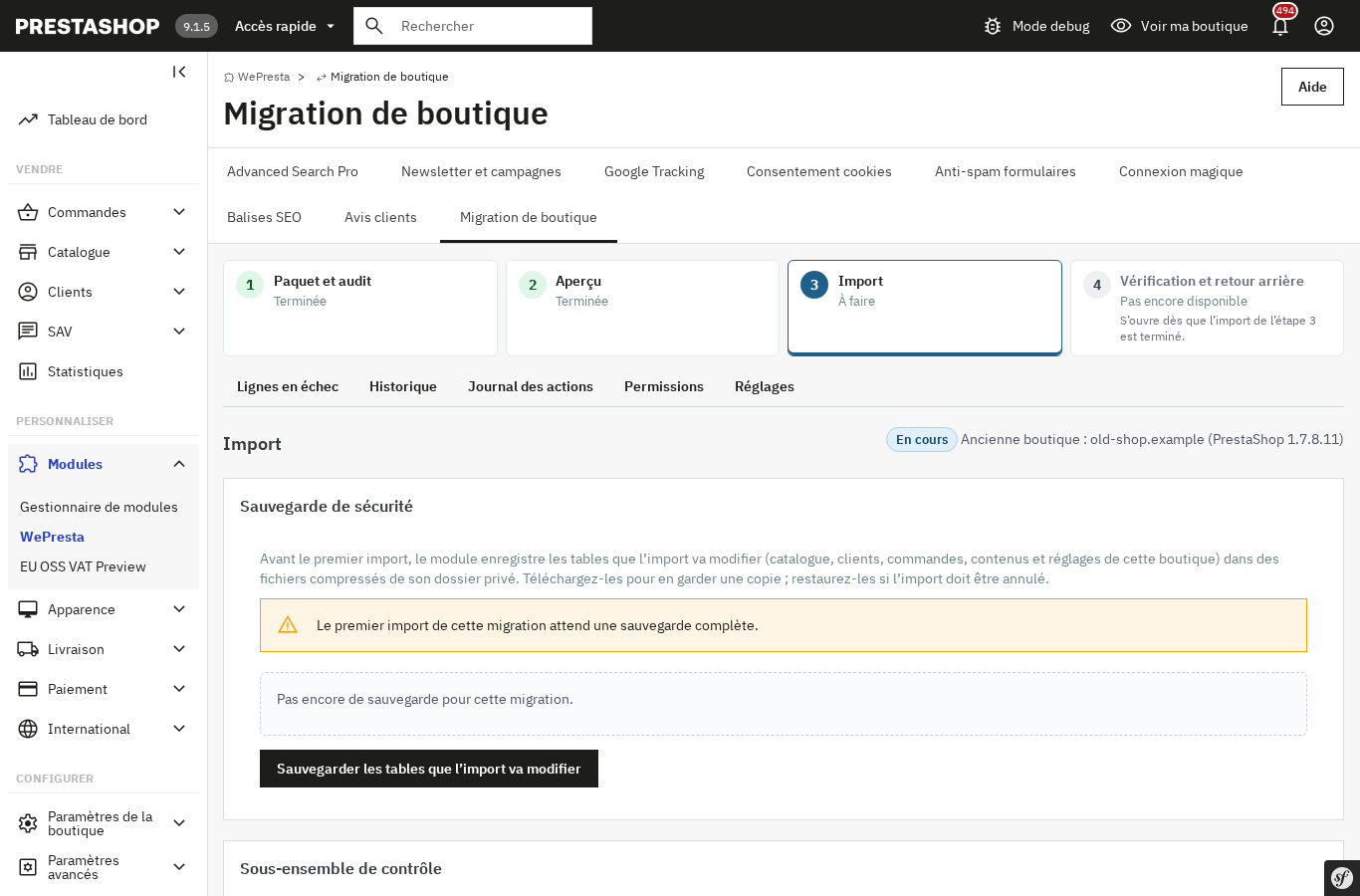
Before the first import, the "Import" step requires a "Safety backup" of the tables the import will change, and the import button stays blocked until it is complete. You can then import a "Control subset", then the full import. The module shows progress by phase and by table, with "Pause" and "Resume".
The last step, "Verification and rollback", compares rows, order totals, stock, images, URLs and a few HTTP pages of the shop. It also checks that an imported order opens in the back office, from your browser. The final report downloads as PDF and CSV.
Can I test the migration before opening the shop, and undo it?
Yes. The preview writes nothing in the shop’s tables, the control subset imports a real sample, and "Undo this migration" reverses the full import.
The control subset is taken from a full package: you set the number of orders, customers and products, from 1 to 1000, and the module adds the small groups they need. Once verified, "Remove the subset" reverses that pass and puts the rows back in the queue. The full import only starts after that removal.
The rollback deletes the rows the import created, restores the rows it replaced and the settings it changed, and puts the moved files back. Orders created on this shop after the import are untouched. If a recent order uses an imported customer or product, the module keeps that record and reports it.
A concrete case: a clothing shop on 1.7.8 opens an installation on 9.1 on another server. It prepares an "Everything" kit, imports a control subset with its most recent orders, checks an invoice and the order page, then removes the subset. The full import follows, verification passes, and the old shop stays open meanwhile.
Do customer passwords still work after the migration?
Yes: password hashes are copied as they are, so a customer signs in on the new shop with the old password.
The module copies the passwd column without transforming it, with the secure key and the reset token. PrestaShop 1.7.8, 8 and 9 use bcrypt, so nothing changes for the customer. Accounts merged with an account already present on this shop keep this shop’s password, not the old one.
Old 32-character hexadecimal hashes cannot be verified on the new shop. The module counts them in the preview and in the report: those customers must use "Forgot your password?". To remove that step, the Magic Login module sends a code by e-mail or a one-click link.
How do I keep my URLs and search rankings after the migration?
Records arrive with their identifiers and URLs unchanged; the redirect plan covers the addresses that change.
The module writes rows with the old shop’s identifiers and keeps link_rewrite, so product, category, CMS page, brand and supplier addresses stay the same. Invoice, order, credit slip and return numbers follow the same rule. If an address changes, for example when an identifier is renumbered, the "Redirect plan" computes the old and the new URL for each language.
The plan downloads as CSV, as Apache rules for an .htaccess and as Nginx rules. The screen says where to put the rules: on the old domain’s server, or above PrestaShop’s rules when the domain stays the same. Verification counts identical and changed URLs, without promising a position in search results.
The report also flags whether the old shop used friendly URLs, so the same setting can be enabled here. For title tags and descriptions of the imported catalog, the SEO meta tags module avoids redoing them page by page.
How long is the shop closed during the migration?
The first import goes to the new installation while the old shop still answers; the closure is limited to the second pass.
You import the whole package into the new shop, verify it, then put the old shop in maintenance. Only then do you prepare a second-pass kit: it takes the rows changed since the first export, with their linked rows, and the full stock. The shop reopens on the new installation once the second pass is verified.
"Reserve identifiers" prevents orders taken on the new shop during the interval from using an identifier of the old one. The operation is optional. If the database user cannot alter the tables, the screen says so and the second pass renumbers.
Import duration depends on volume, server speed and the number of images. The module shows a range computed on this server, not a promise. The import resumes from the cursor after an interruption, a restart or a closed browser.
Once the new shop is open, sales tracking must be connected again. The Google Analytics 4 and GTM module covers the e-commerce events and counts purchases once.
What does the module do, and what does it not do?
It moves the shop’s data, not the modules, the theme or the hosting.
An in-place upgrade is not offered. Third-party modules and their data are not migrated; the three native modules named above travel only when they are installed and enabled here. The audit report lists every module with its version and declared compatibility, and flags those to replace before opening. The theme, templates and custom e-mails must be redone on the new shop.
Employees and permissions, abandoned carts, statistics and logs, stock movement history, supply orders and warehouses, webservice keys and unknown module tables also stay on the old shop. On a PrestaShop 9 target, product keywords are not carried over: PrestaShop 9 has no such field, and the preview counts the texts concerned.
The module helps you prepare the migration; it certifies neither the accounting nor the legal compliance of the invoices it moves and does not replace accounting or legal advice. Numbering and retention rules remain your responsibility. It sends no data outside: the only outgoing call is the license check. The module documentation describes every screen.
Frequently asked questions
Will the modules of my old shop keep working?
Can I move from PrestaShop 1.6 straight to version 9?
Are product, customer and order identifiers kept?
What happens to invoice and order numbers after the migration?
How do I migrate a multistore shop without mixing up the settings?
Which PHP version does the new shop need?
Products in this article

PrestaShop migration: catalog, customers and orders moved without re-typing
An export kit that runs on the old shop, with nothing to install or activate there Catalog, customers, orders,...

Automatic SEO meta tags: titles, descriptions and keywords for your whole catalog
Templates per page type and per language for the meta titles, descriptions and keywords of products, categories,...

Google Analytics 4 (GA4) and GTM and Search Console Easy Connect
Complete GA4 tracking: 15 e-commerce events from click to payment, with consistent product data Purchases...

Magic Login - Passwordless Sign-in and Google Sign-in
Sign in or create an account with an e-mail address only: a 6-digit code, a one-click link or Google Replaces...
Read also
How to build a PrestaShop popup and measure its conversions
A practical guide to building a PrestaShop popup in the drag-and-drop editor, choosing the right trigger, targeting visitors, tracking conversions and keeping the module…
Picking lists in PrestaShop: prepare orders without errors
A preparation station in the PrestaShop back office: a dashboard of orders to process, picking lists sorted by stock location, a PDF with product images and an optional…
How to set up a 3 for 2 offer and tiered discounts in PrestaShop
Set up a 3-for-2, tiered discounts or a bundle in PrestaShop, find out why an automatic discount is not applied, and read the results per promotion: a practical guide…