How to set up a 3 for 2 offer and tiered discounts in PrestaShop
Set up a 3-for-2, tiered discounts or a bundle in PrestaShop, find out why an automatic discount is not applied, and read the results per promotion: a practical guide with the back-office labels.
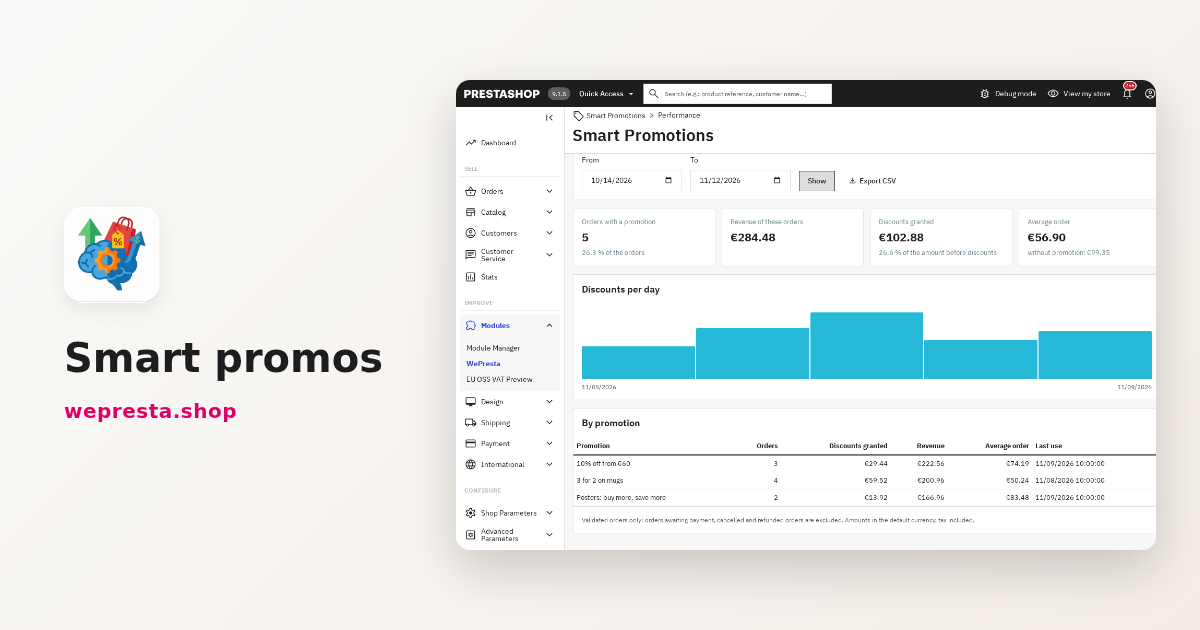
Two questions come back when a merchant sets up PrestaShop promotions: "my automatic discount isn't applying" and "how do I create a 3 for 2". Both come from the same place: an offer is a mechanic, a product selection and a set of conditions, and one missing piece leaves the cart at full price. Smart Promotions applies the offer in the cart without a coupon code and shows, on the Test a cart page, why it fires or not. Here is how to build a 3 for 2, tiered discounts and a bundle, then how to read the results.
Who is this promotions module for, and who is it not for?
It is for shops that sell several similar products and want an automatic offer, with no code to hand out.
That covers a catalogue of mugs, cosmetics, books or capsules: the customer adds three items from the same family and the discount applies without hunting for a coupon. The module relies on PrestaShop's native cart rules. Taxes, currency and payment modules therefore keep working as they do for a classic discount: the amount paid and the invoice reflect it.
A shop with a single reference, or one that only needs a one-off coupon for a single campaign, has little to gain: a native cart rule is enough. If all you want is a crossed-out price on a product page, the module is also heavier than you need.
How do I create a 3 for 2 in a few minutes?
Open Smart Promotions > Promotions, click New promotion from a template, choose 3 for 2, select the products in the Offer tab, then click Save and activate.
The promotion opens pre-filled. The setting that matters most is which items are discounted: the cheapest in the cart, the most expensive, or the cheapest of each group. The template picks the cheapest items of the selection by default; with "The most expensive items", a 3 for 2 gives away the most expensive item in the cart.
The full sequence, with the back-office labels:
- Open Smart Promotions > Promotions and click New promotion from a template.
- Choose the 3 for 2 template.
- In the Offer tab, pick the products or categories through search.
- Set the items that are discounted and, if needed, the exclusions, for example excluding a brand.
- In the Display tab, adjust the badge and the message the customer sees.
- Read the plain-language summary, then click Save and activate.
A concrete case: a mug shop runs "3 for 2 on mugs" across twenty references. The customer adds three mugs, the cheapest of the three is free, and the cart shows the "You save" block with the amount saved. The Performance page then reports how many validated orders used that promotion. The module documentation follows the same sequence, screen by screen.
How do tiered and quantity discounts work?
A tier is a discount that grows with the quantity or the cart amount, and the module applies the best tier reached without asking the customer to choose.
You enter each threshold and its rate: two items, three items, five items. Three mechanics cover the neighbouring cases:
- All items after X: the first ones at full price, the following ones discounted.
- Each group of X items: the cart is split into groups of X items, and each group gets a price or a discount.
- Every Nth item discounted: once Y items are paid at full price, one item out of N is discounted.
Bundle: X items for a price is the fixed-price version: you set one price for a group of products, for example three references for a single amount, mixing the references of the selection. Conditions then combine with quantity, amount, weight or the presence of a category in the cart.
Why isn't my automatic discount applied to the cart?
In most cases a condition is not met, a usage limit has been reached, or an exclusive promotion comes before yours.
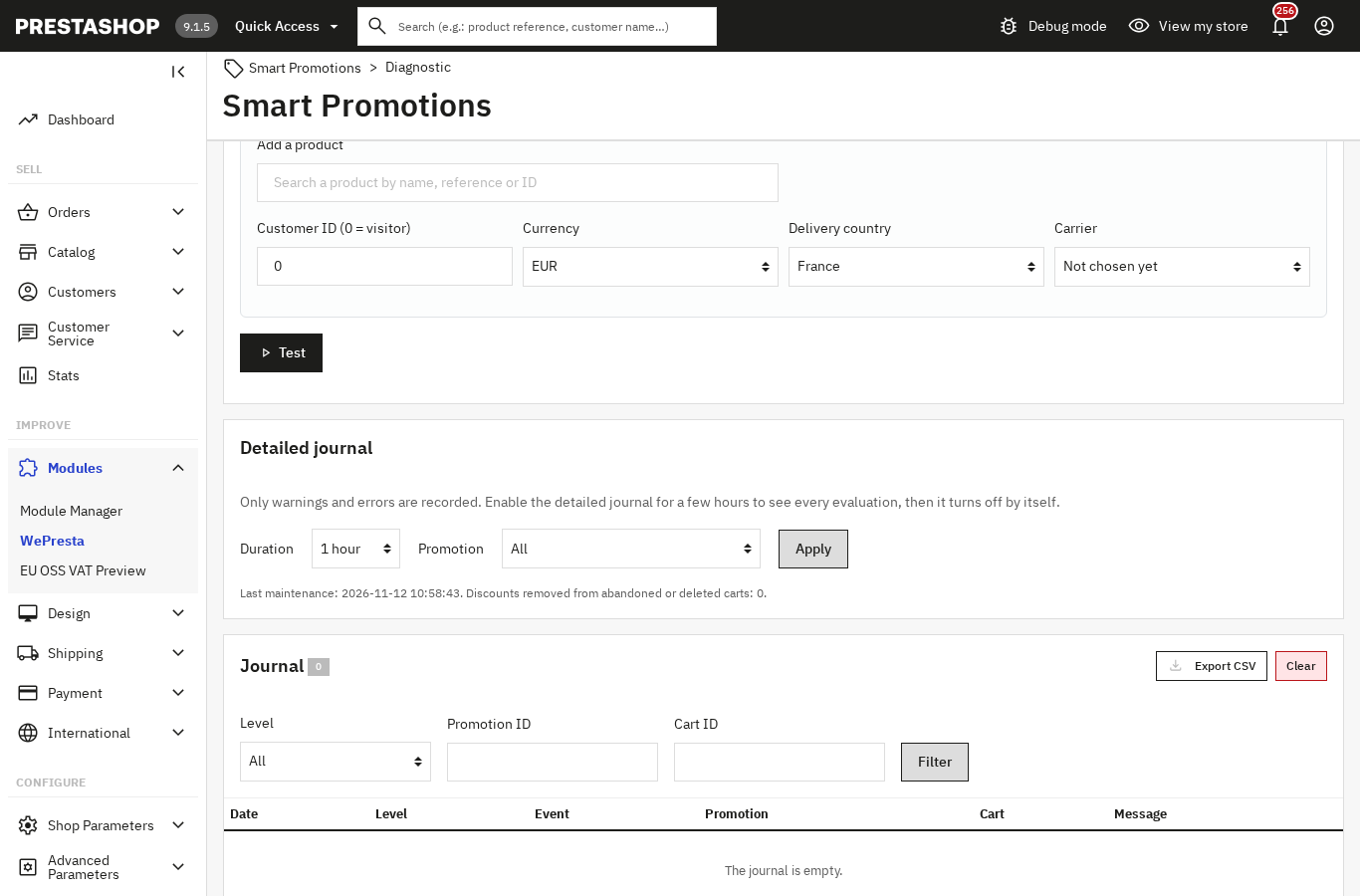
The Test a cart page answers without changing the cart. It lists each promotion with its result and the reason: unmet condition, limit reached, exclusive promotion with a higher priority. You can test an existing cart or one built for the occasion, for a given customer, currency, country and carrier, including a promotion still in draft.
The causes to check, in order:
- The promotion is a draft and was never activated.
- The start and end dates do not cover the moment of the test.
- The selection does not contain the cart item, or an exclusion rules it out.
- The combination mode is "exclusive", or another promotion in the same exclusion group has a higher priority.
- A limit on orders or on uses per customer has been reached.
- A customer condition is not met: group, first order, newsletter, title (gender) or birthday.
Since version 2.0.4, a newsletter subscription or a change of title or birth date is taken into account at the next cart display, without waiting for the items to change. If PrestaShop itself refuses the rule, for example with its experimental discount system, the diagnostic journal records the reason it gives.
What happens when the promotion ends?
The generated discount expires at the promotion end date at the latest; an order paid after that date keeps no discount, including on PrestaShop 1.7.8 and 8.x.
Each discount a customer obtains is a cart rule created for their cart, with an end date aligned on the promotion. The module evaluates the cart again on every display: once the date has passed, the promotion no longer applies and the discount disappears. On every version, the cart is evaluated again on the payment module page, before the amount is transmitted; on 9.0 and 9.1, PrestaShop also checks the rule before validating the order.
The daily maintenance then removes the discounts of abandoned carts, deleted carts and ended promotions. A discount used in an order is never removed. It runs at the first back-office visit of the day, and the Daily maintenance block lets you start it with Run now.
How do I check what the promotions bring in?
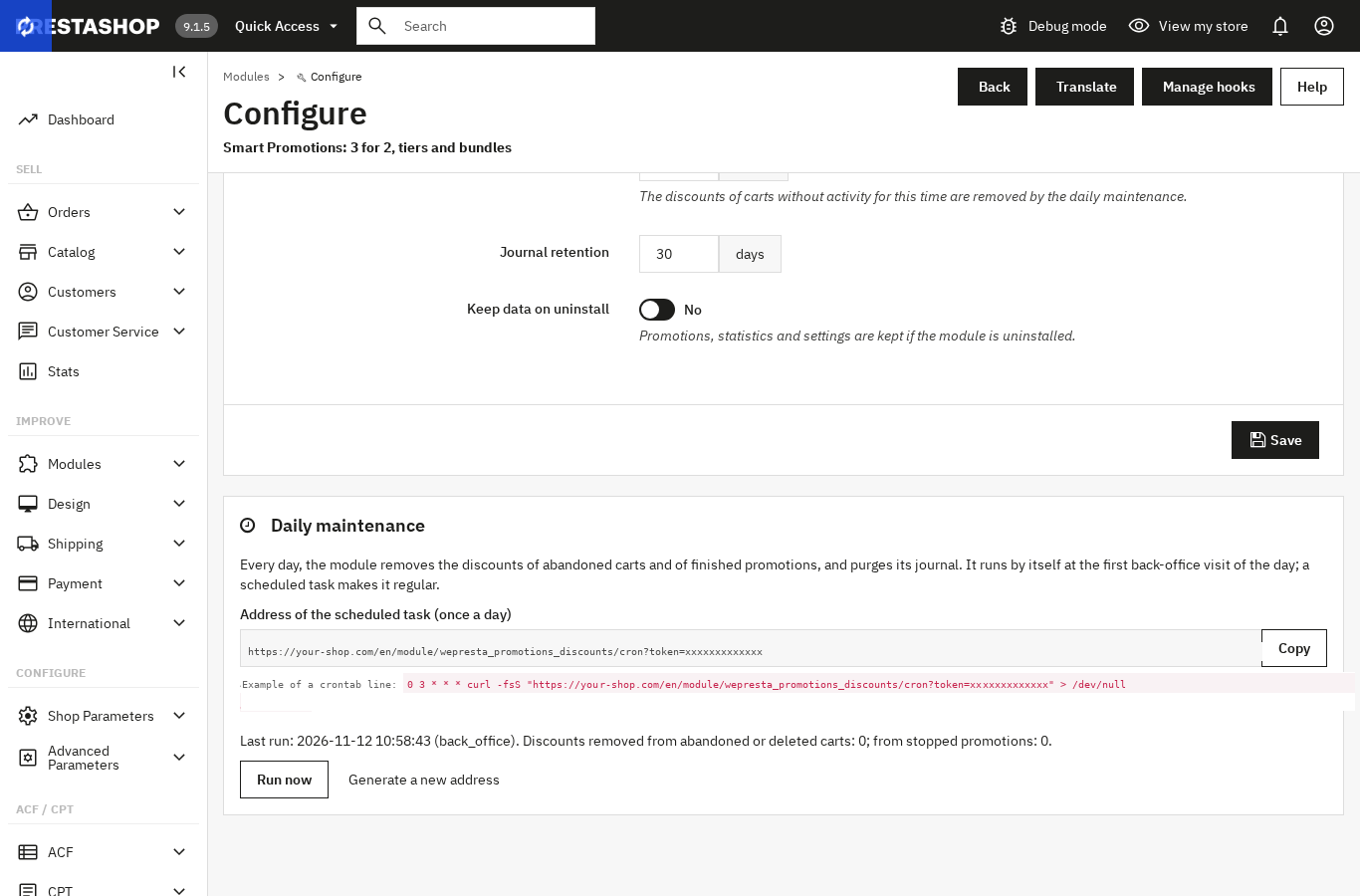
The Performance page counts the validated orders of the period, the share with a promotion, the discounts granted and the average order with and without a promotion.
Orders awaiting payment, cancelled or refunded are excluded. That is what makes the figures readable: before version 2.0.4, an order awaiting a bank wire could inflate the share of orders with a promotion until it exceeded the total number of orders. Both sides of the comparison now rest on the same population.
The By promotion table gives, for each offer, the number of orders, the discounts granted, the revenue, the average order and the last use. It exports to CSV. The promotion list shows each real status: draft, scheduled, running, ended or limit reached.
To link a campaign to its traffic, the promotion is then tracked in the shop's analytics tool; Google Analytics 4 and GTM record purchases and checkout events. To bring an abandoned cart back, Abandoned Cart Reminder reuses existing discounts in its e-mails.
What does the module not do?
It does not replace a coupon code to hand out or an ad platform, and it does not choose the discount rate or amount for you.
Three limits are worth knowing before buying:
- Promotions are not isolated per employee. PrestaShop does not do that for its cart rules either; access is handled by back-office permissions.
- The module does not integrate with PrestaShop's experimental discount system on 9.1 and later. If PrestaShop refuses a discount, the journal gives the reason, but the message shown to the customer may still announce the saving.
- The discount is not split across several parcels of one order: no allocation per parcel is provided.
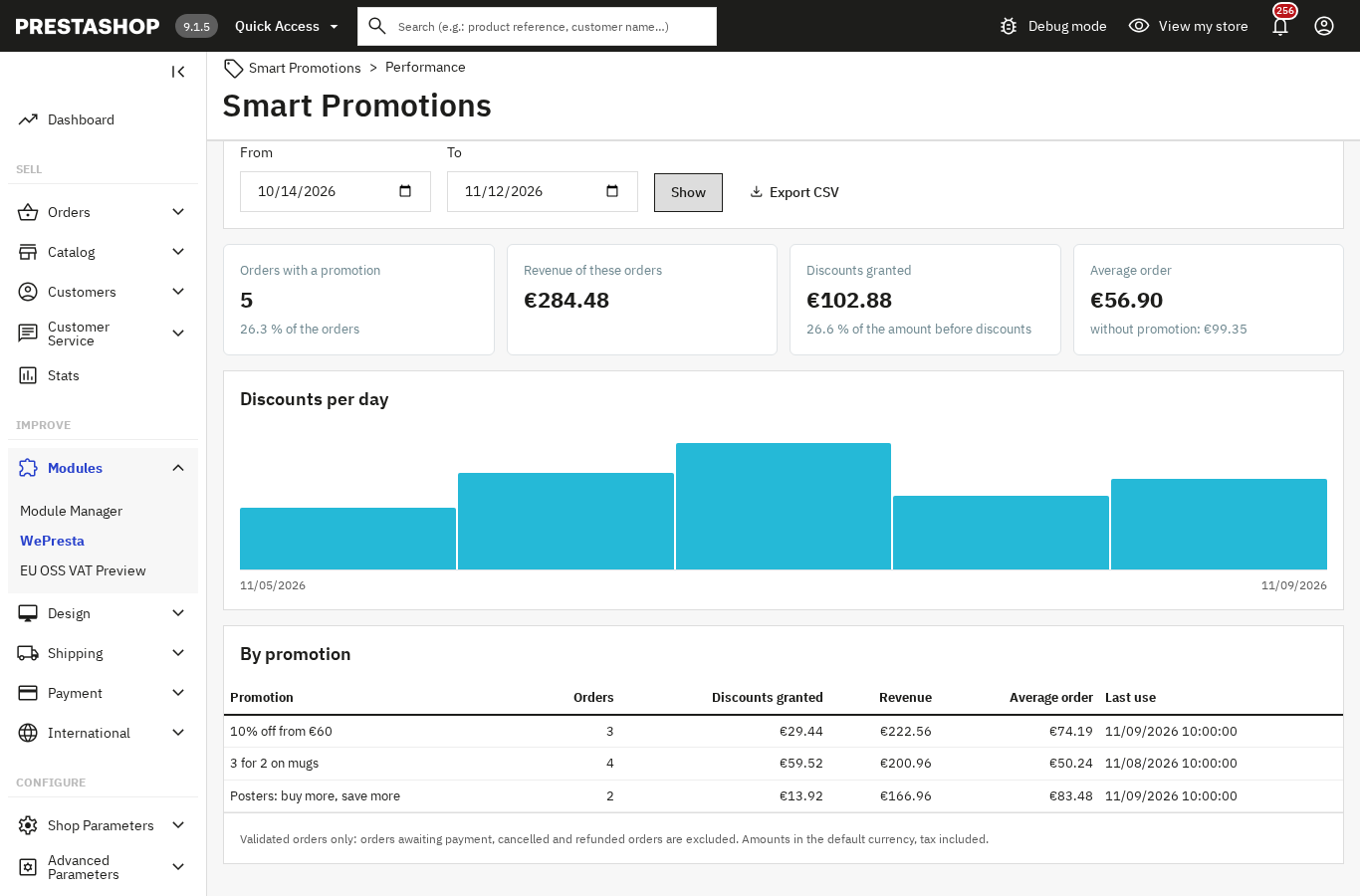
A valid Wepresta licence is also required. Without one, the module disables itself and the promotions stop applying. Promotions, statistics and settings are kept, and the module re-enables from the Configure page as soon as a valid licence is saved. A renewed licence is checked with the server before being treated as expired, and a transient licence-server incident does not cut the promotions.
Frequently asked questions
How do I create a 3 for 2 offer?
Can I set volume discounts per quantity tier?
Why is my automatic discount not applied to the cart?
What happens to the discount when the promotion ends?
Can a discount be limited to some products in the cart?
Products in this article

Smart promos: 3x2, bundles & tiered deals
Advanced promotions: 3x2, tiers, bundles, cross-selling Automatic cart application, without promo codes...

Google Analytics 4 (GA4) and GTM and Search Console Easy Connect
Complete GA4 tracking: 15 e-commerce events from click to payment, with consistent product data Purchases...

Abandoned Cart Reminder
Bring customers back to their carts with up to three personalized reminder emails. Abandoned Cart Reminder combines...

Newsletter & email campaigns: segments, automations and tracking
Build precise segments and automated journeys without leaving the back office. Document every consent and let...
Read also
Meta titles and descriptions: fill a whole PrestaShop catalog
A PrestaShop catalog is filled from templates, not one product at a time: preview before writing, three replacement modes, a duplicate audit and undo. Here is how to set…
Passwordless login for PrestaShop: email code, link or Google
A forgotten password interrupts an order. Magic Login replaces it with an email code, a one-click link or Google, with per-shop settings and a licence that does not cut…
How to stop PrestaShop form spam: CAPTCHA, bots and rate limits
An active CAPTCHA does not stop a bot that posts straight to the controller. Protect each form on the server, set limits and read what gets refused.