How to send a PrestaShop newsletter and track the sales it brings
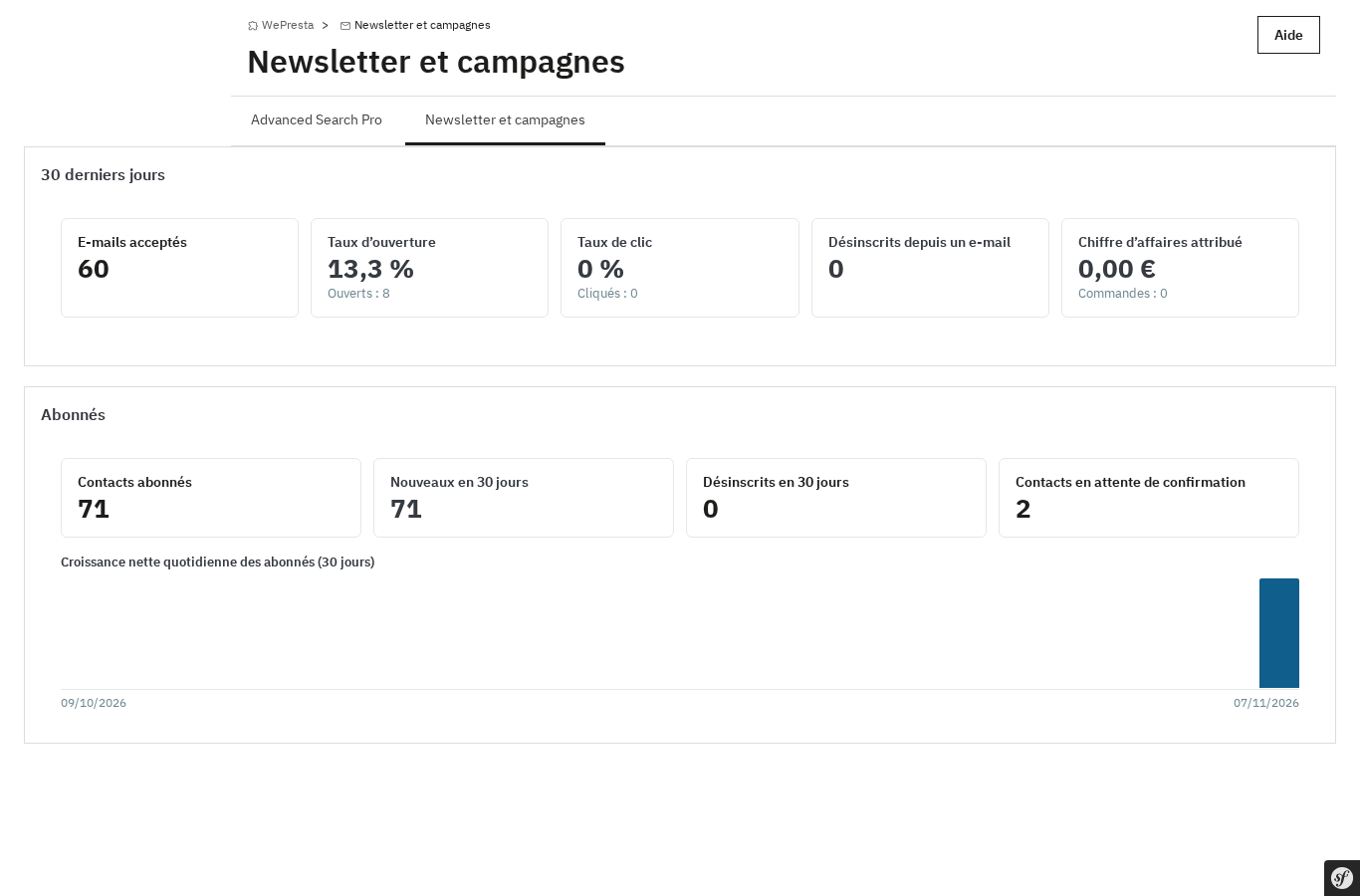
The module keeps subscribers, consent records, segments and statistics inside PrestaShop, sends through the back-office queue and links orders back to the emails sent.
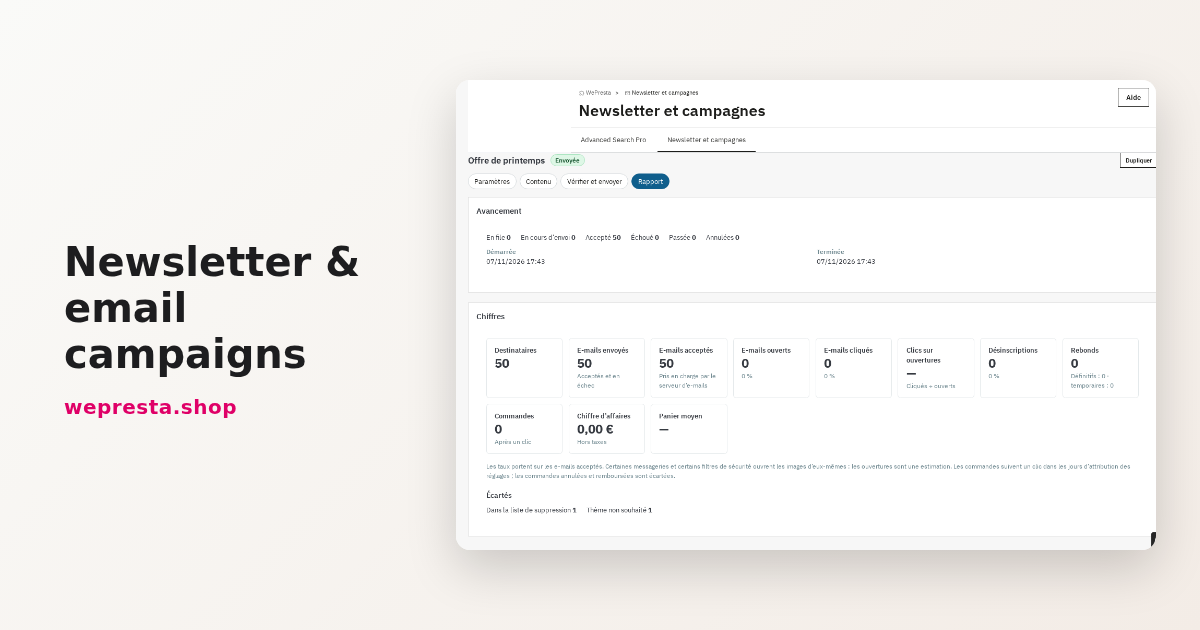
Your subscriber list lives in PrestaShop, but your campaigns go out through an external platform: contacts have to be exported, a sync has to be watched, and when someone asks for proof, the exact consent wording is hard to find. The Newsletter & email campaigns module brings that work back into the back office. It keeps subscribers and their consent records, builds segments from orders, composes and sends campaigns through PrestaShop's queue, runs automations and links orders to the emails sent.
The answers below follow questions merchants ask on PrestaShop forums and specialist blogs. Each section describes what the module actually does, with the screen labels, and what stays your responsibility.
Can you send your newsletter from PrestaShop without an external platform?
Yes: the module sends through the transport already configured in PrestaShop, with no third-party account, no API key and no external contact sync.
It suits shops that want contacts, consent and statistics to stay in their own database, for lists of 200 to 50,000 contacts per shop. It does not replace an emailing infrastructure for very large lists, and it does not do SMS, push notifications or advertising audiences. Abandoned cart reminders stay in Abandoned cart reminder, and pop-ups in Creative Pop-up.
Setup starts with the installation: in Modules > Module Manager, install the archive, open the configuration and enter the license key. Then fill in the five settings sections: "Sender and brand" (sender name and address, postal address in the footer), "Subscription" (opt-in mode, consent text, days to confirm) and "Sending" (emails per hour at most, scheduled task). Complete them with "Tracking" (attribution window) and "Data" (retention periods). Create the scheduled task every five minutes with the token URL or the cron.php command shown by the module. Finish with a full test on an internal address: signup, confirmation, preferences page, test campaign, report.
The documentation covers every screen, and the module page sums up the features.
Why do your newsletter emails land in the spam folder?
Most often because the sender domain is not authenticated, or because the shop sends through PHP's mail() function, which filters treat badly.
The Deliverability page tests the server first: when the shop sends through SMTP, it opens the configured connection, runs the commands and shows the server's exact reply, with the password masked. It then reads the SPF, DKIM, DMARC and MX records of every sender domain used by the settings, campaigns and automations, with a 24-hour cache. A missing SPF record, several SPF records or a +all are reported as errors; a missing DKIM stays a warning, with the value to ask your email provider for.
Before each campaign, the checklist blocks what would prevent a correct send: emails disabled in PrestaShop, invalid sender, a language without a subject, an incorrect link, an empty audience, an expired voucher. It also warns when no test email has been sent, when the scheduled task is silent or when an image has no alternative text. The module does not guarantee inbox delivery: the reputation of the domain and the server remains decisive.
How do you segment customers by buying behaviour?
With a segment: up to 20 conditions and 10 exclusions on orders, purchased products, engagement or the RFM score, and a count that updates while you build it.
A segment always applies to the subscribed contacts of the shop. Conditions cover the customer group, language, country, source, signup date and topics. They also cover the number of orders, amount spent, date of the last order, a purchased product or category, an open cart and a voucher used. Opens, clicks, the RFM score, the birthday month and membership of another segment complete the list. The count separates matching contacts from those who can receive an email now, and the preview shows the first 20 with their orders and spending.
Example: to win back customers who bought in a category but have not ordered for 90 days, combine the purchased-category condition with the last-order condition, then attach the segment to the win-back automation. Read the count before scheduling: recipients are fixed when the send starts, and a rule change applies to the next send only.
How do you send an automatic welcome email after a signup?
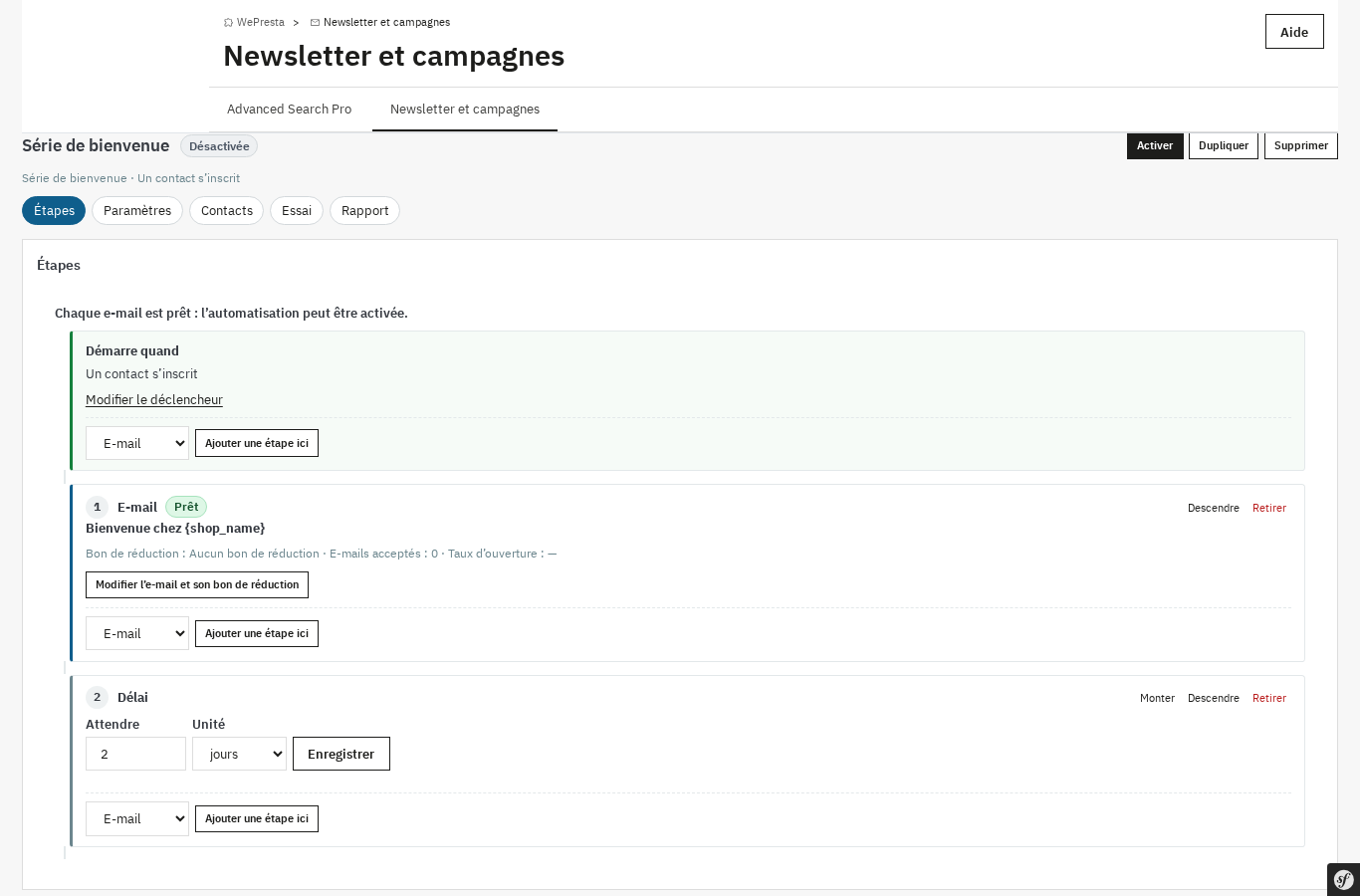
In Automations, pick the ready-made "Welcome" automation, check its emails and delay, run the dry run, then activate: the series starts at every new signup.
The automation holds a first email sent straight away, a two-day delay, then a second email with the best sellers. You can add, move or delete steps, up to 20 in total and 5 emails for a welcome series. The dry run shows the contacts who would enter now and the next step of current enrollments, without writing anything. Activation requires every email to pass its checklist.
The frequency cap defaults to three marketing emails per week per contact, with a priority per automation: welcome 1, post-purchase 2, birthday 3, browse 4, win-back 5. A contact who reaches the cap has the automation email delayed, then the step skipped after seven days of waiting. The automation stops on unsubscribe and, when the option is on, on an order.
How do you track the sales your campaigns bring?
Every click goes through a signed link, and an order placed with the same address within the following seven days is credited to the last click, with no advertising cookie.
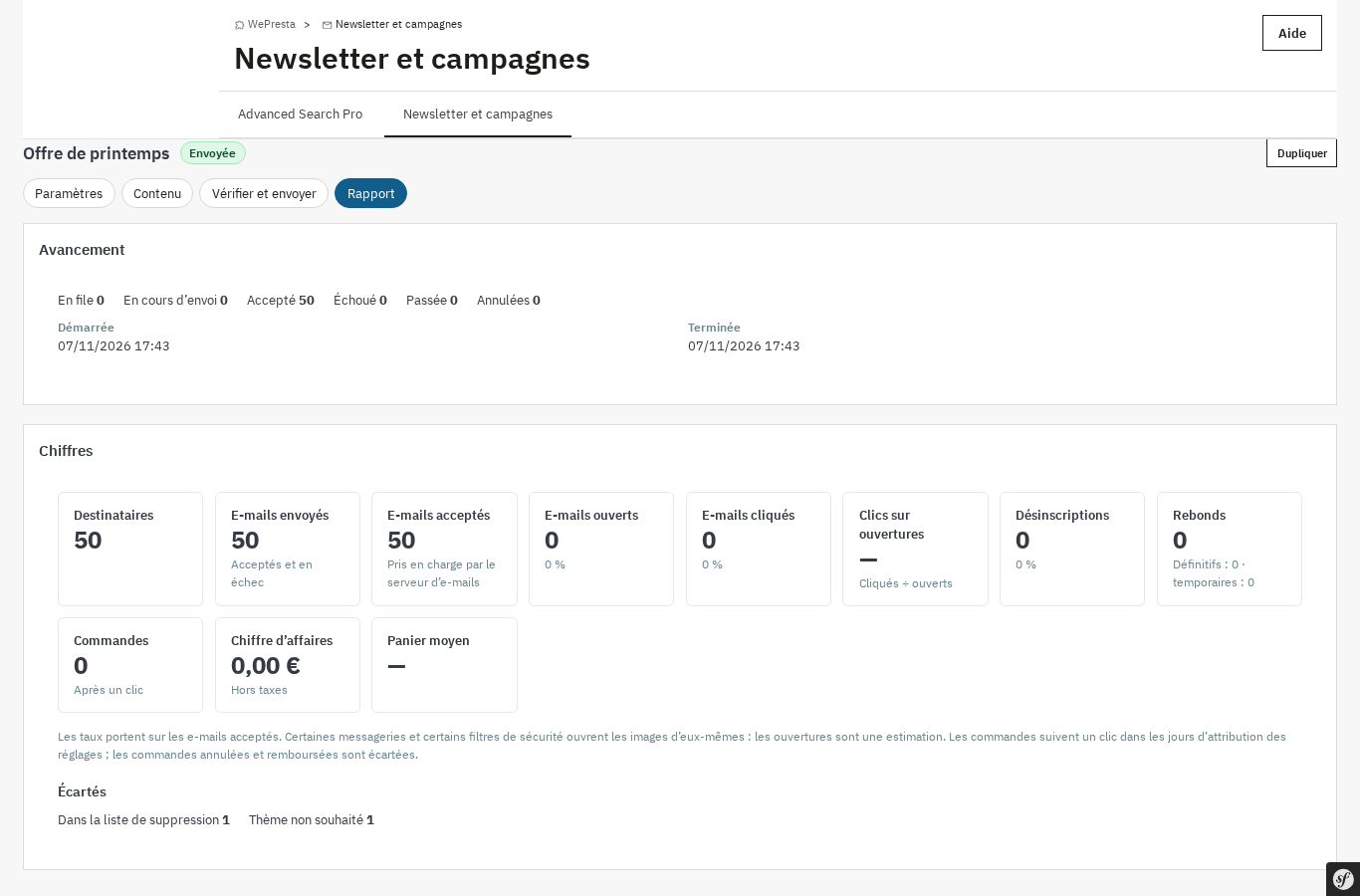
A campaign report brings together recipients, accepted emails, opens, clicks, unsubscribes, bounces, orders, revenue and average cart. Opens are an estimate: some mailbox providers load images by themselves, others block them. Clicks are more reliable, and the links table gives clicks, unique clicks, orders and revenue for each link. The per-recipient detail stays available and exports to CSV.
The attribution window is set from 1 to 90 days, 7 by default. Cancelled, refunded and failed orders are left out; partial credit slips are not deducted. Without click tracking, no sale can be linked. To cross-check these figures with your other channels, the Google Analytics 4 and GTM module sends its own e-commerce events.
Do you need double opt-in, and how do you prove consent?
The module applies double opt-in by default: an address only becomes subscribed after a click on a signed, dated link, and the wording shown is kept with its version.
The consent log records, for each signup, the date, IP address, page of origin, exact wording and its version, the topics chosen and the source. It also takes over consent records imported from PrestaShop. An unsubscribe, a preferences change or an erasure leaves a trace, and the withdrawals filter isolates the exits. By default, proof is kept five years after an unsubscribe; the period is set from 1 to 10 years.
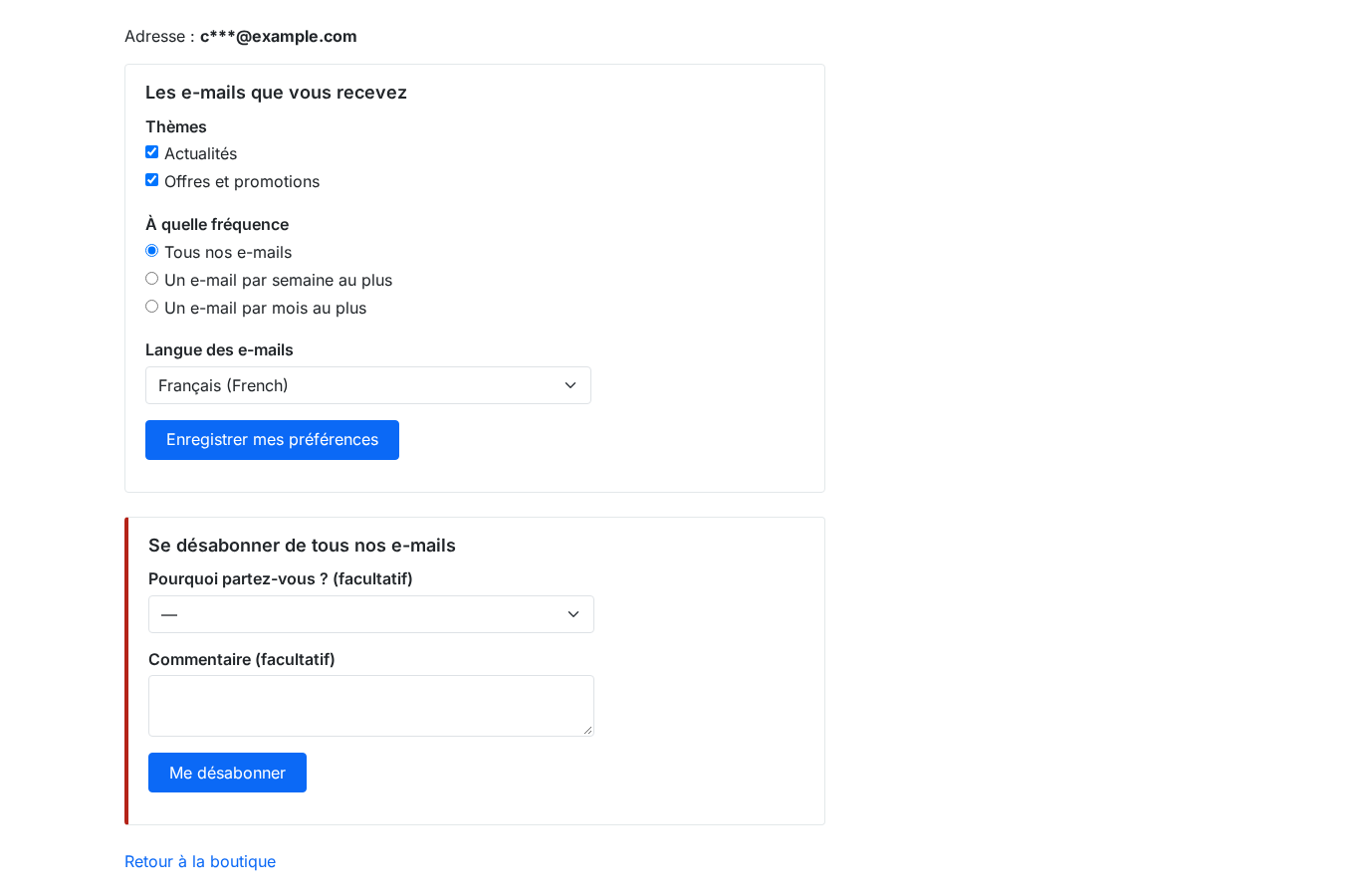
Every marketing email contains a preferences link that needs no login and a one-click unsubscribe, compatible with the RFC 8058 header used by mailbox providers. Viewing the page never unsubscribes: the action asks for confirmation. Single opt-in remains possible, provided you describe the legal basis, which is copied into every consent record.
The module helps document consent. It does not provide legal advice and does not make a shop compliant on its own.
How do you import an existing list and clean up old subscribers?
Import the list already in PrestaShop or a CSV file with a dry run, then set aside failed addresses and inactive contacts before the next campaign.
In Contacts > Import / export, "From PrestaShop" first counts the subscribers of the Newsletter block and the customers who ticked the box in their account, then imports them in batches. Unconfirmed native signups are left out, and a contact who already unsubscribed is never resubscribed. For a file, the column mapping screen assigns each column, merges duplicates and asks for a consent statement: where the list came from and that it was not bought, rented or collected without consent. The dry run counts creations, updates, resubscriptions and invalid lines, then Apply produces a line-by-line result file.
The suppression list excludes addresses with a hard bounce, those imported from the SMTP provider and those added by hand. The Inactive contacts section finds subscribers who received at least five emails in six months without opening or clicking, and offers to unsubscribe them in bulk. The daily purge then removes old events and emails without touching the report counters.
Frequently asked questions
Can I import the subscriber list already in PrestaShop?
How many emails can the module send per hour?
How is an order linked to a campaign?
Can you test two subjects to improve the open rate?
Is double opt-in mandatory?
How do you clean up old subscribers?
Products in this article

Newsletter & email campaigns: segments, automations and tracking
Build precise segments and automated journeys without leaving the back office. Document every consent and let...

Abandoned Cart Reminder
Bring customers back to their carts with up to three personalized reminder emails. Abandoned Cart Reminder combines...
Creative Pop-up builder: triggers & smart targeting
Create impactful drag & drop popups with the integrated visual editor and 22 translated templates . 8...

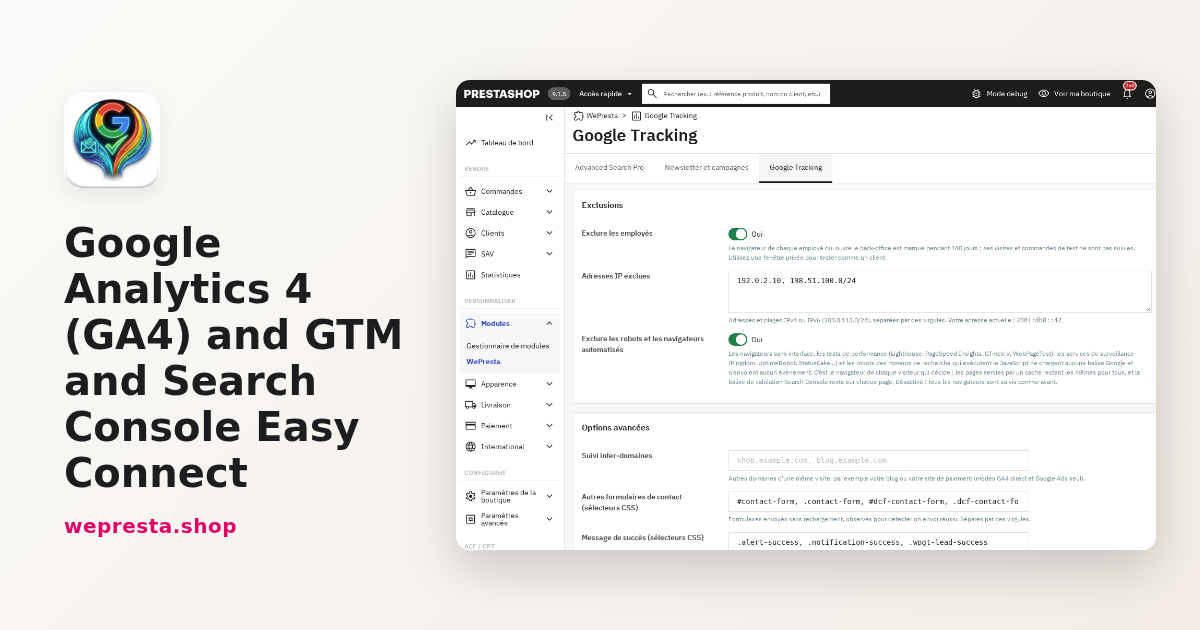
Google Analytics 4 (GA4) and GTM and Search Console Easy Connect
Complete GA4 tracking: 15 e-commerce events from click to payment, with consistent product data Purchases...
Read also
How to show the visitor’s VAT-inclusive price in PrestaShop
Set the EU VAT rates, show the price with the VAT of the country detected by GeoIP or picked in the selector, then export sales by rate: the full path in PrestaShop,…
Cookie consent on PrestaShop: block scripts before the choice
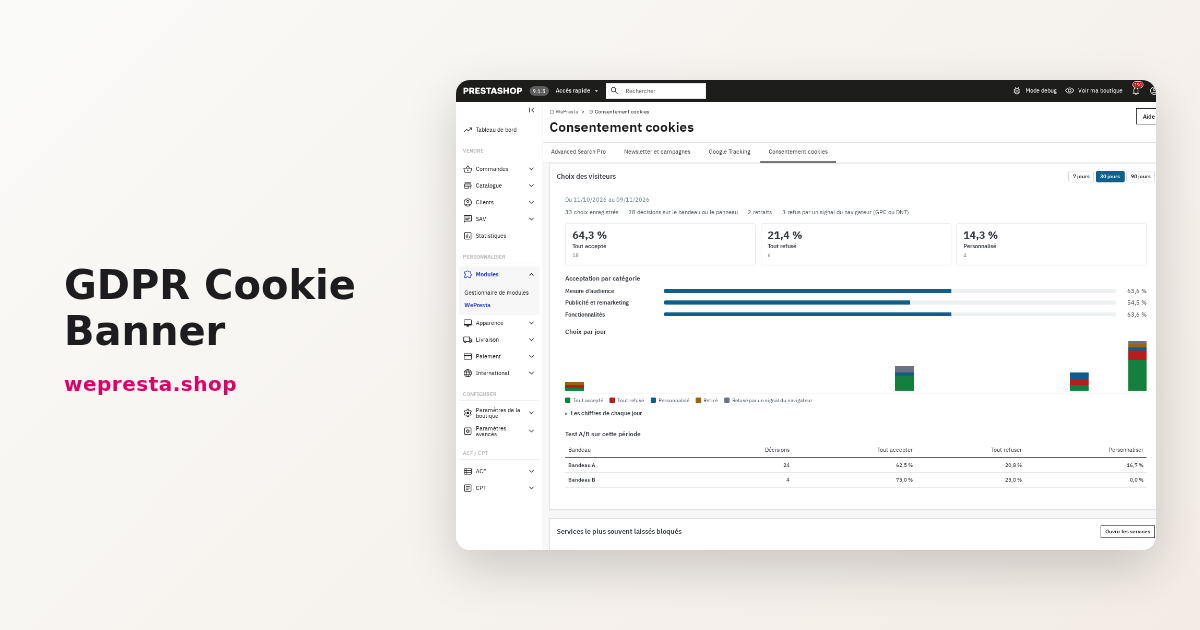
A banner that appears blocks nothing. This guide shows how to neutralize third-party scripts before the choice in PrestaShop, log every decision and generate the cookie…
How to set up GA4, GTM and Search Console on PrestaShop
The module connects GA4, GTM, Google Ads and Search Console to your shop without editing the theme. Here is how to configure it, count the right events and verify…