Cookie consent on PrestaShop: block scripts before the choice
A banner that appears blocks nothing. This guide shows how to neutralize third-party scripts before the choice in PrestaShop, log every decision and generate the cookie policy.
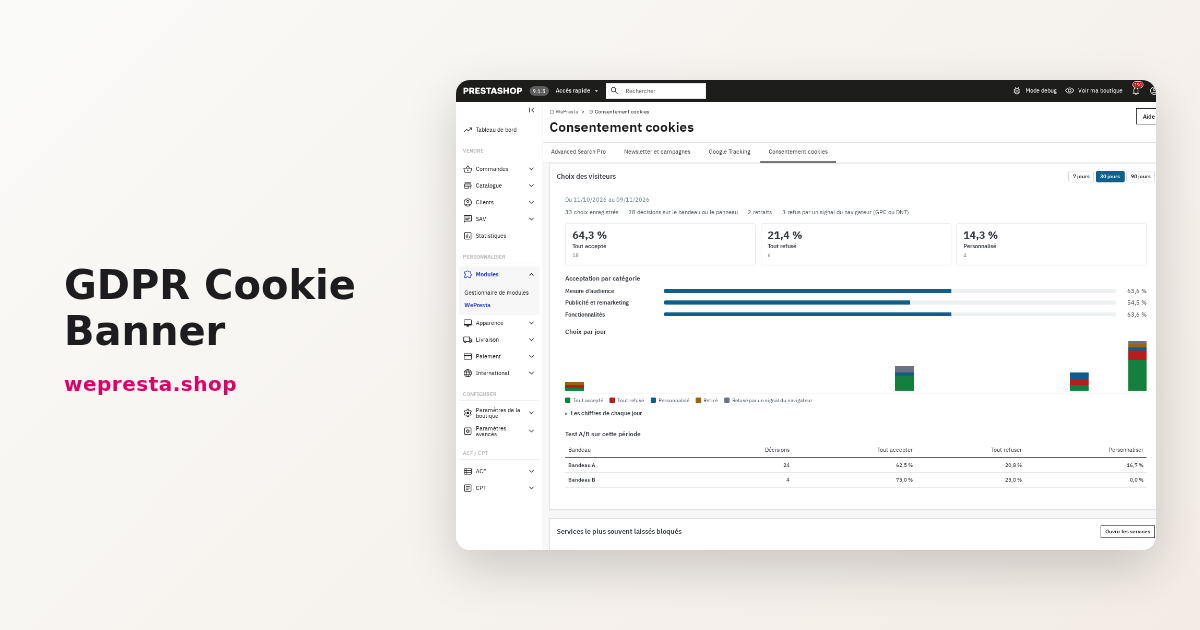
You put a cookie banner on your shop, and Google Analytics, Meta or a YouTube video still loads before the visitor clicks. The banner informs, but it blocks nothing: the script is sent with the page and the choice arrives too late. This guide shows how the GDPR Cookie Banner module neutralizes trackers on the server, how to set it up in the back office and what record it keeps of every decision.
Does a cookie banner really block scripts?
No. A banner that appears blocks nothing until the page HTML has been changed: the browser runs third-party scripts before the visitor has chosen.
The module rewrites the HTML on the server before it is sent. A third-party script keeps its address in an attribute but does not run. A YouTube, Vimeo or Google Maps iframe is replaced by a block that names the service and offers to load it. A tracking pixel loses its source, and third-party resources announced in the head are treated the same way. When the visitor accepts a category, the browser recreates the allowed elements in page order, with their original attributes.
This blocking has a precise limit: requests that an already allowed script makes itself, server-side conversions and a script evaluated by eval are not stopped. A tag manager must therefore be classified in the category of the tags it loads, or rely on Consent Mode.
Without JavaScript, nothing non-essential loads: neutralized elements stay inert, including those inside a noscript block. The banner cannot collect a choice without JavaScript, so non-essential categories stay blocked.
Which cookies must wait for consent?
Cookies strictly necessary for the requested service may load without consent. Audience measurement, advertising and remarketing, and embedded content wait for the visitor's choice.
The module sorts services into four categories: strictly necessary (always on, locked), audience measurement, advertising and remarketing, and functionality. A non-essential category with no active service is not shown in the panel, and its value is recorded as refused.
The Accept all, Reject all and Customize buttons carry the same visual weight. No box is pre-ticked and scrolling the page never records consent. The visitor changes their mind through the floating tab, the footer link or the [wpcc_preferences] shortcode.
A visitor who sends the Global Privacy Control signal is treated as refusing non-essential categories, without seeing the banner, and the line records the signal. Do Not Track is switched on separately in the settings.
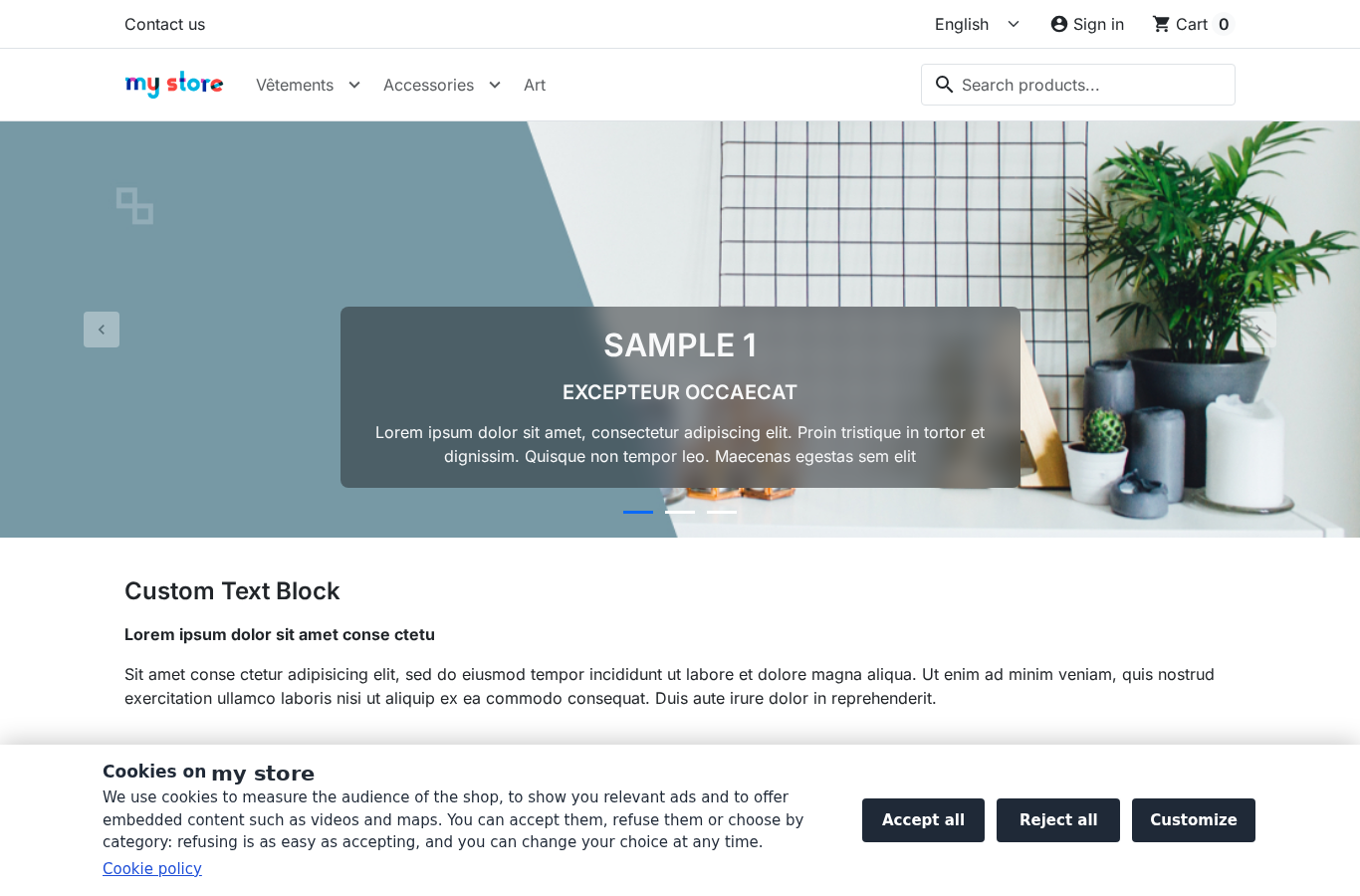
How do you install and switch on blocking in PrestaShop?
Install the archive in the module manager and activate the license. Then follow the four wizard steps, from the scan to going live.
- In the module manager, upload the ZIP archive and install it. The module is added to the list and the Cookie consent menu leads to its settings.
- Open the configuration and enter your license key. Without a valid license, the module stays disabled.
- Wizard, Scan step: click Scan now. Six pages are read: home, category, product, CMS page, contact and cart.
- Services step: each detected service gets its category and mode. An unknown domain is attached to a service, turned into a custom service or ignored.
- Banner step: position (bar at the bottom, card in the middle, panel in a corner), colors, logo, button order and texts per language. A contrast below 4.5:1 is refused with the measured value.
- Policy and go live step: reread the generated text, tick the confirmation box, publish the CMS page, then click Go live and confirm.
The module installs in test mode: visitors receive the unchanged page. The preview and the control page let you check the banner, the cookies and the services before going live. The re-prompt period (12 months by default), log retention and the Consent Mode sender are set on the configuration page.
How do you find the scripts that load before consent?
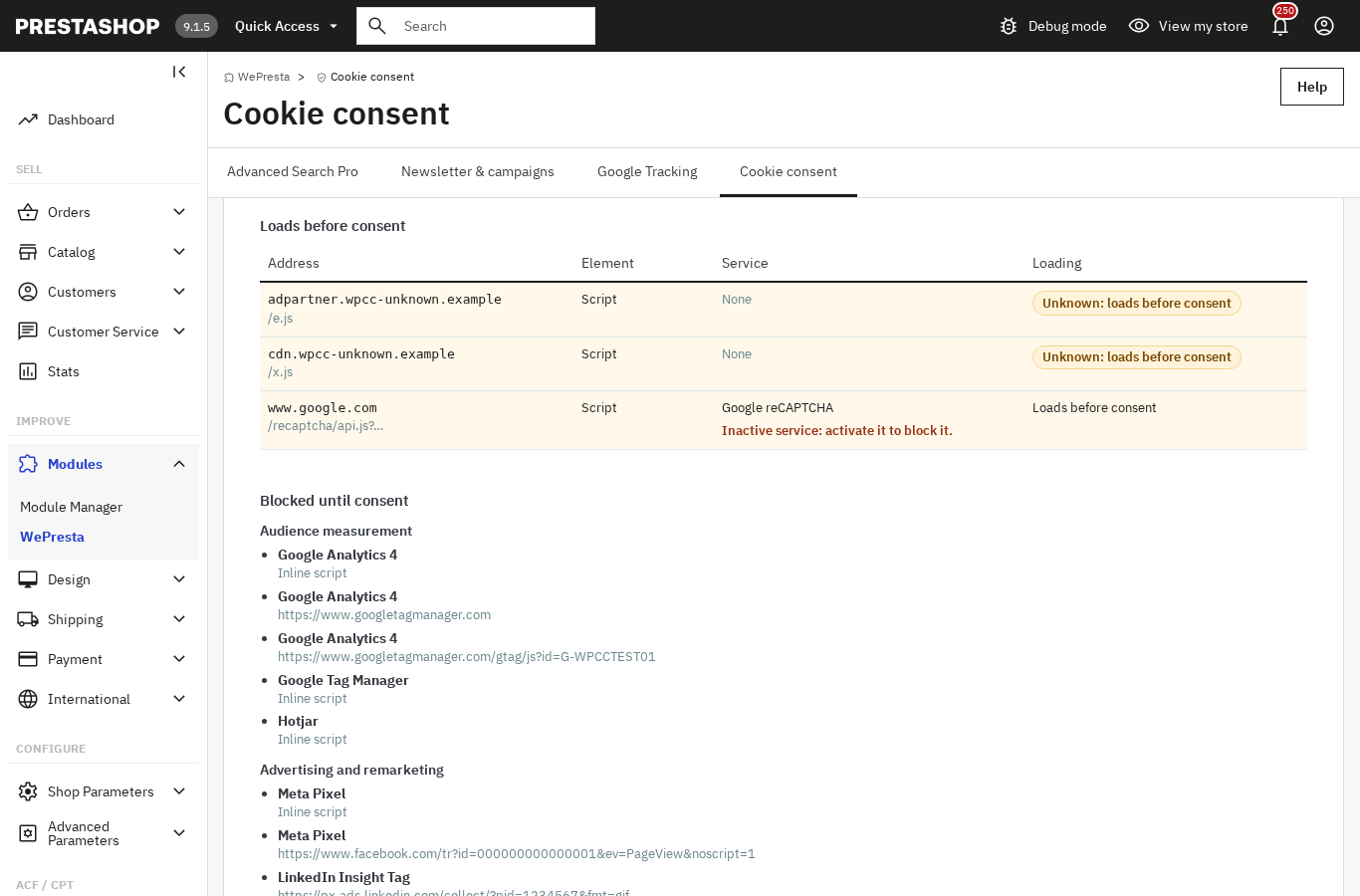
Run a scan: the report shows, page by page, what loads before consent, what is blocked until the choice and what the shop sets itself.
The scan reads the HTML received by a visitor without cookies on the six representative pages. Every script, iframe, pixel and resource is classified: blocked, necessary, allowed or unknown. A third-party host matching no service becomes an unknown domain. It appears on the dashboard and, when alerts are on, in an e-mail after a scheduled scan.
The Unknown domains page attaches the host to an existing service, turns it into a prefilled custom service or ignores it. A scan runs on demand or daily, weekly or monthly.
To see what happens in a real browser, the control page opens a shop page in a frame and compares hosts and cookies before and after a choice. It also lists what it cannot see: HttpOnly cookies and cookies of other domains.
How do you prove what a visitor accepted?
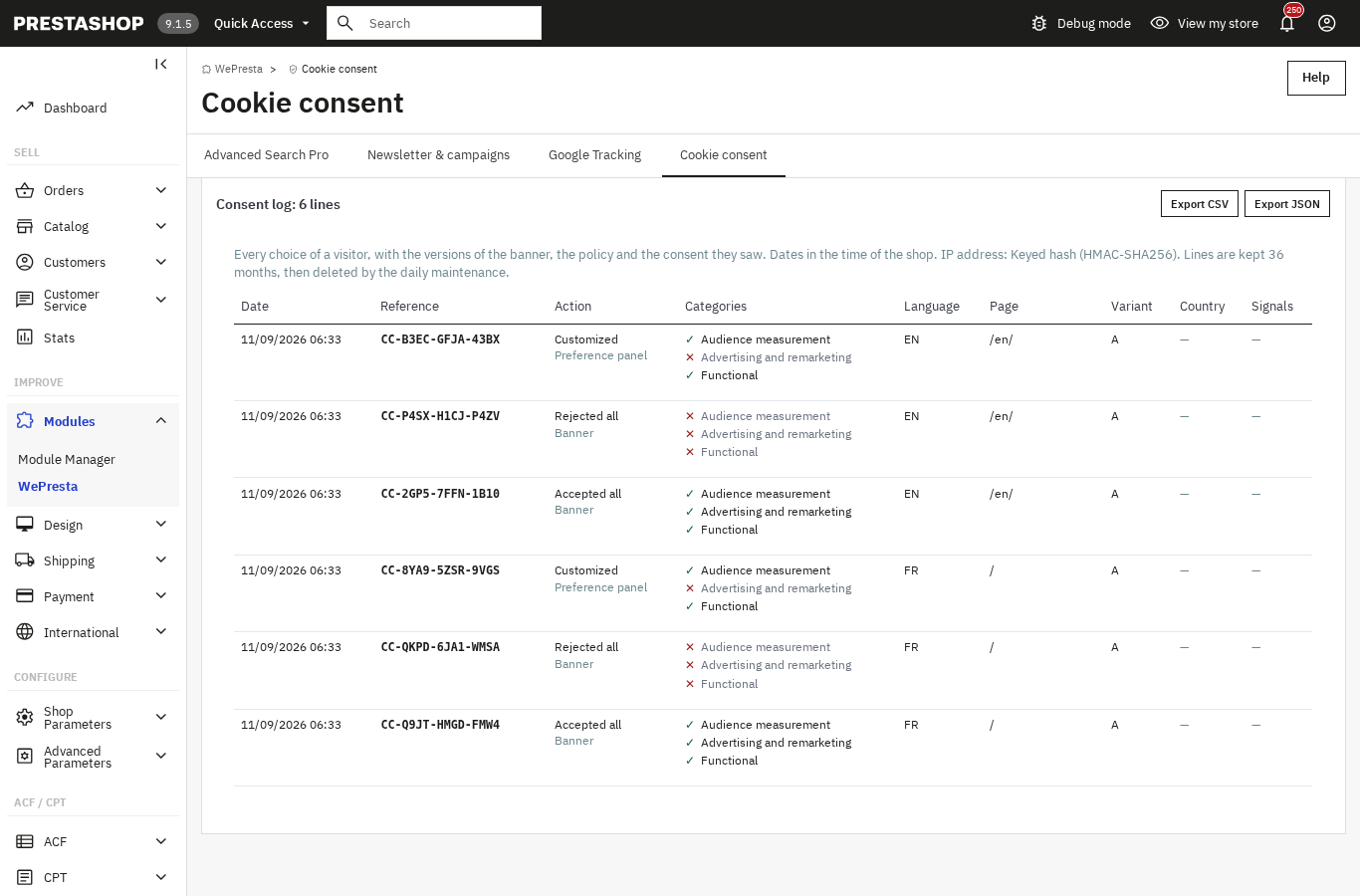
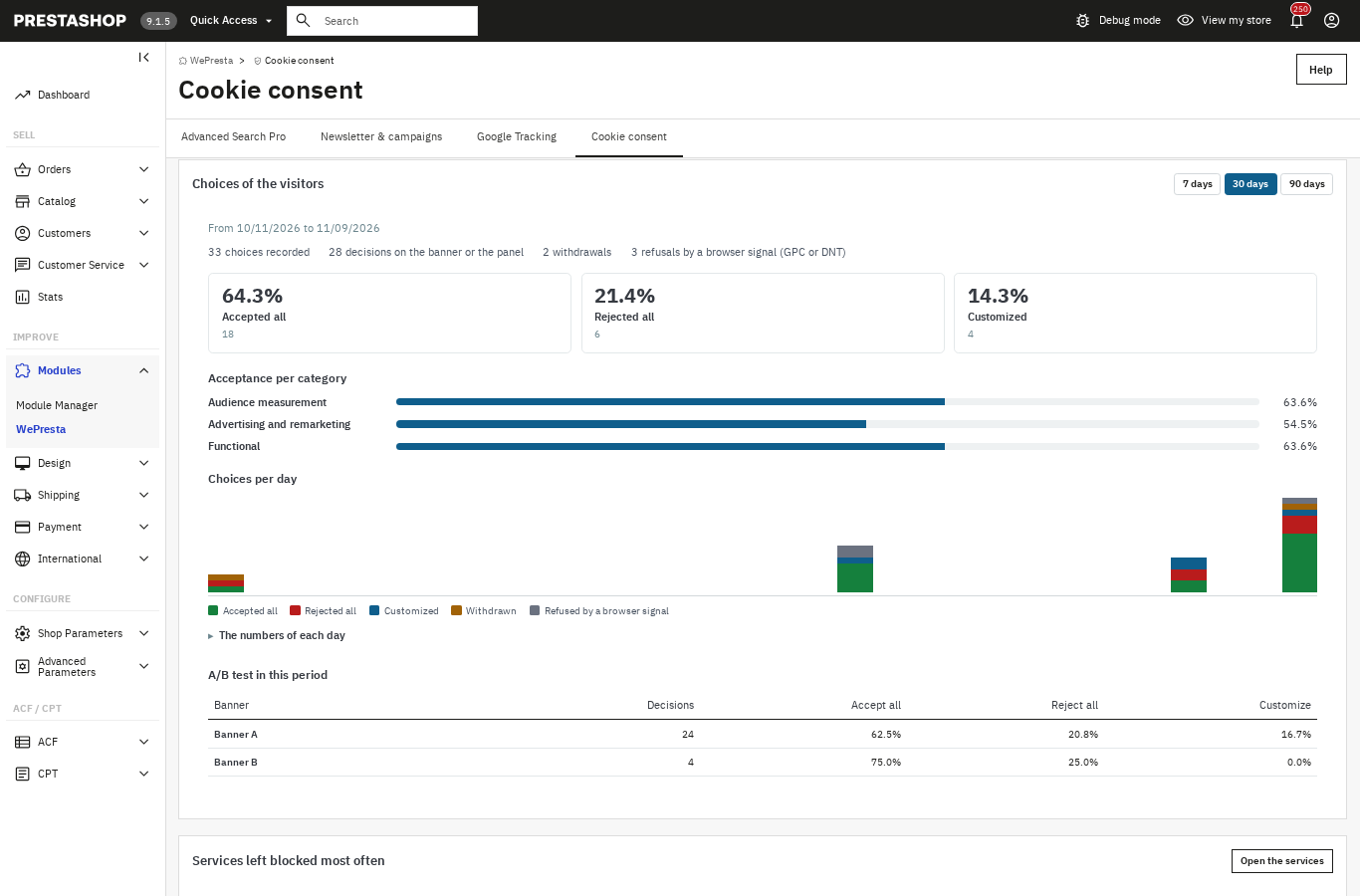
Each choice gets a reference and a line in the consent log, with the date, the categories and the versions of the banner and the policy.
The line holds the action (accept, reject, customize, withdraw, signal refusal), the language, the page, the A/B variant, the detected country when a geolocation source is set, and the browser signals. No name, e-mail or customer id is stored. The IP address is kept by default as an HMAC-SHA256 hash, and you can choose to truncate it or not store it.
Lines are never updated. Each one contains the SHA-256 hash of the previous line, and the integrity check reports a changed or deleted line. It is technical evidence: it is not a qualified timestamp and does not detect someone with database access who recomputes the whole chain.
The log filters by period, action, source, variant, country, reference or visitor key, and exports to CSV or JSON with the current filters. Lines older than the retention period (36 months by default, 6 to 120) are purged by the daily maintenance.
Who needs the module, and who can skip it?
A shop that loads a measurement tool, advertising or embedded content for visitors in Europe needs blocking before the choice. A shop with no third-party tracker can skip it.
The module targets PrestaShop 1.7.8, 8.0+ and 9.0+ shops using Google Analytics, Google Tag Manager, Google Ads, Meta, TikTok, LinkedIn, or embedded videos and maps. It also suits an agency running several shops: each shop keeps its settings, log and policy, and JSON export/import duplicates a configuration without copying the data.
It does not suit a shop looking for IAB TCF certification, a consent registry hosted in the cloud, or coverage of regimes outside the EU/EEA, the UK and Switzerland (CCPA/CPRA, LGPD). A shop with no third-party tracker has nothing to block; the module can still generate the cookie policy, but that is not its main use.
Is a cookie banner enough for GDPR compliance?
No. The module blocks, informs and documents, but it does not certify your shop's compliance, replace legal advice or stop every request.
- It cannot stop requests that an already allowed script makes itself, server-side conversions or a script evaluated by eval.
- It cannot delete HttpOnly cookies or cookies of other domains; the panel and the policy tell the visitor so.
- The cookie policy is a template generated from your inventory: you must reread it, adapt it and publish it again when your services change.
- The SHA-256 chain shows that a line was changed or removed without the chain being recomputed; it is not a qualified timestamp.
- Consent Mode v2 is required by Google for advertising and measurement in the EEA and the UK; it is not a legal obligation in itself.
- The module does not cover IAB TCF 2.3, CCPA/CPRA, LGPD or a hosted registry.
Your part: choose the legal basis, check the texts, keep the policy up to date and consult a lawyer about your situation. The module provides the mechanism and the record, not legal validation.
The module documentation describes each screen. If you use Google Tag Manager or Google Ads, Google Tracking can also send Consent Mode signals: keep a single sender, and the consent module warns you if both send. If your pages go through a server cache, check compatibility with Cache Pro, and for banner accessibility, the EAA and WCAG audit adds the check. The full sheet is on the GDPR Cookie Banner page.
Frequently asked questions
Do all cookies need consent?
How do I block third-party scripts before consent in PrestaShop?
How do I prove a visitor's consent during an audit?
Do I need a separate cookie policy page?
Does the banner get in the way of checkout?
Products in this article

GDPR Cookie Banner: real blocking, consent proof and cookie policy
Really blocks third-party scripts, iframes and pixels before consent, then loads them by accepted category...

Google Analytics 4 (GA4) and GTM and Search Console Easy Connect
Complete GA4 tracking: 15 e-commerce events from click to payment, with consistent product data Purchases...

Cache Pro — Full Page Cache with Brotli, Warm-Up & AJAX
Full page cache: stored pages are sent before PrestaShop builds them, with no database query from the module,...

EAA & WCAG 2.1 AA accessibility audit
WCAG 2.1 AA accessibility analysis of the real pages, contrasts included Safe automatic fixes, switched on one...
Read also
How to show the visitor’s VAT-inclusive price in PrestaShop
Set the EU VAT rates, show the price with the VAT of the country detected by GeoIP or picked in the selector, then export sales by rate: the full path in PrestaShop,…
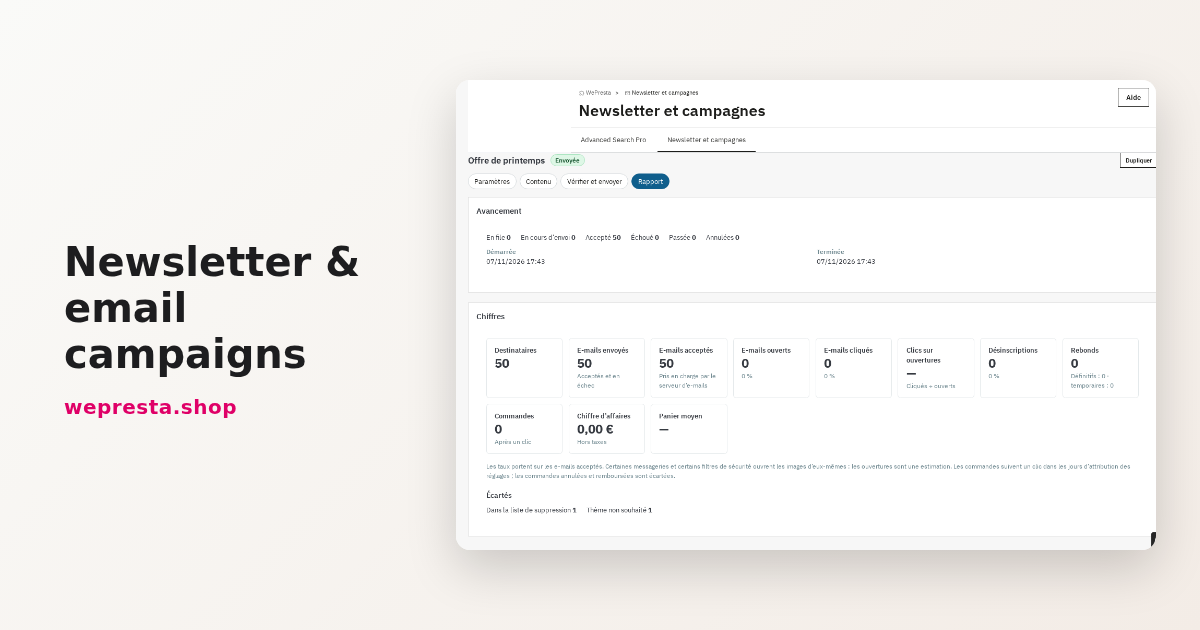
How to send a PrestaShop newsletter and track the sales it brings
The module keeps subscribers, consent records, segments and statistics inside PrestaShop, sends through the back-office queue and links orders back to the emails sent.
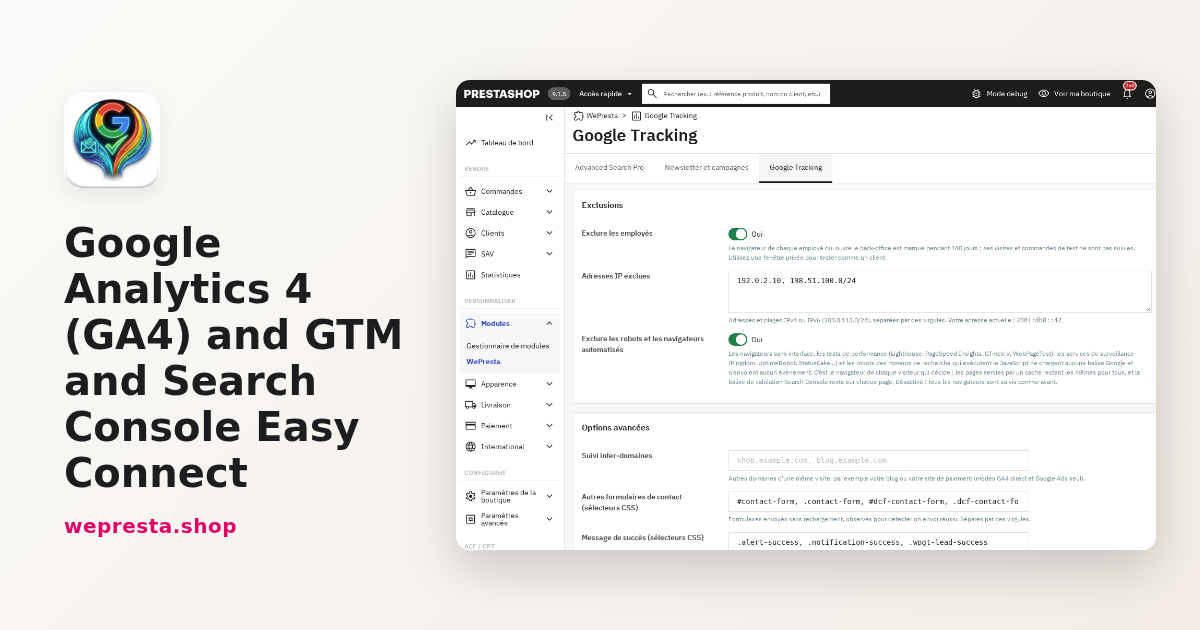
How to set up GA4, GTM and Search Console on PrestaShop
The module connects GA4, GTM, Google Ads and Search Console to your shop without editing the theme. Here is how to configure it, count the right events and verify…