How to set up GA4, GTM and Search Console on PrestaShop
The module connects GA4, GTM, Google Ads and Search Console to your shop without editing the theme. Here is how to configure it, count the right events and verify tracking.
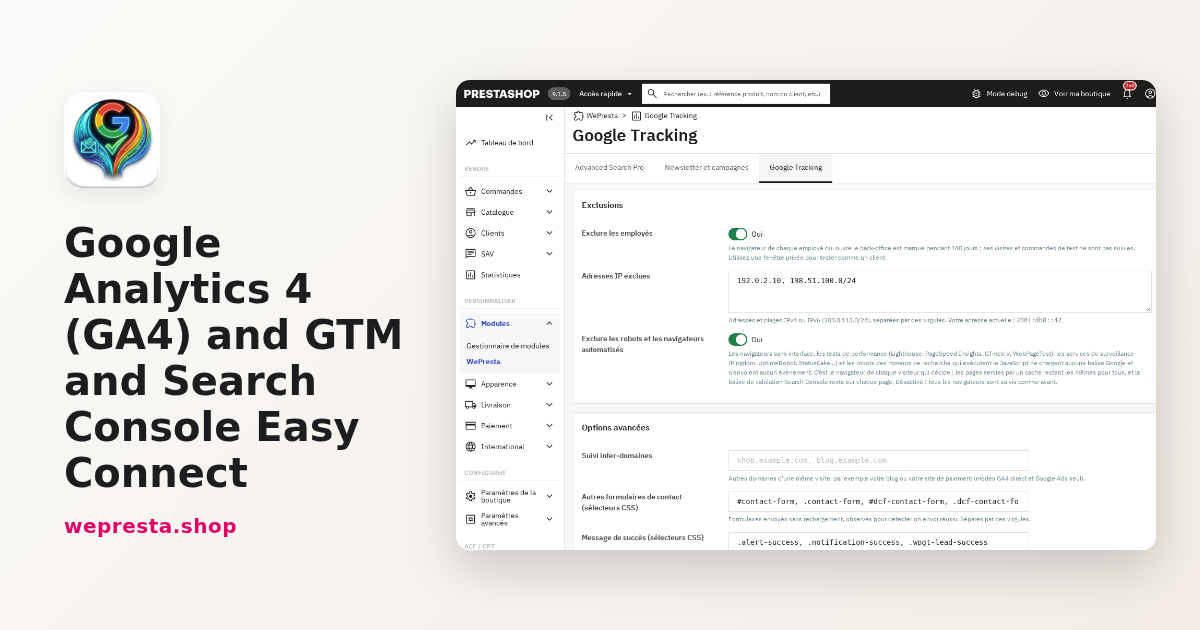
Your PrestaShop store may already send visits to Google Analytics 4, yet purchases, contact requests or amounts do not match what you see in your orders. The Google Tracking module connects GA4, Google Tag Manager, Google Ads and Search Console from the back office, without editing the theme. Here is how to configure it, which e-commerce events it sends, how to verify tracking, and what happens when the licence reaches its end date.
Who is this module for, and when do you need more?
It is for merchants who want reliable GA4, Tag Manager or Google Ads tracking without touching theme code, with the same product data from the product page to the purchase.
The module suits a shop on a standard theme, a multistore catalogue that needs different identifiers per shop, and a team that tests customer journeys without polluting its reports. It sends 15 events, keeps the same product, brand and category from one event to the next, and lets you send the product identifier your Merchant Center feed uses.
It does not replace your consent banner, your privacy policy or the GA4 reports. It does not send refunds or server-side fallback purchases, does not run server-side Tag Manager and does not add a GA4 user ID. For consent, it passes on the Consent Mode v2 signals recorded by your banner; it does not decide your legal basis.
How do you set up GA4, GTM and Search Console in PrestaShop?
You configure it in the back office by pasting a Google identifier, without editing a theme file.
- Open Modules > Module Manager, click Upload a module and choose the archive.
- Open the configuration and activate the licence with the License Key and License Secret from your customer account. Without a valid licence, the module stays disabled.
- Choose the integration mode: Google Analytics 4 direct, Google Tag Manager or Google Ads only.
- Paste the identifier for that mode: a measurement ID G-XXXXXXXXXX (GA4 > Admin > Data streams) or a container GTM-XXXXXXX, or your Google Ads ID AW-XXXXXXXXX.
- For Search Console, paste the HTML verification tag or only its content value; the module extracts the code.
- Save. The status panel shows Active and the selected mode.
No Google tag or event is added while the identifier for the selected mode is empty; the Search Console verification tag is independent. In GA4 direct and Google Ads only modes, cross-domain tracking keeps the session across your domains. In multistore, each shop can have its own identifiers. The module documentation describes each tab, and the module page lists the supported modes.
Why is the view_item event or a purchase missing in GA4?
An event is usually missing because it is disabled in the Events tab, because the visitor's consent excludes it, or because another module already sends GA4.
The module sends view_item when a product page opens, with the selected variation. Check that the event is enabled, that the page really shows the product page, and that the theme keeps the standard positions. The Diagnostics tab lists the theme hooks that are missing and the other Google tracking modules that are active. Two modules that send GA4 can count the same visit or purchase twice.
The purchase is sent when the order confirmation page is displayed, once per order and only within 24 hours of the order. If the customer reloads the page, the module does not send the purchase again. A missing purchase can therefore come from refused consent, a disabled event or Google's processing delay. The module cannot force Google to show an event that the visitor refused.
How do you count contact requests as conversions?
The module counts a request when the form's success message is actually visible, and it can send it to Google Ads as a conversion.
PrestaShop's native contact form is detected on the server. For a form submitted without a reload, enter its CSS selectors in Other contact forms (CSS selectors) and the message selectors in Success message (CSS selectors), separated by commas. Since version 2.1.0, a message revealed by a class or style change is counted; a message present but hidden is not. One request is counted per page.
For Google Ads, enter the AW-… ID, the Contact conversion label and, if you want, an estimated value. The conversion is sent with the request, without double counting with the native form.
How do you exclude robots and verify tracking without sending data?
Turn on verification mode to see every calculated event in your shop, then the robots exclusion option if your reports mix real visits with tool traffic.
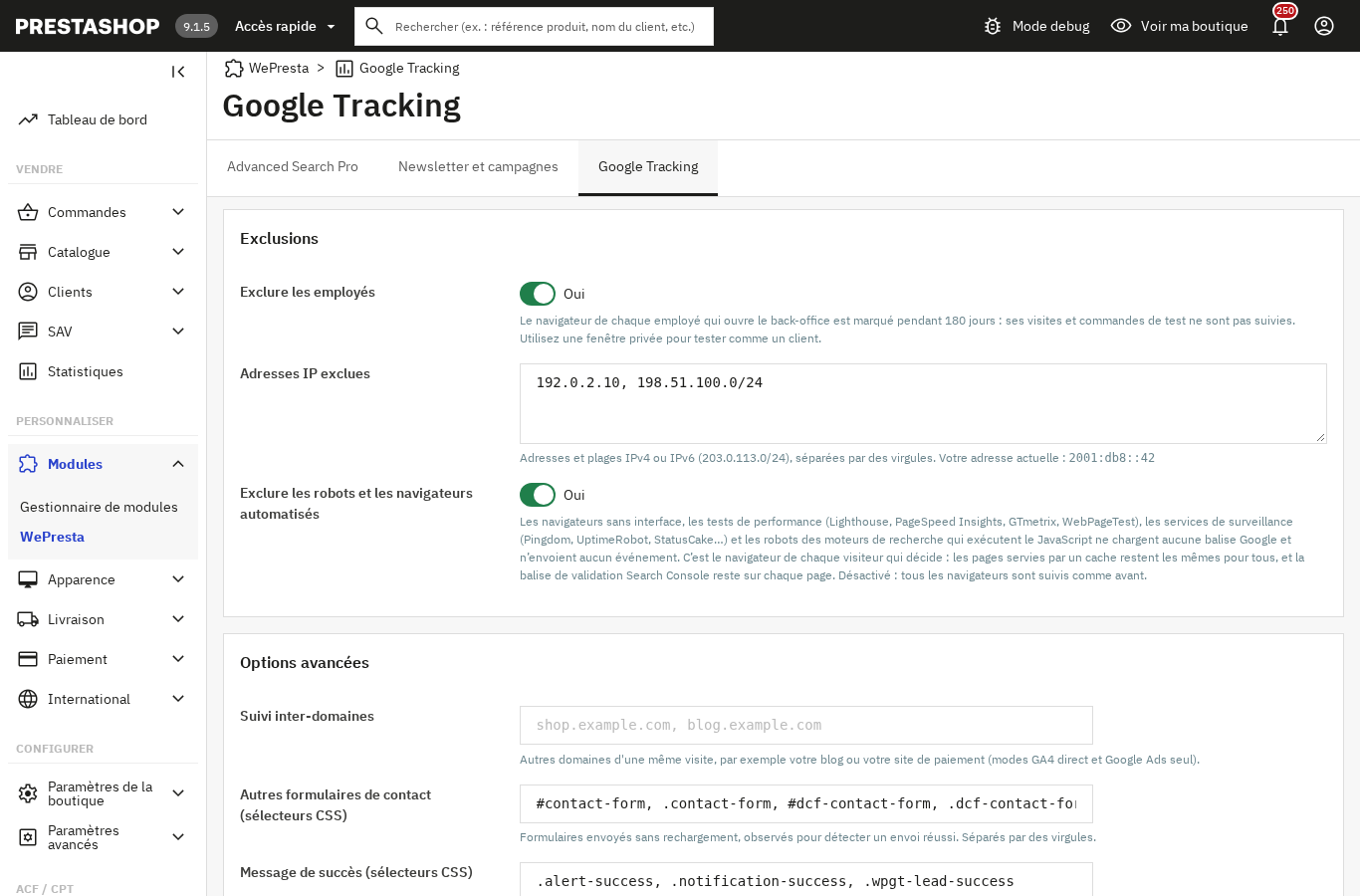
In the Exclusions and verification tab, verification mode shows a panel in the shop, for your browser only, with each event and its data. Nothing is sent to Google for 24 hours. The Remove the mark from this browser link turns it off. If you test with an automated browser, the panel says that browser is treated as a robot and still shows what would be sent.
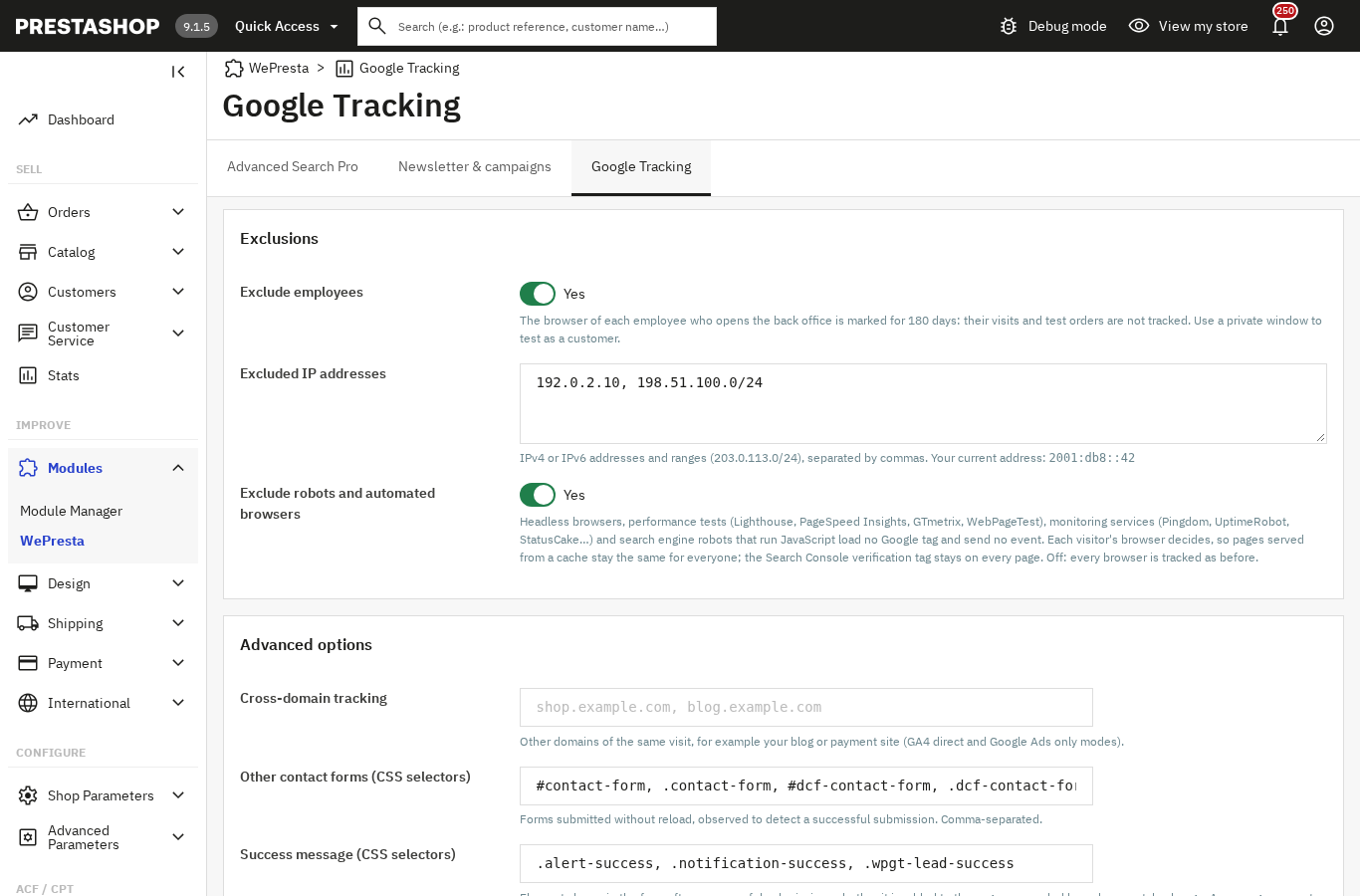
The Exclude robots and automated browsers option is off by default. It skips headless browsers, performance tests (Lighthouse, PageSpeed Insights, GTmetrix, WebPageTest), monitoring services (Pingdom, UptimeRobot, StatusCake…) and search engine robots that run JavaScript. The decision is made in the visitor's browser: pages served from a cache stay the same for everyone and the Search Console verification tag stays on every page. An ad blocker or privacy extension that prevents Google's script from loading keeps the visit out of GA4; verification mode lists the events the module computed, not what Google received.
The back-office browser is already excluded, and you can add IP addresses or ranges. The Diagnostics tab completes these checks with identifiers, consent, duplicates and the latest orders sent. The cache module works with this option, because the cached page does not depend on the visitor.
How do you keep amounts correct with a free-shipping voucher?
Since version 2.1.0, the value sent for products is no longer reduced by the free shipping, and the shipping fees sent match what the customer actually paid.
PrestaShop counts free shipping in the discount total and keeps the carrier price in the order. The previous version subtracted that price from the product value and reported shipping the customer never paid. The wrong amount went to GA4, the DataLayer and the Google Ads conversion. Version 2.1.0 calculates the part actually offered, subtracts it from the shipping fees and leaves the product value intact. A voucher that combines a discount and free shipping keeps its discount.
A concrete case: a customer adds a product, applies a voucher that combines a discount and free shipping, then orders. The GA4 report shows the discount on products and no shipping fees, and the Google Ads conversion receives the same amount. A promotions module that creates these vouchers needs no change.
In the Events tab, choose the product identifier (Product ID, Product ID and combination ID or Reference), whether prices include tax, and the purchase value (total paid, or products excluding tax after discounts). Use the identifier from your Merchant Center feed if you run dynamic remarketing.
What happens when the licence expires or the server does not answer?
Without a valid licence, the module disables itself on the shop and keeps your settings and tracked orders; the configuration page re-enables it.
An expired, suspended, revoked or domain-mismatched licence, or no licence at all, cuts the Google tag and the Tag Manager container, stops events, consent updates and conversions, and removes the Search Console tag. Your settings, the tracked orders list and the cookie secret stay in place. The configuration page shows the licence type, domain, end date and days remaining, with a Deactivate button that releases the domain after confirmation.
After the stored end date, a renewed subscription is checked with the licence server: the module waits seven days without a request, then contacts the server at most once an hour. A valid answer records the new date. An explicit refusal disables the module. A transient answer — server error, rate limit, clock skew, unreachable server — never disables a paid licence: the seven-day tolerance starts at the first failure. If your 2.0.1 module disabled itself while your subscription was valid, open its configuration page once.
Visits and orders received during a deactivation are not recovered: tracking resumes when the module is re-enabled. Consent Mode passes on the visitor's choice; it does not replace your banner, your privacy policy or your review of the legal basis. For more detail, the documentation describes the licence, and the structured data module page shows how to enrich the product pages Search Console reads.
The Google Analytics 4, GTM and Search Console module installs on PrestaShop 1.7.8, 8.0+ and 9.0+ with PHP 7.4 or later. Test a journey in verification mode before reading your reports.
Frequently asked questions
Do I need a valid licence to use the module?
Can I use Google Analytics and Google Tag Manager on PrestaShop without a paid licence?
What ecommerce events should I track in GA4 for my PrestaShop store?
How do I set up Google Ads conversion tracking alongside GA4 in PrestaShop?
How often does my module check my licence status and what happens if the server is unreachable?
Products in this article

Google Analytics 4 (GA4) and GTM and Search Console Easy Connect
Complete GA4 tracking: 15 e-commerce events from click to payment, with consistent product data Purchases...
Cache Pro — Full Page Cache with Brotli, Warm-Up & AJAX
Full page cache: stored pages are sent before PrestaShop builds them, with no database query from the module,...

Smart promos: 3x2, bundles & tiered deals
Create advanced promotions for your PrestaShop store : 3x2, buy X get Y free, tiered discounts, bundles,...

Schema Pro - Complete JSON-LD Structured Data & Rich Snippets
Product, ProductGroup, Organization, WebSite, BreadcrumbList, FAQPage, CollectionPage and ItemList generated from...
Read also
PrestaShop product search: faceted filters and indexable pages
Product filters on a PrestaShop shop are configured engine by engine, with prices indexed per customer group and filtered listings kept out of the search index. Steps,…
How to take a deposit and partial payments with Stripe on PrestaShop
A customer hesitates over a large order: a deposit at checkout and the balance later, or equal instalments collected by Stripe, change the decision. Here are the rules,…
PrestaShop full page cache: when it helps and how to set it up
Cache Pro stores your PrestaShop pages and serves them before PrestaShop rebuilds them. Settings, carts, purges, pre-load and the 2.0.1 license change.