How to show the visitor’s VAT-inclusive price in PrestaShop
Set the EU VAT rates, show the price with the VAT of the country detected by GeoIP or picked in the selector, then export sales by rate: the full path in PrestaShop, limits included.
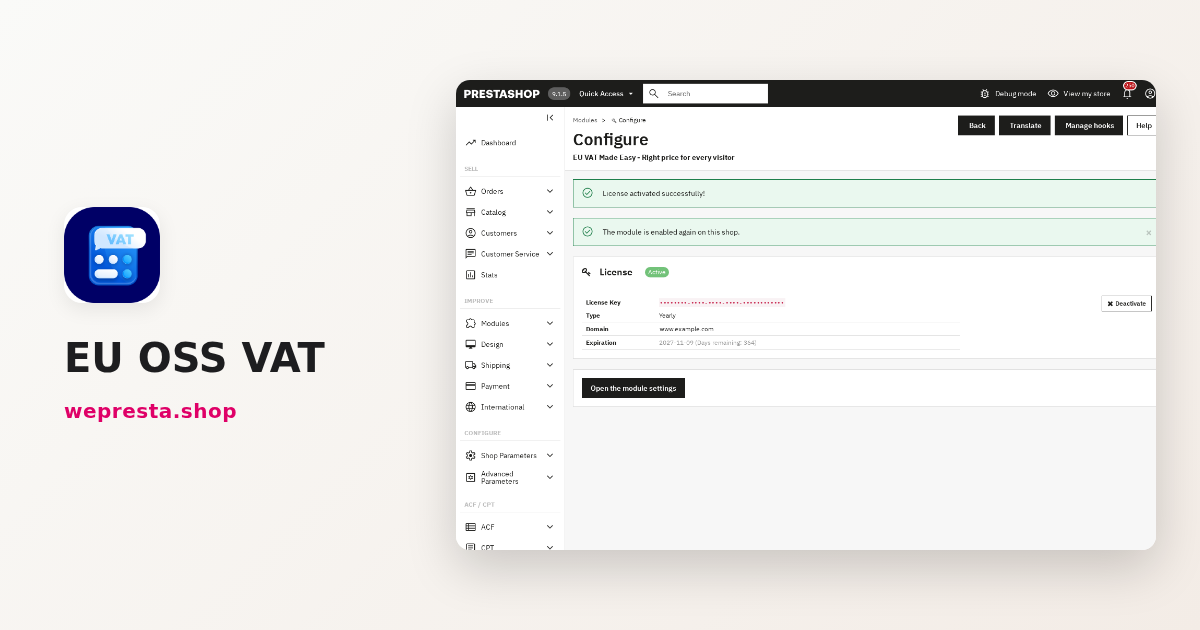
A Spanish customer opens a product page and sees a price calculated with French VAT. The rate for their country appears only after they type an address, sometimes after the item is already in the cart. That is the question merchants selling across the EU ask: how do you show the visitor’s VAT-inclusive price from the first page without breaking each product’s tax rules? This guide walks through the EU OSS VAT module, tab by tab, and shows what it leaves to your accountant.
Can PrestaShop handle EU country VAT and OSS on its own?
Not entirely: PrestaShop applies the VAT of the cart’s address; the module applies the detected or selected country’s rate from the product page and prepares the export by rate for OSS.
It is meant first for shops that meet three conditions.
- You sell to consumers in at least two EU countries and your prices are shown with VAT included.
- You want visitors to see their country’s rate from the product page, not at the cart.
- You prepare sales by rate for the OSS scheme, with a CSV export to check.
It is not needed in three cases. A shop selling in one country only has little use for it. Nor do B2B sales settled by reverse charge, because the module does not check VAT numbers. A shop looking for OSS threshold tracking or ten-year VAT evidence will not find either in this version.
The module page sums up the features, and the documentation details every tab.
How do you set EU country VAT rates in PrestaShop?
Open the module’s Configure page, then the Taxes tab: the wizard prepares the rates for the countries you sell to, shows the VAT rate reference data for each country, and creates nothing before you confirm.
The wizard works in three steps. You first choose tax rule groups already assigned to your products, or prepare new ones. The second step shows, country by country, the reference rates (standard, reduced, reduced 2, very reduced) and the configuration status (Configured, Partial, Not configured). The third step lists the taxes to create, the rules to create, the skipped items and the errors, then applies the changes after a click on Execute; until you confirm, the preview creates no rule.
Two points still need a manual check. Products are never reassigned to another group automatically: a reduced-rate item keeps its group, and the reduced rate depends on its category and territory. Groups shared between shops, regional rules and combined rules are checked in PrestaShop’s native settings, not in the module preview.
How do you show the visitor’s VAT-inclusive price, with or without an address?
The module resolves the country in this order: the cart’s tax address, the choice stored in the cookie, GeoIP detection, then the default country set in the General tab.
The General tab turns on the VAT price preview and sets the default country and the eligible customer groups. The countries offered in the selector are chosen in the Countries tab. The Display tab places the selector on a standard hook (displayNav1, displayNav2, displayTop) or on a custom hook (displayWeprestaOSS by default); five templates are provided, and a live preview follows your settings.
GeoIP detection is configured in the Advanced tab. Enter your MaxMind account ID and a key allowed to download GeoLite2 Country, then start the download and check the database status. PHP needs cURL, Phar and zlib; a key left empty keeps the saved key. On a local IP address, detection cannot work.
As soon as the cart has a valid tax address, that address becomes the reference and costs are recalculated, according to PrestaShop’s delivery or invoice setting. A logged-in customer can pick one of their addresses and confirm “Use this delivery address”; the module never creates a fictitious address. The estimated price also appears in the add-to-cart confirmation window.
The cookie lifetime is set in the Advanced tab, in days; a value of 0 keeps the choice for the session only.
How do you check that geolocation and prices are correct?
A country appears in the selector only when three conditions are met: it is active in the Countries tab, its taxes are configured in the Taxes tab, and it is enabled in PrestaShop (International → Localization → Countries).
Start with the GeoIP database status in the Advanced tab: it must show that the database is available. Then use the shop’s country selector to display it as a visitor from each target country, and compare the price of a standard-rate product with a reduced-rate one. Finish with the cart, using a real delivery address, then a different invoice address if you accept one.
If a price does not change, clear the PrestaShop cache and check that the product belongs to a tax rule group for that country. If a country is missing, go back to the three conditions above. A page cache or a CDN must distinguish the visitor’s country and session, or it may serve one country’s page to everyone.
How do you export sales and credit notes by rate for the OSS return?
Open the VAT Export tab, pick a period, run Preview, then click Download CSV: amounts are split by shop, currency, country, rate and component, shipping included.
Sales follow the order date; credit notes follow their issue date, even when they concern an older sale. Historical amounts and rates are kept: changing a tax rule does not rewrite lines already recorded. Rows to check stay marked in the preview and in the file.
A refund entered without a credit note cannot be deducted automatically. For payment deadlines of business customers, look instead at B2B payment terms, which handles credit limits and reminders.
What happens if my license expires or the license server does not answer?
A renewed subscription is no longer cut on the old date, and a transient license-server incident leaves 7 days of tolerance counted from the first failure; without a valid license, however, the module disables itself.
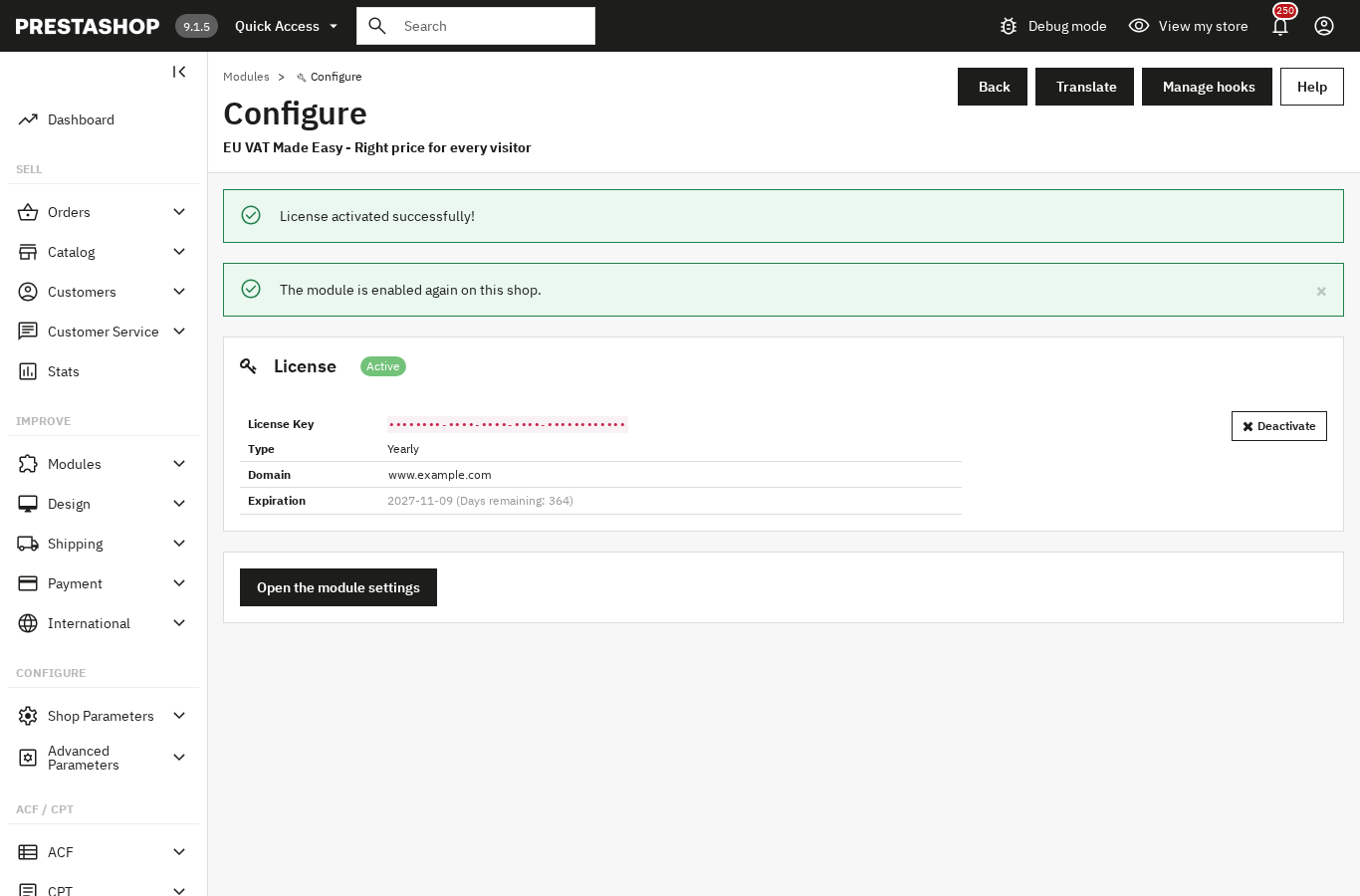
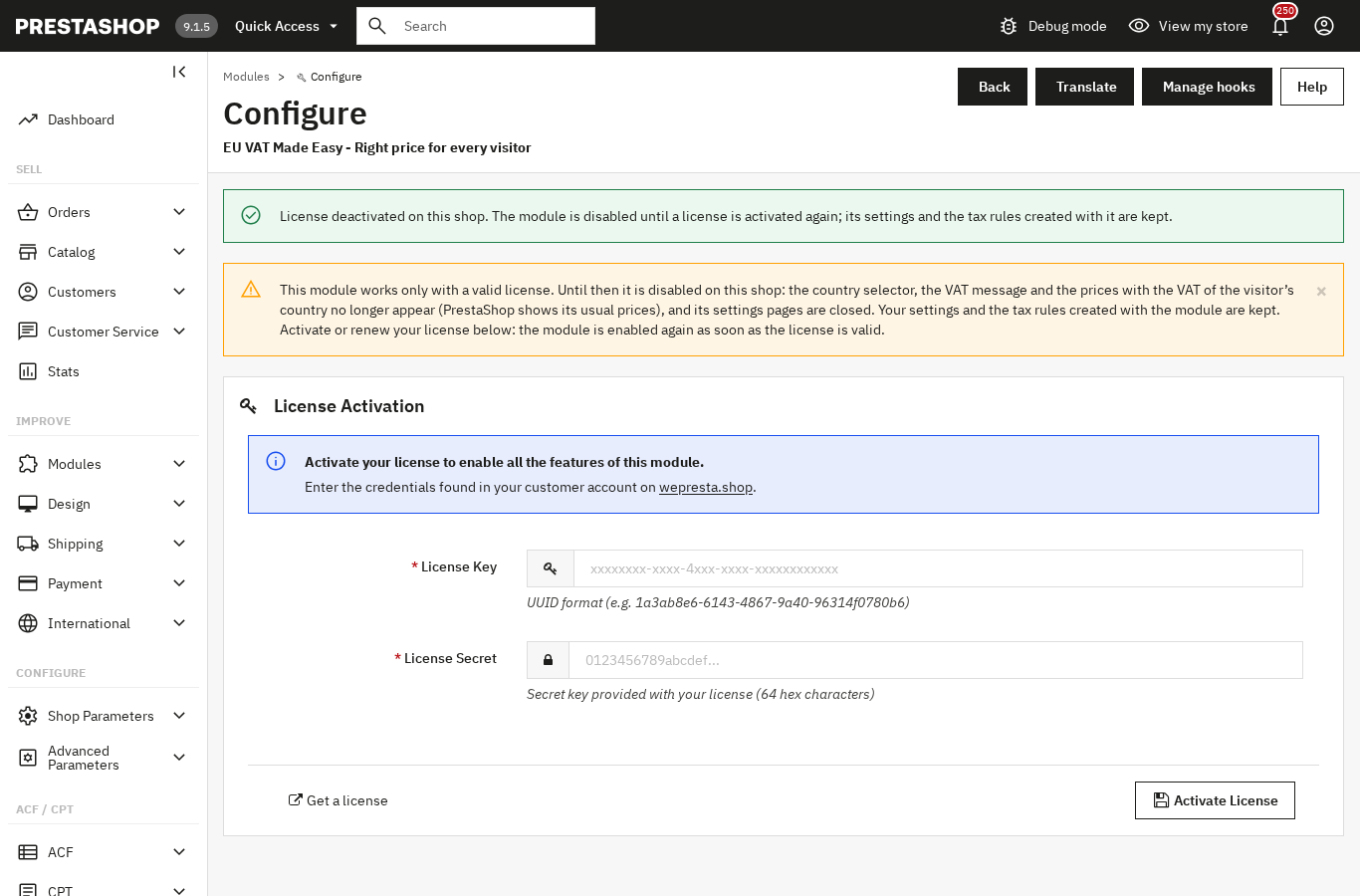
The license is activated from the Configure page, with the License Key and License Secret from your wepresta.shop account, then the Activate License button. The panel then shows the type, domain, expiry date and days remaining; the Deactivate button removes the license from this shop. The check runs at most once an hour, and every 5 minutes on that page while the license is not active: PrestaShop contacts the server only when a check is due, not on every visit.
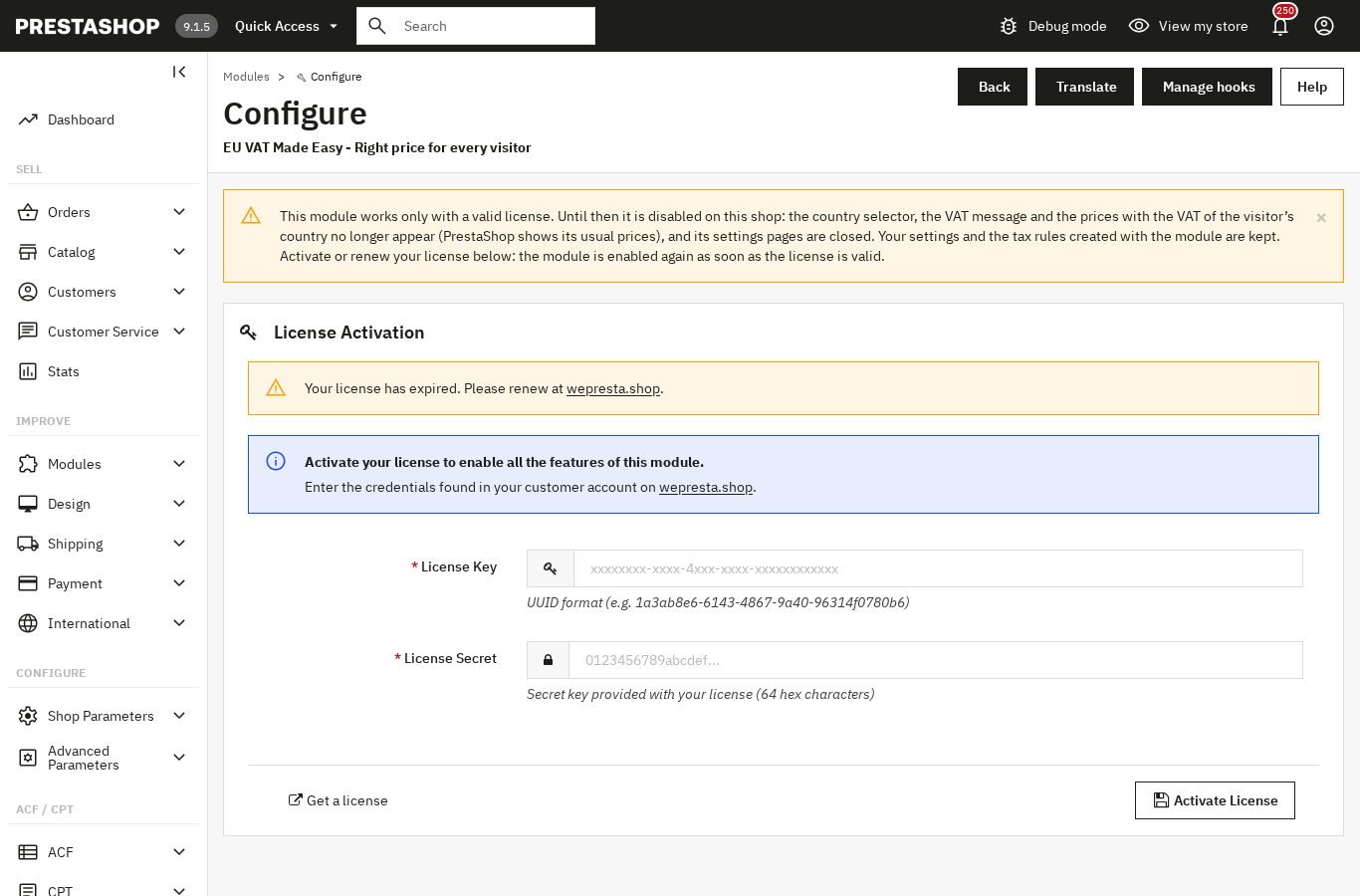
After that delay, the module disables itself: the selector, the VAT message and the prices with the visitor’s country VAT disappear, and PrestaShop shows its usual prices. Your settings and tax rules stay in place. The Module Manager refuses to enable the module and points to the Configure page, which enables it again as soon as the license is valid, with no key to re-enter after a renewal.
Version 2.0.2 fixed three defects: a renewed subscription that stayed cut on the old date, a transient server answer that removed the license, and an HTTP 500 error in the back office on PrestaShop 8 after deactivation. The form, the panel and the messages are available in French, English, Spanish, Italian and Polish. The module supports PrestaShop 1.7.8, 8.0+ and 9.0+, with PHP 7.4 minimum; on PHP 7.1 to 7.3, it shows a “PHP 7.4 minimum” message instead of a fatal error.
Does the VAT export replace an OSS return?
No: it adds up the sales and credit notes recorded in your shop and produces a CSV to check, not a return and not a decision on your liability.
The module does not track the OSS threshold, does not keep VAT evidence for ten years and does not update the GeoIP database on its own. It does not check intra-EU VAT numbers and does not switch a B2B price to reverse charge. These limits are deliberate: an approximate figure on a legal duty would be more dangerous than an empty field.
Rates, rules and your liability depend on your situation and your country of establishment. The module calculates and presents; it does not decide for you. Have your accountant review the configuration and the export before you file.
For the other European duties that touch the product page, look at the digital product passport and the EU deforestation (EUDR) tracker.
Frequently asked questions
Can I show different prices depending on the visitor’s IP address?
Do I need to update the MaxMind GeoIP database, and how often?
What happens when the license server is temporarily unavailable?
My subscription is renewed: is the module cut on the old end date?
Do I have to register for OSS as soon as I sell to another EU country?
Products in this article

EU OSS VAT – GeoIP VAT-Included Prices (MaxMind)
Correct VAT-included prices by visitor country, with MaxMind GeoIP or manual selection All 27 EU VAT rates...

B2B Net Terms: credit limits, receivables & payment reminders
Payment terms per customer, per group or by default: due on receipt, net 15/30/45/60/90, end of month Credit...

Digital Product Passport (DPP): QR code & public page
A public passport page and a printable QR code for every product Composition, durability, repair, end of life,...

EU Deforestation (EUDR): flag products at risk and track supplier DDS
Finds the products made from the regulation’s seven commodities: wood, coffee, cocoa, soya, palm oil, rubber and...
Read also
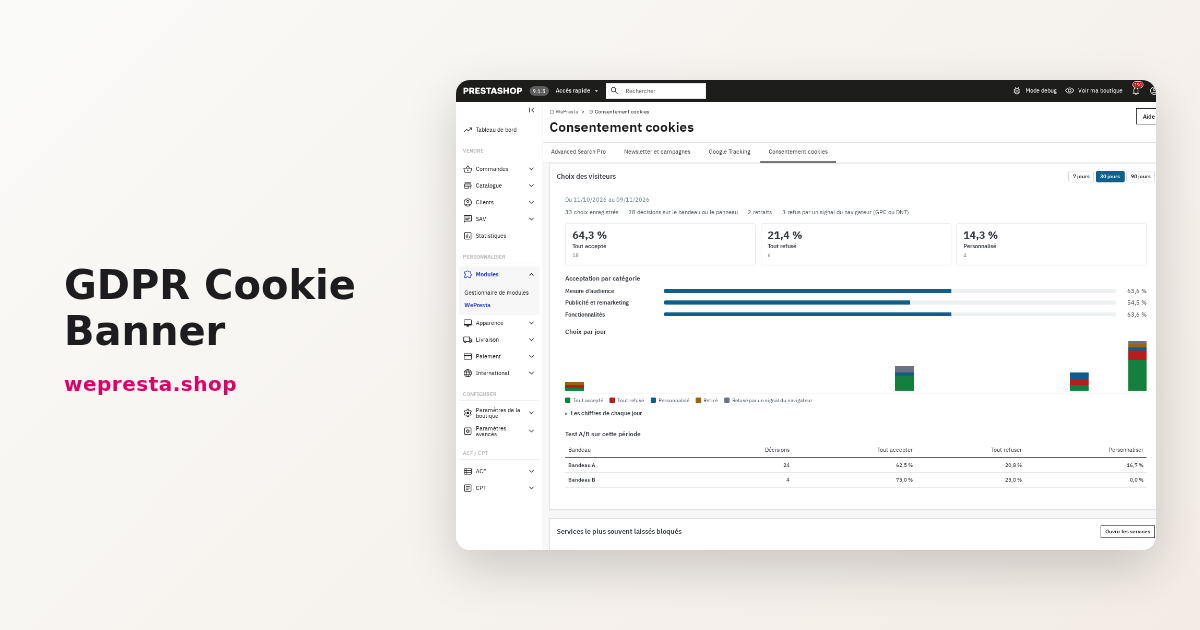
Cookie consent on PrestaShop: block scripts before the choice
A banner that appears blocks nothing. This guide shows how to neutralize third-party scripts before the choice in PrestaShop, log every decision and generate the cookie…
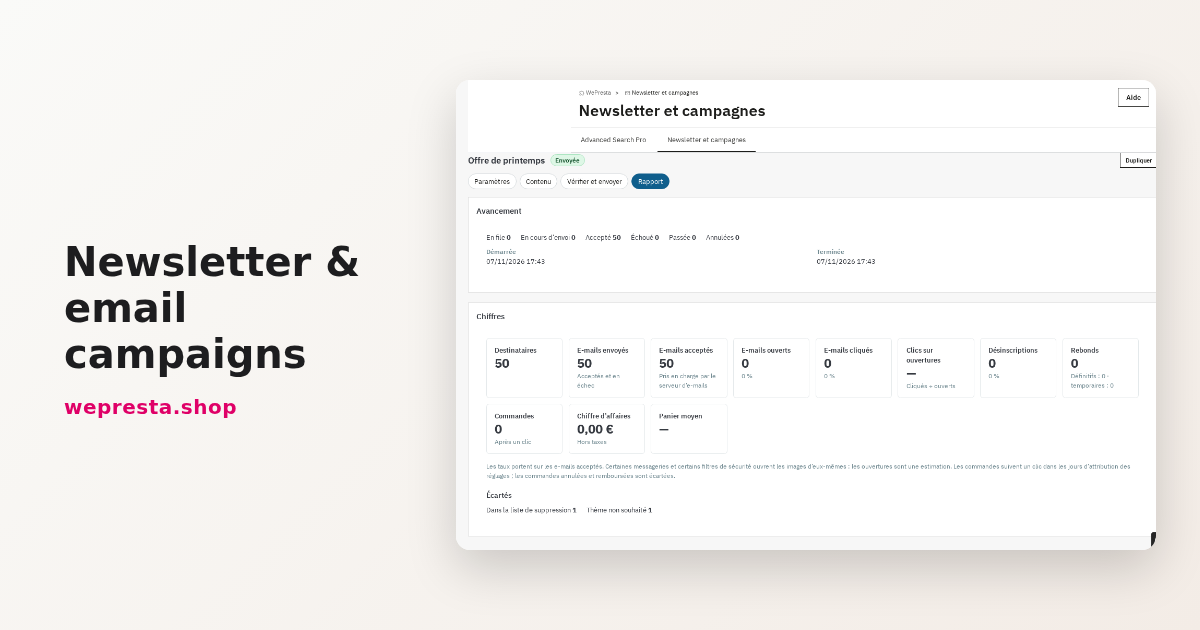
How to send a PrestaShop newsletter and track the sales it brings
The module keeps subscribers, consent records, segments and statistics inside PrestaShop, sends through the back-office queue and links orders back to the emails sent.
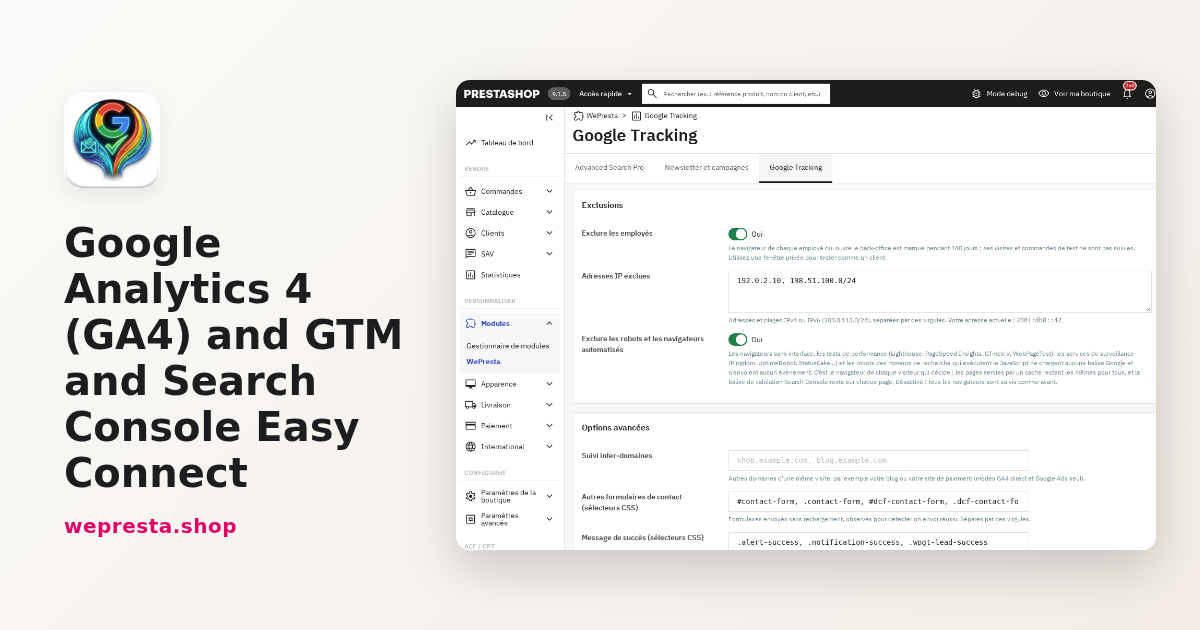
How to set up GA4, GTM and Search Console on PrestaShop
The module connects GA4, GTM, Google Ads and Search Console to your shop without editing the theme. Here is how to configure it, count the right events and verify…