Structured data on PrestaShop: how to add product JSON-LD
A guide to publishing accurate JSON-LD structured data on PrestaShop: which types to enable, how variants are described, how to check the output and what the license changes.
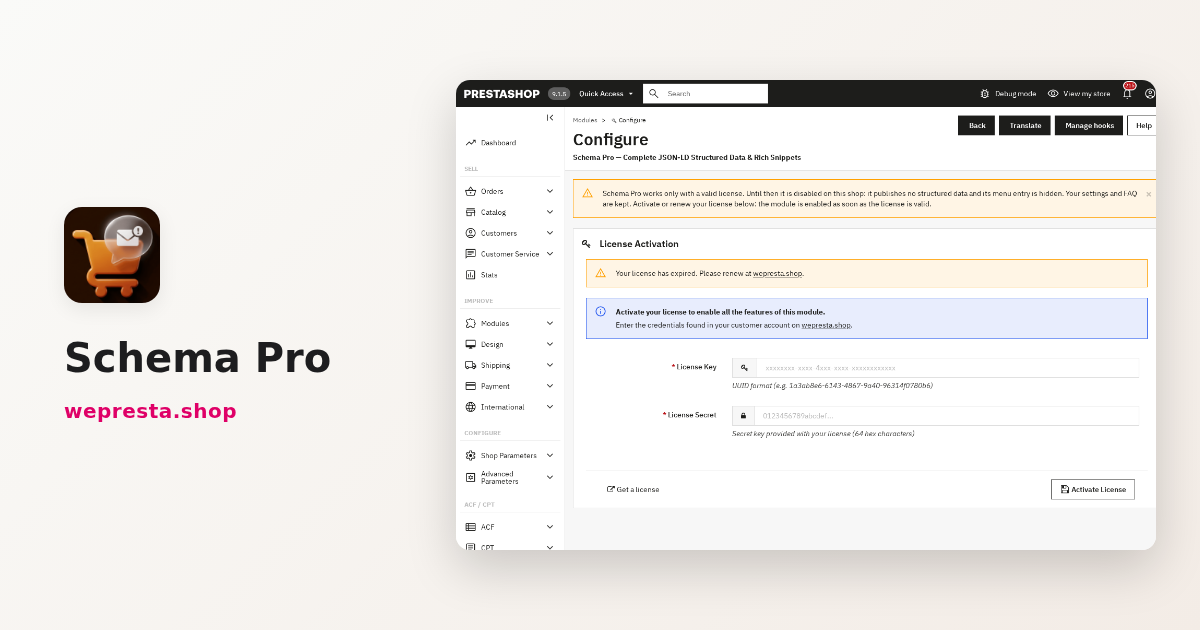
Your product pages carry the price, the stock level and the reviews, but the page Google reads does not always say so clearly. The result: no price or availability in the search listing, and sometimes two blocks of markup that contradict each other because the theme and a module both describe the same product. Schema Pro writes that structured data as JSON-LD from the shop’s own values. This guide covers which types to publish, how variants are described, how to check the output, and what happens when the license expires.
What is JSON-LD structured data, and what does it do on PrestaShop?
JSON-LD is a data block in the page source that describes the product in the Schema.org vocabulary: name, price, currency, availability, reference and reviews.
Google reads that block to understand the page and may show a rich result with the price, availability or rating. It may also ignore it: valid markup is a condition, not a promise that a rich result appears.
PrestaShop already publishes native JSON-LD: Organization, WebPage, BreadcrumbList and Product. That markup stays generic: no variants, no shipping or return policy. Schema Pro takes over the native templates it recognizes and leaves third-party markup it does not know untouched.
The module covers Product, ProductGroup, Organization or LocalBusiness, WebSite, BreadcrumbList, FAQPage, CollectionPage and ItemList. Each type is switched on separately in the General tab, under Schema types.
Who is Schema Pro for, and what does it not do?
It is for shops that sell products with variants or reviews and a shipping and return policy, and that want to publish that information without editing the theme.
It matters if your product pages exist in several languages, if one item comes in colors and sizes, or if your return terms must appear in the data. The module reads the shop’s own values: price, stock, images, reference, brand and categories.
You do not need it if your theme already publishes complete and accurate JSON-LD, with no variants to describe, no shipping or return rule to add and no FAQ to mark up. It does not replace editorial work either: a clear title and a useful description remain the base.
Four limits are worth knowing before installing. The module does not create a visible FAQ block: it publishes the data of questions already displayed on the page. It does not calculate carrier rates: you enter one common rule, and it does not know each customer’s own cost. It does not determine your legal return obligations. And its audit does not certify Google eligibility or catch every theme conflict.
How do I add structured data to my product pages without coding?
Upload the archive in the Module Manager, activate the license, then choose the types and complete the company identity on the configuration page.
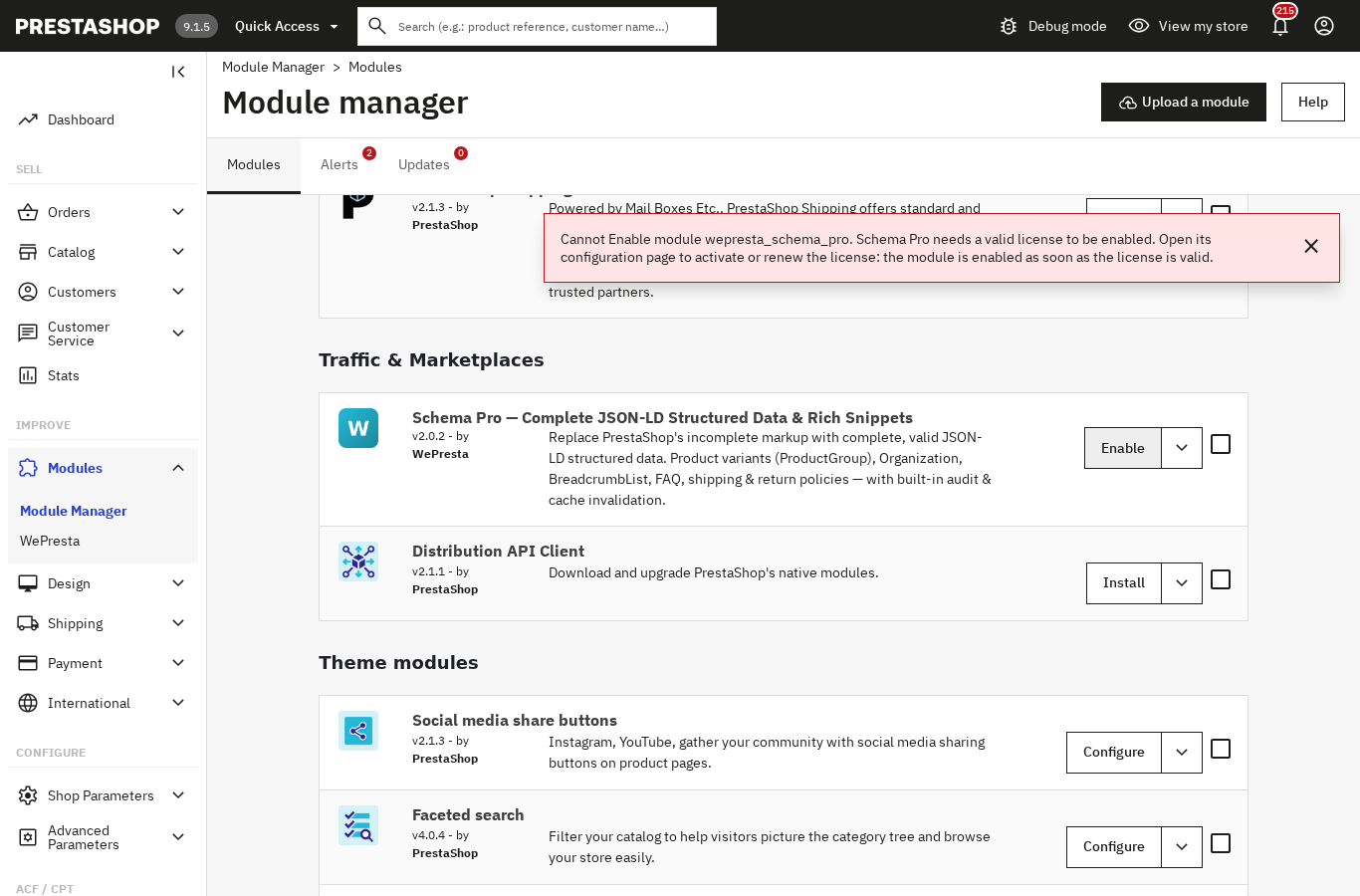
In Modules, then Module Manager, the “Upload a module” button imports the ZIP. The module then appears with its Configure button. Until the license is valid, the Module Manager refuses to enable it and shows: “Schema Pro needs a valid license to be enabled.”
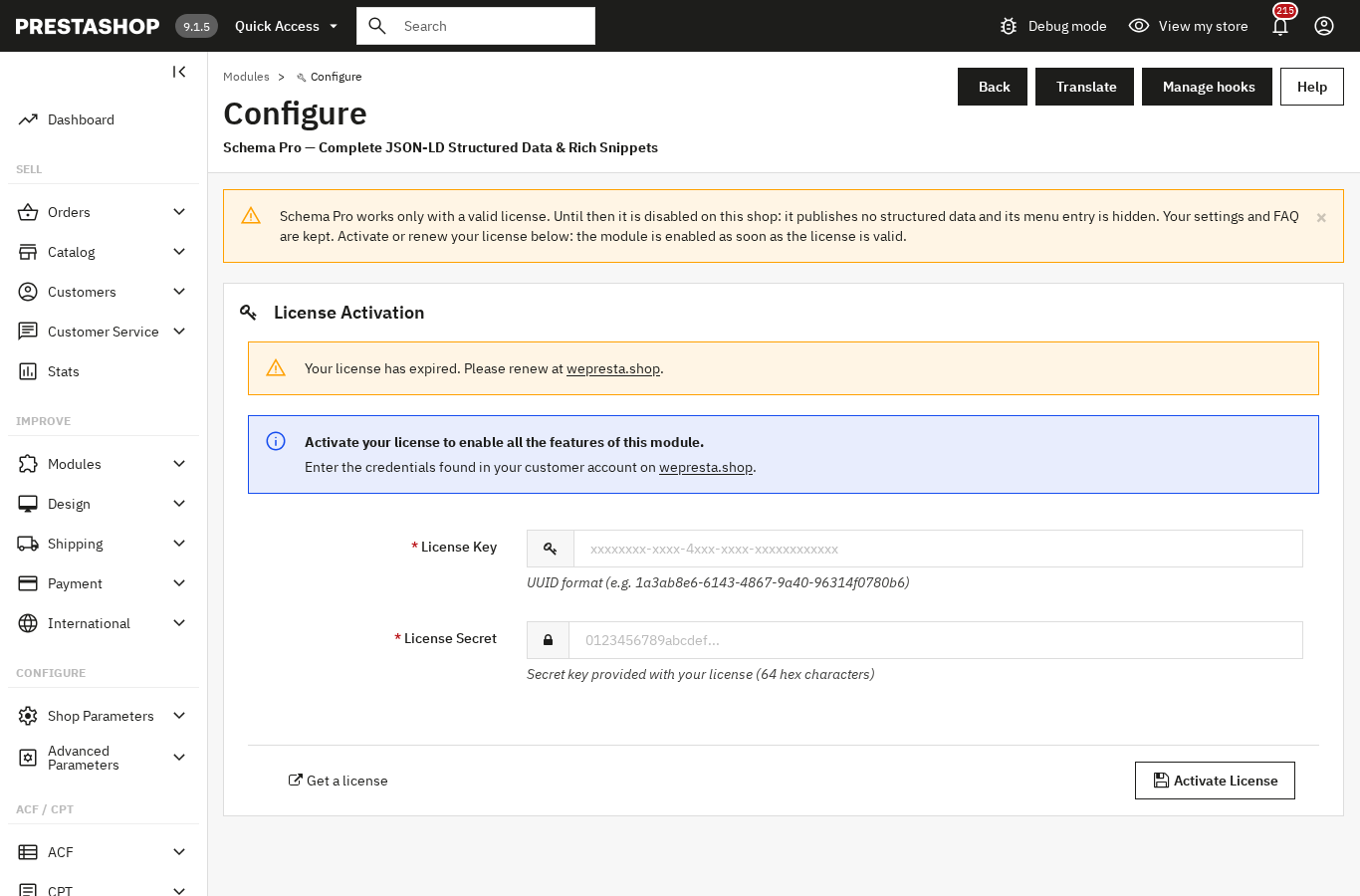
The configuration page shows the License Activation form. Enter the License Key and the License Secret from your customer account, then click Activate License. Once the license is valid, the “Open the Schema Pro settings” button opens the settings page.
The settings sit in five tabs: General, Organization, Product settings, FAQ and Audit. In General, tick the Schema types, leave “Disable native markup” checked so the module replaces PrestaShop’s JSON-LD with its own, and leave “Enable cache” on. Each section is saved separately.
In Organization, enter the real identity: Organization type, name, Logo URL, street address, phone, email and VAT ID. These fields describe the company; they do not guarantee a Google knowledge panel.
After a change, click Flush Cache, open a product page and look for the JSON-LD block in the page source.
How do I describe product variants: Product or ProductGroup?
A product with combinations is described with ProductGroup, which gathers each variant in hasVariant and names the axis with variesBy.
Take a T-shirt sold in three colors and four sizes. Each combination has its own reference, price, stock and sometimes its own image. The module reads those values into the variants and keeps the selected variant and the default variant first when the output size limit is reached.
In the Product settings tab, map your attribute groups to the recognized axes: color, size, material, pattern or gender. Without that mapping, the engine cannot tell what separates two variants.
For a simple product, Product is enough: name, description, images, reference, brand, available identifiers, condition, price, currency and availability. The price follows the visitor’s context, and a hidden price produces no offer. Only enter a GTIN that the manufacturer assigned: do not invent one to silence an audit finding.
Why don’t my rich snippets appear even though the schema is valid?
Because Google alone decides what to display: valid markup does not trigger a rich result by itself, and a few common causes explain the absence.
The first is missing reviews. Stars rest on an aggregate rating built from approved, eligible reviews of the chosen source. Without reviews, the module omits the rating and Google has nothing to show.
The second is duplicate markup. If the theme or another module publishes a second Product on the same page, the two contradict each other. Open the page source and check that only one consistent block remains.
The third is a value that does not match the visible page: a price, currency or availability different from what the customer sees. The values must follow the product page.
The fourth concerns types Google has stopped displaying: FAQ rich results and the sitelinks search box no longer appear. The module still publishes FAQPage and WebSite, but no snippet appears for them.
Finally, the delay is not something you can set. Google recrawls the page at its own pace. The Rich Results Test and the URL Inspection tool in Search Console check one exact address; they do not give a display date.
How do I check what the shop publishes before going live?
The Audit tab shows the JSON-LD of a product searched by name, in the chosen language and currency, then audits the active catalog.
In Product preview, type a product name, choose the language and currency, and compare price, stock and availability with the public page. Repeat on a simple product, then on a product with variants.
The audit walks the active products in small batches and sorts the findings into Errors, Recommendations and optional information. The Export CSV button gives the list to fix. A missing manufacturer GTIN is not automatically an error.
This audit stays internal: for an outside check, run the public address through Google’s Rich Results Test and keep the result. The module documentation details each tab.
What happens if the license expires or the license server does not answer?
Without a valid license, Schema Pro disables itself and publishes no structured data; a transient license server failure, however, does not expire a valid license. The menu entry is hidden, while settings and FAQ are kept.
That is how version 2.0.2 behaves. An expired, suspended, revoked or missing license, or one not recognized for this domain, is enough to trigger the deactivation. The module stays installed but inactive: its configuration page lets you enter a new license.
A renewed subscription stays active for seven days after the stored end date. After that, the module asks the server again, at most once an hour. An internal error, a rate limit or a clock mismatch does not expire a valid license: the seven-day grace period counts from the first failure.
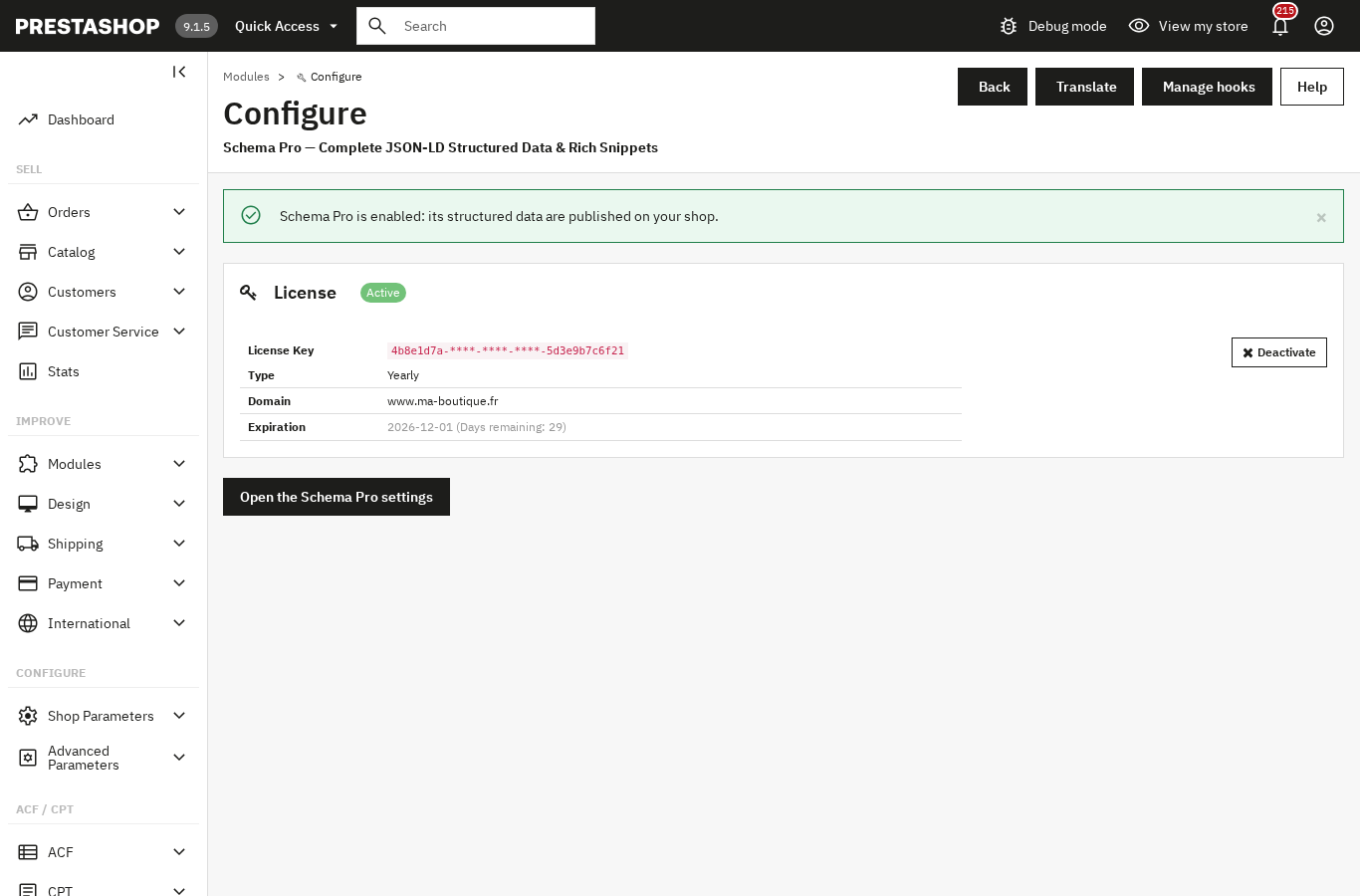
To restore the module, open the configuration page, enter the License Key and the License Secret, then click Activate License. The page confirms the activation and offers the “Open the Schema Pro settings” button. The Deactivate button removes the license on this shop and keeps the settings.
Markup replaces neither the product page nor the return policy: it describes them for search engines. To complete the set, Advanced Custom Field adds custom fields and editorial FAQs, the digital product passport publishes a public page per product, and Google Analytics 4 and Search Console show what visitors do next.
Frequently asked questions
Do I need customer reviews for stars to appear in Google?
Why do my rich snippets disappear even though the schema is valid?
Which product fields are required and which are optional?
Can each variant have its own rich snippet?
How long does Google take to show rich snippets?
Products in this article

Schema Pro - Complete JSON-LD Structured Data & Rich Snippets
Product, ProductGroup, Organization, WebSite, BreadcrumbList, FAQPage, CollectionPage and ItemList generated from...

Advanced Custom Field and Custom Post Types (2-in-1)
Create custom fields on your products, categories, CMS pages and customers Show them in your shop without code:...

Digital Product Passport (DPP): QR code & public page
A public passport page and a printable QR code for every product Composition, durability, repair, end of life,...

Google Analytics 4 (GA4) and GTM and Search Console Easy Connect
Connect your store to Google Analytics 4 , Google Tag Manager , Google Ads and Search Console without touching...
Read also
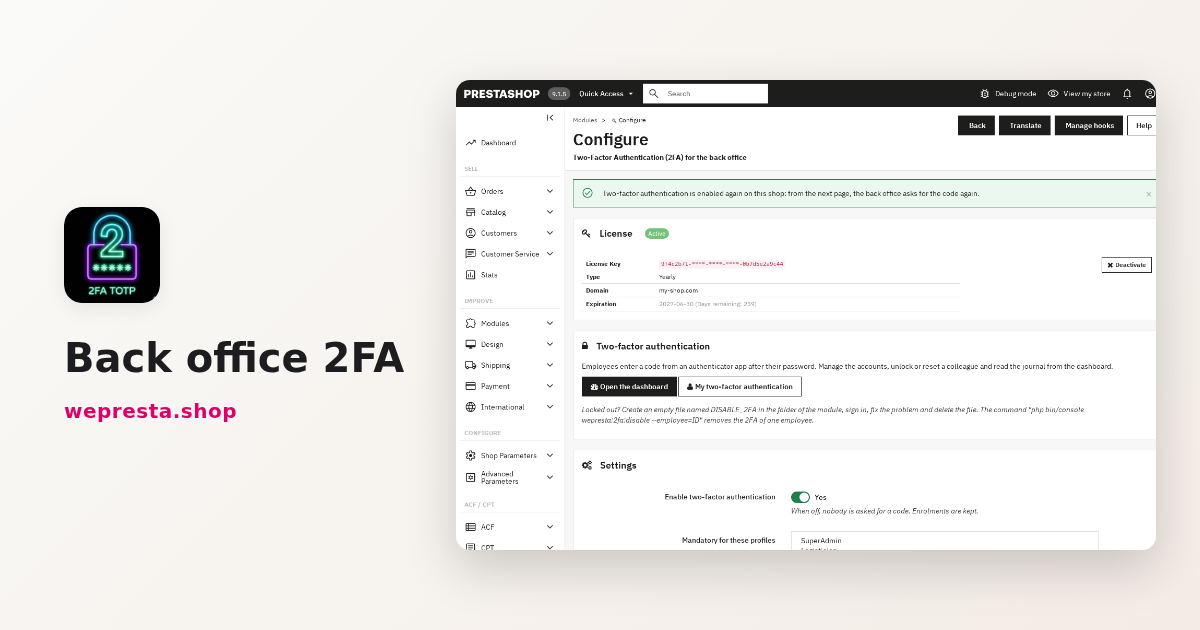
PrestaShop back-office 2FA: how to secure admin sign-in
A merchant guide to PrestaShop back-office 2FA: TOTP setup, mandatory profiles, trusted devices, lost-phone recovery and what a licence change does.
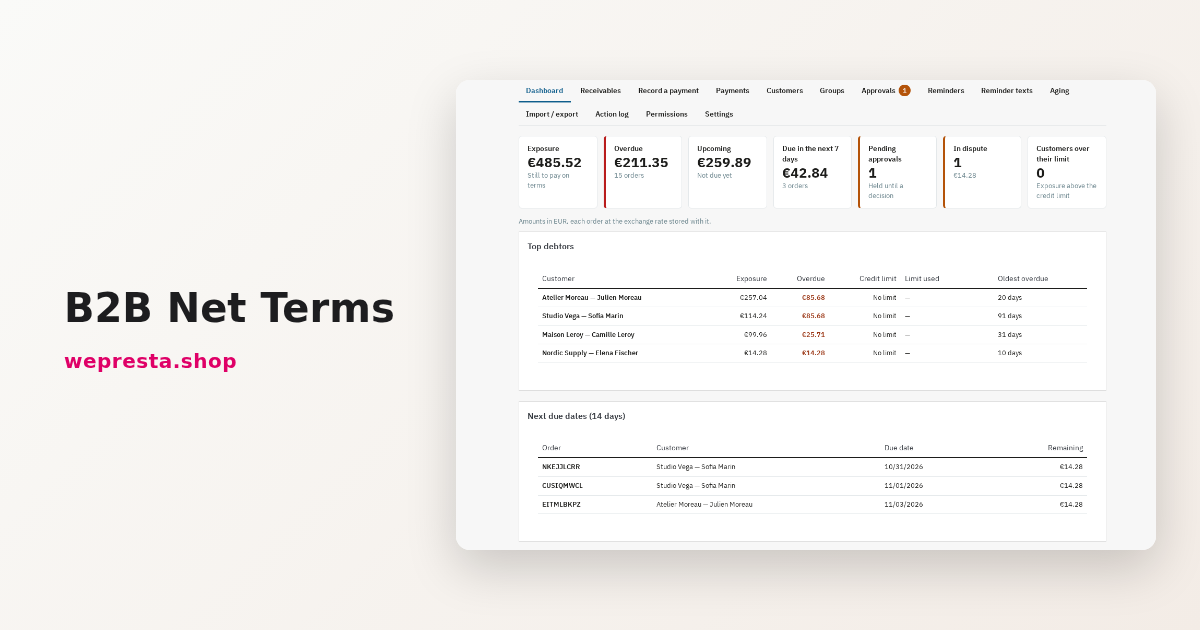
B2B payment terms in PrestaShop: net 30, credit limits, reminders
How to apply payment terms per customer, check exposure before each order, record payments on native invoices and remind customers of overdue invoices in PrestaShop.
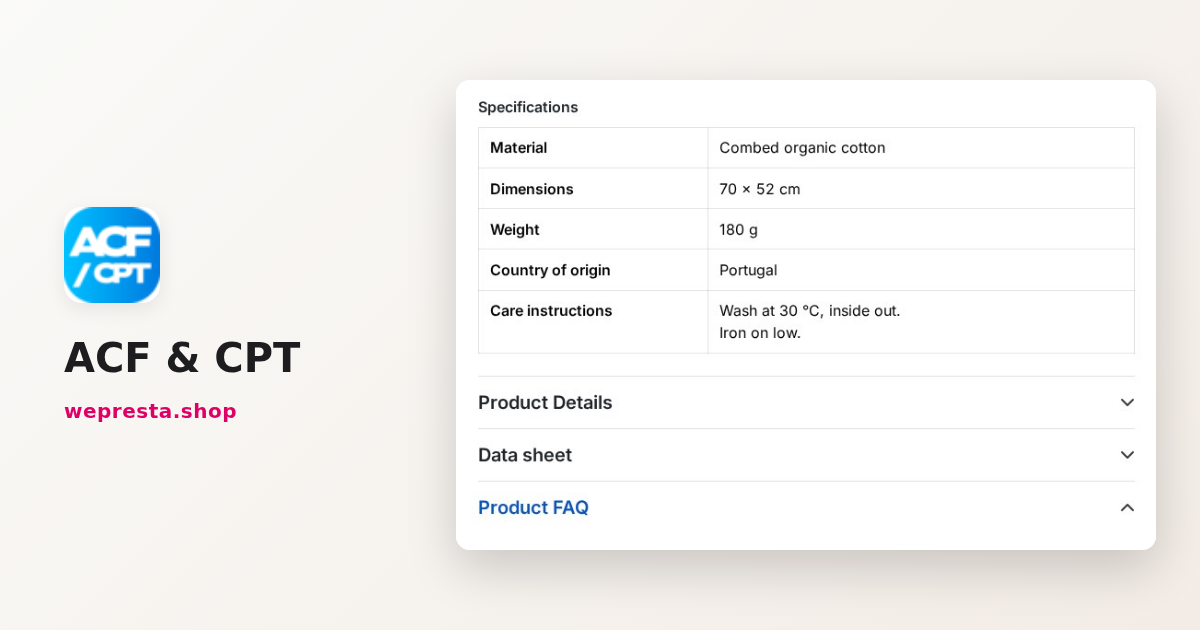
Custom fields and a blog in PrestaShop: the ACF & CPT guide
Specifications, FAQ, badges, a blog: how to add your own fields and content types to PrestaShop without touching the theme, then hand their data entry to Claude or…