PrestaShop back-office 2FA: how to secure admin sign-in
A merchant guide to PrestaShop back-office 2FA: TOTP setup, mandatory profiles, trusted devices, lost-phone recovery and what a licence change does.
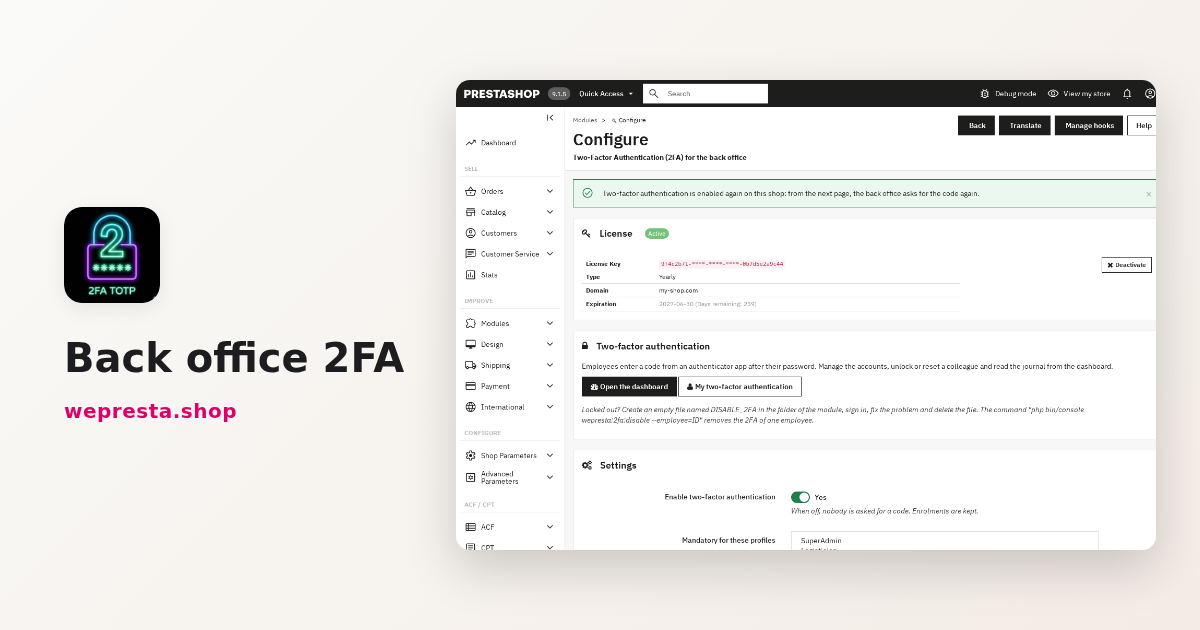
A shared password, a phishing link, a former contractor who kept access: one leak opens orders, prices, customer files and admin account creation. Two-factor authentication adds a temporary code after the password. This guide shows how to turn it on with Google Authenticator or another TOTP app, which profiles to make mandatory, how to avoid a code at every sign-in, and how to recover an account when a phone goes missing.
Is 2FA native in PrestaShop, and who is this module for?
On the supported versions, the back office asks for the password only; this module adds the TOTP step. It runs on PrestaShop 1.7.8, 8.0+ and 9.0+ from a single archive and requires PHP 7.4 or later.
It is meant for shops where several people open the administration: employees, partners, an agency, a freelancer working on the theme or modules. It also helps a one-person shop whose owner works from a laptop or on a shared network, where a stolen password is enough to take over.
You can postpone it if your back office is reachable only through a VPN and you are the only user. The module does not replace that boundary; it adds a barrier when the password falls.
What the module does not do
It does not limit password attempts: the lockout covers wrong codes at the second step. On PrestaShop 1.7, three standalone legacy scripts (backup.php, pdf.php and get-file-admin.php) bypass the check; the configuration page flags them and asks you to delete them. The module sends no SMS or e-mail, does not block the storefront and is not an application firewall. It protects the back office only. Beyond it, Security Audit Pro audits the shop's security, and Magic Login replaces the customer password with a 6-digit code or a link.
How do you set up 2FA with Google Authenticator, step by step?
Open My two-factor authentication in your profile menu, click Set it up, scan the QR code, enter the code shown by the app, then save your recovery codes.
- Install an authenticator app on your phone.
- Scan this QR code with the app. On the phone itself, Open in the app on this phone avoids the scan; otherwise type the key shown under the QR code.
- Enter the 6-digit code shown by the app, then click Turn on two-factor authentication.
- Copy, download or print your 10 recovery codes, tick I saved my recovery codes, then click Continue. They are not shown again.
The module follows TOTP (RFC 6238): a 6-digit code renewed every 30 seconds and generated offline. Google Authenticator, Microsoft Authenticator, Authy, 1Password and Bitwarden work, like any TOTP app. A code is accepted once only, and a phone one 30-second period off is still accepted.
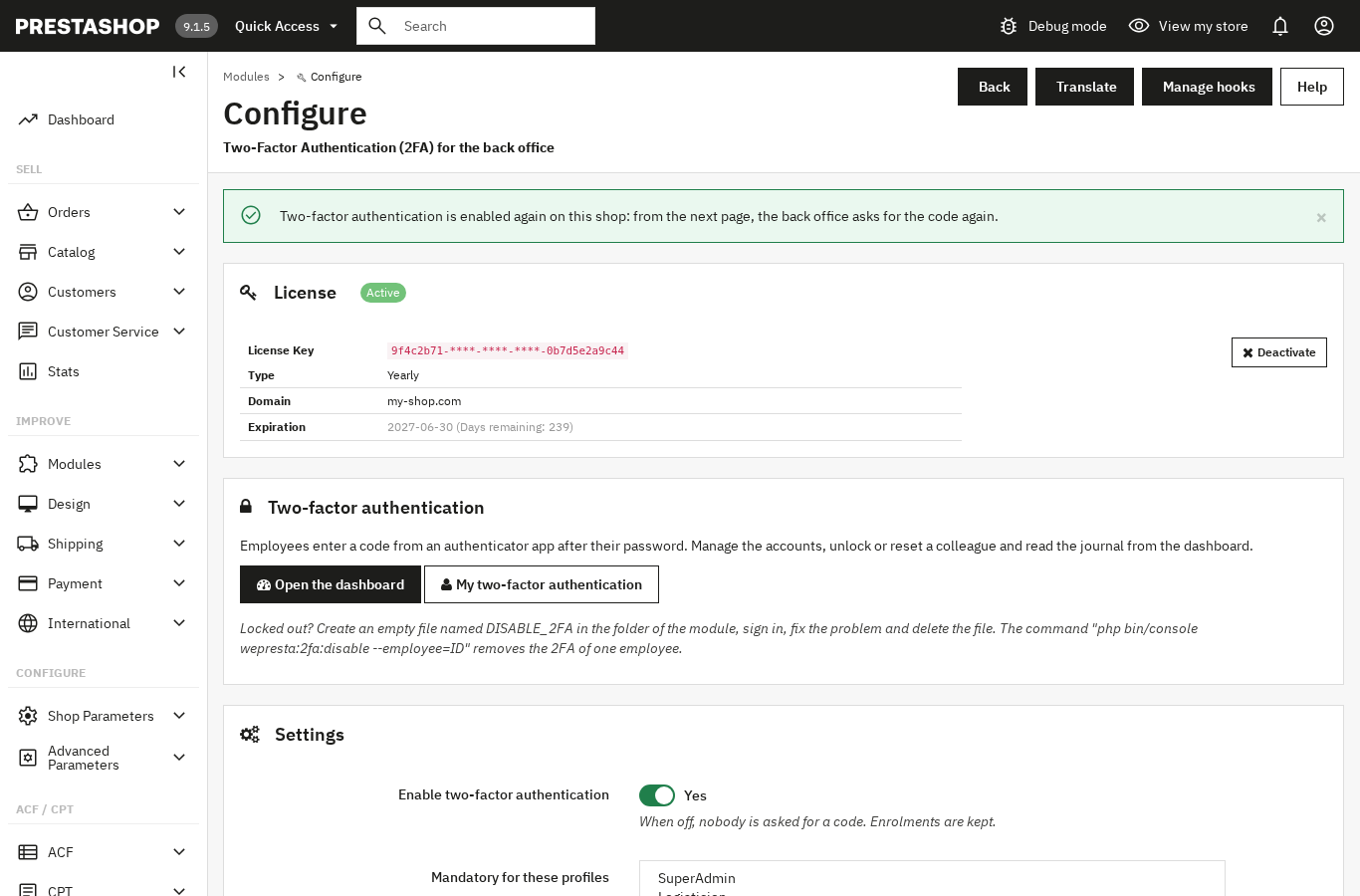
The settings sit in Modules > Module Manager > Configure. The same panel holds the “Open the dashboard” and “My two-factor authentication” buttons. A super administrator turns on their own 2FA before resetting a colleague: the module uses it to confirm who acts. The documentation covers every setting.
How do you make 2FA mandatory for some profiles without blocking the team?
Pick the profiles in Mandatory for these profiles and set a Grace period: each employee gets that many days to install an app before the 2FA setup page opens by itself.
The grace period can be set from 0 to 365 days (7 by default) and starts on the day the profile becomes mandatory. During that time a banner shows the days left and links to Set it up now; the setup page keeps a Not now link. At the end, the employee cannot open the back office until setup is complete. A value of 0 opens setup on the next page.
Start with the profiles that touch payments, modules, exports or account creation, often SuperAdmin. Other employees can turn 2FA on from their menu without being forced. The dashboard, open to super administrators, counts employees, protected accounts, mandatory setups still pending and locked accounts; the list shows “Protected”, “Mandatory before …”, “Mandatory, to set up now” or “Off”.
Once protection is on, the Reset button and the release of a locked account ask for your own code in a confirmation panel, and every action goes to the journal. You can equip a team of ten without chasing each person: the dashboard shows who is still missing.
How do you avoid a code at every sign-in with trusted devices?
Tick Remember this device: that browser is not asked again for 30 days by default, and an unremembered session stays verified for 12 hours.
The Remember a device for setting accepts 0 to 365 days. Each employee sees their devices in My two-factor authentication (browser, system, last use, valid until) and can remove the ones they no longer use. The limit is 20 devices per employee; Remove all devices clears the list.
On a browser that is not remembered, the Ask the code again after setting controls the verified session length: 1 to 168 hours (12 by default). Signing out ends it. The trusted-device cookie is HttpOnly and SameSite=Lax, and it stays independent of the IP address unless you enable Tie a trusted device to its IP address.
On a shared workstation, set the trusted-device duration to 0: the box disappears from the code page and verification returns after the session. On a fixed desk, the default avoids a daily code for the whole team. The “Tick ‘remember this device’ by default” setting preselects the box on the code page.
What do you do when an employee loses their phone?
They sign in with one of their 10 recovery codes, then change phone; without a code, a super administrator clicks Reset in the dashboard and confirms with their own code.
Recovery codes work once and are stored as hashes. On the code page, Use a recovery code instead opens the matching field. From My two-factor authentication, Change my phone restarts setup and asks for a code from the current app or a recovery code to confirm; Create new recovery codes cancels the old ones and a warning appears when few are left.
On a Saturday evening, an employee breaks their phone before a shipment: they sign in with a recovery code, start Change my phone and scan the QR code on the new phone. If the codes are gone, the super administrator clicks Reset on their row and confirms with their own code; the employee must set 2FA up again if their profile is mandatory. The same dashboard releases an account locked after too many wrong codes.
Two routes stay open when the back office is unreachable. The command php bin/console wepresta:2fa:disable --employee=ID_OR_EMAIL removes one employee's 2FA, --all suspends it for the whole shop and --dry-run simulates the action. An empty file named DISABLE_2FA in the module folder suspends the code request for everyone while it exists; a red banner warns super administrators. Delete it to restore protection.
How many wrong codes before a lockout?
Five wrong codes lock the account for 15 minutes by default; both values are configurable, and the lockout is stored in the database even after a new password sign-in.
The Wrong codes before a lockout setting accepts 1 to 20 attempts, and the Lockout duration setting accepts 1 to 1440 minutes. The message gives the remaining time: Too many wrong codes. Try again in 15 minutes. A used code is refused with This code was already used, and a wrong one shows This code is not valid, with the attempts left.
The journal, open to super administrators, lists the date, employee, IP address and detail: accepted or wrong codes, recovery codes used, lockouts and released accounts, phone changes, new codes, devices added or removed, resets and deactivations. It filters by employee and holds no code or secret. The Keep the journal for setting accepts 7 to 3650 days (90 by default); the purge deletes older rows once a day.
What happens if the licence expires or the licence server is unreachable?
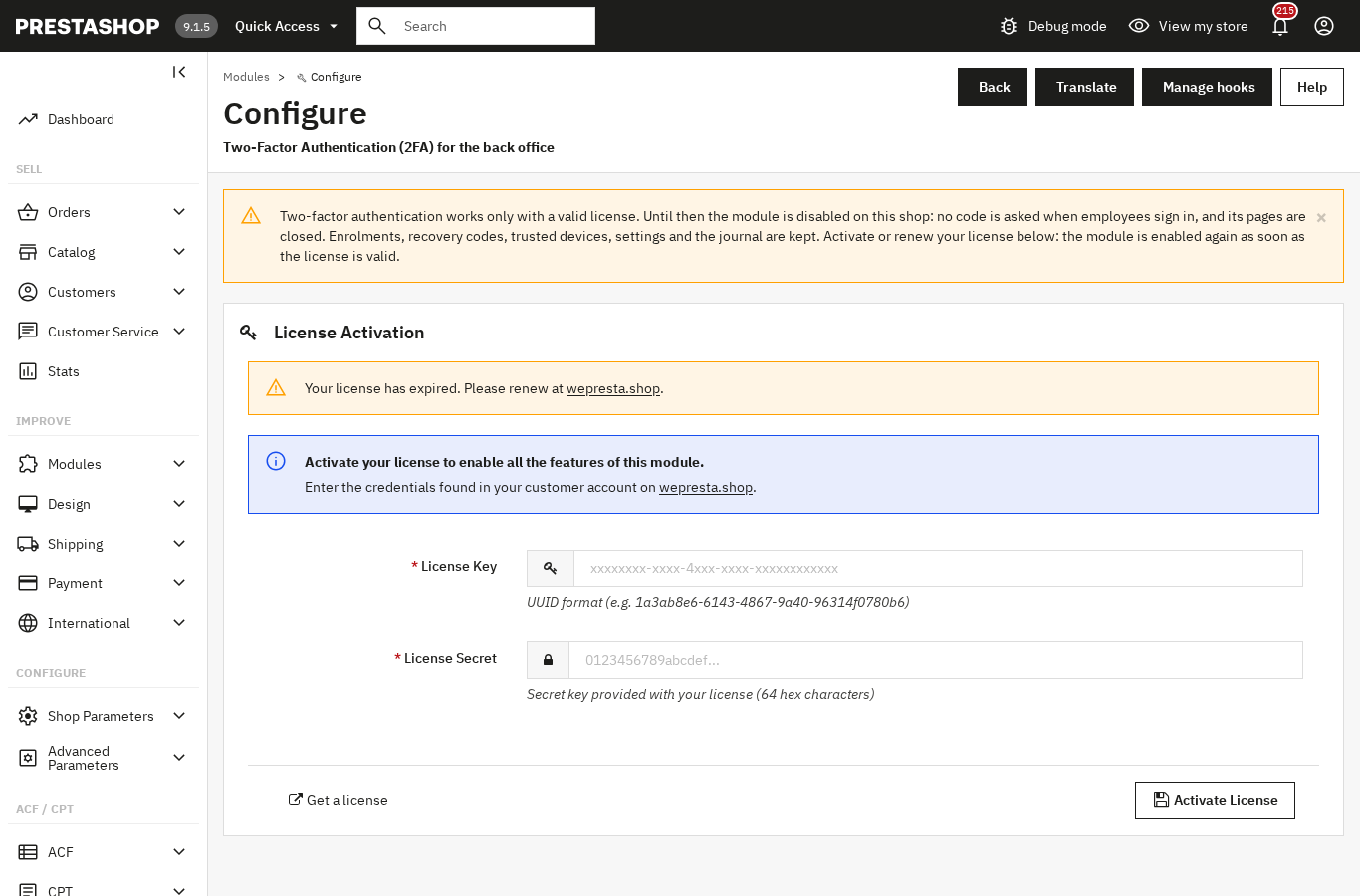
Without a valid licence, the module disables itself on every shop: no code is asked, its management screens close, but enrolments, recovery codes, devices, settings and journal are kept. If the server is only unreachable, a seven-day tolerance applies.
This is the 2.0.1 rule: a suspended or revoked licence, a missing key, an unknown domain or an invalid signature stops two-factor authentication. The configuration page stays reachable with the licence form; enter the License Key and License Secret, then click Activate License. As soon as the licence is valid, the module enables itself and asks for the code again on the next page. Nobody re-enrols, and trusted devices keep working until their own end date.
A paid licence is not cut at the first alert. At the end of a subscription, protection stays on for seven days after the stored end date. The module then asks the server at most once an hour, with short timeouts. A transient answer — internal error, too many requests, clock skew — disables nothing: the seven-day tolerance runs from the first failure. An answer that needs no retry (expired, suspended or revoked licence, unknown domain, invalid signature) applies at once. In multistore, activate the licence from the context covering all shops: the module is on everywhere or nowhere.
To move from 2.0.0 to 2.0.1, back up the shop, upload the archive in Modules > Module Manager and let PrestaShop run the update. Enrolments, recovery codes, devices, settings and journal are kept. Then open Configure and check the licence.
Frequently asked questions
Which authenticator apps work with the module?
Does 2FA work with PrestaShop 1.7, 8 and 9?
What happens if the module licence expires or becomes invalid?
Can office IP addresses skip the code?
How long does a code stay valid?
How do you reset 2FA for an employee who has left?
Products in this article
Back office 2FA : to secure admin logins
6-digit code from an app (Google Authenticator, Authy, Microsoft Authenticator…) after the password One code per...

Security Audit Pro – Protect Your Store Against AI-Powered Attacks
Security Audit Pro helps merchants and agencies review store security across eight categories. Run a resumable...

Magic Login - Passwordless Sign-in and Google Sign-in
Sign in or create an account with an e-mail address only: a 6-digit code, a one-click link or Google Replaces...
Read also
Structured data on PrestaShop: how to add product JSON-LD
A guide to publishing accurate JSON-LD structured data on PrestaShop: which types to enable, how variants are described, how to check the output and what the license…
B2B payment terms in PrestaShop: net 30, credit limits, reminders
How to apply payment terms per customer, check exposure before each order, record payments on native invoices and remind customers of overdue invoices in PrestaShop.
Custom fields and a blog in PrestaShop: the ACF & CPT guide
Specifications, FAQ, badges, a blog: how to add your own fields and content types to PrestaShop without touching the theme, then hand their data entry to Claude or…