Custom fields and a blog in PrestaShop: the ACF & CPT guide
Specifications, FAQ, badges, a blog: how to add your own fields and content types to PrestaShop without touching the theme, then hand their data entry to Claude or ChatGPT.
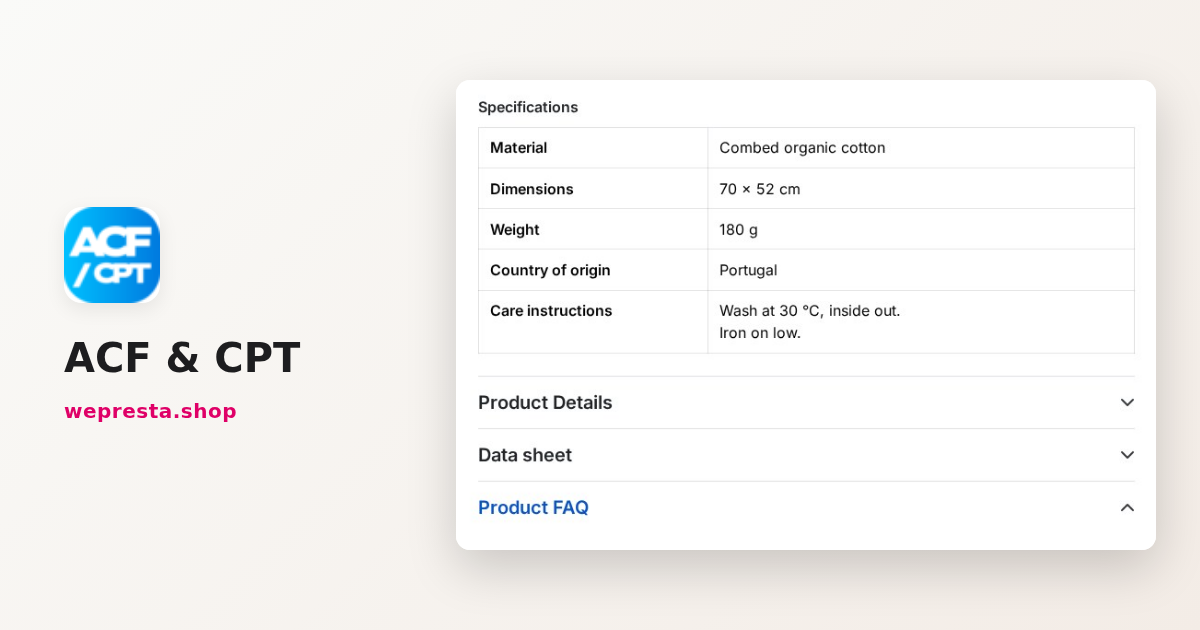
On the PrestaShop forums, the same question has come back for years: how do you add a field to the product page without changing the core or the theme? The usual answers involve an override of the Product class, a column added to the database and an edited template, to redo after every update. ACF & CPT takes another route: you create your fields and content types in the back office, then show them without writing code.
How do you add a custom field to a product page without coding?
Create a field group in the builder, choose the pages it applies to, then add your fields by drag and drop: they appear in the product form.
The module offers 24 field types: text, rich text editor, image, gallery, video, file, repeater, relation, colour, date, rating and more. A group applies to products, categories, CMS pages, customers or your own contents. Each field is named in every language of the shop, and its value is entered language by language when it is translatable.
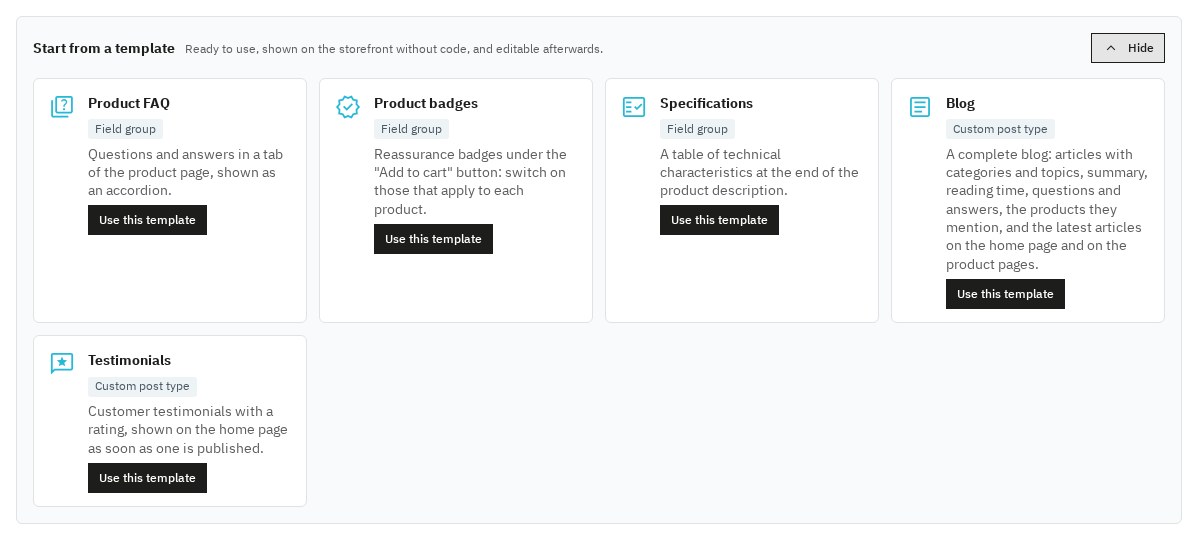
To save time, ready-made templates create a product FAQ, reassurance badges, a specifications table, a blog or testimonials in one click. You then adapt them like your own groups.
How do you show these fields in the shop without touching the theme?
Choose a position and a layout for each group: the module shows it in the standard positions of PrestaShop, without changing the theme files.
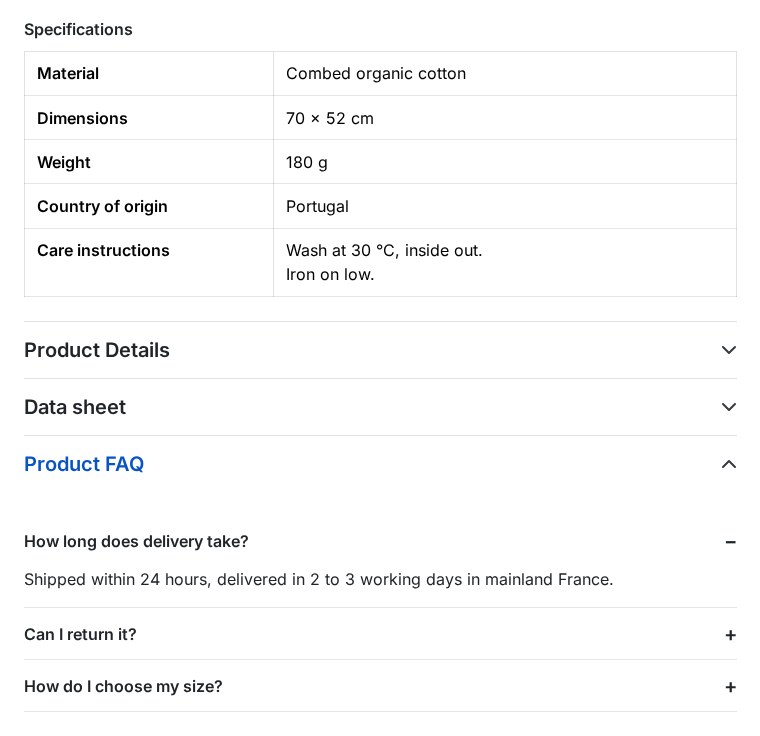
On the product page, a group appears under the “Add to cart” button, at the end of the description, in its own tab or at the bottom of the page. On a category, it goes above or below the products; on a CMS page, at the end of the content. The layout is a list, a specifications table, an FAQ accordion or badges, and only the fields that are filled in are shown.
To place a field elsewhere, the $acf variable is available in your Smarty templates, and shortcodes insert a field in a CMS page or a description.
Can you create new content types, as in WordPress?
Yes: custom post types add contents to PrestaShop that are independent of the catalogue, each with its list, addresses, SEO and categories.
A content type takes a few settings: a name in each language, an address prefix, an archive page, meta tags and taxonomies to sort the contents. You attach field groups to it, as for a product. Portfolio, customer testimonials, recipes, listings or events thus become pages of the shop, with their canonical address, language versions and structured data.
How do you add a blog to PrestaShop without a second site?
The Blog template creates a complete blog in one click inside the shop itself, with its categories, topics and article pages ready to fill.
An article page shows a table of contents built from the headings, the reading time, the author, frequently asked questions with their structured data and the products mentioned with their price. Each product page shows the articles that mention it, and the latest articles can appear on the home page. You schedule the publication for the date you choose, and each article has an address in every language, with redirection of the old addresses.
The blog on which you are reading this article is built with this module.
How do you hand the data entry to Claude or ChatGPT?
Turn on the built-in MCP server in the module configuration, then connect your assistant: it reads and fills in your fields, creates your contents and writes your articles.
MCP (Model Context Protocol) is the standard that connects AI assistants to the tools they can use. The module provides 35 of them: read and write the values of a product, category, CMS page, customer or content, fill in up to 50 records in one call, create field groups, content types, categories and articles, apply a template. An image is given by its public address; the module downloads it with the same checks as an upload from the back office.
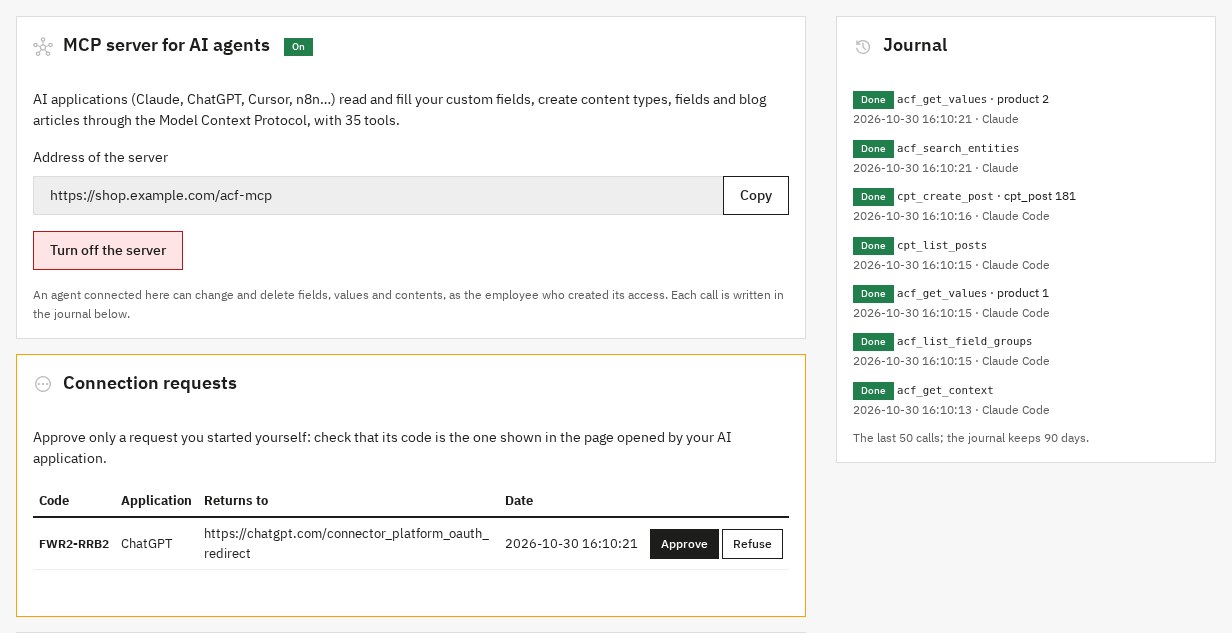
There are two ways to connect. Claude Code, Cursor, VS Code or n8n use an API key created in the “AI agents (MCP)” tab. The Claude and ChatGPT connectors open a page with a code, and you approve the request showing this code in the back office: no password is typed anywhere else.
The server is off by default. Each access can be revoked in one click, each call is written in a journal kept 90 days and the calls per minute are limited. Deletions are flagged to the assistant so that it asks you to confirm.
Who this module is for, and what it does not do
ACF & CPT is for shops that want richer product pages and their own content without piling up modules or calling a developer for each field.
It suits catalogues that need specifications, FAQs, badges or guides, and merchants who want a blog in their shop. Agencies use it too: the Sync link of the builder exports the groups as JSON and imports them into another shop.
It manages neither prices nor stock: its fields present your products and contents. Display without code uses the standard positions of PrestaShop, and a heavily customised theme may need a style adjustment. The Claude and ChatGPT connectors need a shop on HTTPS with friendly URLs on; an API key works in every case.
Setting it up in five steps
Install the module, apply a template, fill in a product and open its page: your first FAQ appears within minutes.
- Install the module from the Module Manager and enter your license key.
- Open ACF / CPT > ACF, click Templates and choose Product FAQ.
- Open a product, Modules tab, and add two or three questions with their answers.
- Open the product page: the FAQ appears in its tab, as an accordion.
- For an AI assistant, turn on the server in Configuration > AI agents (MCP) and follow the connection instructions of the page.
Every setting is described in the documentation of the module, and the ACF & CPT page presents the plans. On the same product page, Schema Pro completes the structured data, Product message rules shows messages according to the product or the cart, and Digital Product Passport publishes the traceability information of the product.
Frequently asked questions
Do you need to override the Product class to add a field to the product page?
Can you create a content type that is neither a product nor a CMS page?
Is the blog hosted in the shop or on a second site?
Can a connected AI assistant change everything without control?
Products in this article

Advanced Custom Field and Custom Post Types (2-in-1)
Create custom fields on your products, categories, CMS pages and customers Show them in your shop without code:...

Schema Pro - Complete JSON-LD Structured Data & Rich Snippets
Product, ProductGroup, Organization, WebSite, BreadcrumbList, FAQPage, CollectionPage and ItemList generated from...

Conditional product messages & CTAs
Personalized messages on your product pages based on conditions: stock, price, sale, brand, customer or country...

Digital Product Passport (DPP): QR code & public page
A public passport page and a printable QR code for every product Composition, durability, repair, end of life,...
Read also
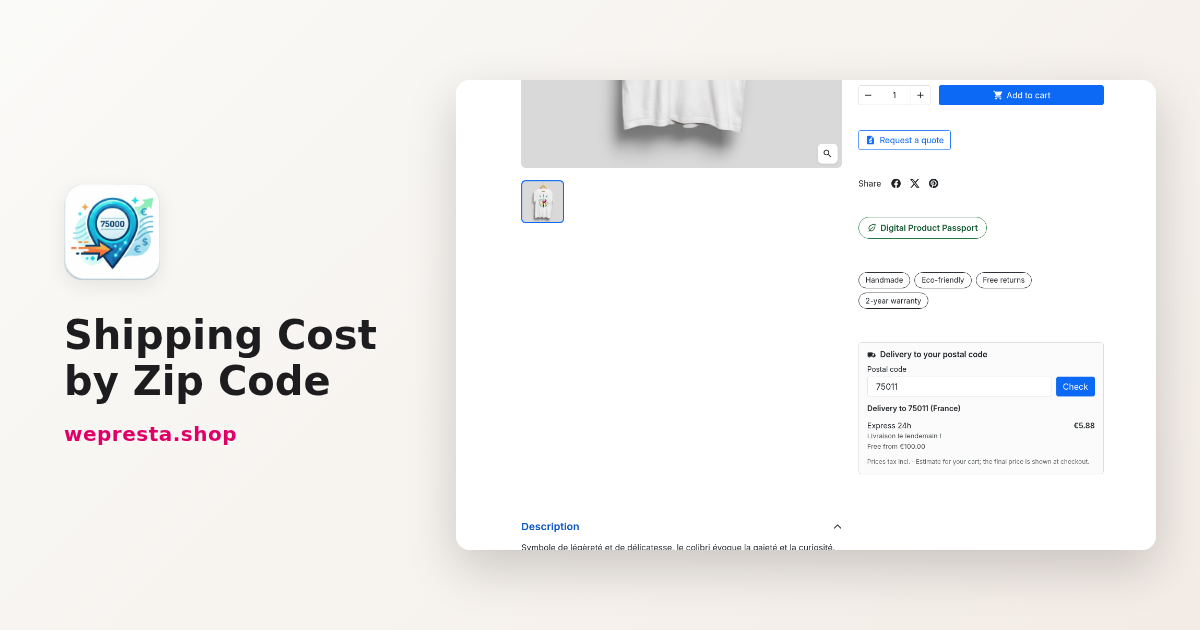
How to set shipping costs by postal code in PrestaShop
Create zones by postal code, range and prefix, refuse an area, keep store pickup and back up the configuration: the full path through the PrestaShop back office.
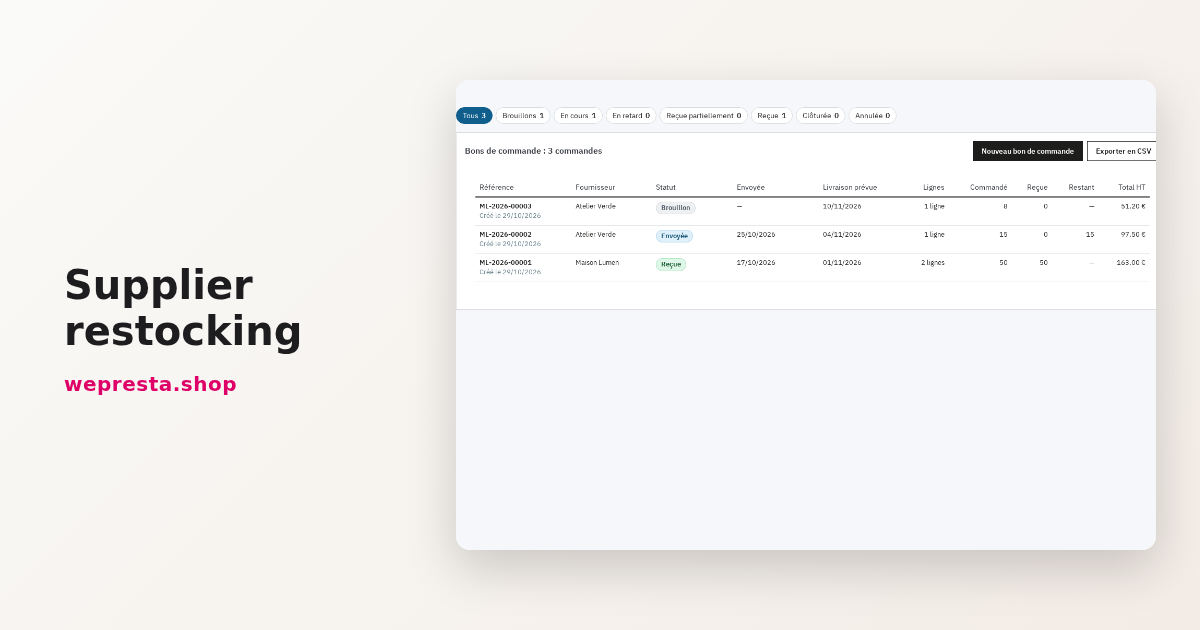
Supplier restocking in PrestaShop: reorder points and purchase orders
A guide to setting reorder points, preparing supplier purchase orders and receiving deliveries without losing track of outstanding quantities.
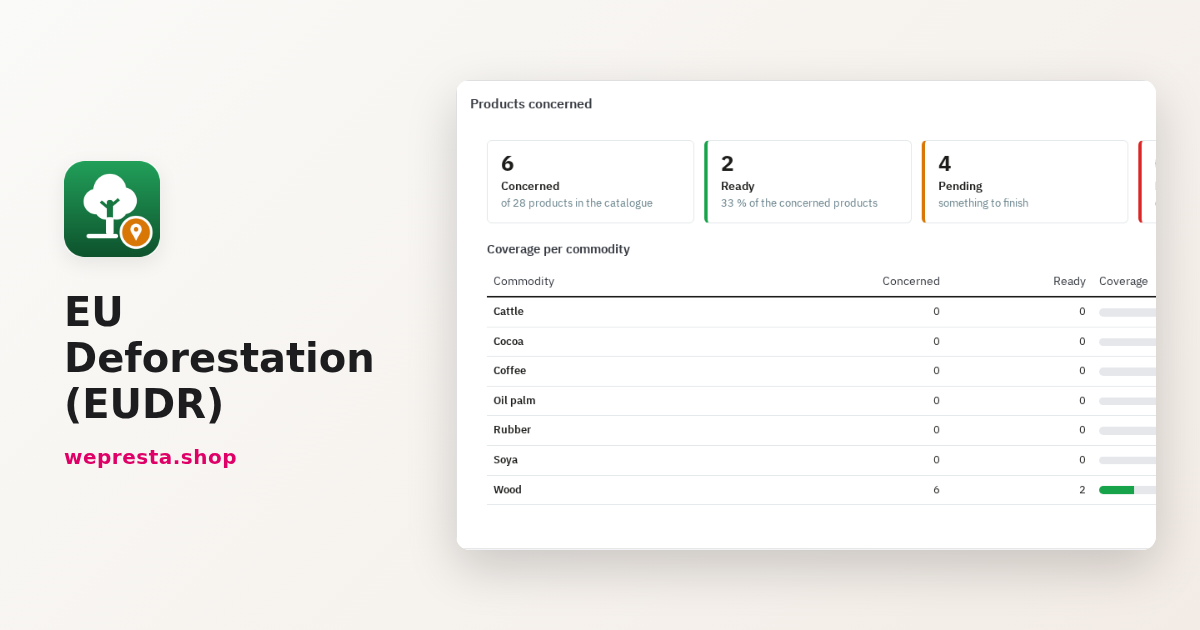
EU Deforestation (EUDR) on PrestaShop: products, suppliers and DDS
How to find the products covered by EUDR in a PrestaShop catalogue, collect supplier DDS and plot geolocation, and prepare each order's file without blocking the…