SEO audit for PrestaShop: 404 errors, broken links and a fix plan
SEO errors crawls the store in served HTML, ranks issues by severity and traffic, then fixes the 404s, redirects, addresses and robots.txt.
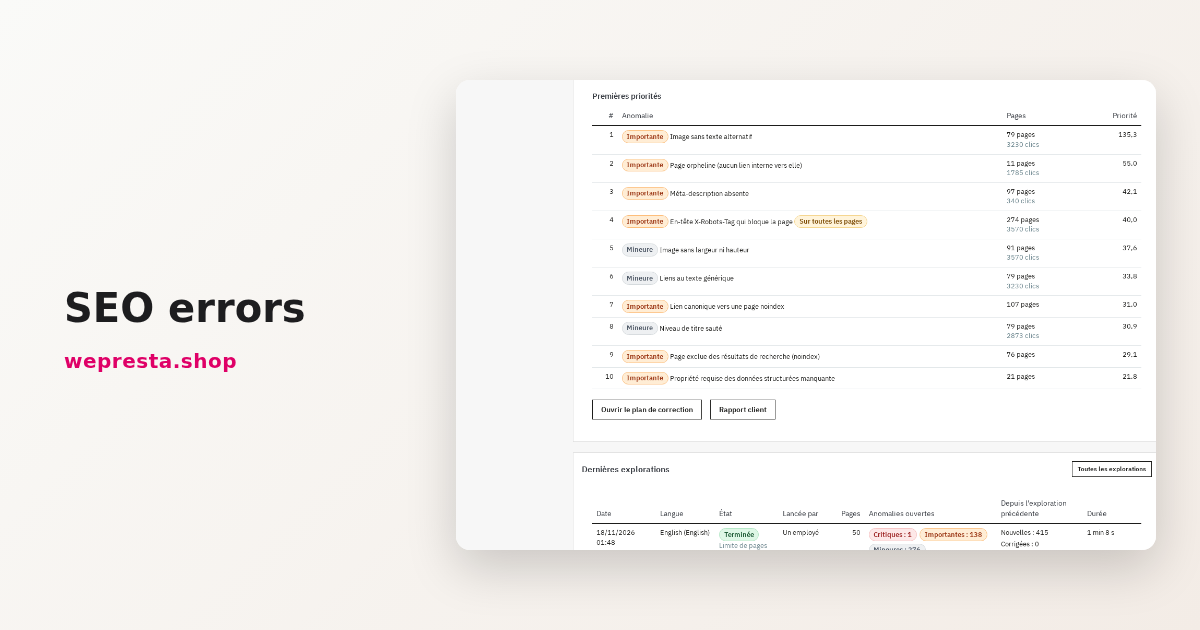
A product page that answers 404, the same title on three categories, a canonical tag pointing to an address that no longer exists: these faults are invisible in the back office. They sit in the HTML a search engine receives. SEO errors crawls the store the way a search engine robot does, ranks every issue by severity and traffic, then gives you the tools to fix the most common causes: 404 log, redirects, addresses without identifiers and robots.txt.
The module reports and fixes technical problems; it never rewrites your texts or meta tags. Here is who it is for and how to read its fix plan.
Who is this SEO audit for, and who is it not for?
It suits the merchant who runs a catalog of several hundred products alone, and the agency taking over an existing store. It does not suit anyone looking for a tool that rewrites tags on its own.
Three situations make it useful. A catalog copied from a supplier arrives with identical titles, identical descriptions and images without alt text. A theme or address change leaves old URLs answering 404 and internal links pointing to moved pages. An agency takeover needs a dated picture before anyone touches the code.
Conversely, a ten-page showcase store does not need an automated audit, and a merchant who only wants better meta tags will be happier with a writing module. The audit reads and reports; fixing the texts stays your decision. Multilingual and multistore shops also benefit: every store and every language keeps its own crawl and history.
How do I crawl my store the way a search engine does?
Start a crawl from the Crawls section. The module begins at the home page, the sitemap, internal links and the catalog, then reads the served HTML without running JavaScript.
That reproduces the HTML a search engine receives before any script runs. Content added only by a browser script does not appear in the audit, which reads the served HTML, and neither do links built on the client side. Google may render some of it; the audit does not see it.
The default settings crawl up to 2,000 pages, with 250 ms between two requests and two simultaneous requests. Expect about 1,000 pages in 10 to 20 minutes. You change these values in the Crawl section of the settings: depth, pages explored at most, pause between requests, time allowed per page and requests at the same time.
One crawl runs per store and per language, with a dated history. The comparison with the previous crawl sorts issues into four groups: new, fixed, still present and returned. Without a scheduled task, the crawl only advances while the module page stays open; with the schedule, it runs in the background.
How do I find 404 errors and broken links?
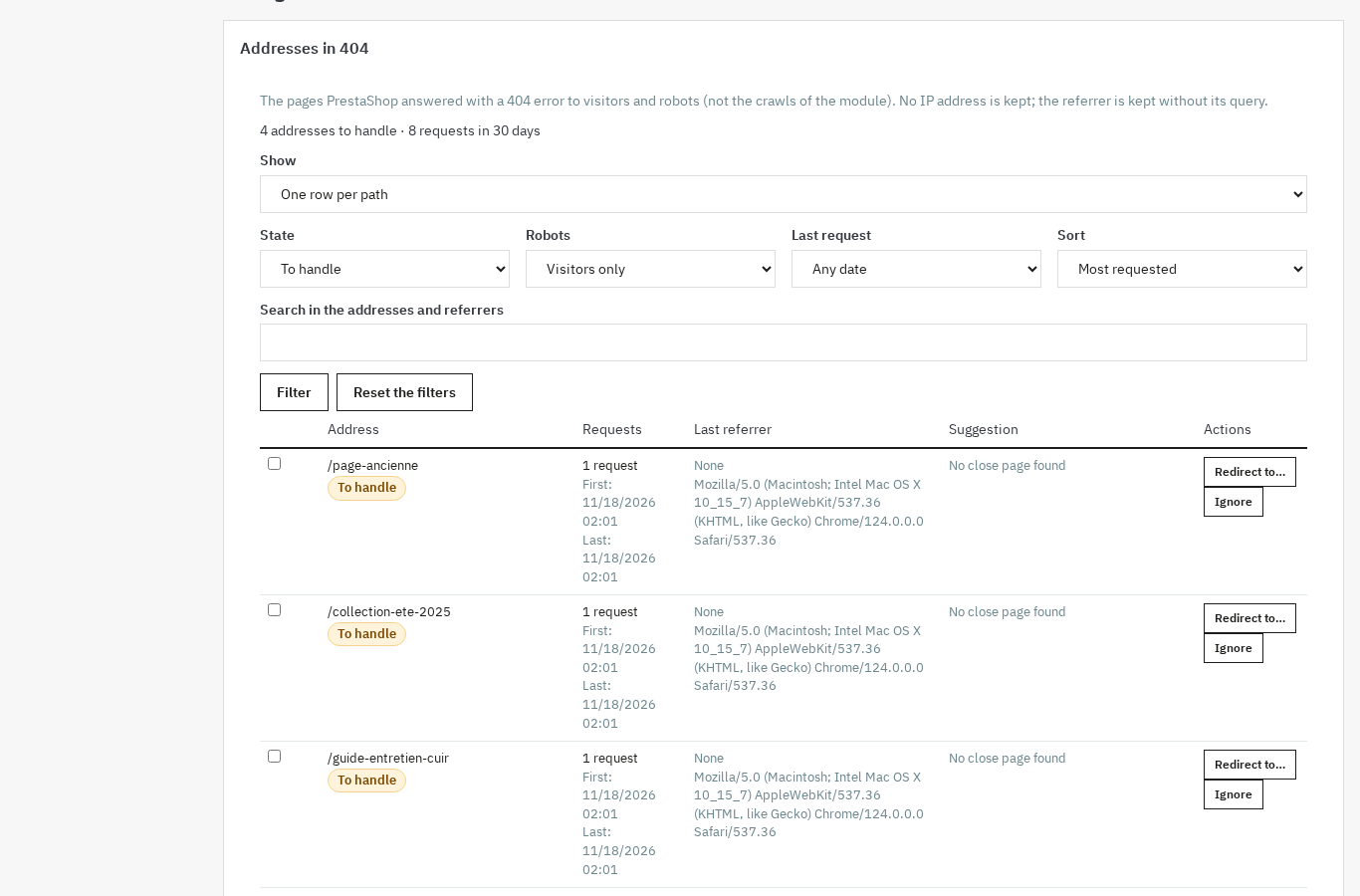
The 404 log lists the addresses PrestaShop answered with a 404, with the number of requests and a nearby page suggestion. A redirect is created from the row, without leaving the screen.
The log records visits from people and robots, and keeps no IP address; the referrer is stored without its query. The list is set with Show (one row per path or per address), Status, Robots and Last request, then Sort. When a nearby page is found, Redirect to the suggestion creates the redirect in one click. Redirect to… opens the rule; Ignore removes the address from the rows to handle.
The redirect manager accepts exact rules and regular expressions, in 301, 302 or 303. It checks loops and chains, handles priorities and imports or exports CSV. Rules are served before the page renders.
The crawl also reports dead links found in pages, redirect chains and links pointing to a redirected address. The module documentation lists the columns and import formats.
How do I spot duplicate titles and meta descriptions?
The crawl compares the titles, descriptions and H1 of every indexable page, then reports duplicates, missing values and lengths outside the thresholds. Each issue names the page and the element concerned.
These findings belong to the Titles, descriptions and headings family. Thresholds are set in the Thresholds section of the settings: title and description length, similarity of near-duplicate pages, and the fewest words of a page.
The module does not rewrite any tag. It shows the original title, its length and a preview of the search result. You fix it in the product sheet, the category, or with Automatic SEO meta tags, which applies templates per page type.
The Duplicate and thin content family covers another case: two near-identical product sheets, or a supplier description copied across twenty references. The similarity rate raises the alert; writing the text remains your job. For structured data, the module checks the JSON-LD and reports what is missing; Schema Pro generates it.
How do I fix addresses and robots.txt?
The Addresses without identifiers section removes the numbers from product, category, brand and CMS page URLs, after a dry run that shows collisions. The robots.txt section edits the file with an address tester and versions.
An address such as /12-blue-shirt becomes /blue-shirt. The dry run refuses an address already taken, and a live check verifies the result after applying. Old addresses then answer with a 301, and a restore brings back PrestaShop’s original address configuration.
Two limits. The language code stays in the address when several languages are active; removing it would mean changing the PrestaShop core. Restoring addresses does not restore robots.txt.
The robots.txt editor shows a preview, tests an address against the rules, keeps versions and lets you return to an earlier one. The file is physical and shared by every store of the installation. If PrestaShop regenerates it, the module detects the overwrite and offers to restore your version, but cannot prevent it.
The module also checks that the sitemap exists and is consistent, but does not generate it.
How do I sort the fixes and follow their status?
Every issue gets a severity, an impact, an effort, a status, notes and a history. The fix plan sorts them by score, and the next crawl checks whether the fix held.
Three severities exist: critical, important and minor. The status is chosen in the row: to fix, in progress, fixed or ignored. Ignoring an issue asks for a reason, and an ignore rule hides it from later crawls. An issue that disappears moves to fixed; if it comes back, it reopens.
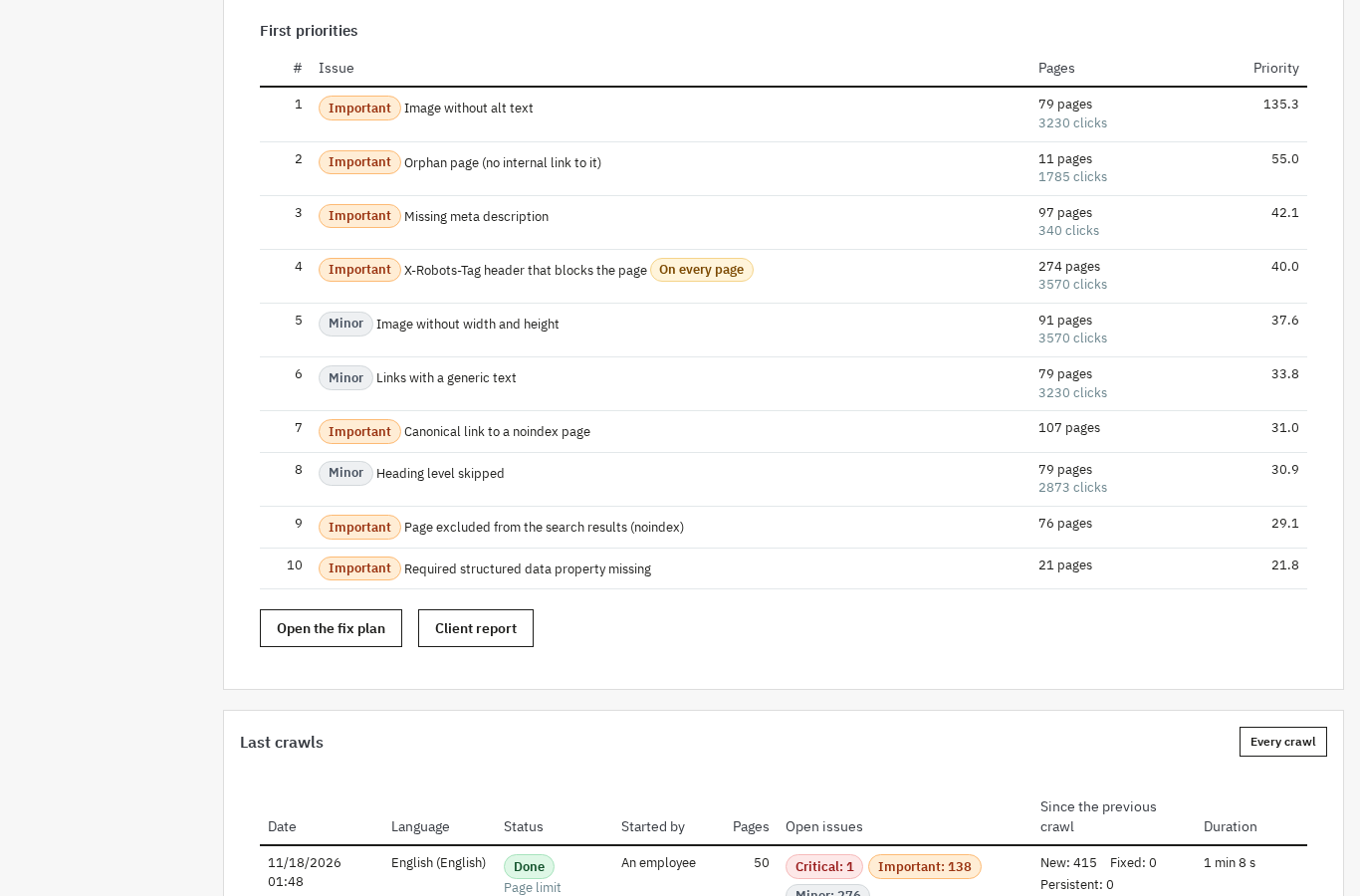
The priority score rises with page traffic. Import a Search Console CSV export in the Traffic section: the column mapping screen always appears and comes pre-filled. A dry run shows the matched and invalid lines before the import.
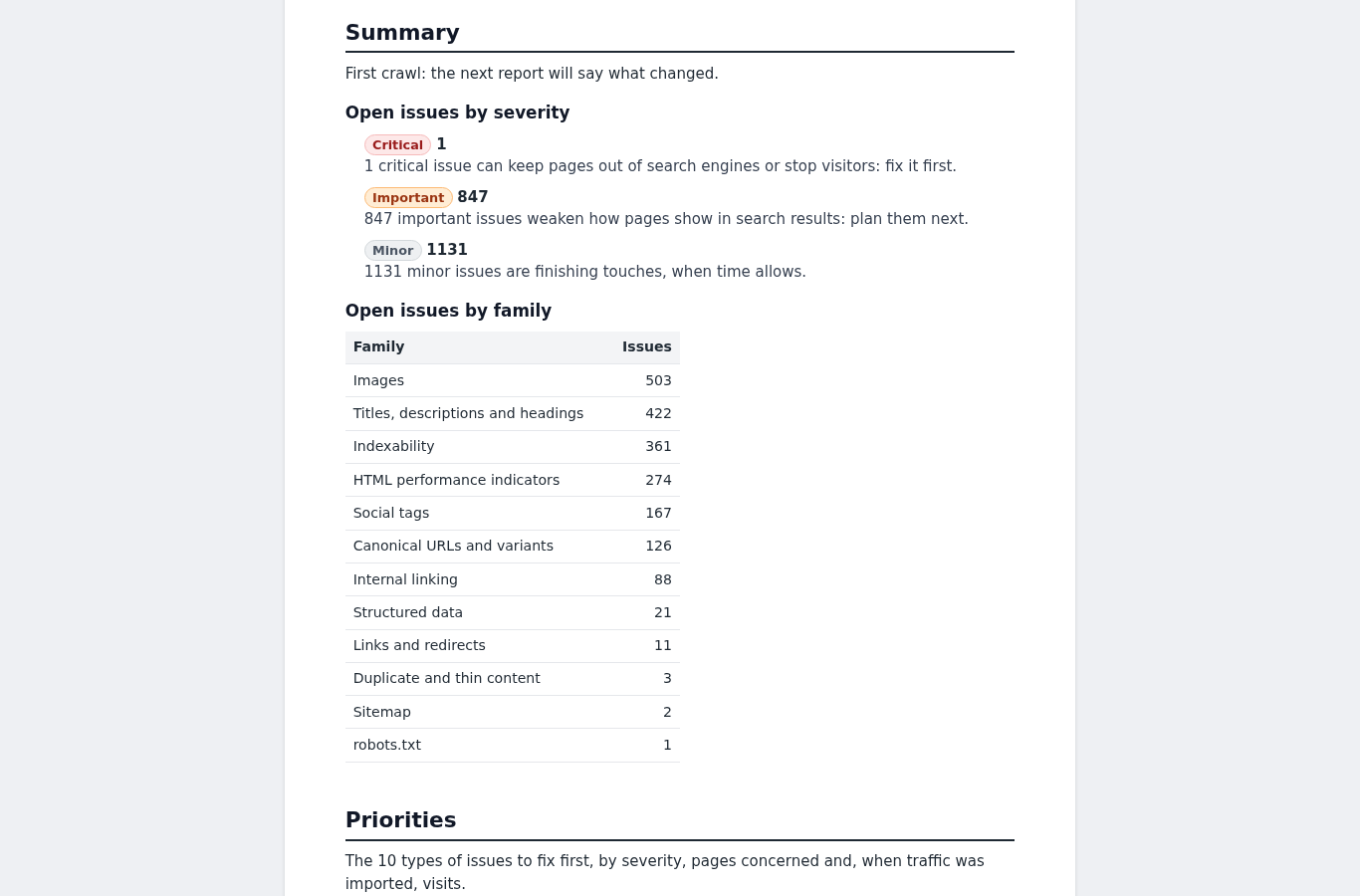
For a client, generate the client report in their language, with your logo. It contains the summary, open issues by severity, the family table, priorities and the action plan, then prints or saves as PDF.
A scheduled crawl can run daily, weekly or monthly, with an e-mail report.
How do I install the module, and what does it not do?
Install the archive from Modules > Module Manager, activate the license, then open the module from the Modules menu or WePresta. It rewrites neither your texts nor your meta tags, and does not generate the sitemap.
Installation
- Download the archive and install it from Modules > Module Manager.
- Install the module: the installation creates its tables and its menu entry.
- Open the settings page and activate your license. Without a valid license the module disables itself and serves neither redirects nor the 404 log.
- Open the module from the Modules menu or, depending on your version, from the WePresta menu.
The module runs on PrestaShop 1.7.8, 8.2+ and 9.0+, with PHP 7.4 or newer. Versions 8.0 and 8.1 are not supported.
Starting settings
The settings page has nine sections: Status, Crawl, Schedule and e-mail report, Thresholds, 404 log, Redirects, RSS feed, Client report and Data. Check the license in Status, keep the default crawl settings for the first pass, then start a crawl from Crawls.
What it does not do
- It writes nothing into your pages: no titles, descriptions, structured data, alt texts or sitemap. It checks and tells you what to fix.
- It does not measure Core Web Vitals: the HTML performance indicators family looks at page weight and element counts, not field data. For caching, Cache Pro works on another layer.
- It does not obey robots.txt during the crawl: it reads the file and reports blocks, because the audit covers your own store.
- It does not check external links by default; the option exists and makes the crawl longer.
- Without a valid license it disables itself: redirects stop being served, the 404 log stops, addresses without identifiers return to PrestaShop’s format and the RSS feed answers 404. Data stays and everything returns when the license is validated.
- On uninstall, the PS_ROUTE_* rows set aside are put back and robots.txt is not modified. Tables are removed only if you tick the delete option.
An audit guarantees no position in search results. It documents a state and shows what changed between two crawls. The module page gives the plans and requirements.
Frequently asked questions
Does the module fix duplicate titles and descriptions?
How does the 404 log find broken pages?
Does the module check whether my pages are indexed in Google?
Does the module measure real page speed?
Does it work on a multilingual store?
Products in this article

SEO errors: complete store audit, broken links and fix plan
Crawls your store like a search engine: home page, sitemap, internal links and catalog, without JavaScript Runs...

Automatic SEO meta tags: titles, descriptions and keywords for your whole catalog
Templates per page type and per language for the meta titles, descriptions and keywords of products, categories,...

Schema Pro - Complete JSON-LD Structured Data & Rich Snippets
Product, ProductGroup, Organization, WebSite, BreadcrumbList, FAQPage, CollectionPage and ItemList generated from...
Cache Pro — Full Page Cache with Brotli, Warm-Up & AJAX
Full page cache: stored pages are sent before PrestaShop builds them, with no database query from the module,...
Read also
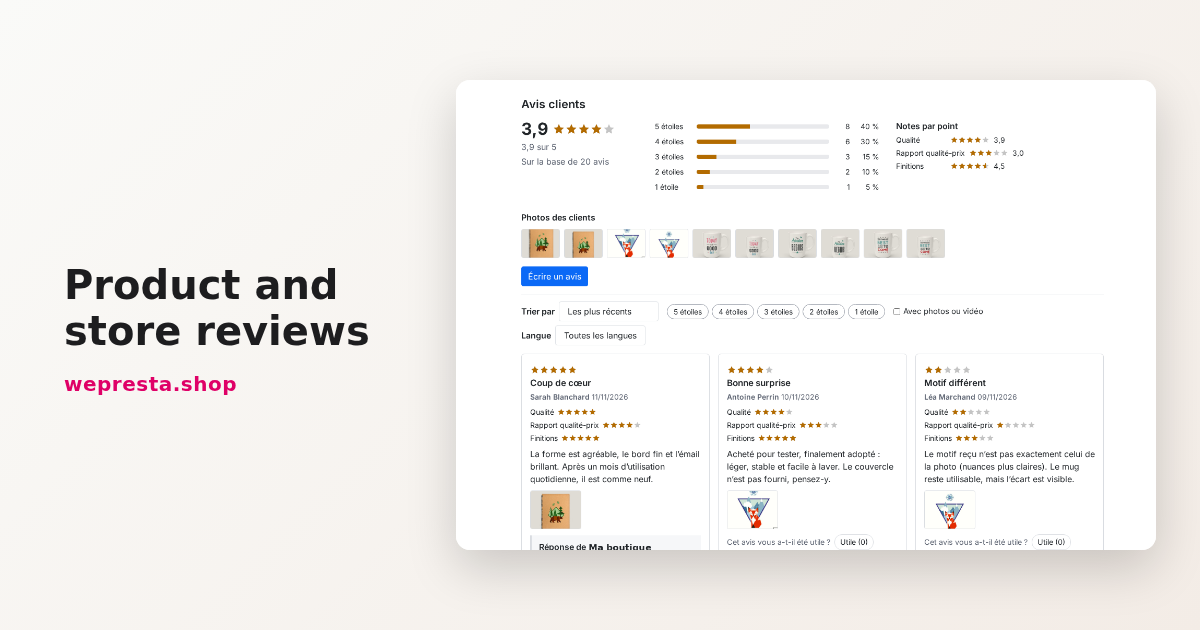
How to collect and publish customer reviews on PrestaShop
From the review form to requests sent after delivery, moderation, public replies and JSON-LD markup: how the Product and Store Reviews module organizes collection on a…
Social login on PrestaShop: setting up Google and Facebook
Account creation slows the order down. Social Login adds Google, Facebook and Apple buttons to the login page and the checkout, with one callback address, a test per…
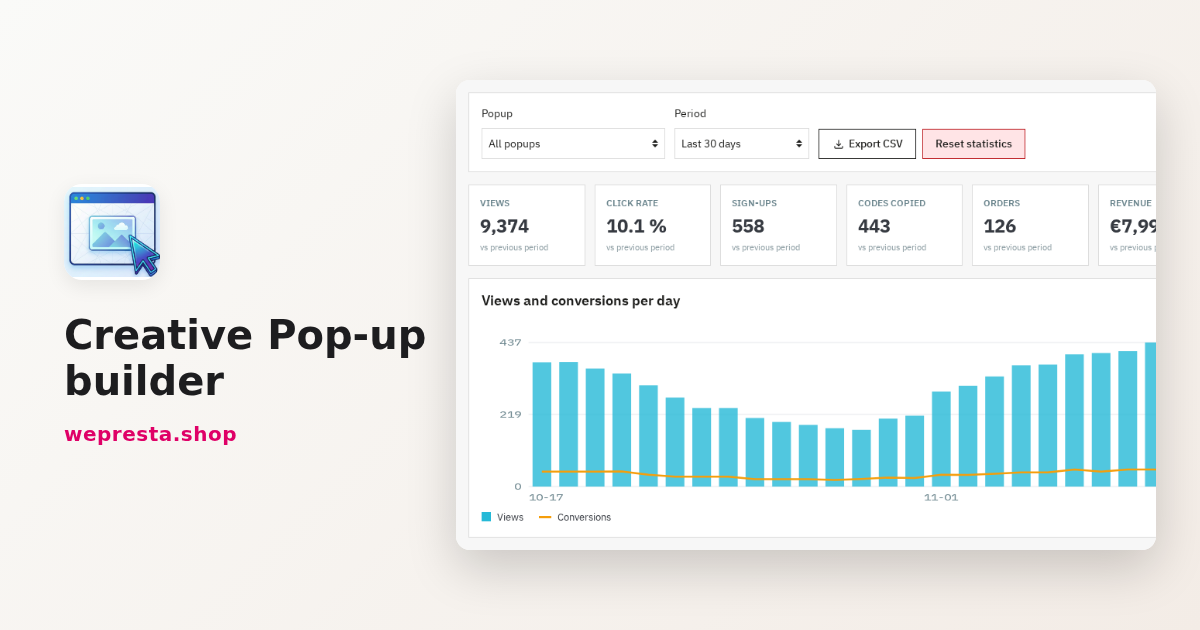
How to build a PrestaShop popup and measure its conversions
A practical guide to building a PrestaShop popup in the drag-and-drop editor, choosing the right trigger, targeting visitors, tracking conversions and keeping the module…