Shipping labels and parcel tracking in PrestaShop
An order leaves in three parcels, carrier labels pile up in a downloads folder and tracking numbers live in a spreadsheet. The module gathers parcels, labels, customs and returns on the PrestaShop order page, with no carrier API.
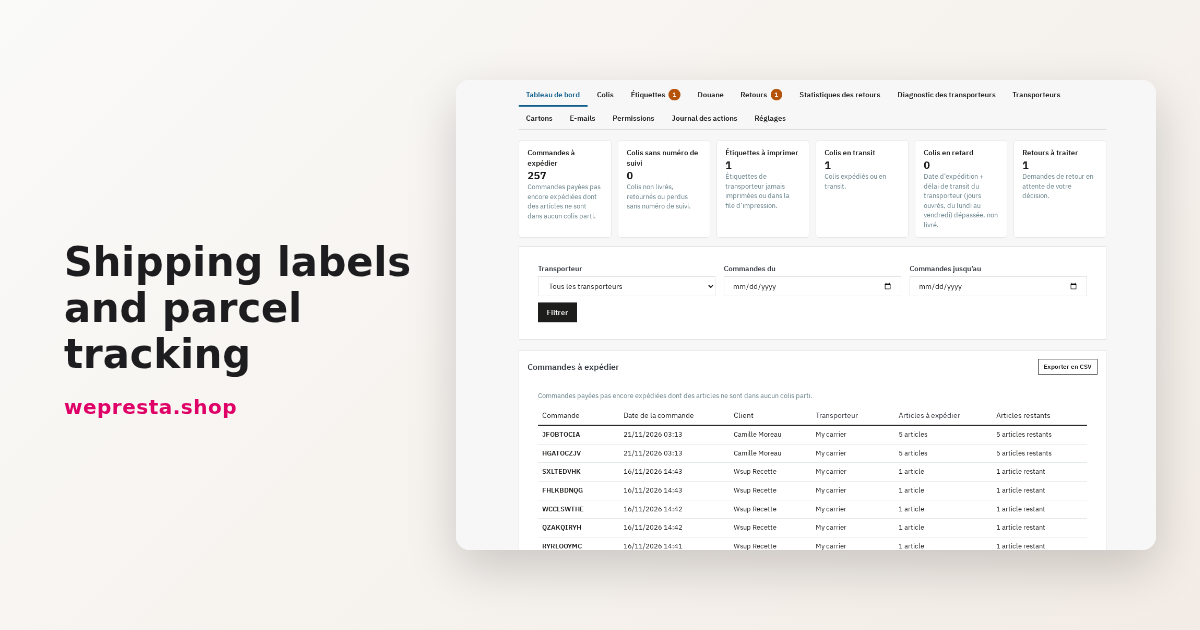
A tableware order leaves in three cartons. Two items are in stock, the third arrives later. The labels bought from the carrier pile up in the downloads folder, tracking numbers are copied into a spreadsheet, the CN22 is filled in by hand and the customer writes to ask which parcel is stuck. In PrestaShop, an order knows one carrier and one tracking number. The Shipping labels and parcel tracking module adds a shipment record to every order: several parcels, the labels you already have, customs documents and returns, with no carrier account or API key.
How do I print shipping labels from PrestaShop?
You upload the PDF, PNG, JPG or ZPL labels obtained from your carriers into each parcel, then download them as a ZIP or put them in a print queue.
Setup is done once, before the first shipment.
- On the Modules page of the back office, install the module ZIP file: the Shipping labels page and its menu entry are created.
- Click Configure: check the address, phone and e-mail under Sender, then choose the Default carrier of new parcels, the Default carton and the Default label format under Shipping.
- Open Carriers: set, for each carrier, the Cut-off time, the Transit time (days), the Label format, the Default carton and the number rules: minimum and maximum length, Characters, Pattern (optional).
- Add your packaging under Cartons, then fill in the EORI number, the VAT number, the Incoterm and the Signatory of the customs forms in the Customs section of Configure.
The module buys no labels: it files the ones you already own. The order panel takes one or more files per parcel, checks the extension and content, refuses a duplicate and stores the document in a protected folder outside public access. A preview opens before printing; replacing or deleting a file is logged.
The Labels screen lists every document with its order, carrier, format, date added and print status. You filter the labels to print, tick a selection and download a ZIP, or fill the print queue. Each download counts as a print, so a reprint stays visible. Imported PDFs are never merged: the ZIP groups the files.
The module also produces its own parcel label as a PDF, on A4 with one, two or four labels per page, or 10 × 15 cm, with a Code 128 barcode of the tracking number. It identifies the parcel and its contents; the carrier document is still required for delivery.
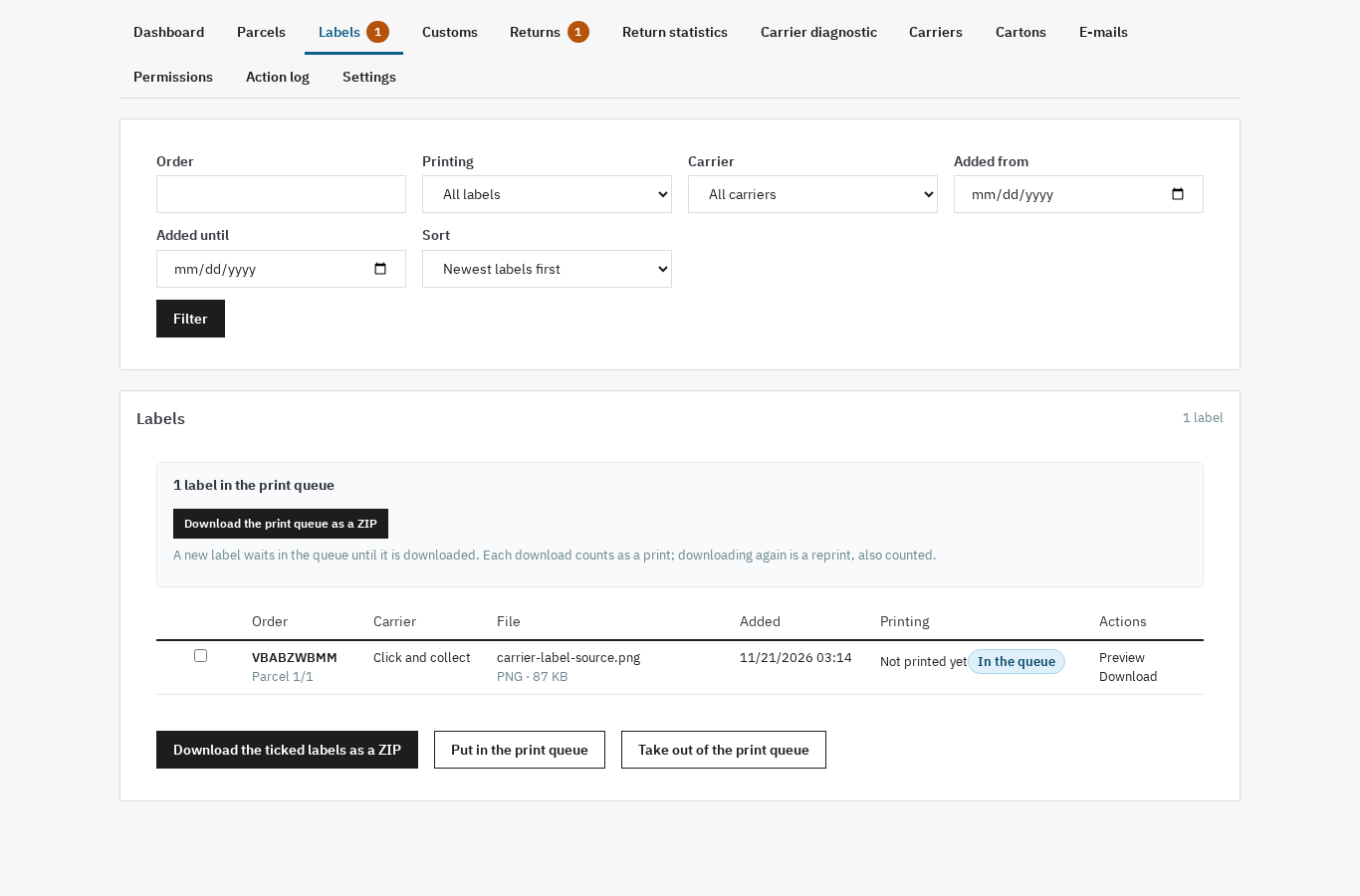
The product page lists the accepted formats.
How do I handle multiple parcels and track an order?
Every order gets a shipment record and as many parcels as needed, with quantities spread by order line and a tracking number of its own for each parcel.
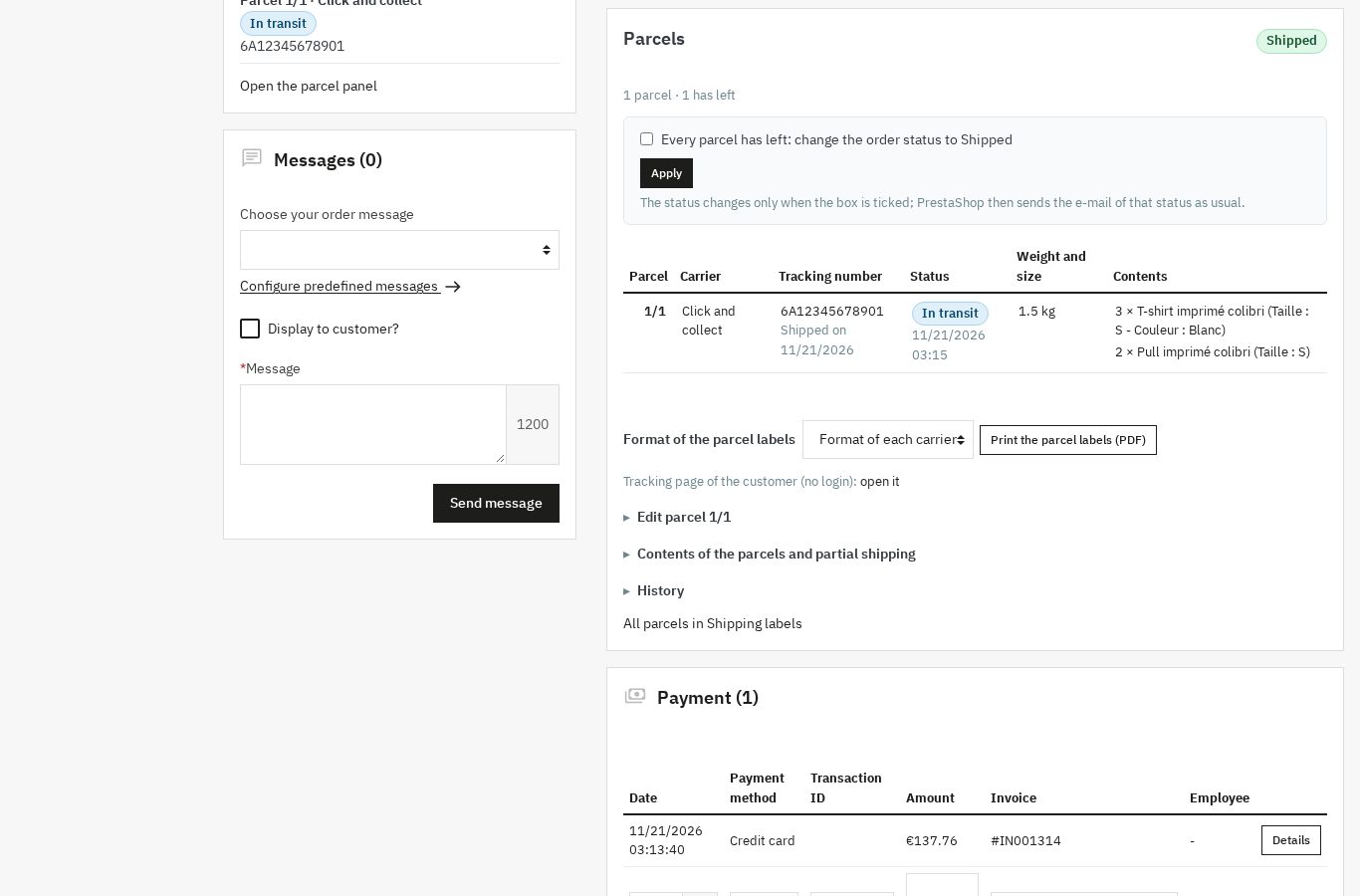
The parcel panel sits on the order: number (1/3, 2/3), carrier, weight, dimensions, shipping date, tracking number, status and an internal note. Contents are entered line by line; the module computes what is left to ship from the ordered quantities, minus items already returned or refunded and those already in a parcel. A quantity above the available amount is refused.
An order can therefore leave in several shipments. While items remain unassigned, the panel says “Partially shipped”. Moving the order to the shipped status is never automatic: the module offers the checkbox, the merchant ticks it, and PrestaShop then sends its usual status e-mail.
From the order list, the bulk action Create shipments prepares one parcel per order, after a confirmation page showing the carrier, the carton, the address check and the orders it skips. A batch is capped at 200 orders. On PrestaShop 9.1, when native shipment splitting is enabled, the module reads PrestaShop shipments and links to them; otherwise it keeps its own register.
By default, the first tracking number is copied to the order's native carrier record.
Does PrestaShop track parcels and notify the customer?
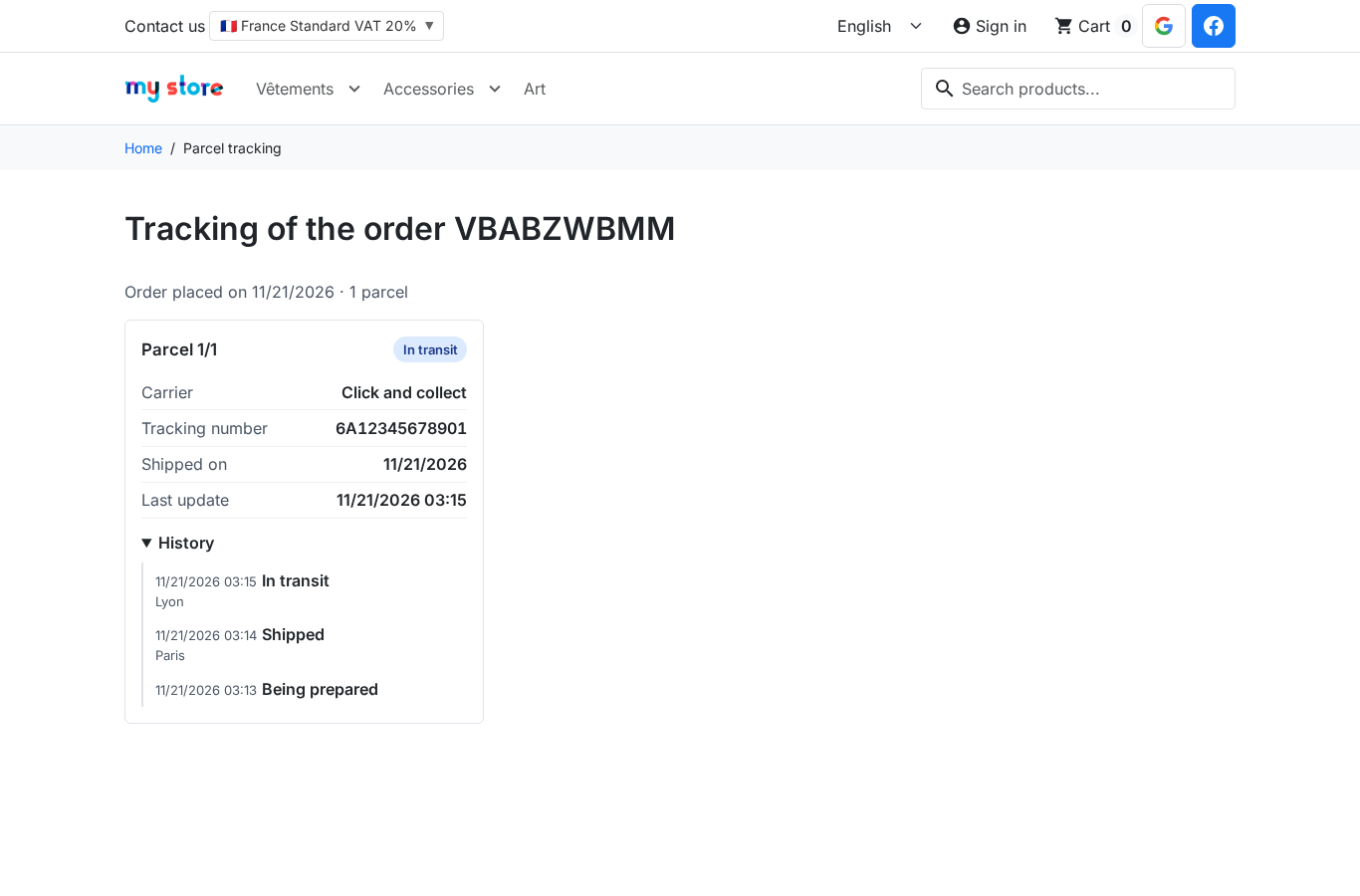
PrestaShop keeps one tracking number per order. The module keeps one per parcel, sends a shipping e-mail per parcel and opens a signed-link tracking page for the customer.
The module does not track parcels in real time and calls no carrier API. Statuses — Prepared, Shipped, In transit, Delivered, Returned, Lost — are entered by hand, changed in bulk or imported from a CSV file. The import maps columns, simulates every line and refuses lines that match no parcel, writing nothing before you confirm.
The tracking link reuses the native carrier URL, where the @ character is replaced by the number. Number rules are set per carrier: length, accepted characters, optional pattern. A doubtful format or a number already used on another parcel raises a warning before saving.
The customer receives the link to a signed tracking page, open without an account: each parcel with its number and tracking link, its status and dated history, never the address, prices or internal notes. The same block appears in the customer account order detail and in guest tracking. The shipping e-mail is edited per language, and can be sent again by hand.
What information goes on a customs declaration?
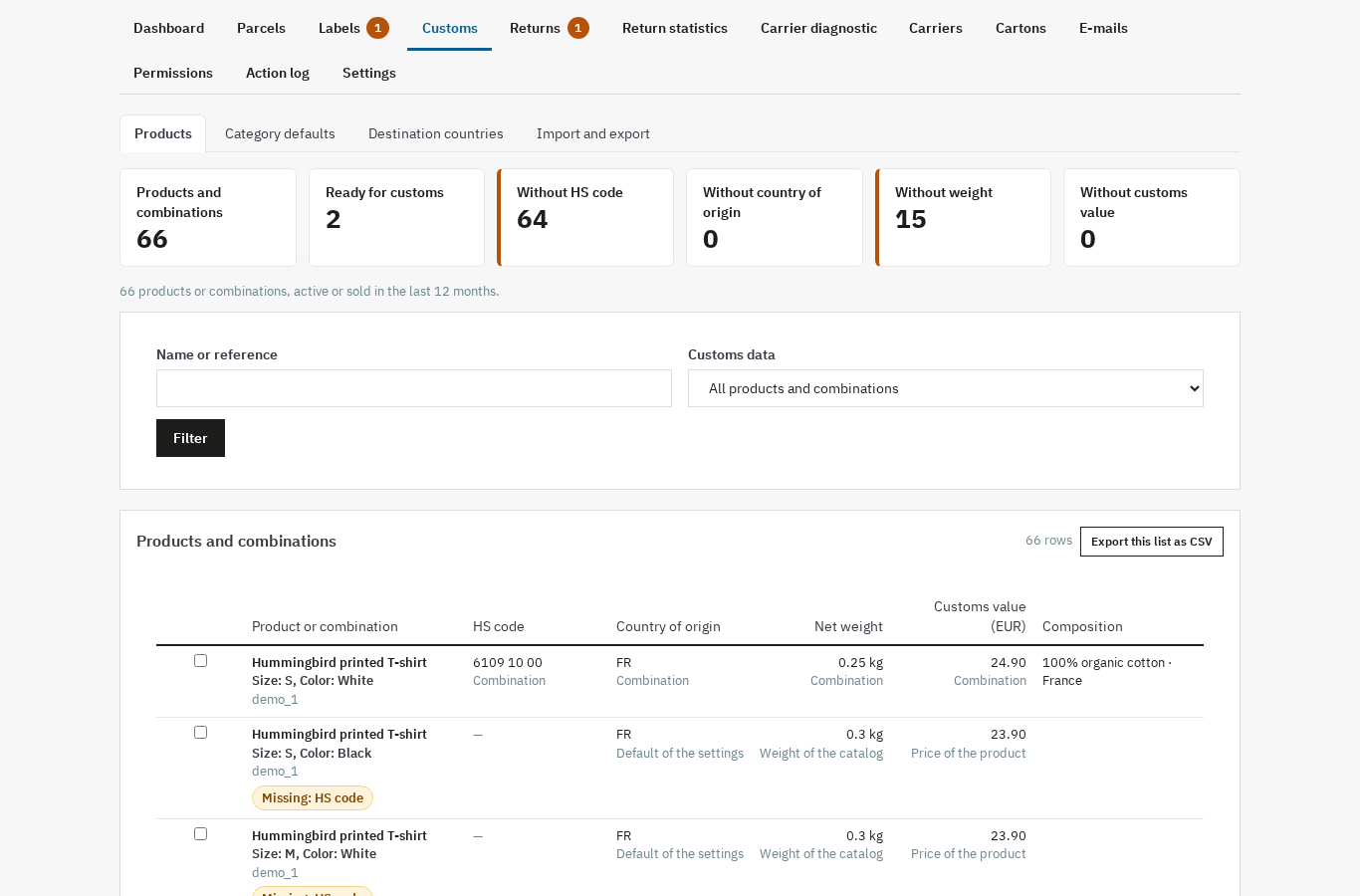
A CN22 or CN23 asks for an HS code, a country of origin, net and gross weight, a value and a description per item. The module takes these from the product and flags what is missing before printing.
The data is entered on the product or combination: HS code, origin, net weight, gross weight, customs value, composition and a “Made in” statement. Values can be inherited from the category, imported from CSV or filled in bulk. The Customs screen counts the products ready and those without an HS code, origin, weight or value, then fills one field for the ticked rows.
The document choice depends on the sender country and the destination: same customs union, no form; otherwise a CN22 below the threshold set for the country, a CN23 above it, with a commercial invoice or a proforma. Each country can be forced to “always” or “never”, which covers territories with a special status. The threshold is a shop value, to be checked with the postal operator.
Documents are built from your catalogue data, with the sender, EORI, VAT number and Incoterm set in the module. They are prepared, not certified: you check, complete and sign every form, and you remain responsible for the declaration. The field details are in the documentation.
How do I manage returns and print a return label?
The module attaches its returns to the native PrestaShop return: the customer asks from a signed portal, you accept, or refuse with a reason, then you add the return label.
The portal shows the items still returnable, the maximum quantity, the shop's list of reasons and a comment. The customer attaches up to five photos or PDFs by default, within the set size. The request creates a native PrestaShop return and its lines, with the core checks: paid and shipped order, return delay, quantities not already sent back. A return entered in the native form is picked up by the module.
In Returns, you accept, refuse with a mandatory reason, mark received with the quantities that actually arrived, then close. The return label is uploaded like a carrier label; the customer downloads it from the portal through a signed link that expires. The return carrier and tracking number follow the same format rules as the outbound parcel.
From an accepted return, you create a zero-price exchange order, with stock and quantity checks, or a single-use native voucher. Refunds and credit slips stay on the PrestaShop path.
Who needs the module, and who can skip it?
It targets shops that ship orders in several parcels, deliver outside the European Union or handle returns. A shop that sends every order as one domestic parcel, with a single label, gains almost nothing.
The module helps as soon as an order exceeds one carton, a product is split between two shipments or stock forces a partial dispatch. It also serves multi-carrier shops, which set label format, transit time and number rules per carrier, and teams that pack together: profile rights separate view, ship, customs, returns and configure.
It is unnecessary if you buy your labels in a tool that already prints them, if you only ship domestically in one parcel, or if you expect it to compare rates and track parcels live: that is not its job.
What the module does not do
The module talks to no carrier: no account, no API key, no label purchase, no rate comparison.
It handles no relay points, no marketplaces, no picking slips and no shipping fees by postal code. It does not merge imported PDFs and creates no refund or credit slip. It produces no DPP, EUDR, GPSR or PPWR compliance document.
Customs remain your responsibility: the module prepares CN22, CN23 and invoices from your data, without certifying them or replacing customs or tax advice.
Two other modules complete shipping: shipping fees by postal code to price by zone, and picking lists to organise the packing table. For distance sales within the Union, VAT is handled with EU OSS VAT.
Frequently asked questions
How do I print labels for several shipments from one order?
Is parcel tracking updated automatically?
Can one order be shipped in several parcels?
How do I print a return label for a customer?
What data is needed for a shipment outside the European Union?
Can several labels be printed at once?
Products in this article
Shipping labels and parcel tracking: multi-parcel, customs and returns
Split an order into several parcels and follow each parcel, its carrier and its tracking number. Import carrier...

Shipping Cost by Zip Code — Postal Code Based Shipping Fees
Shipping fees by postal code: unlimited zones, exact codes, ranges and prefixes Rates per carrier by weight or...

Picking List Pro: logistics dashboard + PDF templates
“To Process Now” dashboard: orders to prepare, urgency, carrier and Newest first / Oldest first sorting Picking...

EU OSS VAT – GeoIP VAT-Included Prices (MaxMind)
Correct VAT-included prices by visitor country, with MaxMind GeoIP or manual selection All 27 EU VAT rates...
Read also
SEO audit for PrestaShop: 404 errors, broken links and a fix plan
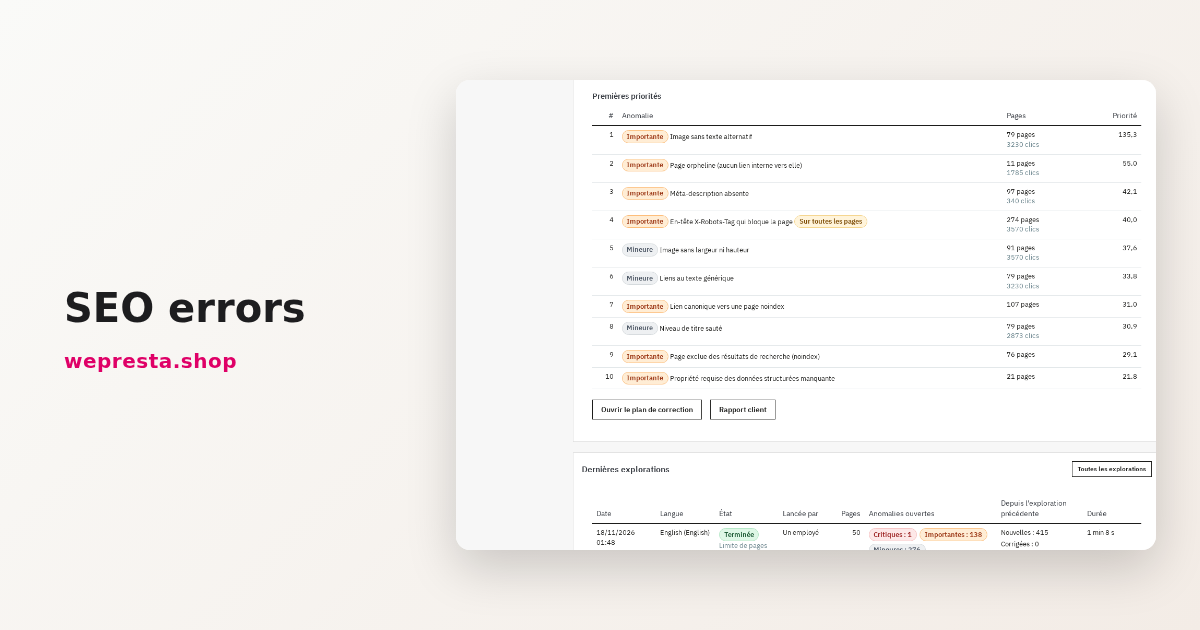
SEO errors crawls the store in served HTML, ranks issues by severity and traffic, then fixes the 404s, redirects, addresses and robots.txt.
How to collect and publish customer reviews on PrestaShop
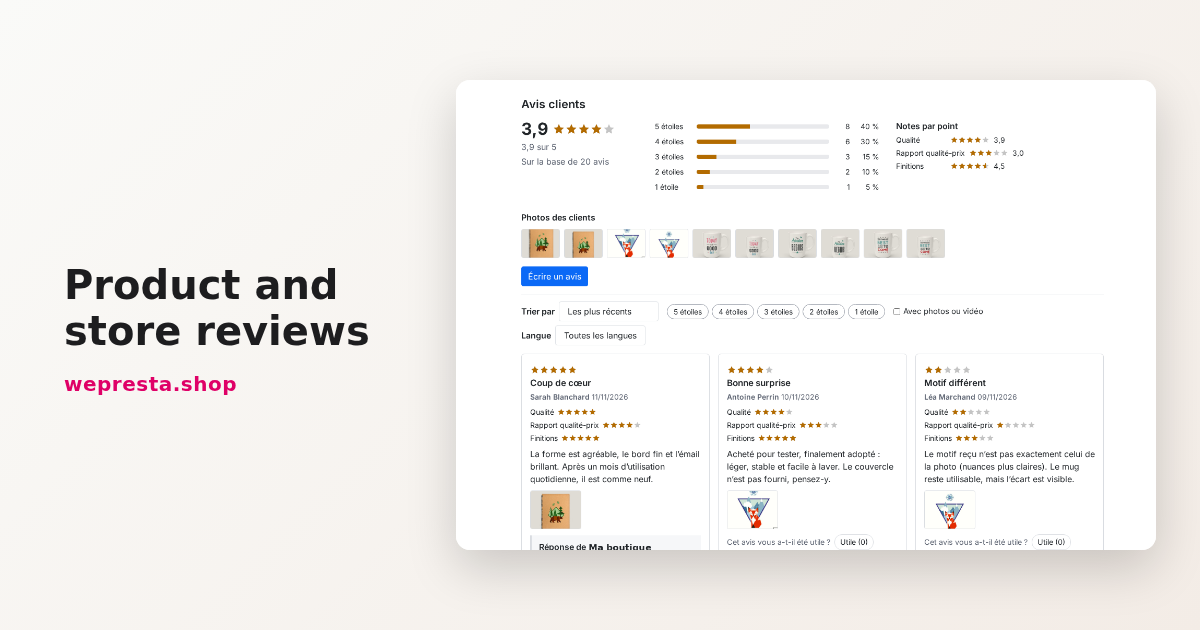
From the review form to requests sent after delivery, moderation, public replies and JSON-LD markup: how the Product and Store Reviews module organizes collection on a…
Social login on PrestaShop: setting up Google and Facebook
Account creation slows the order down. Social Login adds Google, Facebook and Apple buttons to the login page and the checkout, with one callback address, a test per…