How to set shipping costs by postal code in PrestaShop
Create zones by postal code, range and prefix, refuse an area, keep store pickup and back up the configuration: the full path through the PrestaShop back office.
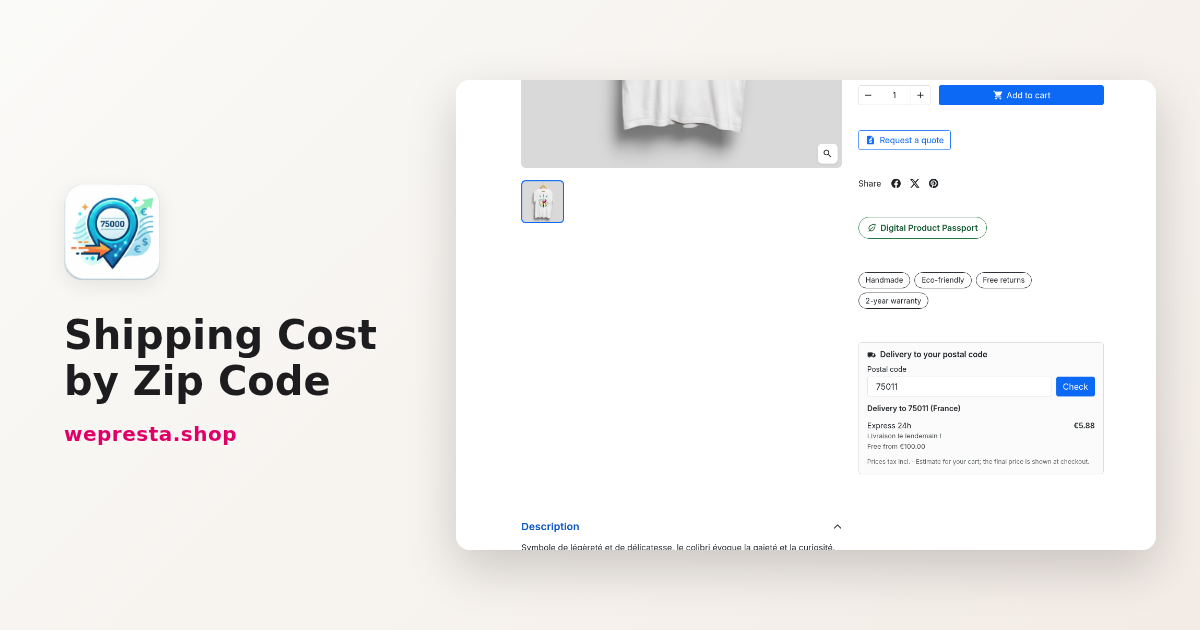
PrestaShop only knows zones and countries. A customer in Paris, a customer in Corsica and a customer in a remote village can pay the same price, or be offered a carrier you do not want to sell them. The Shipping Cost by Zip Code module adds rules on top of your carriers: each postal code, range or prefix gets its own rate, refusal or minimum amount. Here is how to set it up, what it changes at checkout and what it does not do.
Who needs shipping costs by postal code, and who does not?
The module helps as soon as the shipping price depends on a precise place inside one country, and adds nothing when one national rate is enough.
Three situations justify it.
- You ship to islands or remote areas, and the carrier adds a surcharge.
- You want a local courier from a cart amount, or free delivery around your warehouse.
- You charge a percentage of the cart for bulky orders instead of a flat rate.
A shop that charges one price for the whole country, or gets its rates from a carrier API, has little to gain. The module creates no carrier: it prices the ones you tick. Free carriers, store pickup and carriers of other modules keep their prices.
It runs on PrestaShop 1.7.8, 8.0+ and 9.0+, with PHP 7.4 or later. PrestaShop 1.7.7 is not supported.
How do you set different shipping costs by postal code?
Tick the managed carriers, create one zone per code, range or prefix, then enter a rate per carrier and per bracket.
Five steps in the back office:
- Install the module and activate the licence. The menu Shipping > Shipping by postal code opens the zone list; the Settings button leads to the configuration.
- In Managed carriers, tick the carriers whose price depends on the postal code. The module saves their original settings and restores them when you untick them. State whether your prices are entered tax excluded or tax included.
- Click Add a zone. Fill in the Name, multilingual and also used to recognise the zone in CSV files, then Active, Refuse delivery and an optional Customer message.
- In Postal codes, choose the country and enter codes separated by commas or line breaks: a code (75011), a range (75001-75020) or a prefix (75*, SW1*). Click Check to see what will be added, then Add.
- In Carriers and rates, open the All managed carriers block or one carrier's block. Add a rate asks for the basis (Weight or Cart amount) and the bracket: From included, To (excluded), empty for no limit. The price can be fixed or a percentage. The calculation chooses Replaces the PrestaShop price or Added to the PrestaShop price.
An address gets one zone only. An exact code wins over a prefix, a prefix over a range, and between two rules of the same type the zone highest in the list wins. Drag and drop sets the order; the Checks column flags zones without codes or rates, uncovered brackets and codes taken by a priority zone.
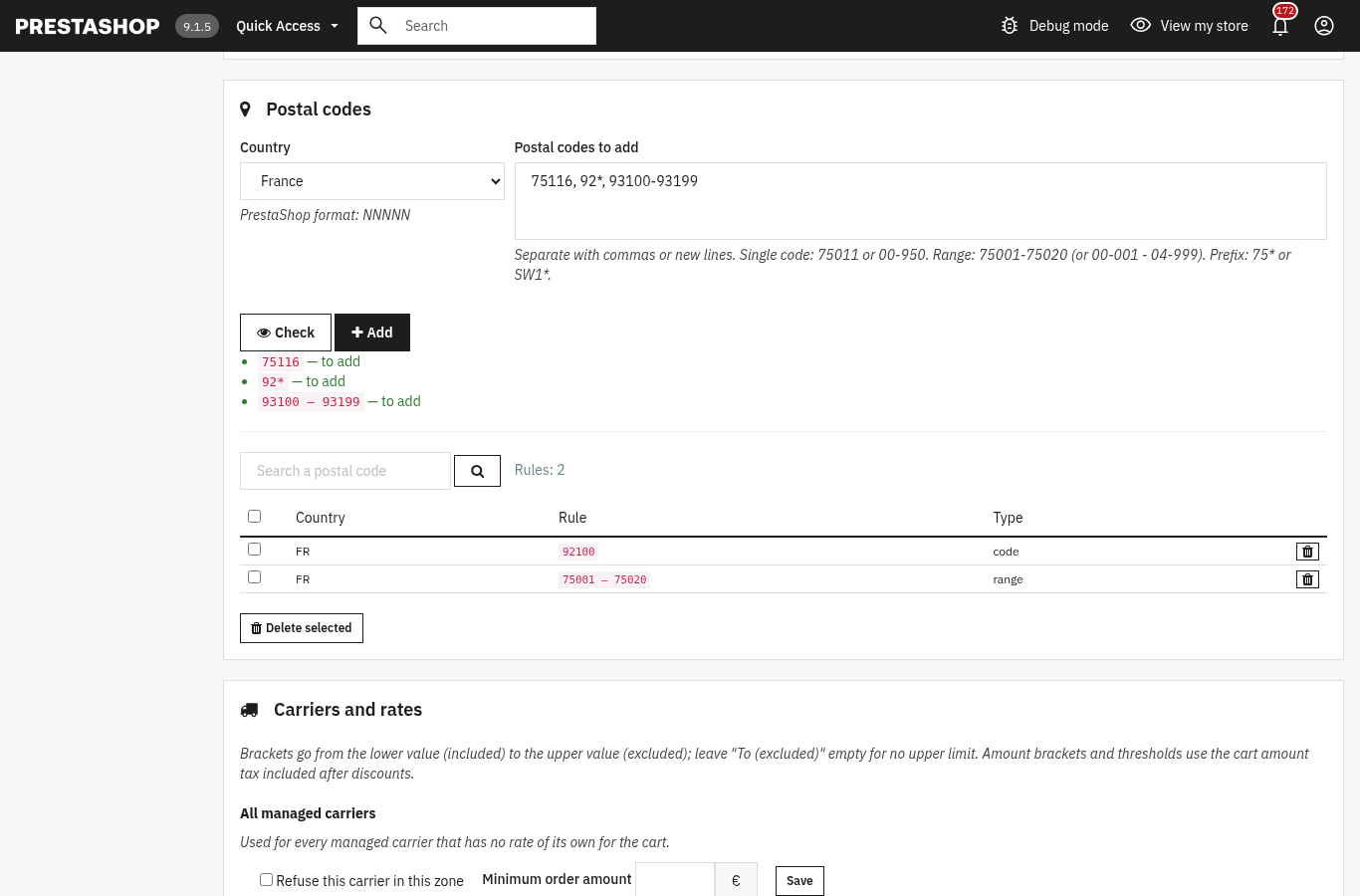
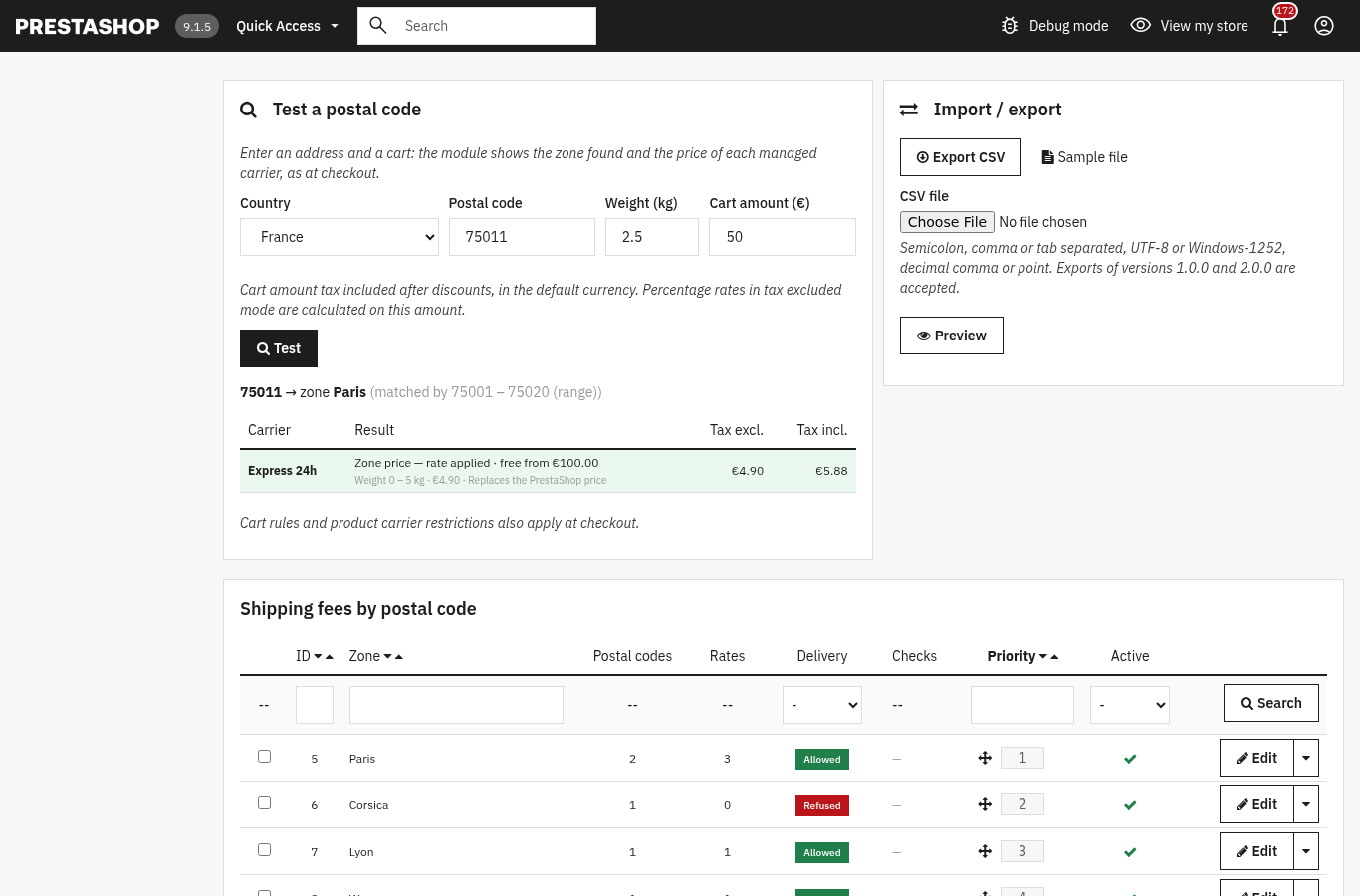
A concrete case: a Paris shop creates the Paris zone with the range 75001-75020 for its courier, the France zone with the range 01000-95999 for Express 24h, then the Corsica zone with the prefix 20*. The local courier covers the centre, Express covers the rest, and Corsica will be refused in the next step.
The Test a postal code block replays an order with a country, a postal code, a weight and a cart amount tax included after discounts, and explains any missing carrier.
How do you refuse delivery in some areas?
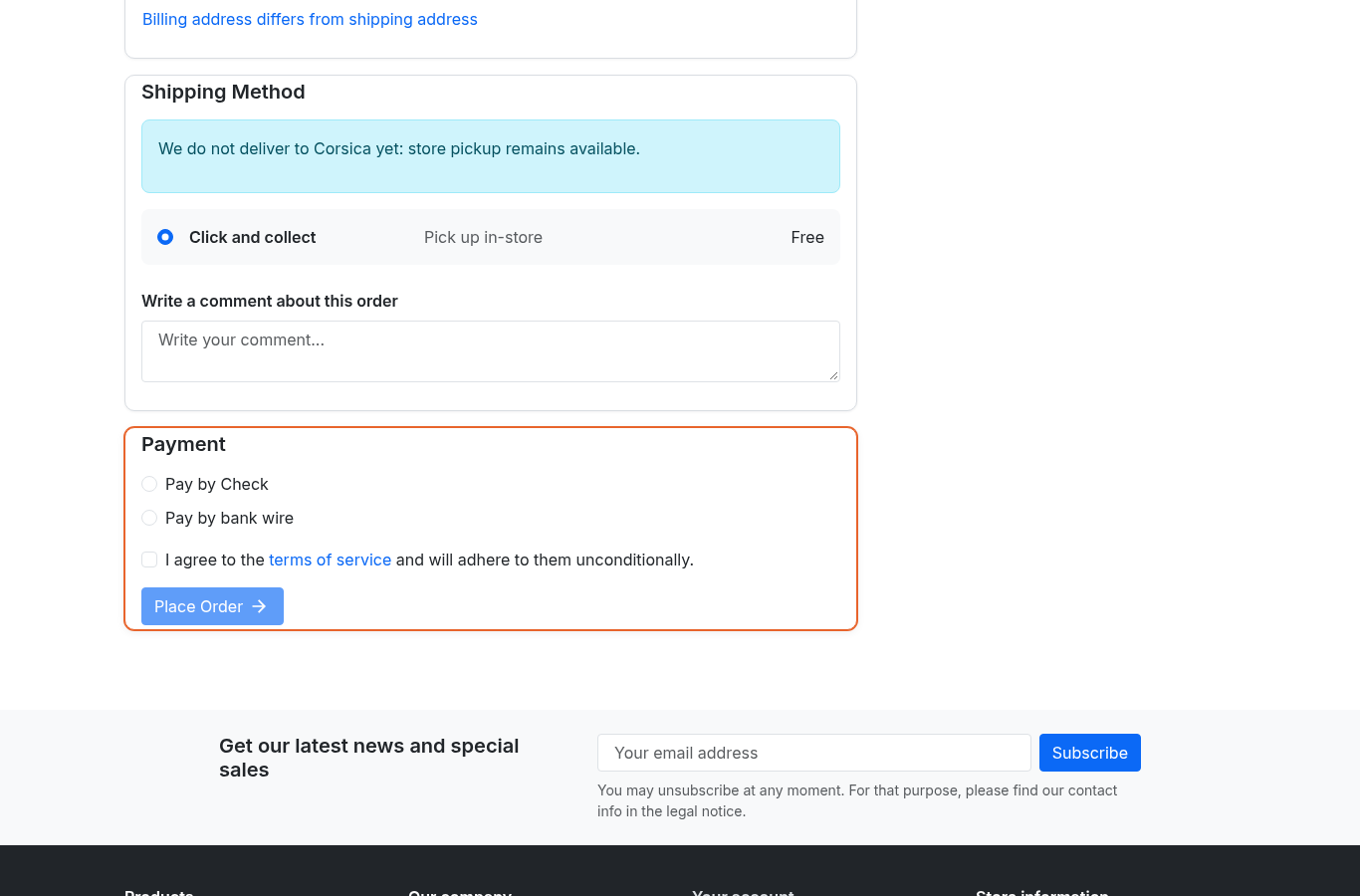
Turn on Refuse delivery on the zone: managed carriers disappear from checkout for those codes, and store pickup stays available.
The refusal only affects managed carriers. A carrier of another module or a free carrier still appears. The zone message, or the general message from the configuration, is shown at the shipping step and in the checker; it is translated into every shop language.
You can also refuse more narrowly without blocking the whole zone. In a carrier's block, tick Refuse this carrier in this zone or set a Minimum order amount, for example for a courier available from a given cart value.
The Postal code outside every zone setting decides what happens to codes that fall in no zone: PrestaShop price or refusal. The refusal only applies in countries where at least one zone exists.
What happens when PrestaShop free shipping applies?
Accepted managed carriers cost zero, the checker shows "Free" and the tester shows "Free"; a refused zone or carrier stays refused.
The threshold is set in PrestaShop, in Shipping > Preferences, by amount or by weight. The module reads that threshold for the relevant currency and shop. Cart rules keep applying.
Version 2.0.1 fixes a defect of 2.0.0: a zone where delivery was refused became deliverable and free as soon as PrestaShop free shipping applied. The refusal is now examined before free shipping, and the managed carrier is no longer offered. Store pickup is never touched.
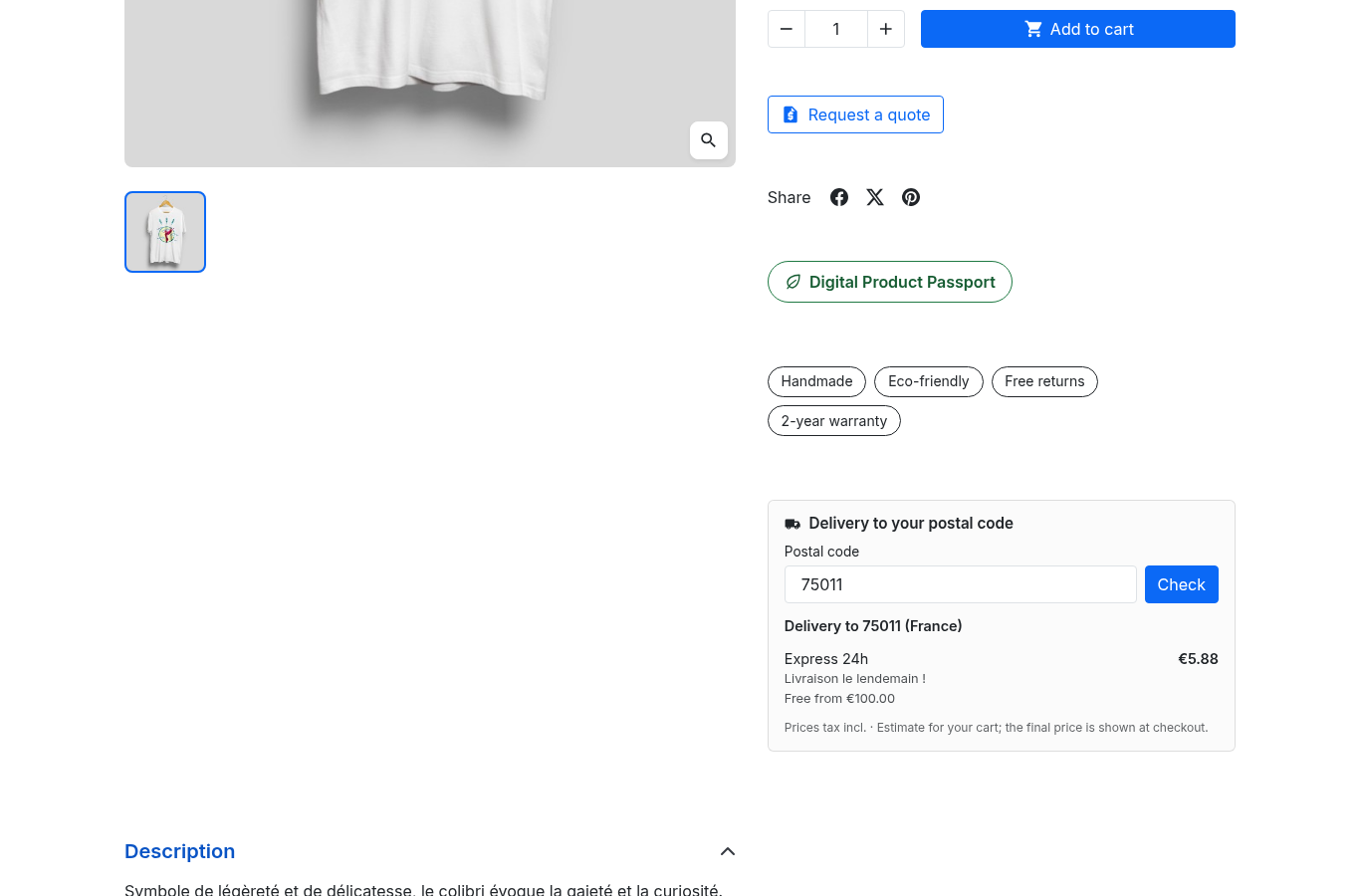
The product-page checker and the cart estimate follow the same calculation. They are enabled separately in the configuration, with Show the checker on product pages and Show the estimate in the cart. The estimate shows a price tax included and reminds the customer that the final price is given at checkout.
If free delivery comes from a promotion rather than the PrestaShop threshold, a module of promotions and cart rules carries it to checkout, and the shipping module keeps applying its refusals.
How do you back up and move your shipping configuration?
Export the shop to CSV before any change, then import the file back with Replace all zones of this shop to get the same configuration again.
The Import / export block offers Export CSV, a sample file and a preview before import. The separator can be a semicolon, a comma or a tab; the encoding UTF-8 or Windows-1252; numbers accept a comma or a dot. Files from versions 1.0.0 and 2.0.0 remain readable.
Each line has a type: zone, postcode, rate or carrier. The preview counts zones and rates and flags every line in error with its number. Three modes follow: Merge, Replace the zones present in the file and Replace all zones of this shop. Before each import, an automatic backup is saved and stays downloadable under Automatic backups.
Version 2.0.1 completes the export: each zone leaves with its identifier, its name and its message in every language. Replace all zones therefore recreates the zones exactly. Two zones with the same name are no longer merged, duplicating a zone gives a unique name such as "Paris (copy 2)" and the preview reports an ambiguous name. An export holding rates of a deleted carrier imports with a warning, without losing the lines.
On PrestaShop 1.7.8 and 8, the export, the sample file and the backups can only be downloaded by employees allowed to view the zones page.
It is the safest way to back up your shipping configuration, roll back after a partial import or keep a reference before changing all rates.
What the module does not do
The module creates no carrier, modifies no core file and does not replace your rates with a live carrier API.
- It does not create carriers: the one you tick must already exist, be enabled for the PrestaShop zone of the delivery country and have at least one price bracket. The tester flags what is missing.
- It does not manage free carriers, store pickup or carriers of other modules.
- It does not accept regular expressions: prefixes with letters cover, for example, UK codes such as SW1* in London.
- It does not compute volumetric weight, conditions by customer group, category or quantity, and provides no analytics dashboard.
- It does not replace VAT or tax rules; for European VAT, a dedicated module is still needed.
A word on the licence. Without an active licence, shipping fees keep being applied at checkout and only configuration changes are locked. If the licence server is unreachable, the licence stays active for seven days from the first failure; a real revocation, suspension or expiry still applies.
The module promises no commercial result: it applies the rules you enter, and PrestaShop keeps tax, currency and rounding. The module page and its documentation detail every screen. For checkout, a one-page checkout shows the steps on a single page.
Frequently asked questions
How do I set different shipping costs per postal code?
Can we exclude some postal codes from shipping?
What happens when free shipping conflicts with a refused zone?
How can I back up and restore my shipping configuration?
How do I prevent shipping to remote areas and islands?
Products in this article

Shipping Cost by Zip Code — Postal Code Based Shipping Fees
Shipping fees by postal code: unlimited zones, exact codes, ranges and prefixes Rates per carrier by weight or...

Smart promos: 3x2, bundles & tiered deals
Create advanced promotions for your PrestaShop store : 3x2, buy X get Y free, tiered discounts, bundles,...

Conditional product messages & CTAs
Personalized messages on your product pages based on conditions: stock, price, sale, brand, customer or country...

Express checkout: one-page order
The native PrestaShop checkout has four steps and many clicks. Express Checkout puts the whole order on a single...
Read also
Supplier restocking in PrestaShop: reorder points and purchase orders
A guide to setting reorder points, preparing supplier purchase orders and receiving deliveries without losing track of outstanding quantities.
EU Deforestation (EUDR) on PrestaShop: products, suppliers and DDS
How to find the products covered by EUDR in a PrestaShop catalogue, collect supplier DDS and plot geolocation, and prepare each order's file without blocking the…