Social login on PrestaShop: setting up Google and Facebook
Account creation slows the order down. Social Login adds Google, Facebook and Apple buttons to the login page and the checkout, with one callback address, a test per provider and a GDPR export.
A customer who has to create an account before ordering hesitates, invents a password, waits for a confirmation email, and sometimes closes the tab. Social login removes that detour: they click Google, Facebook or Apple and come back signed in. This guide covers the providers, the applications, the missing email address, the buttons and the limits.
Who needs social sign-in, and who does not?
Yes, if your shop requires an account to order: a customer who already has a Google, Facebook or Apple account skips account creation and the password. No if you sell without customer accounts, or if you already require a single corporate account.
The module is aimed first at consumer shops where account creation slows the order: fashion, cosmetics, hobbies, electronics. The PrestaShop account then carries the customer's addresses, orders, returns and group discounts.
It also fits a B2B shop: the generic OpenID Connect button connects the company directory (Keycloak, Okta, Auth0, Authentik, Microsoft Entra) without development.
It is not needed for a catalog without customer accounts and does not work without HTTPS: providers reject a callback address over HTTP. It requires PrestaShop 1.7.8, 8.0+ or 9.0+, with PHP 7.4 or later.
Expect one application at each provider. Apple requires joining the Apple Developer Program, and TikTok reviews the application before opening it to all.
Which providers should you switch on first: Google, Facebook, Apple, PayPal, Amazon, X, Microsoft or TikTok?
Start with the ones that certify the email address: Google, Apple, PayPal, Amazon, Microsoft for a personal account, and X if your application is allowed to ask for the address.
With a certified address, a customer who already has a PrestaShop account is linked and signed in without a password: that is the shortest path.
Facebook does not certify the address it gives the application. A Facebook customer who already has an account therefore confirms their password once, on the page that ends their registration; later sign-ins take one click.
The nine providers each have their own card and are switched on separately. An inactive provider appears nowhere: nothing forces you to open all eight networks on day one. Add one, read the journal, decide on the next.
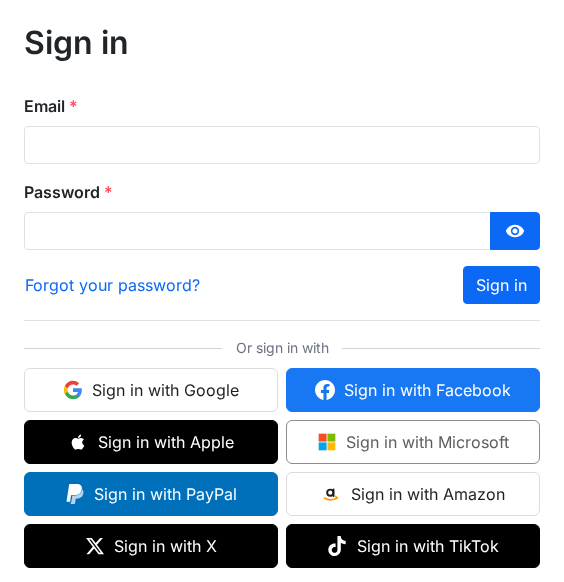
How do you set up Google and Facebook on PrestaShop, step by step?
Open Modules > Module Manager > Social Login > Configure, copy the callback address in the Providers tab, create the application at Google, then paste the Client ID and the Client secret.
- The Callback address box shows one address, the same for every provider and every language. Click Copy.
- Open the Google card and expand How to create the application at Google: the guide gives the console link and the steps.
- In the console, create an OAuth client of type Web application, then paste the callback address into the authorized redirect addresses.
- Back in the card, paste the Client ID and the Client secret, then click Save. The secret is stored encrypted; leave the field empty to keep the saved value.
- Click Test the connection. A window opens, you sign in at the provider, and the card shows the result or the correction to apply; on success, the status becomes Operational. The test creates no customer.
- Switch on Show this provider and save: the button appears on the active positions.
- For Facebook, create an application with the Facebook Login product, add the email permission, publish it, then paste the App ID and the App secret.
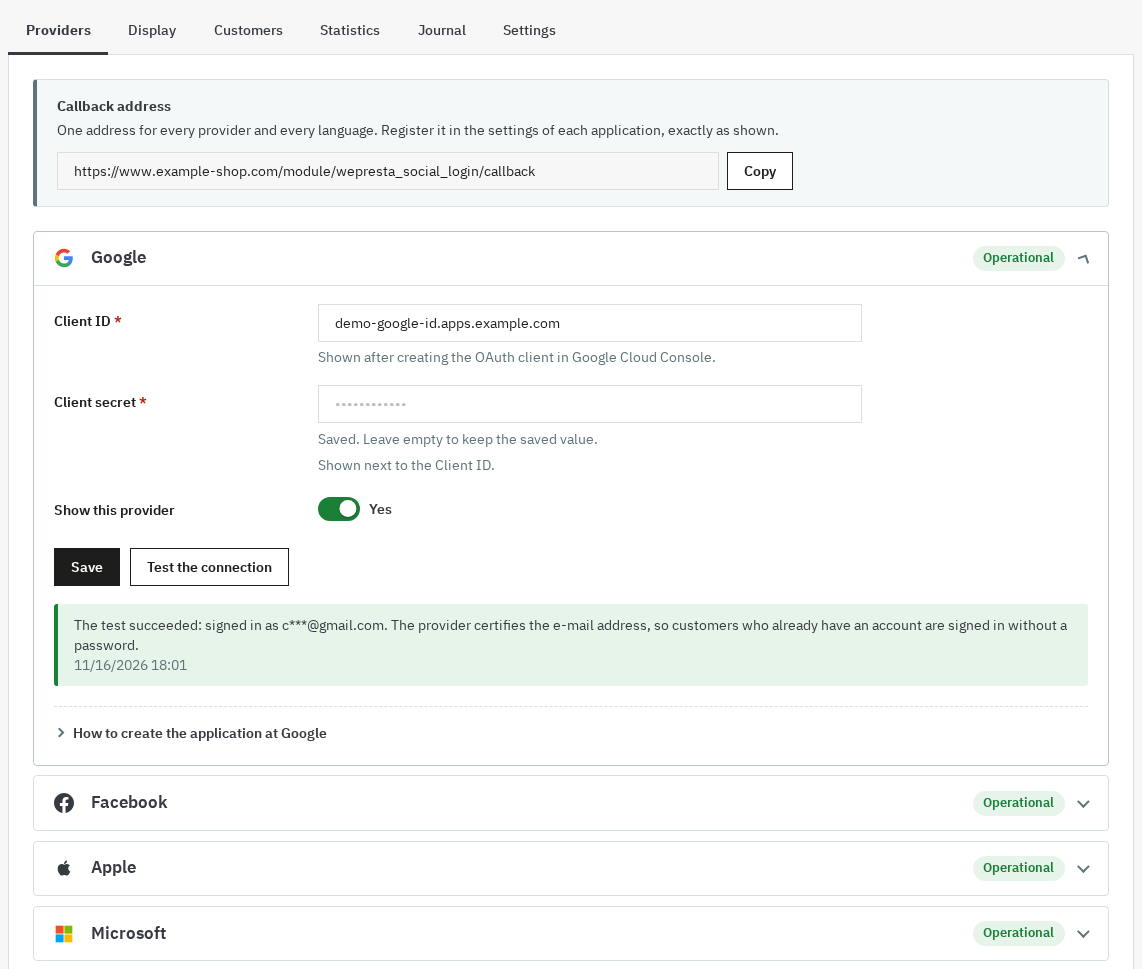
The card shows the state of each provider: Not configured, To test, Operational or Errors. A redirect URI error means the address saved in the console does not match the module address, often because of a trailing slash or an added parameter. If the test fails, check the server's outgoing HTTPS requests: firewall, cURL, clock.
Why is the email address of a Facebook customer not retrieved?
Facebook does pass an address to the application but does not certify it. X returns the address only if Request email from users is enabled in the application and in the provider card. TikTok does not send it at all.
Without that certification, the module invents nothing: it opens the “Almost there!” page and asks only for what is missing — email address, first and last name, consents of your form. The customer then returns to the page they were on, with their cart.
Apple passes the name and the address on the first approval only. If the customer refuses to share the address, the module asks for it as well, and the Apple private relay address stays available in the account data.
If the address already belongs to a PrestaShop account and is not certified, that account's password is asked once, with a limit on attempts. A disabled account cannot sign in through a social network, and a guest who signs in with a certified address becomes a customer, with their orders.
Why are the buttons missing, and where do you place them so the cart survives checkout?
A button appears only when its provider is configured and shown, and when the position that holds it is active: three switches to check before looking further.
Three positions exist after installation: login page, registration page and checkout. The Display tab adds more: shopping cart, header, home page, above the footer, columns, or an element chosen by its CSS selector.
For each position you choose the providers and their order, buttons with text or icons only, and a side-by-side or one-per-line layout. The style, the wording (“Sign in with…”, “Sign up with…”, “Continue with…”), a title per language and custom CSS are set in the same place.
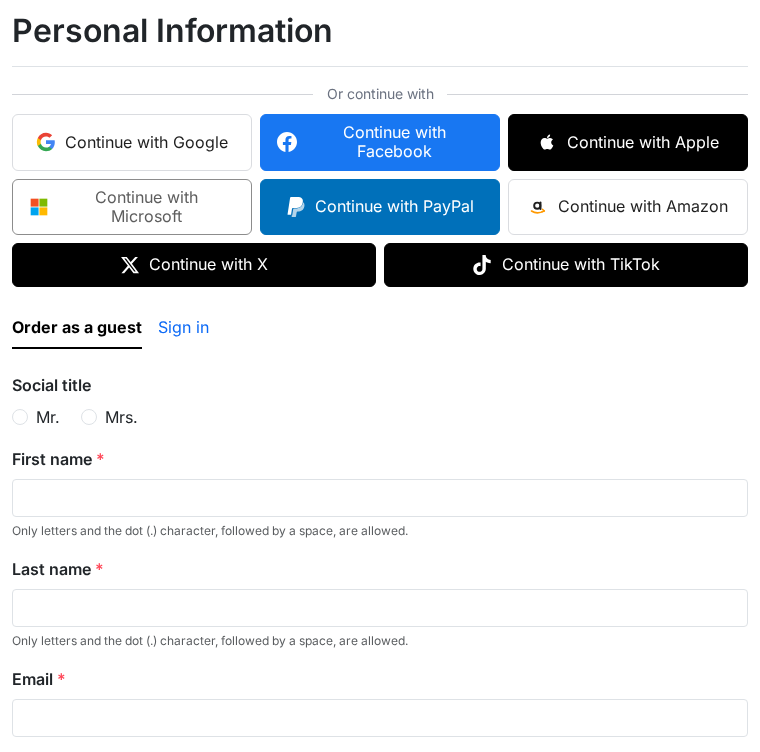
Take a plant shop: it sells mostly on mobile and loses carts at the personal information step. The merchant keeps Google and Apple on the login page, opens every provider on the registration page and adds a header position in icon mode. At checkout, a customer who clicks Continue with Google stays on the page: the window opens over it and the cart does not move.
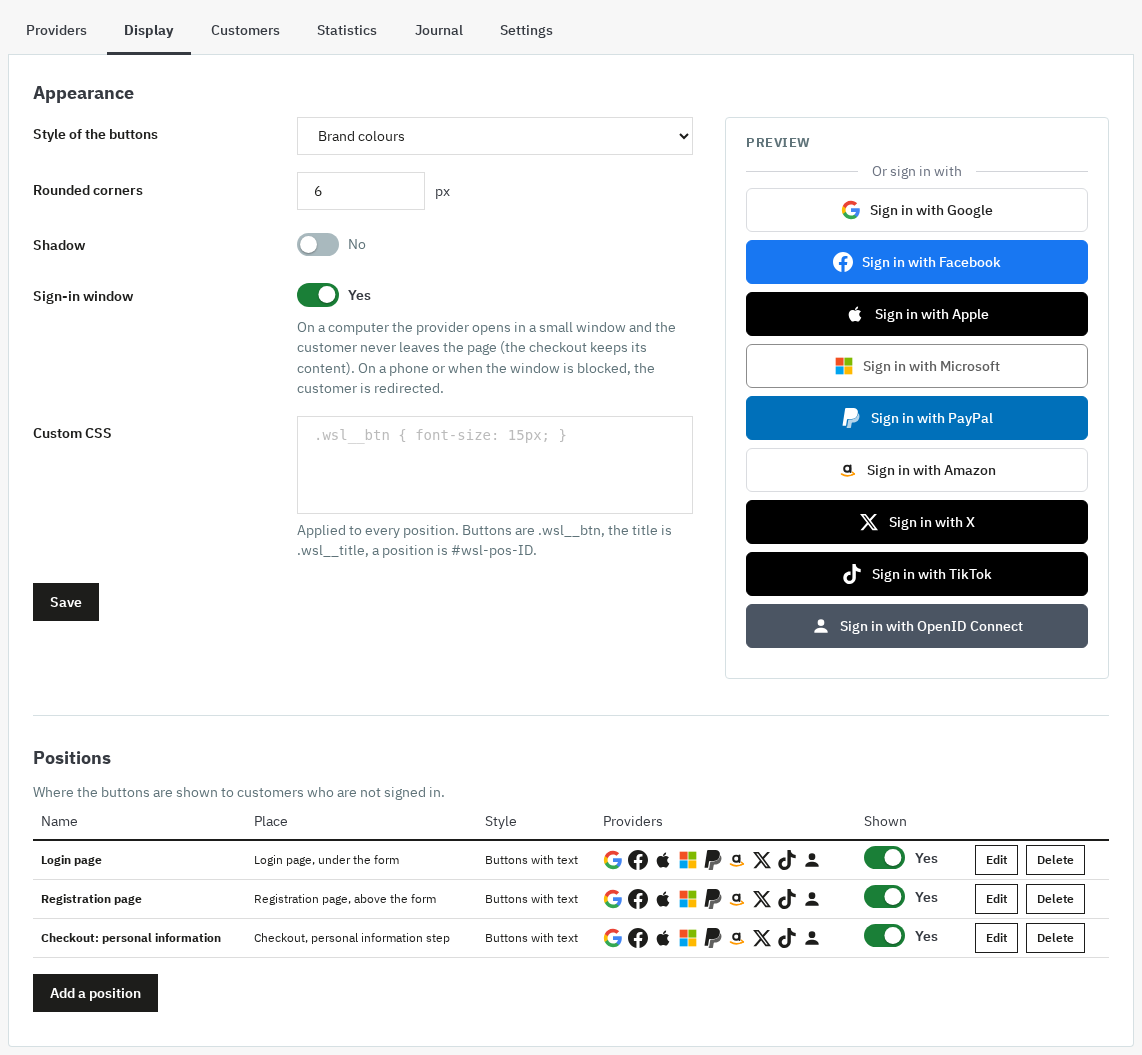
The Checkout: personal information position puts the buttons above the choice between guest order and sign-in. On a phone the customer is redirected to the provider and sent back to their step; on a desktop the window closes and the page carries on.
Is social sign-in safe?
The module keeps no provider access token: it reads the profile once, at sign-in, and stores your application credentials encrypted.
An existing account is linked without a password only when the provider certifies the email address. Otherwise the customer confirms the account password, with an attempt counter. The journal notes each sign-in, registration, link and failure, with the cause and the correction to apply, and it can shorten IP addresses.
How do you export or delete a customer’s data?
For an access or erasure request, the module answers the hooks of PrestaShop's GDPR module (psgdpr). A customer's export contains the linked social accounts, the sign-in journal (date, event, result, reason, IP address), the welcome code and the data received from the provider: certified address, first name, last name, user name, postal address, private relay address. A request made with an email address also finds the accounts linked to that address.
Retention is set in the Settings tab, per shop. The module supplies this data; it does not make a shop compliant on its own. The notice under the buttons and the legal basis belong to your records and your legal adviser.
Does the module work with multistore?
Yes: each shop keeps its providers, positions, settings and statistics, and the module is switched on shop by shop.
Each shop has its own callback address, and Delete older entries now only purges the open shop; automatic purging follows each shop's retention period. A welcome code is valid only in the shop where the customer registered. After a renewal, Configure switches the module back on in every shop the license had switched off.
What Social Login does not do
The module does not replace the classic login: the email and password form stays in place, and each provider is switched on separately. There is no ready-made button for LinkedIn, Discord or GitHub, and no sign-in link by email.
For a provider missing from the list, the generic OpenID Connect button is enough if it speaks OpenID Connect. Sign-in by emailed link or code is sold separately with Magic Login, and both modules can sit on the same login page.
It adds no mandatory field to registration, does not offer to create an account after a guest order and does not restrict sign-in to a customer group. It also shows no GDPR notice under the buttons: that sentence belongs in the theme or in a consent module such as Cookies RGPD.
It does not change the checkout: PrestaShop's own stays in place, and the module writes no core file.
The module runs with a valid license. An expired, suspended or revoked license switches it off; providers, links, settings and journal stay in the database. The configuration page then shows only the license form, and Configure switches the module back on after the renewal. A transient license-server failure does not cut a valid license: only a series of failures longer than seven days switches it off.
The module documentation details every provider card and the troubleshooting cases; the module page sums up the features and the tested compatibility.
Frequently asked questions
How do you enable social sign-in in the back office?
Where do you find the Client ID and secret of each provider?
Why is the email address of a Facebook customer not retrieved?
Does a customer who signs in with a social network still need a password?
How do you export or delete a customer's data?
Which social network should you start with?
Products in this article

Social Login: Facebook, Google, Apple, PayPal, Amazon, X, TikTok, Microsoft — One-click Login
One-click sign-in and registration with Google, Facebook, Apple, Microsoft, PayPal, Amazon, X, TikTok and any...

Magic Login - Passwordless Sign-in and Google Sign-in
Sign in or create an account with an e-mail address only: a 6-digit code, a one-click link or Google Replaces...
Express checkout: one-page order
The native PrestaShop checkout has four steps and many clicks. Express Checkout puts the whole order on a single...

GDPR Cookie Banner: real blocking, consent proof and cookie policy
Really blocks third-party scripts, iframes and pixels before consent, then loads them by accepted category...
Read also
How to collect and publish customer reviews on PrestaShop
From the review form to requests sent after delivery, moderation, public replies and JSON-LD markup: how the Product and Store Reviews module organizes collection on a…
How to build a PrestaShop popup and measure its conversions
A practical guide to building a PrestaShop popup in the drag-and-drop editor, choosing the right trigger, targeting visitors, tracking conversions and keeping the module…
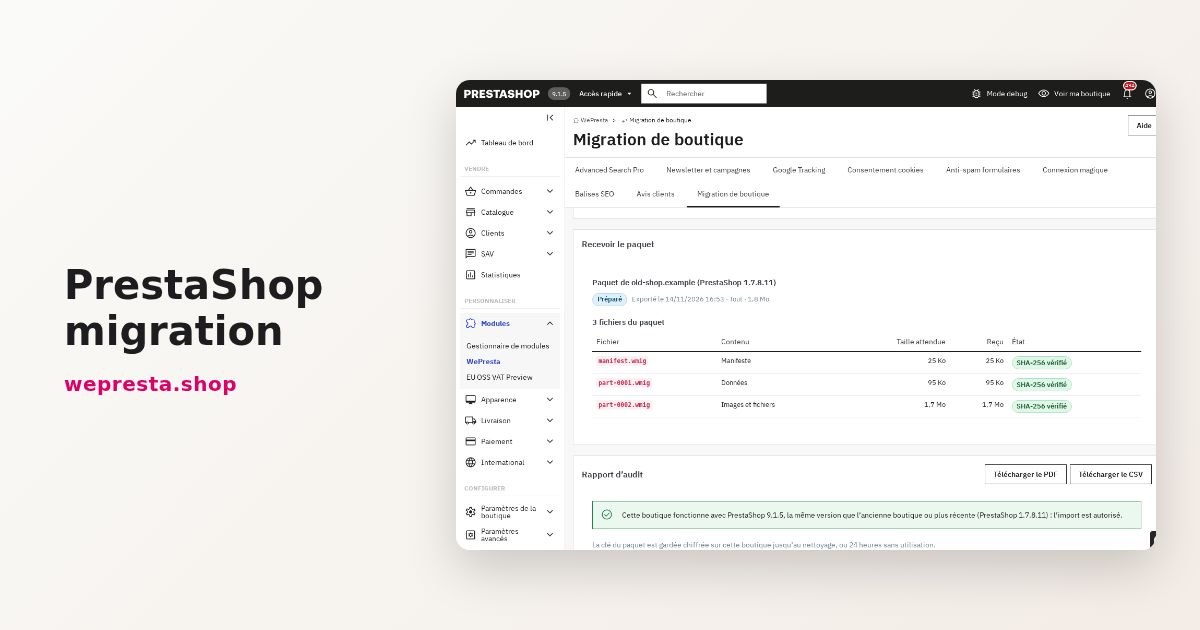
Migrate a PrestaShop store without losing orders, customers or images
Moving an old PrestaShop shop to a fresh installation without re-typing data: encrypted package, audit, preview, resumable import, verification and rollback, plus the…