B2B quotes on PrestaShop: requests, negotiated prices and orders
The full path of a B2B quote in PrestaShop: settings, a proposal with negotiated prices, acceptance, cart and the limits of the module.
A trade customer asks for a price on 200 units, then waits for an answer by e-mail. The agreed price gets lost in an inbox, the order is typed again in the back office, and the customer sometimes ends up paying the catalogue price. The B2B Quote Requests module records the request, the proposal and the acceptance inside the shop, then puts the products in the cart at the negotiated prices. Here is how to install it, set the options that matter and follow a quote through to the order.
What does a B2B quote module do in a PrestaShop store?
It turns a price request into a dated proposal, then into a cart at the negotiated prices, with no retyping in the back office.
In a B2B store, negotiation is part of the sale. A wholesaler, a manufacturer, a craftsman or a distributor buying to resell or for a project wants a price for a precise quantity, and a clear answer: how much, for what quantity, until when. Without a dedicated tool, that conversation lives outside the shop and leaves no usable record.
The module is for stores that sell to businesses and already negotiate, even occasionally. It is not useful to a store that only sells at catalogue prices, with no negotiated quantity or business account: a contact form is enough there. It does not replace the shop's payment methods or carriers, which still apply at checkout.
It runs on PrestaShop 1.7.8, 8.0+ and 9.0+, with PHP 7.4 or later, on the Classic and Hummingbird themes. No external service is needed for quotes, e-mails or PDFs; only the license is checked with the license server. The B2B Quote Requests module page lists the features, and the documentation describes each screen.
How do you enable quote requests, step by step?
Install the archive, activate the license on the configuration page, then set the allowed groups and the button locations.
In the back office, open Modules > Module Manager, click Upload a module and select the ZIP file. Then click Configure and enter the license key and secret. The module appears under WePresta > B2B quotes on PrestaShop 9, or under Modules > B2B quotes on PrestaShop 1.7.8 and 8.
Open Settings and enable the requests. Choose the customer groups allowed to request a quote, then show or hide the button on the product page and on the cart page. Set the default validity of a proposal, the notification recipients and, if needed, a default discount for each customer group.
Decide who can ask for a quote. Signed-in customers of an allowed group see the button. To open the quote request form to visitors without an account, enable guest quotes, keep the Guest group allowed and set the lifetime of the signed links sent by e-mail.
Then set what customers can send and receive: attachments and file types, customer messages, the PDF attached to the proposal, approval above an amount and catalog mode. In the Scheduled task section, copy the address or the command into your cron manager, then check the last run after the first pass. The Diagnostic shows versions, theme, e-mail method, storage and task state.
How do you answer a request and send a proposal?
Open the quote in B2B quotes > Quotes, enter a negotiated unit price excluding tax or a discount per line, then click Send the proposal.
The list shows the reference, customer, company, status, owner, total excluding tax and unread messages. Filter on the New status and open the request. On the quote page, each line keeps the catalogue price at the time of the request. Enter the negotiated price or a discount percentage: one updates the other. Add a validity date, a message to the customer and, when agreed, the Free shipping option.
Click Recalculate to check the totals excluding tax, taxes and including tax. They follow the shop's tax and rounding rules, and a note reminds you that the tax-inclusive amount depends on the customer's address. Each send creates a version kept with its PDF, attached to the e-mail in the customer's language when the option is on.
The customer can reply with a message and a target price per line, and attach files when messaging and attachments are enabled. The counter-offer stays in the conversation, and the latest target price of each line appears next to the negotiated price. A reseller asks for a price on a full pallet: you answer with a negotiated price and a validity date, and the customer accepts and orders the same day. For a request received by phone, New quote creates a draft for an existing account or a new contact; the draft stays invisible to the customer until it is sent.
What happens when the customer accepts the quote?
The quoted products and quantities go into the customer's cart at the negotiated prices, set as native specific prices tied to that cart and that customer.
Before accepting, the module checks that each product still exists, is active and orderable, that the combination belongs to the product and that stock is sufficient, unless backorders are allowed. If a product fails, nothing is added, the quote returns to Proposal sent and the customer reads the name of the product concerned.
Acceptance does not empty the cart. Products already there stay, and a line for the same product is raised to the quoted quantity when the quantity already in the cart is lower, never lowered. Free shipping, when granted, is applied by a native cart rule named after the quote. The customer is redirected to checkout and pays with the shop's payment methods.
Negotiated prices stay valid until the end of the validity date, or 24 hours after acceptance when that date is further away. They apply to that cart only: a later order, including from the order history, starts again at catalogue prices, and a quantity below the quoted one returns to the catalogue price.
Can you hide prices and sell by quote only?
Yes: the module's catalog mode hides prices and replaces "Add to cart" with "Request a quote" for the chosen groups, categories or products.
Two switches work independently: Hide the prices and Replace "Add to cart" with "Request a quote". A product is covered when the visitor belongs to a chosen group and the product is among the selected categories or products; if neither list is filled, every product of that group is covered.
The cart and the checkout are never modified. A customer with a negotiated cart can still order, and back-office carts and quote acceptance are never blocked. In Hummingbird product lists, the tile shows the theme's "View details" link instead of "Add to cart"; the quote button sits on the product page. PrestaShop's own catalog mode must stay off for an order to complete: the module's catalog mode is separate.
What happens if the license is no longer valid?
Since version 1.1.1, an invalid license disables the module completely, but your quotes, messages, files and settings are kept.
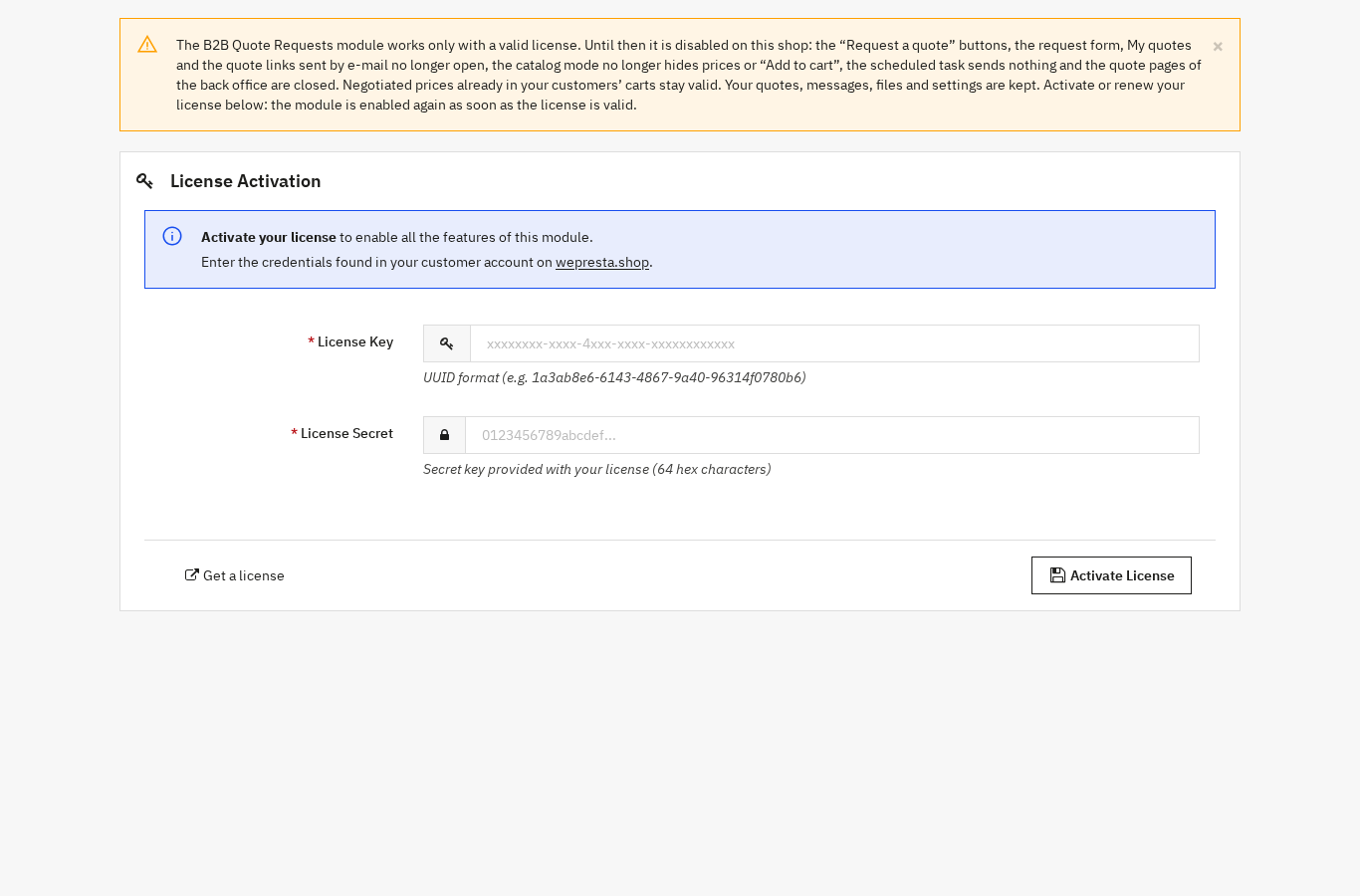
Without a valid license — expired, suspended, revoked, not recognised for this domain or missing — the "Request a quote" buttons and the form no longer open. The "My quotes" page and the quote links sent by e-mail stop working. Catalog mode no longer hides prices and "Add to cart" comes back; e-mails and the scheduled task no longer run, and the quote pages in the back office are closed.
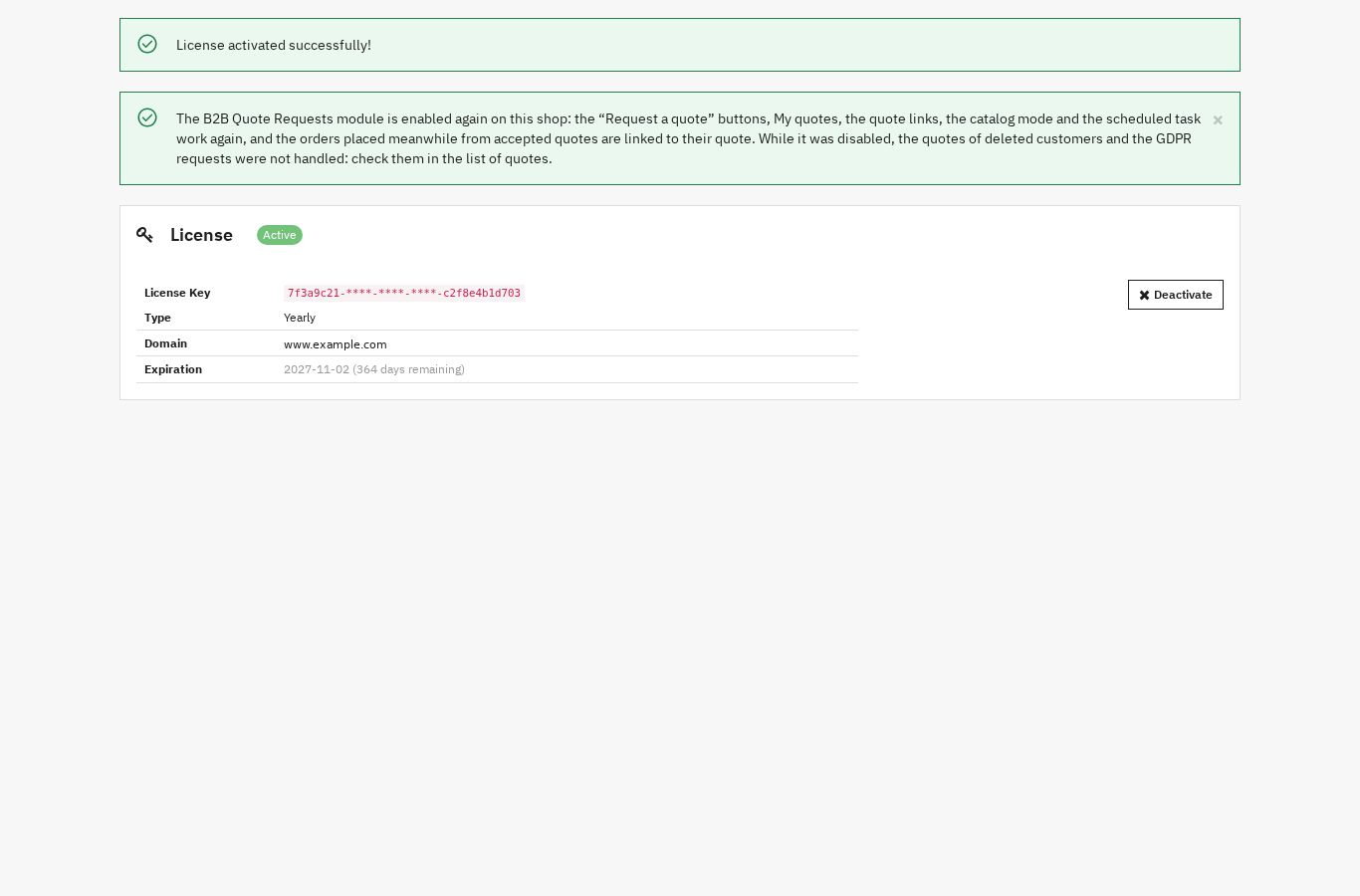
Negotiated prices already in your customers' carts remain valid. The configuration page explains what is stopped and shows the activation form; as soon as the license is valid, the module resumes and orders placed in the meantime from accepted quotes are linked to their quote. The Module Manager refuses to enable the module without a valid license and sends you to that page.
A passed end date is checked again with the license server before concluding, so a renewed subscription is not cut. A transient answer — error, rate limit, clock skew or unreachable server — does not expire a valid license: seven days of tolerance are counted from the first failure. A real revocation, suspension or expiry always applies.
What are the module's limits?
It handles the request, the proposal and the acceptance, but not the shipping price, payment terms or a multi-level approval chain.
- Free shipping only. A proposal can grant free shipping, applied by a native cart rule. The module does not set a shipping amount: other orders follow the shop's carriers and rates, and the proposal message can state the agreed delivery conditions.
- Shop payment. Payment terms are not part of the module. To invoice on terms with a credit limit and reminders, the B2B Payment Terms module completes the path after acceptance.
- One approval level. A proposal above the set amount must be approved by one of the chosen profiles; there is no multi-level approval chain.
- Optional scheduled task. Without the scheduled task, no reminder or alert is sent; expiry is checked when a quote is opened or accepted.
- Prices tied to the cart. A later order starts again at catalogue prices, even from the order history.
- VAT and displayed prices. To adapt tax-inclusive prices to the visitor's country in the European Union, the EU VAT OSS module takes over the display; quote totals follow the shop's tax rules.
Frequently asked questions
Do customers need an account to request a quote?
How do you hide prices from some customers?
Does the module produce a PDF and accept attachments?
Does an accepted quote become an order?
Can you offer payment terms with this module?
How do you enable quote requests in PrestaShop?
Products in this article

B2B Quote Requests: negotiate prices and turn them into orders
A “Request a quote” button on the product page and on the cart, with or without a customer account A negotiated...

B2B Net Terms: credit limits, receivables & payment reminders
Payment terms per customer, per group or by default: due on receipt, net 15/30/45/60/90, end of month Credit...

EU OSS VAT – GeoIP VAT-Included Prices (MaxMind)
Simplify European VAT: prices automatically adapt to the visitor’s country (GeoIP or manual selection). Configure...
Read also
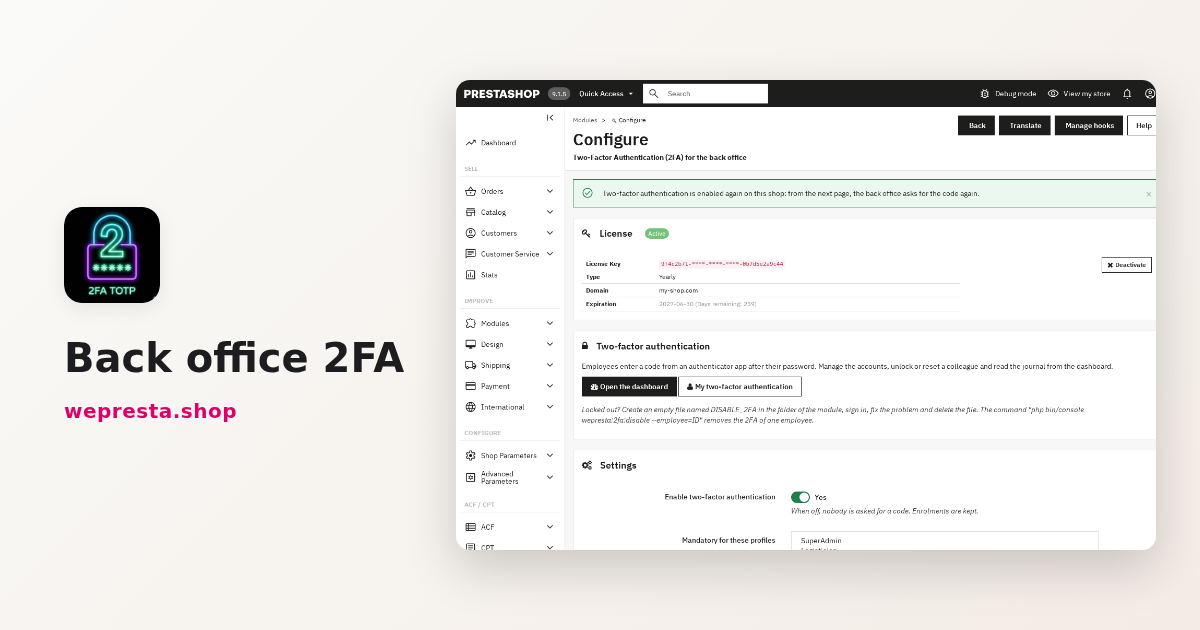
PrestaShop back-office 2FA: how to secure admin sign-in
A merchant guide to PrestaShop back-office 2FA: TOTP setup, mandatory profiles, trusted devices, lost-phone recovery and what a licence change does.
Structured data on PrestaShop: how to add product JSON-LD
A guide to publishing accurate JSON-LD structured data on PrestaShop: which types to enable, how variants are described, how to check the output and what the license…
B2B payment terms in PrestaShop: net 30, credit limits, reminders
How to apply payment terms per customer, check exposure before each order, record payments on native invoices and remind customers of overdue invoices in PrestaShop.