Passwordless login for PrestaShop: email code, link or Google
A forgotten password interrupts an order. Magic Login replaces it with an email code, a one-click link or Google, with per-shop settings and a licence that does not cut the shop off.
A customer who has forgotten a password leaves the checkout, asks for a reset email, waits, and sometimes never comes back. Magic Login replaces that form with a passwordless login page: the customer enters an email address, receives a 6-digit code or a link, and returns to the cart. This guide covers who the module fits, how to set it up in the back office and what it does not do.
Who needs a passwordless login, and who does not?
A shop where account creation slows checkout benefits from it; a shop with no customer accounts, or one that requires passwords under an internal policy, does not need it.
The module is aimed first at shops whose customers come back. An account there carries orders, addresses, returns and group discounts. It also helps a shop that wants to require an account without adding a long form, because sign-up fits in one field and one code.
It is not useful for a catalogue with no customer accounts, or for a shop whose customers sign in through an imposed corporate service. PrestaShop 1.7.7 and earlier are not supported: the module requires PrestaShop 1.7.8, 8.0+ or 9.0+, and PHP 7.4 or later.
A shop with a one-page checkout can use it too, provided the redirect to Magic Login is switched off when that checkout has its own sign-in step.
How does a customer sign in with an email code?
The customer enters an email address in a single field, presses Continue, receives a 6-digit code and types it; the same email contains a button that signs them in with one click.
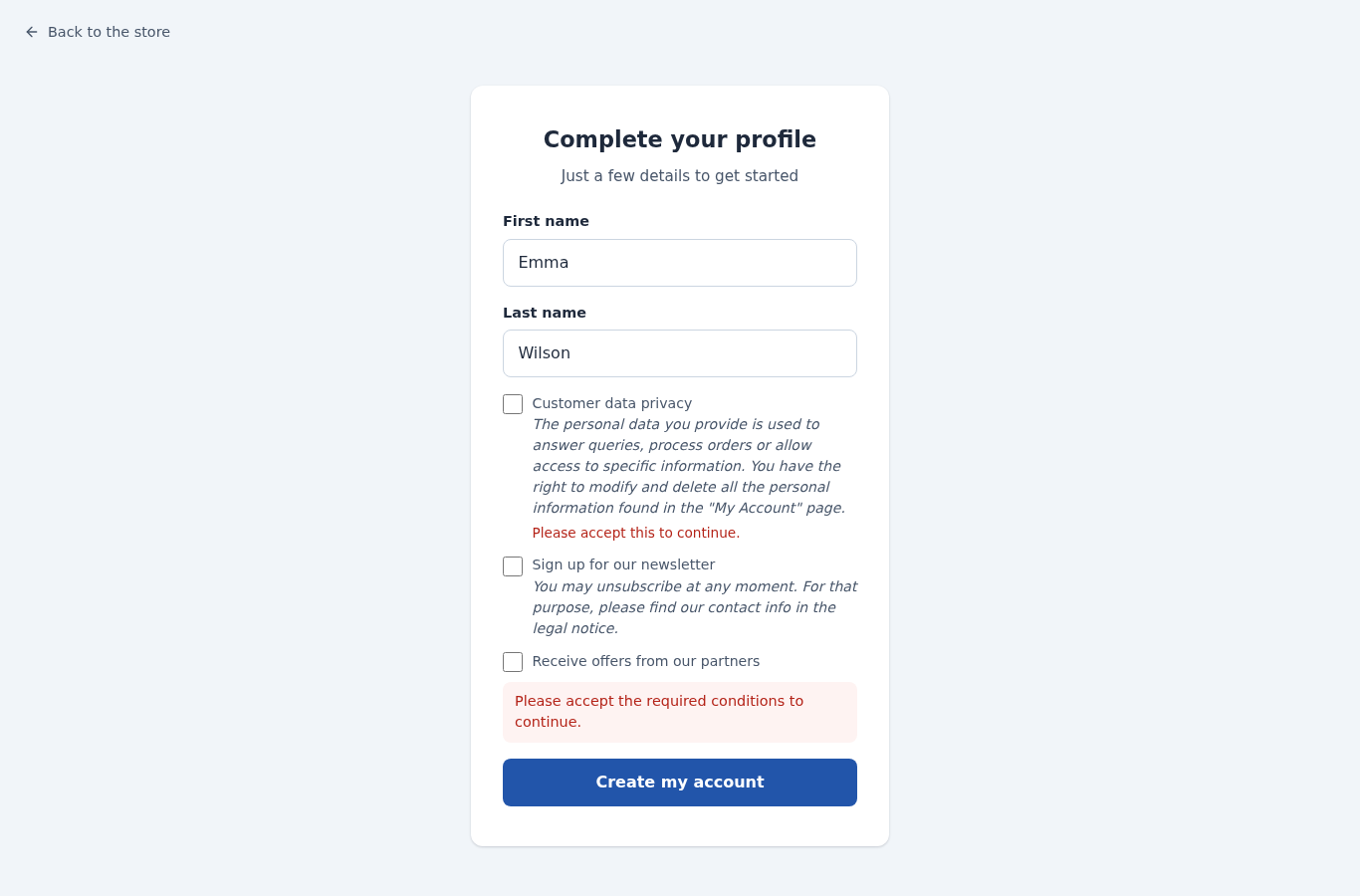
The module recognises a returning customer and a new customer on its own. An existing customer is signed in as soon as the code is confirmed. A new customer enters a first and last name, accepts the shop's consents, then receives the welcome email and gets a real PrestaShop account, with the hooks of your other modules.
The code works once and expires after 10 minutes by default, adjustable from 1 to 60 minutes. Five wrong attempts cancel the code by default, from 1 to 10. A new code cancels the previous one, and a 60-second countdown separates two sends. The email link opens a confirmation page that shows the address partly masked and a Sign in button: email scanners that open links do not consume the link.
Google sign-in is optional. With the Google sign-in switch on and a client ID in the Google tab, the page shows Continue with Google and verifies the token on your server.
How do you enable Magic Login in the back office?
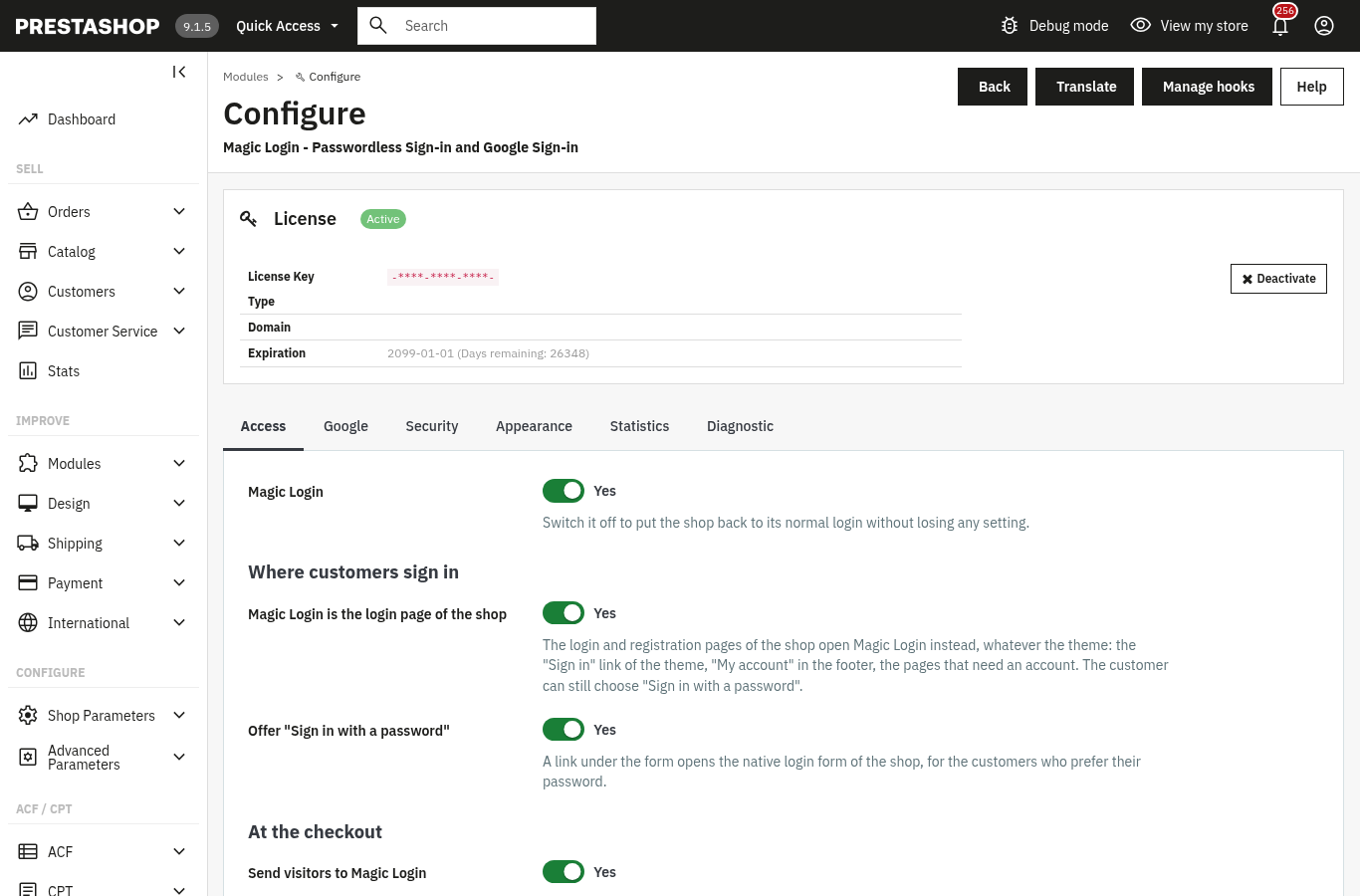
Install the archive from Modules > Module Manager, open Configure, activate the licence, then set the six tabs: Access, Google, Security, Appearance, Statistics and Diagnostic.
The whole setup takes a few steps:
- In Modules > Module Manager, click Upload a module and choose the ZIP archive. When it finishes, click Configure.
- Enter the licence key and secret from your customer account. Without a valid licence, the module stops and the shop keeps its usual sign-in pages.
- In the Access tab, keep the Magic Login switch on Yes, then check that Magic Login is the login page of the shop, Offer “Sign in with a password” and Send visitors to Magic Login are on.
- For Google sign-in, switch on Google sign-in in the Google tab, paste the client ID, then use Check that this server can reach Google.
- Keep the Security tab defaults unless you need otherwise, then choose the accent colour, a title and a subtitle per language in Appearance.
- In Diagnostic, click Send me a test code, open the shop in a private window and create a test account. The Statistics tab then shows sent codes and sign-ins.
The full page and troubleshooting cases are described in the module documentation. The module page summarises the features and compatibility.
How do you require an account without blocking checkout?
Turn on “Disable guest checkout” in the Access tab: the customer creates an account with one field and one code, then returns to the order with the cart.
The module remembers each shop's value before changing it. It gives the value back when you switch the option off, when the module stops (expired or revoked licence, or Disable in the Module Manager) and at uninstall. When the module runs again, the option applies again if you had chosen it.
Take a shop selling cosmetics that wants to follow customers for a loyalty programme. Guest checkout is allowed today, so many customers leave without an account. The merchant turns on Disable guest checkout. A visitor who starts an order lands on Magic Login with the message Sign in to complete your order; they enter an address, confirm the code, give a name and the consents, and the order resumes. The account exists, and so does the history.
If the shop prefers to leave the choice, it keeps guest checkout: the page then shows Order without an account. With a one-page checkout that has its own sign-in step, switch off Send visitors to Magic Login; the shop's sign-in pages still open Magic Login, but the checkout page stays untouched. The Express Checkout module is built for that single-page path.
What happens when the licence expires or the module stops?
The shop gets its usual sign-in pages back, each shop recovers its guest-checkout setting, and your settings and data stay in place.
Version 2.0.1 changes three things about the licence. A renewed subscription is recognised on its own: the module asks the server at most once an hour and when its configuration page is opened. That page then enables the module again in every shop the licence had disabled. Finally, a short licence-server incident — unreachable, an error or a rate limit — no longer suspends a valid licence; the seven-day tolerance starts at the first failure.
If the licence really expires or is revoked, the module stops. The native sign-in and registration pages return, the cart is no longer redirected, and each shop recovers its guest-checkout setting. Customer accounts, settings and the module tables stay in place. After a renewal, open the configuration page: it enables the module again.
Guest checkout is also given back when you click Disable in the Module Manager, and at uninstall. That is the main fix in this version for a shop that had chosen to require an account.
How do you run several shops and languages?
Each shop keeps its own settings: Google client ID, limits, texts, colour and guest-checkout value; the page, the email and the administration exist in five languages.
In multistore, settings are stored per shop. The guest-checkout value follows the same rule since 2.0.1: each shop remembers its own value and gets it back when the option is switched off in that shop, when the module stops and at uninstall. An uninstall from All shops gives every shop its value back.
For languages, write the title and subtitle in each shop language. The page, the email and its subject, the messages and the administration exist in French, English, Spanish, Italian and Polish. A customer sees the page in the shop language.
A merchant running one shop per country can keep guest checkout in Germany and require an account in France without installing two modules. The Social Login module adds its own buttons to the page when you need them.
What Magic Login does not do
The module itself does not handle passkeys, SMS codes or Apple and Facebook sign-in, and it does not replace your privacy policy.
It covers email-code sign-in, the one-click link and Google. Passkeys, Apple, Microsoft, Facebook and other providers come through the buttons of Social Login 2 on the displayWeprestaSocialLogin hook. Google One Tap and SMS or WhatsApp codes are not included. For administrator access, the back-office 2FA module is a separate subject.
Statistics show sent codes, sign-ins by method and new accounts, without email addresses or IP addresses. They do not measure a full funnel and do not prove a conversion gain. The module does not guarantee GDPR compliance: the consents shown are the ones you configure in the shop, and your privacy policy remains your responsibility.
It does not modify PrestaShop tables and does not override any shop class. It does not replace a one-page checkout module either: if your checkout has its own sign-in, switch off Send visitors to Magic Login.
For more detail, the documentation covers each tab, security and troubleshooting; the module page lists the supported versions.
Frequently asked questions
Can customers keep their password as well as the email code?
Can customers order without creating an account?
What happens to guest accounts when guest checkout is disabled?
What happens when the licence expires?
Can each shop have different sign-in settings?
Products in this article

Magic Login - Passwordless Sign-in and Google Sign-in
Sign in or create an account with an e-mail address only: a 6-digit code, a one-click link or Google Replaces...
Express checkout: one-page order
The native PrestaShop checkout has four steps and many clicks. Express Checkout puts the whole order on a single...

Social Login: Facebook, Google, Apple, PayPal, Amazon, X, TikTok, Microsoft — One-click Login
One-click sign-in and registration: Google, Facebook, Apple, Microsoft, PayPal, Amazon, X, TikTok and any OpenID...
Back office 2FA : to secure admin logins
6-digit code from an app (Google Authenticator, Authy, Microsoft Authenticator…) after the password One code per...
Read also
How to stop PrestaShop form spam: CAPTCHA, bots and rate limits
An active CAPTCHA does not stop a bot that posts straight to the controller. Protect each form on the server, set limits and read what gets refused.
How to show the visitor’s VAT-inclusive price in PrestaShop
Set the EU VAT rates, show the price with the VAT of the country detected by GeoIP or picked in the selector, then export sales by rate: the full path in PrestaShop,…
Cookie consent on PrestaShop: block scripts before the choice
A banner that appears blocks nothing. This guide shows how to neutralize third-party scripts before the choice in PrestaShop, log every decision and generate the cookie…