How to stop PrestaShop form spam: CAPTCHA, bots and rate limits
An active CAPTCHA does not stop a bot that posts straight to the controller. Protect each form on the server, set limits and read what gets refused.
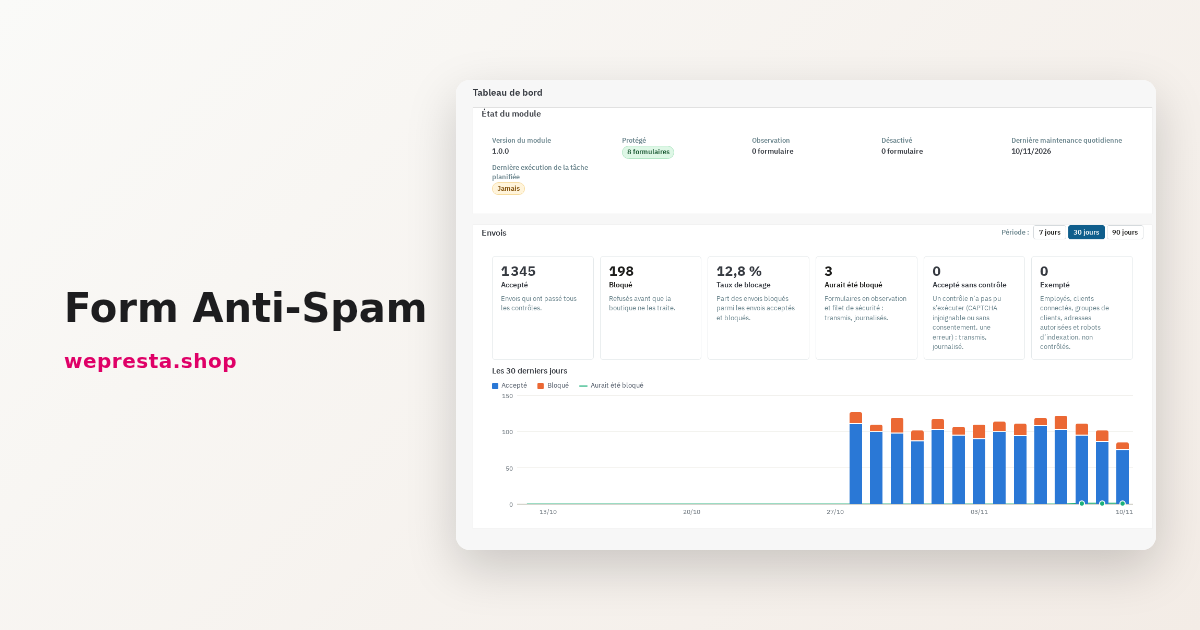
Your contact form receives identical messages every night, in English, with a link. Registrations create accounts at improbable addresses, and the newsletter collects addresses that never asked for anything. A CAPTCHA is active. Most of the time it only protects the display of the form: a bot that sends a POST request straight to the controller never loads it. This guide shows how to move the check back to the server, which forms to protect, how to set the module up without losing customers, and how to read what gets refused.
Why does spam still get through when a CAPTCHA is active?
Because a CAPTCHA protects how the form is displayed, not how it is processed. A bot that knows the controller address sends the expected fields straight to the server, with no browser and no widget.
The contact, registration and newsletter controllers are public and easy to identify. A well-formed POST request is enough: the widget is never loaded, the provider token is never requested, and the message lands in your inbox. That is why stores still receive spam with reCAPTCHA enabled.
Which forms does the module protect?
The module Form Anti-Spam: CAPTCHA and Bot Blocking protects the seven native PrestaShop forms: contact, account creation, sign-in, checkout customer form, forgotten password, newsletter subscription and product reviews.
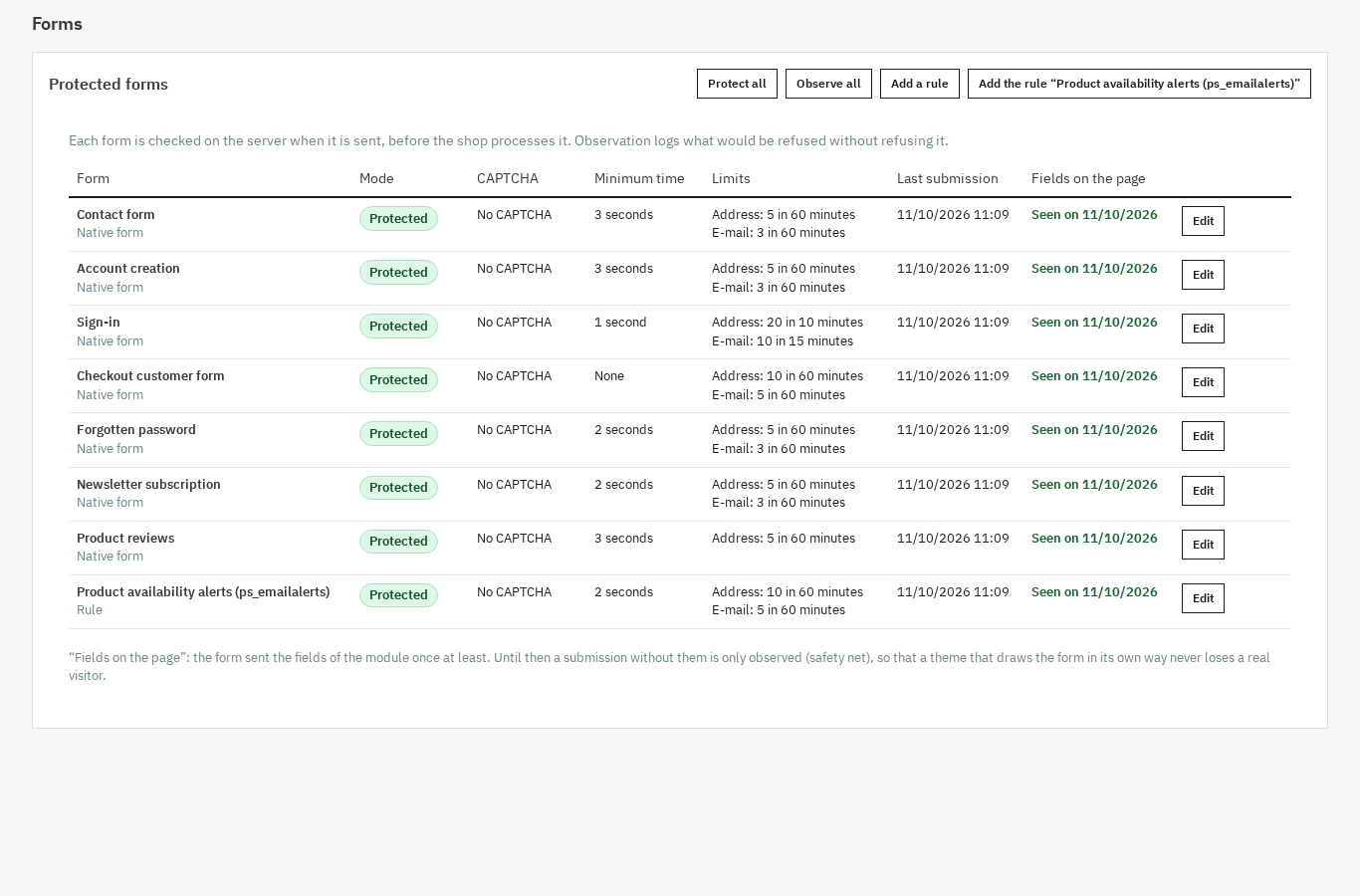
At installation these seven forms switch to Protected mode with no external CAPTCHA. The Forms page lists them with their mode, CAPTCHA, minimum time, limits, last submission and Fields on the page state. Edit opens one form; Protect all and Observe all change the whole list.
For forms of other modules there are two options. A rule targets a controller, with the field that marks the submission and the expected answer format; Add a rule creates it, up to 20 rules per store. A ready-made rule covers Product availability alerts (ps_emailalerts). The documented PHP API lets a module call the checks from its own code.
The order itself is never filtered: not the cart, not the payment, not the confirmation, not the addresses. The identity page and the password reset step are not protected either.
Who the module is for
- A store that receives spam on contact, registration or newsletter despite a CAPTCHA already in place.
- A store that wants to see what is refused, and why, instead of finding the damage in its inbox.
- An agency running several stores that wants protection set per store.
Who it is not for
- A store with no exposed form: there would be nothing to protect.
- A merchant looking for a web application firewall or protection against denial-of-service attacks: that is not this module's role.
- A merchant expecting zero spam: no module can promise that, and a human spammer can fill a form correctly.
How do you install and set up the protection step by step?
Install the module, activate the licence, keep every form in observation first, then switch protection on form by form once you have read the log.
- Check the requirements: PrestaShop 1.7.8, 8.0+ or 9.0+, PHP 7.4 or newer.
- Install the archive from the module manager. The seven native forms are created for each store, the disposable domain list is added and the module tables are created.
- Open Configure and activate your WePresta licence. Until the licence is valid, the module stays disabled and forms are not checked.
- Schedule the daily maintenance task, with the address shown in the configuration or the command line provided. It purges the log, the counters, expired bans and the other data that has expired.
- Open Forms and click Observe all. Every check runs, nothing is refused, and the log records what would have been blocked.
- Let it run for a few days, then open the Blocked-attempt log and the Dashboard: the reasons show whether blocking would hit bots or customers behind a shared address.
- Run Test my protection. The tool reads the form page as a visitor, checks the fields, the token and the script, sends a direct submission without fields to check that it would be refused, and checks the keys of the chosen provider.
- Switch to protection with Protect all, or form by form starting with contact and newsletter, then registration, sign-in and reviews. Leave the checkout customer form on its wide thresholds and with no minimum time.
- Add a CAPTCHA only if a form is still targeted, after entering your keys and checking the Test button. Put partner addresses on the allow list before tightening the limits.
The module writes no theme file: Classic and Hummingbird work as they are. Employee rights are split between view, manage and data. The documentation details every setting, including what happens when a provider cannot be reached.
How do you read the log and act on a refusal?
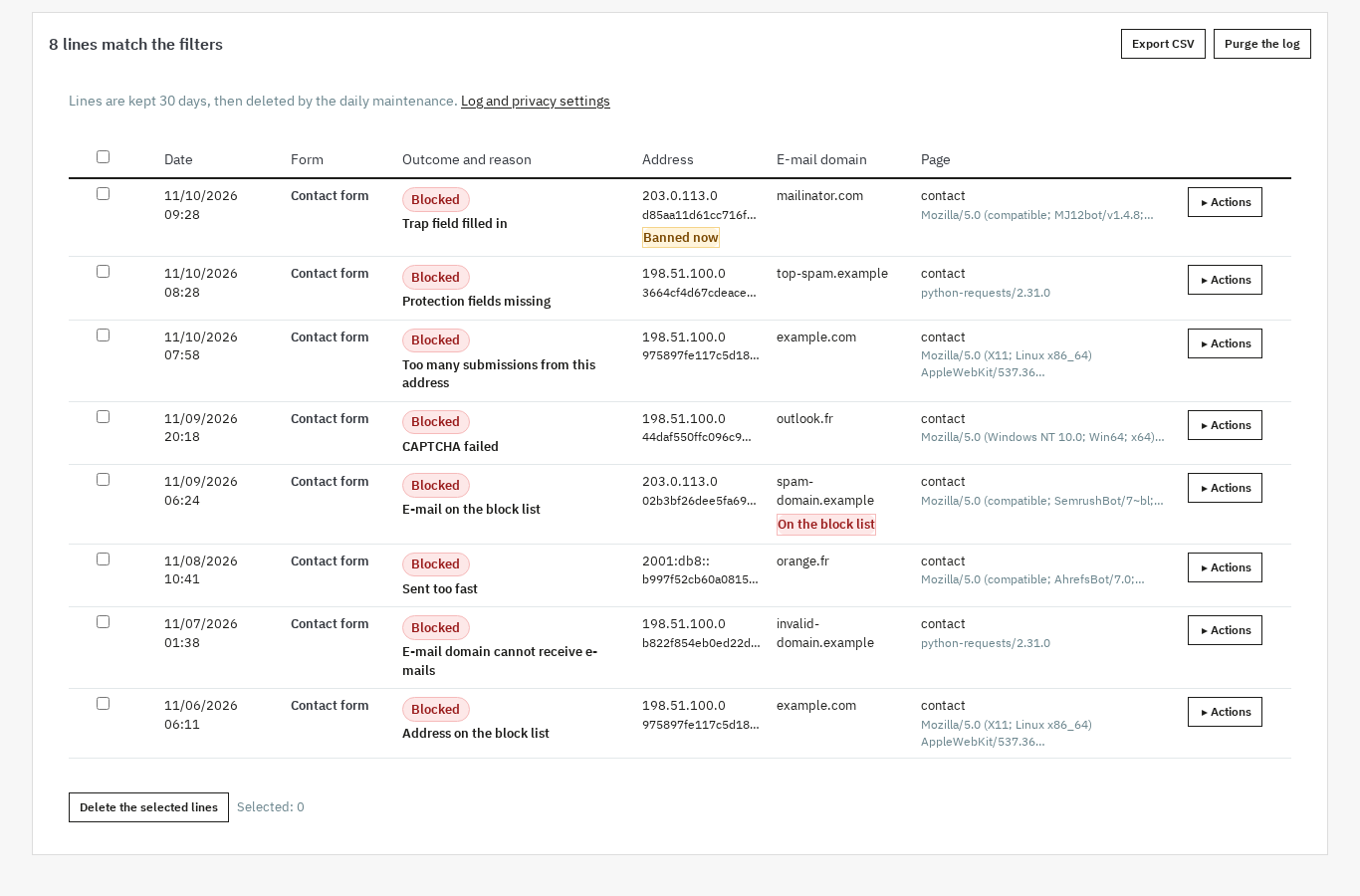
For each attempt the log gives the form, the result, the reason, the date, the masked address and the e-mail domain, with immediate actions on the row.
The reasons are explicit: Trap field filled in, Sent too fast, Protection fields missing, Too many submissions from this address, CAPTCHA failed, Address on the block list, E-mail on the block list, E-mail domain cannot receive e-mails. Each row can block the address or its range, allow the address, block the e-mail domain or lift a ban. You can export the filtered log to CSV and purge it.
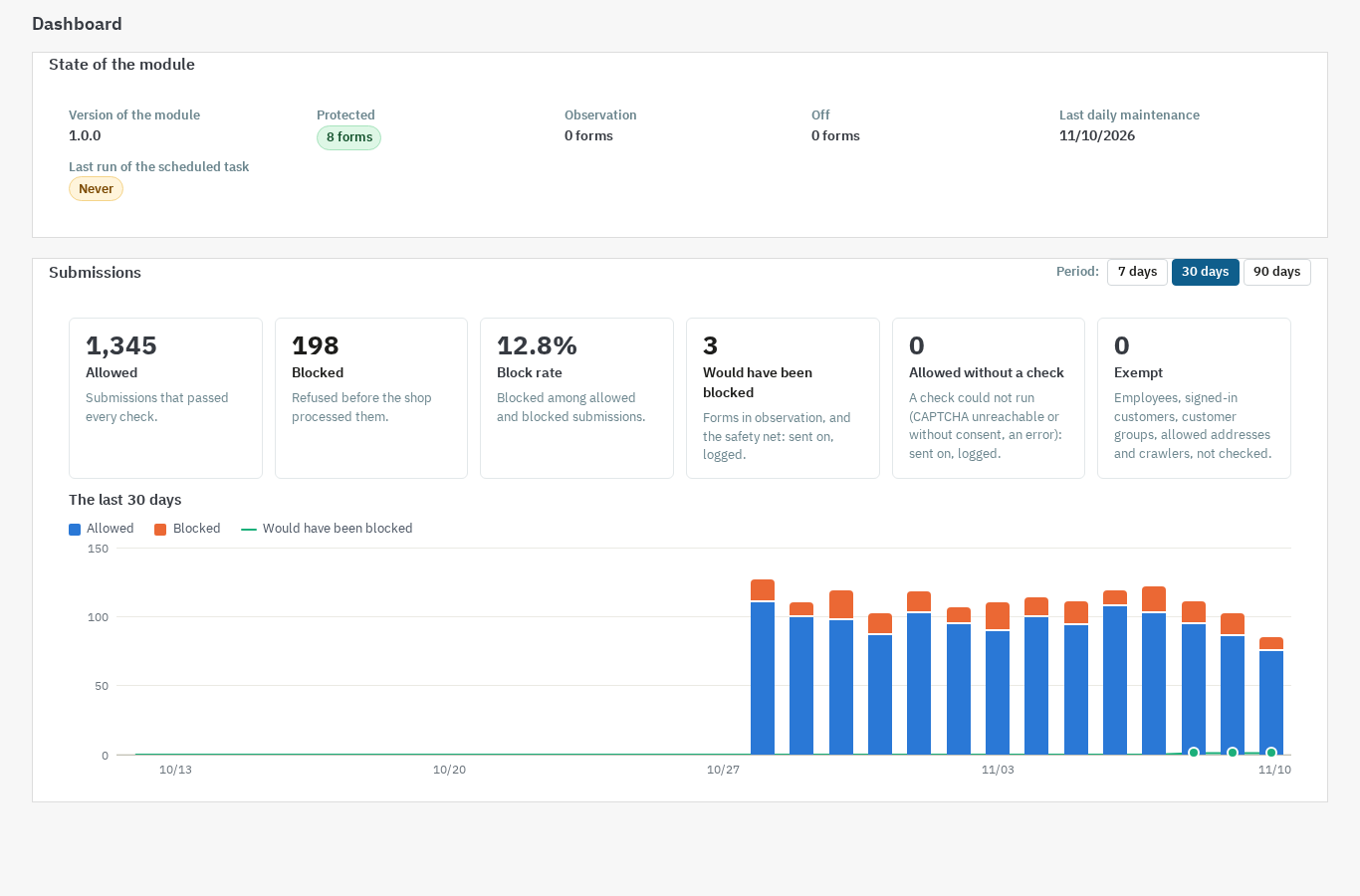
The Dashboard gives the overview: Allowed, Blocked, Block rate, Would have been blocked, Allowed without a check and Exempt, with a 30-day chart and the detail per form and per reason. A spike on one form stands out at once.
Retention is 30 days by default, set in Log and privacy. The address is masked and a hashed fingerprint drives the lists and the limits; only the e-mail domain is kept.
A concrete case: a contact form flooded at night
The contact form receives a dozen identical messages every night. The log shows Trap field filled in on the same address range. You block the range in one click from the row, then check the next day that your customers' submissions still go through. If a legitimate message is caught, the allow list restores it without turning the protection off.
Should you add an external CAPTCHA, and which one?
Not by default: the server-side checks need no key and no third-party account, and an external CAPTCHA is added only to a form that is still targeted.
When you want one, the choice is made form by form: Google reCAPTCHA v2 as a checkbox or invisible, reCAPTCHA v3 with a score threshold, Cloudflare Turnstile, hCaptcha in normal, compact or invisible size, or Friendly Captcha. You enter your own keys in Configure; the module never prints them back, and the Test button checks that they are accepted and that the domain is allowed.
By default the provider script is loaded only on pages that contain a form protected by that provider, at the first interaction with the form. A page without a form loads nothing. If the provider cannot be reached, you choose whether the submission goes through, logged as not checked, or is refused.
Consent is part of it too: the script can wait for the visitor's agreement, with the Cookies GDPR module or another consent tool. Without consent, the form stays protected by the native checks, or shows a message if you chose to ask for agreement.
An external CAPTCHA has its own terms and privacy policy. It is up to you to mention it in your policy and to choose the right consent; the module does not certify your GDPR compliance.
What does the module do, and what are its limits?
The module reduces automated submissions and documents every refusal, but it does not promise zero spam and does not replace a firewall or legal advice.
- No promised result. A human spammer can fill a form correctly. The module makes automated submissions costly and visible; it does not remove all of them.
- The order stays outside the filter. The cart, payment, confirmation and addresses are not checked. The checkout customer form keeps wide thresholds.
- Visitors share addresses. A limit that is too strict can hinder a company or a mobile carrier. Observation mode and the allow list let you check before tightening.
- No GDPR certification. The module helps limit the data collected and provides export and erasure hooks, but it replaces neither your privacy policy nor legal advice.
- A valid licence. Without a valid licence the module disables itself: forms are no longer checked, no CAPTCHA is shown and nothing is logged. Settings, lists and log are kept.
- Network calls. CAPTCHA verification, the MX check and the crawler check use outgoing calls; when a CAPTCHA provider cannot be reached, the behaviour you chose applies, and a failed DNS lookup never refuses a submission.
On a multistore shop, settings, forms, log and statistics stay per store, and list entries can be shared. If your contact form comes from another module, the dynamic contact form page shows a common case; for the shop's general security, a security audit complements form protection.
Frequently asked questions
Why does my CAPTCHA not block direct submissions?
Is a honeypot field enough to protect a form?
Can I block an IP address or an e-mail domain?
Do I have to modify the theme to add the protection?
Is an external CAPTCHA GDPR compliant?
Products in this article

Form Anti-Spam: CAPTCHA and Bot Blocking
Server-side protection at submission: signed token, trap field, minimum fill time and duplicates refused before...
GDPR Cookie Banner: real blocking, consent proof and cookie policy
Really blocks third-party scripts, iframes and pixels before consent, then loads them by accepted category...

Dynamic contact form by subject
One contact form per subject, with conditional fields that appear according to the answers Advanced validation,...

Security Audit Pro – Protect Your Store Against AI-Powered Attacks
Security Audit Pro helps merchants and agencies review store security across eight categories. Run a resumable...
Read also
How to show the visitor’s VAT-inclusive price in PrestaShop
Set the EU VAT rates, show the price with the VAT of the country detected by GeoIP or picked in the selector, then export sales by rate: the full path in PrestaShop,…
Cookie consent on PrestaShop: block scripts before the choice
A banner that appears blocks nothing. This guide shows how to neutralize third-party scripts before the choice in PrestaShop, log every decision and generate the cookie…
How to send a PrestaShop newsletter and track the sales it brings
The module keeps subscribers, consent records, segments and statistics inside PrestaShop, sends through the back-office queue and links orders back to the emails sent.