SumUp on PrestaShop: setup, card payments and refunds
How to connect your PrestaShop shop to your SumUp account, choose between the form and the SumUp page, avoid orders left pending and refund from the order page.
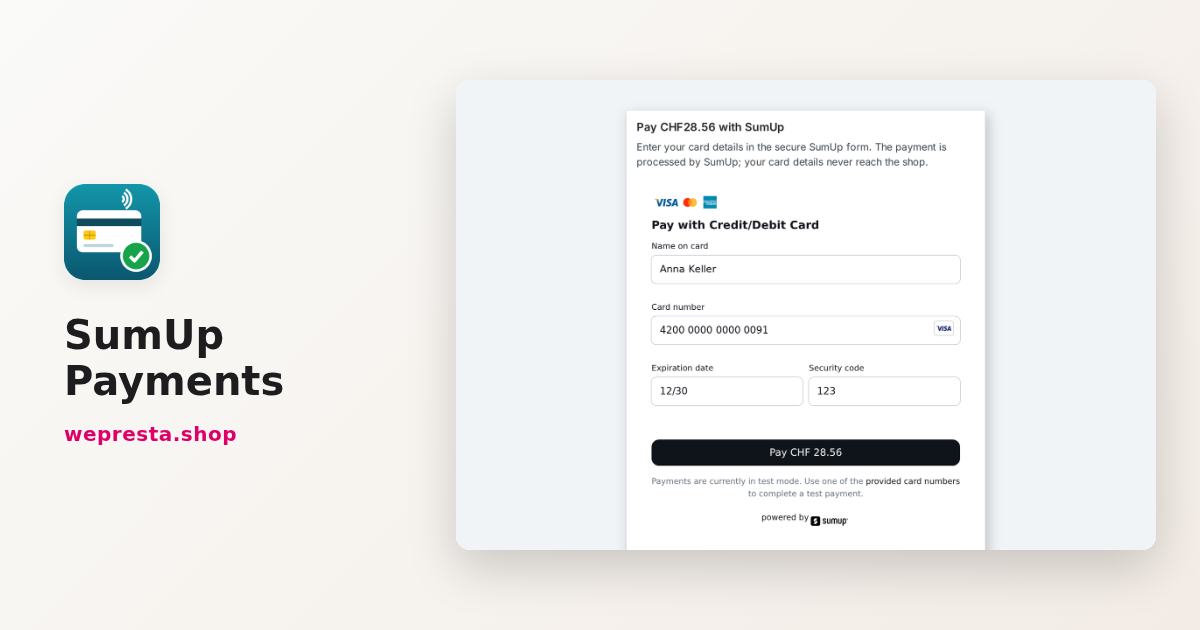
You already take payments with a SumUp card reader in your shop or at markets, and your customers ask to order online. The simplest is that these payments land in the same SumUp account, with the same statement. The SumUp Payments module adds SumUp to the PrestaShop checkout and creates the order once SumUp confirms the payment.
This guide answers the questions of merchants who connect SumUp to an online shop. What must be prepared at SumUp, which payment mode to choose, how to avoid an order left pending after the customer paid, and how to refund?
Can you take SumUp payments on a PrestaShop shop?
Yes. A module connects the shop to your SumUp account with an API key, and SumUp Payments works from PrestaShop 1.7.8 to 9.
The question often comes up on forums, especially since PrestaShop 8, because not every integration follows the new versions. The module uses the SumUp API directly, without a library that would require a recent PHP: it needs PHP 7.4 or later with cURL, and it works with the Classic and Hummingbird themes.
The customer chooses “Pay by card with SumUp” at the payment step. The money lands in your SumUp account, like your in-store takings. The module adds no commission: only the fees of your SumUp contract apply.
Who is this module for, and who is it not for?
It is made for merchants who already have a SumUp account, or want to open one, and sell by card online.
That includes shops that also have a point of sale, craftspeople, producers, small brands and Swiss shops taking payments in Swiss francs. With multistore, each shop can use its own SumUp account.
It is not made for selling subscriptions, recurring payments or instalments. It does not replace your accounting tool either: a SumUp refund does not create a credit slip in PrestaShop, you create it from the order if your accounting needs it.
What must be prepared at SumUp before installing the module?
You need a verified SumUp account, enabled for online payments, and a secret API key created in your dashboard.
A merchant asked on a forum what to do about the “Failed to get Checkout ID” error at checkout. SumUp’s answer was simple: online payments must first be enabled on the account. It is the most frequent reason why a payment does not start.
The key is created on me.sumup.com, in the settings of the profile, For Developers section, then Toolkit and API Keys. The merchant code is shown in your profile. If SumUp ever refuses to create a payment, the configuration page of the module shows it with the date and tells you what to check.
Form on the shop or SumUp page: which one to choose?
The form keeps the customer on your shop; the SumUp page sends them to SumUp and then brings them back to your shop.
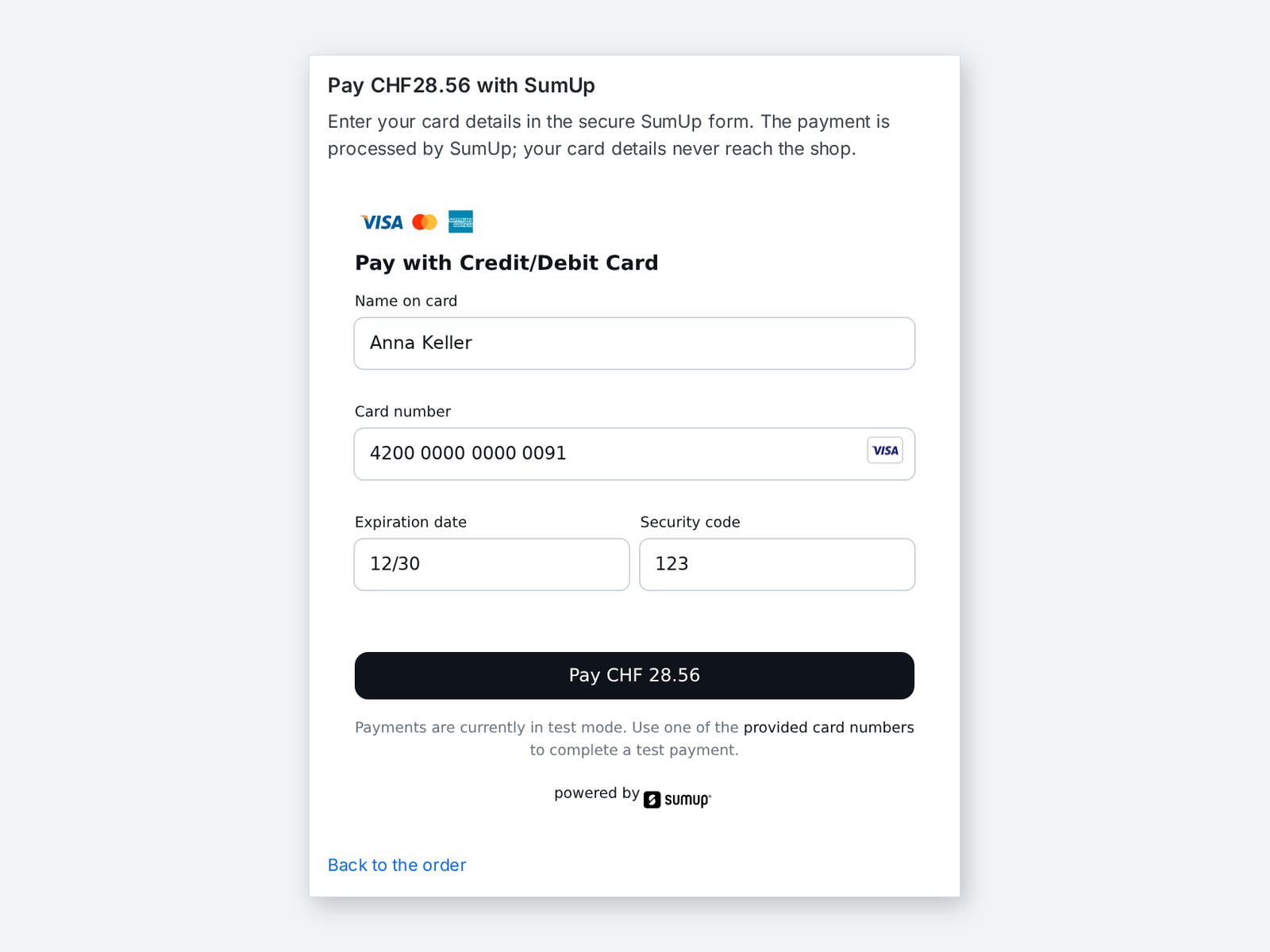
With the form, the customer sees the amount and enters the card in the secure SumUp form, in their language. Card numbers never go through your shop. Google Pay can be added when you enter your Google Pay merchant ID.
With the SumUp page, the customer pays by card or Google Pay on the page hosted by SumUp. After the payment, SumUp shows its confirmation with a button back to your shop. This mode suits a theme or a security policy that blocks external scripts, which sometimes explains a card form that does not show. You switch modes in one click in the settings.
How to avoid an order left pending after the customer paid?
The module creates the order as soon as SumUp confirms the payment, whether the information comes from the customer coming back or from SumUp’s notification.
Several merchants describe the same problem with other integrations on forums: the money is charged, but the order stays pending payment. The module handles this case in three ways.
- Every return is checked with the SumUp API: paid status, successful transaction, exact amount and currency, merchant account and order reference.
- If the customer closes the browser after paying, SumUp’s notification creates the order, and a lock prevents any duplicate order.
- If a notification cannot reach the shop, the “Check the waiting payments at SumUp” button reads the waiting payments again.
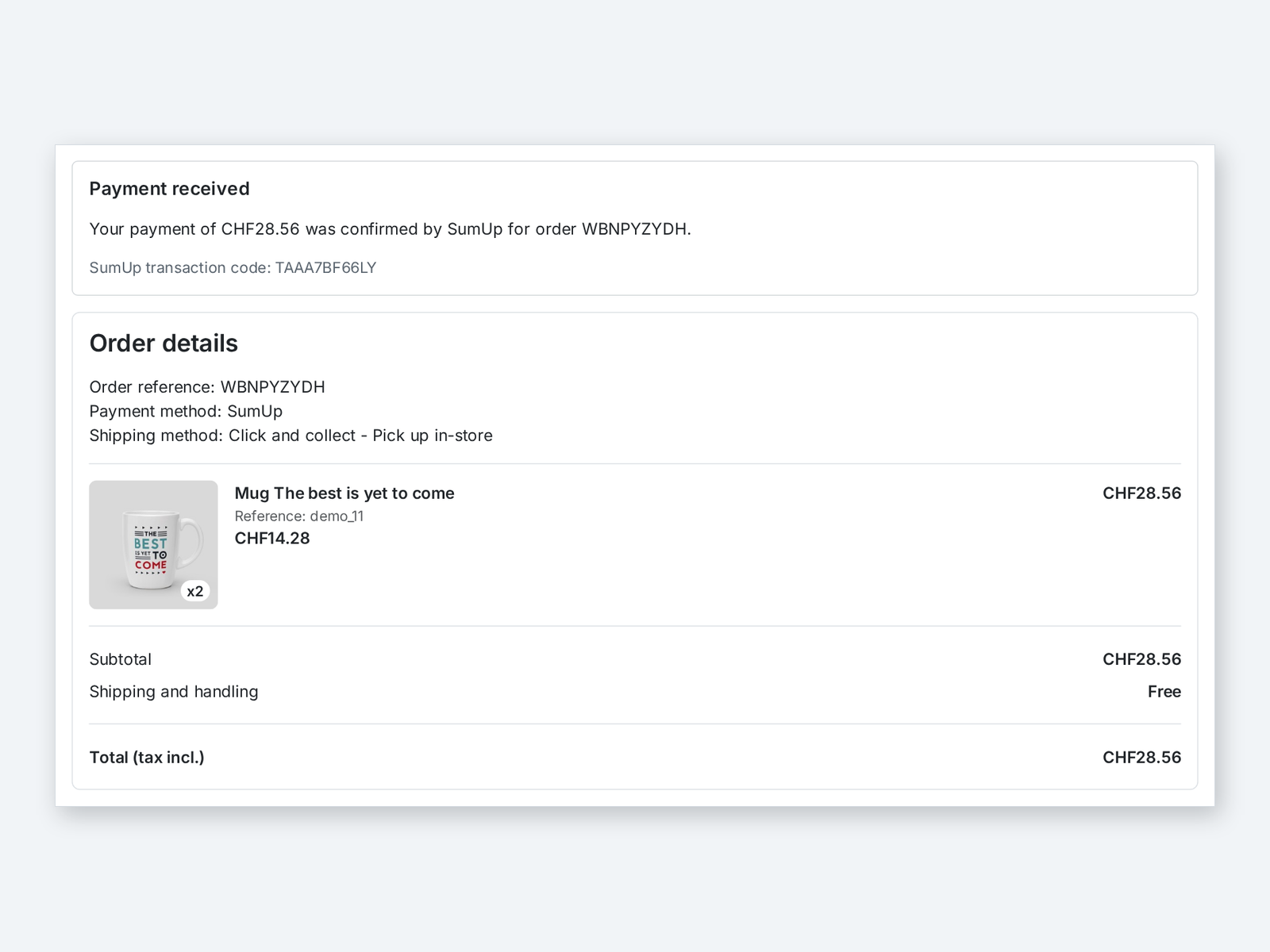
The SumUp transaction code is saved on the order payment. If the amount paid does not match the cart, no order is created: the customer is asked to contact you and the journal of the module explains why.
How to refund a customer who paid with SumUp?
You refund from the order page, in full or in part, without opening the SumUp dashboard.
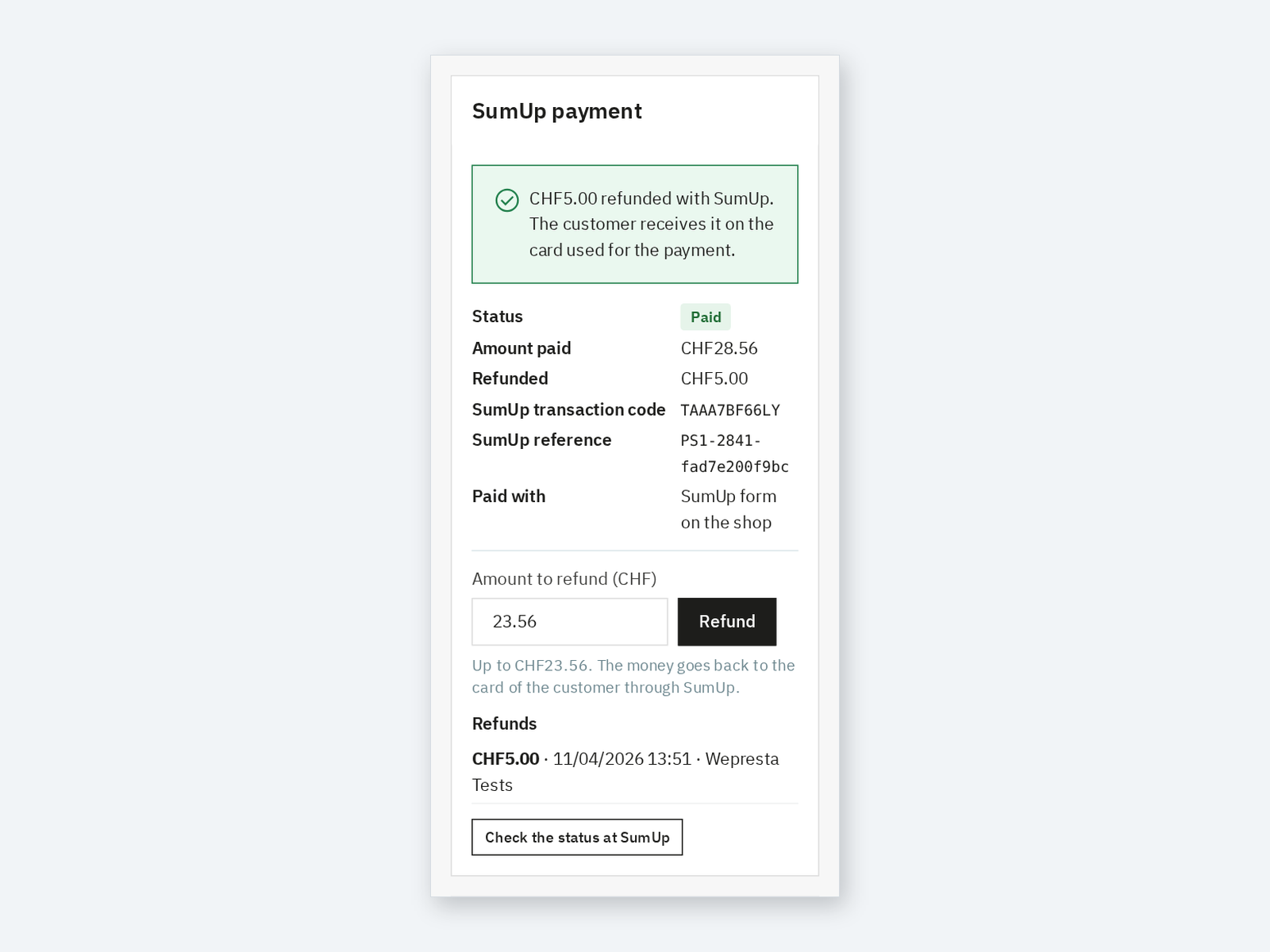
The SumUp payment block shows the status, the amount paid, what was already refunded and the transaction code. You enter the amount to refund and the module sends it to SumUp. The customer is refunded on the card used. An amount above what is left is refused.
After a full refund, the order moves to the Refunded status. The “Check the status at SumUp” button also shows what SumUp refunded, including a refund made from the SumUp dashboard.
Step-by-step setup
The setup takes a few minutes once the API key is created at SumUp.
- Install the module from the Module Manager and activate your license.
- Paste the secret key and the merchant code, then click “Save and check the connection”: the name of your SumUp account and its currency appear.
- Choose the form on the shop or the SumUp page.
- In Payment, then Preferences, tick for SumUp the currency of your account, for example the Swiss franc for a Swiss account.
- Place a test order with a SumUp sandbox account: it appears in the SumUp payments page and in your orders.
The module gives SumUp the notification address with every payment: there is nothing to set up at SumUp for notifications.
What the module does not do
It takes and refunds card payments with SumUp, and nothing beyond that.
SumUp is offered for carts in the currency of your SumUp account. The module handles no subscriptions or instalments, and it does not replace your accounting. Without a valid license, it disables itself: SumUp is no longer offered at checkout, but your settings, the payment history and the money already in your SumUp account are kept.
The full documentation details every setting. To go further with the checkout, also look at the one-page checkout, or deposit payments with Stripe if you sell large orders.
Frequently asked questions
Does SumUp work with PrestaShop 8 and 9?
Why does an order stay pending when SumUp took the payment?
What does the Failed to get Checkout ID error mean?
The card form does not show: what can I do?
How do I refund a SumUp payment?
Products in this article
SumUp Payments: card payments on your shop or on the SumUp page
Card payments paid into your own SumUp account, with no added commission SumUp form on your shop or SumUp...
Express checkout: one-page order
The native PrestaShop checkout has four steps and many clicks. Express Checkout puts the whole order on a single...

Stripe deposits & partial payments
Deposits and partial payments via Stripe, or payment in instalments without fees Automatic balance recovery on...

B2B Net Terms: credit limits, receivables & payment reminders
Payment terms per customer, per group or by default: due on receipt, net 15/30/45/60/90, end of month Credit...
Read also
How to show conditional messages on PrestaShop product pages
One rule shows the right message, badge or button on the pages it targets, then removes it when the condition changes. Setup steps, a concrete case and limits.
Green claims on PrestaShop: find them and document them
Since 27 September 2026, the EmpCo directive frames environmental claims. Here is how to audit a PrestaShop catalogue, decide on each finding and keep the evidence.
PrestaShop contact form: route every request by subject
One PrestaShop contact form per subject: conditional fields, routing to the right team, protected attachments, spam limits, GDPR consent and what version 2.0.1 changes…