How to show conditional messages on PrestaShop product pages
One rule shows the right message, badge or button on the pages it targets, then removes it when the condition changes. Setup steps, a concrete case and limits.
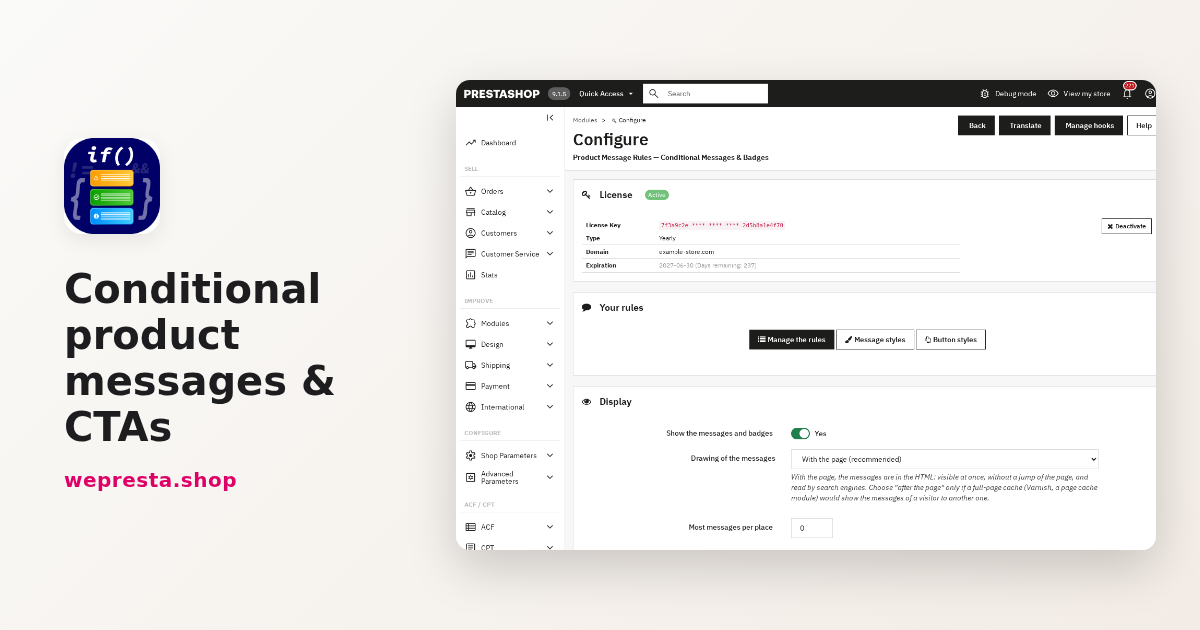
A product page rarely says what matters when the customer reads it: that three items are left, that the sale ends on Sunday, that the parcel ships today if the order arrives before the cut-off time, or that the item is on pre-order. Rewriting every description by hand each time stock or price changes takes time and ends up stating things that are no longer true. The Conditional product messages & CTAs module applies a rule written once to every page it targets, then removes the message when the condition no longer holds.
How do I show a low stock warning without editing every product?
Create one rule with the conditions "Stock of the combination is at most 5" and "is greater than 0": the message appears on every matching product page, with no change to the descriptions.
The rule is written once and covers the whole catalogue, a category with its sub-categories, or a selection of products, with exclusions. The stock read is the one of the combination the customer picked: a size that is sold out and another one in stock do not show the same message at the same moment.
The text accepts variables: {stock} inserts the real quantity, and {stock|item|items} picks the right form for the number. The Badge on the product lists setting adds a short text on the product image, in categories, search and on the home page, with the colours of the rule's style.
Can a message change with the price, the discount or the customer's country?
Yes: a rule combines product and visitor conditions in groups, where every condition of a group must be true and one true group is enough to show the message.
On the product side, conditions cover the stock of the combination, the price excluding or including tax against a threshold, the discount percentage, weight, new products, pre-orders, out-of-stock but orderable items, brand, supplier, a feature or a combination attribute.
On the visitor side, they cover the customer group, logged-in status, country, zone, currency, language and mobile device. A shipping condition can be added: "Before the shipping cut-off time".
Two common groups: a price above a threshold and the country Switzerland, or a professional customer group and a minimum price. The module links groups with OR and shows the message as soon as one group passes. A price rule stays silent when the price is hidden, for instance in catalogue mode or for a group without prices.
How do I add a call-to-action button to a product message?
The Button step adds a button to the message: you choose its text, destination, position and style, without code.
The button opens a page of the shop, a category or a product; its address is built in every language. You can also give a different link per language, open it in a new tab, and place the button on the right, on the left, under the message or inside its box. Dangerous links are refused.
A concrete case: a collection on pre-order. The "Pre-order" rule uses the future availability condition and the start and end dates of the campaign. The message says "Pre-order: shipping from {available_date}" and the button leads to the page that explains the delivery schedule. On the end date the rule becomes Ended and the message disappears.
Button styles are managed like message styles, with a preview. For an urgency campaign outside the product page, the Creative Pop-up module can take over on the rest of the site.
How do I set up a conditional product message, step by step?
Click "Start from a ready-made rule", choose "Low stock", then check the conditions and dates across the five steps before saving.
- Upload the module archive from Modules > Module Manager, then open Configure and activate the license.
- In the Modules menu, open the Product Message Rules page (under WePresta on PrestaShop 9), then Manage the rules.
- Click Start from a ready-made rule and choose Low stock, or Add a rule to begin with an empty page.
- Message step: enter the Name of the rule, write the text in each language, choose the Style, the Place on the product page and the Badge on the product lists.
- Button step: add a button or leave No button.
- Conditions step: click Add a condition, then Add a group (OR) if several cases should show the message.
- Products and dates step: choose All products, categories or specific products, then the start and end dates.
- Check step: read the Summary, click Test on a product and check each combination, each condition and the message preview. Switch on Active, then Save.
Three settings decide how the message is rendered. Show the messages and badges switches the whole display off without touching the rules. The Drawing of the messages setting offers With the page (recommended) or After the page (for a full-page cache); the second mode loads messages after the page, which keeps per-customer rules correct behind a cache. Most messages per place limits the number of messages at the same place on a product page. If your shop serves cached pages, Cache Pro handles the cache: keep the After the page mode.
When does the module help optimize a product page?
It helps a shop that repeats the same information across dozens of product pages, without replacing either a promotion engine or the writing of the page itself.
It helps when the catalogue moves: tight stock, pre-orders, seasonal discounts, pallet delivery, professional customer groups, messages by country. It helps less in a shop with a few stable references, where editing two descriptions is simpler than writing a rule.
What it does not do:
- It does not write into the product description; the message stays a separate block, shown where you chose.
- It does not check that your texts are true. A displayed urgency must match the real stock or date; that remains the merchant's responsibility.
- The places In the purchase area and In the reassurance block need a theme or a module that renders those areas.
- The message follows the combination reliably in the place Under the "Add to cart" button; the other places depend on the theme.
- A message with {countdown} or {ship_date} does not appear while the Shipping calendar is empty.
- It does not create the content of the page the button leads to: for a regulatory mention, have the wording checked.
On a standard theme the place Under the "Add to cart" button works without changes. For another place the theme does not render, choose In my theme (shortcode) and put the given line in the product page template, or In a hook of my theme with the hook name.
The module is tested on PrestaShop 1.7.8, 8.0+ and 9.0+; older versions are not supported.
What happens when the license is no longer valid?
Since version 2.0.1 the module disables itself: no message, button or badge is shown and its back-office pages redirect to the Configure page, but your rules, styles and settings stay stored.
The Configure page remains reachable: it shows the license status and the activation form. Enter the License Key and License Secret there, then activate or renew the license: the module is enabled again as soon as it is valid, with the existing rules. The page also shows the Type, Domain, Expiration and days remaining.
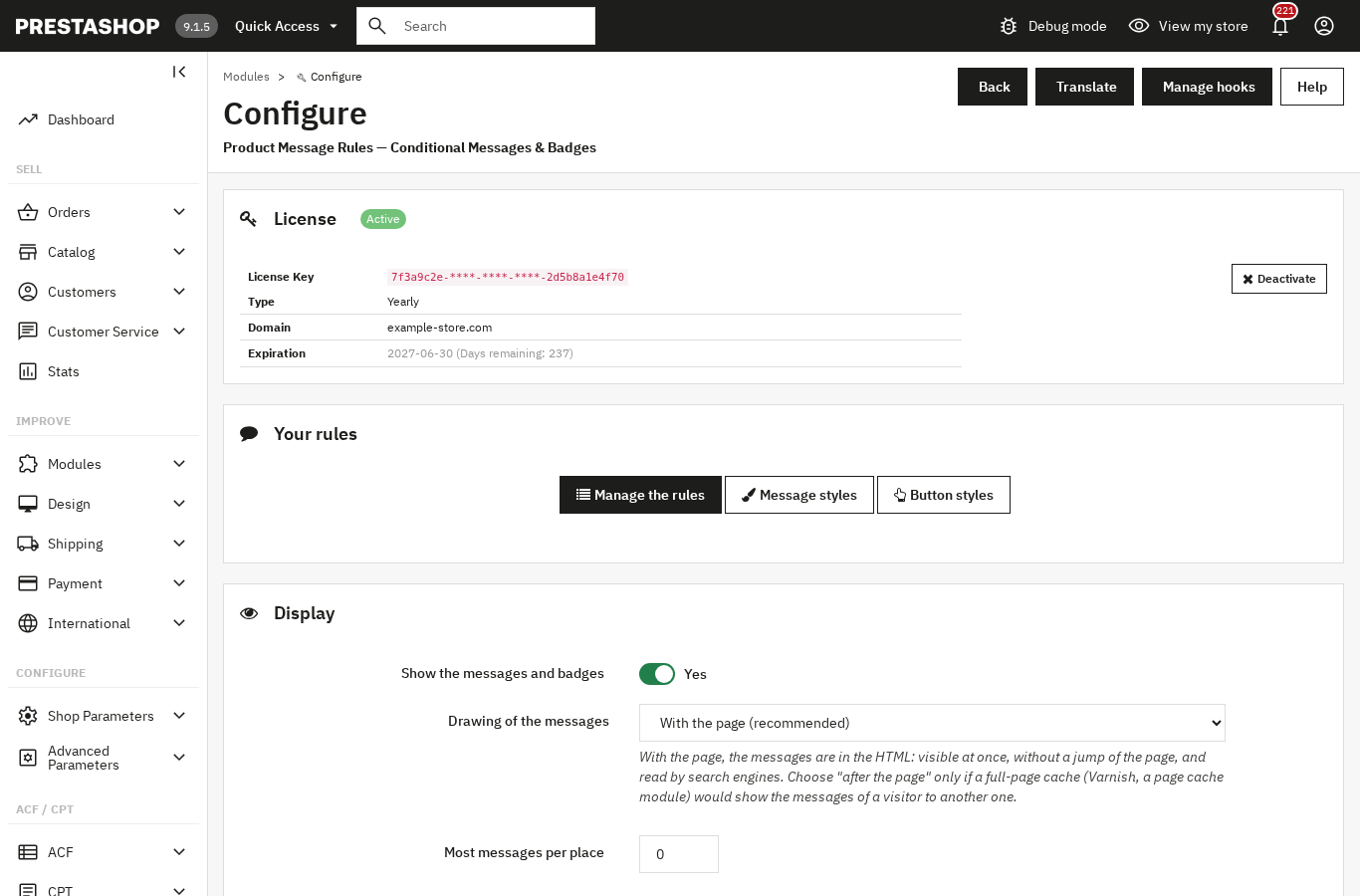
A paid license is not cut at its end date without a check. It stays valid for the seven days after the stored end date, with no call to the server. After that, the module asks the license server at most once an hour while the license is valid; on the Configure page, the check runs every five minutes while it is not valid. An internal error, a rate limit, a clock skew or an unreachable server is never treated as an expiry: the module allows seven days of tolerance counted from the first failure.
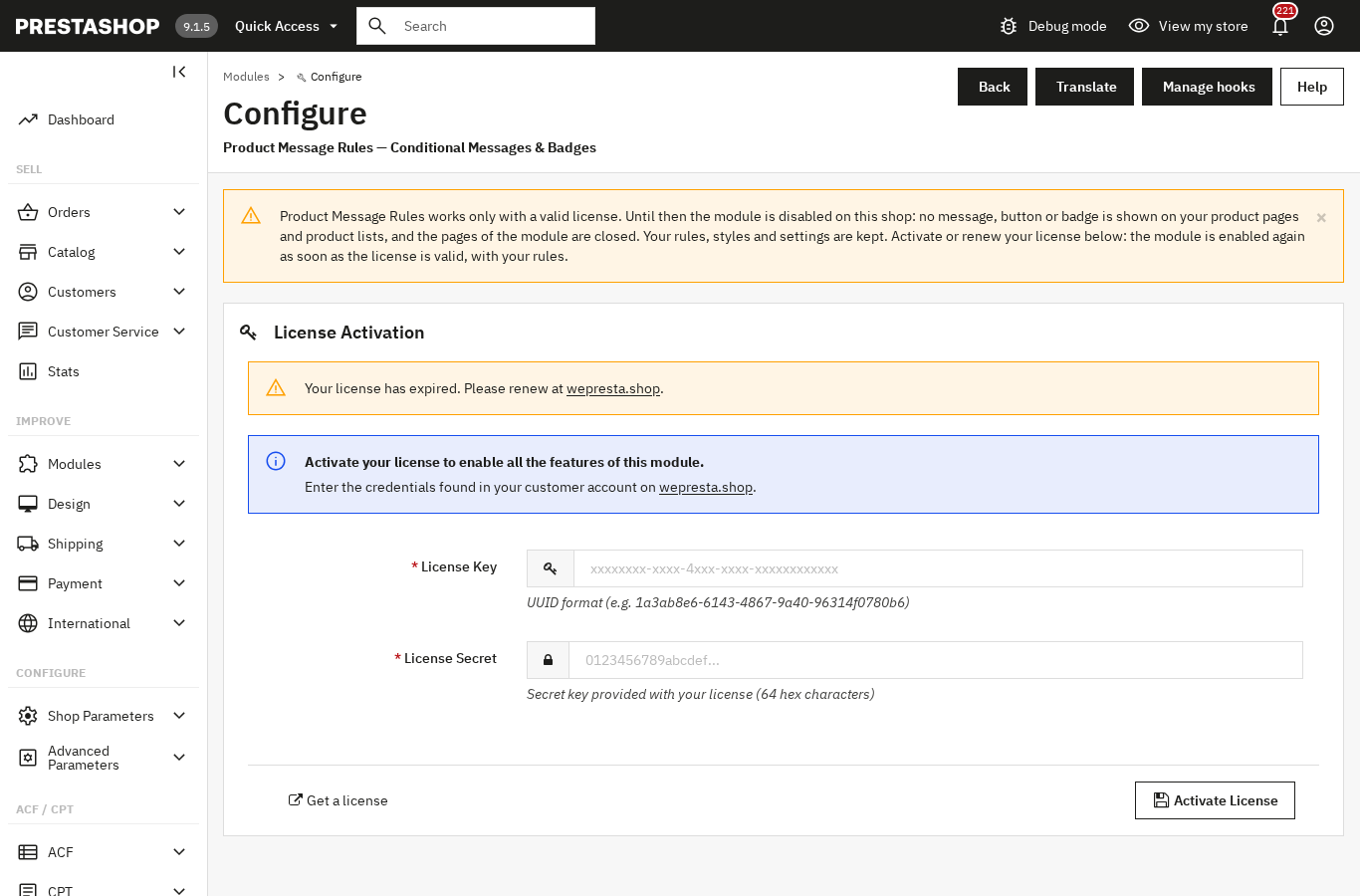
After a re-enable, the module removes products, categories and shops that no longer exist from the rules. In multistore the license is global: reopen Configure from the All shops context to enable every shop.
The module documentation details every condition and every placement, and the Conditional product messages & CTAs page lists the full set of features. Promotion rules belong in Smart promos; messages stay the final step, on the product page.
Frequently asked questions
How do I show a low stock warning without editing every product?
Can I combine several conditions, such as a price, a discount and a country?
How do I add a call-to-action button to a product message?
How can I create urgency without being manipulative?
What happens if my license is no longer valid?
Products in this article

Conditional product messages & CTAs
Personalized messages on your product pages based on conditions: stock, price, sale, brand, customer or country...

Cache Pro — Full Page Cache with Brotli, Warm-Up & AJAX
Full page cache: stored pages are sent before PrestaShop builds them, with no database query from the module...

Smart promos: 3x2, bundles & tiered deals
Create advanced promotions for your PrestaShop store : 3x2, buy X get Y free, tiered discounts, bundles,...

Creative Pop-up builder: triggers & smart targeting
Create impactful drag & drop popups with the integrated visual editor and 22 translated templates . 8...
Read also
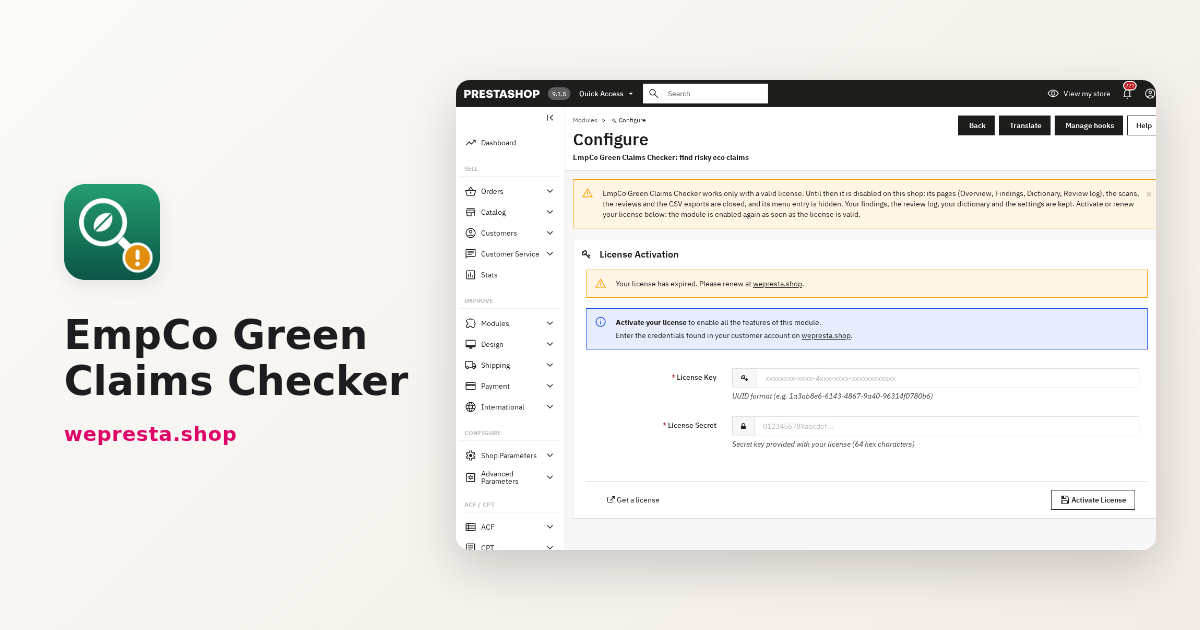
Green claims on PrestaShop: find them and document them
Since 27 September 2026, the EmpCo directive frames environmental claims. Here is how to audit a PrestaShop catalogue, decide on each finding and keep the evidence.
SumUp on PrestaShop: setup, card payments and refunds
How to connect your PrestaShop shop to your SumUp account, choose between the form and the SumUp page, avoid orders left pending and refund from the order page.
PrestaShop contact form: route every request by subject
One PrestaShop contact form per subject: conditional fields, routing to the right team, protected attachments, spam limits, GDPR consent and what version 2.0.1 changes…