How to run a WCAG 2.1 AA accessibility audit on PrestaShop
Which pages fail, what to fix, what needs a manual check and what your accessibility statement must contain: the EAA process in PrestaShop, with its limits.
Since 28 June 2025, the European Accessibility Act (EAA) requires online shops that sell to consumers in the European Union to be usable by people with disabilities. A PrestaShop merchant therefore needs to know which pages fail, what to fix and what to publish to work towards WCAG 2.1 AA compliance. The EAA Accessibility Checker module supports that accessibility audit from the back office, from the first scan to the published statement, and shows where a tool has to stop.
Is my online shop required to be accessible?
Yes, if you sell to consumers in the European Union: the EAA has applied to online commerce services since 28 June 2025.
Directive (EU) 2019/882 sets the goal, and standard EN 301 549 uses the WCAG 2.1 level AA criteria as its technical reference. National law names the supervising authority and the remedies. The module pre-fills the national law and the supervising authority for France, Belgium, Spain, Italy, Poland and Germany; other countries start from the European template.
Microenterprises that provide services are exempt under the European text. That exemption does not clear your other duties, in particular those coming from your own country or from public-sector customers. The module helps you measure and document; it does not replace legal advice.
Is PrestaShop WCAG 2.1 AA compliant without a module?
No. The PrestaShop core does not guarantee level AA: the theme, the modules and your content decide a large part of the result.
A theme can produce insufficient contrast, icon buttons with no readable name, or a focus outline that disappears. Product pages can hold images without alternative text. The checkout adds its own fields and error messages. None of these points is settled by a checkbox in the shop settings.
The module is for merchants who sell in Europe and want a record of their work. It is also for agencies that must document several shops. It is less useful to a microenterprise providing services that is genuinely exempt, or to a merchant who expects a tool to make the shop compliant without touching the theme or the content: that is not what a scanner does.
How do I audit my shop for WCAG 2.1 AA compliance, step by step?
Install the module, activate the license, then run an analysis in your browser from the screen "1. Analyse".
Here is the path through the back office:
- Open Modules > Module Manager, click Upload a module and send the ZIP archive.
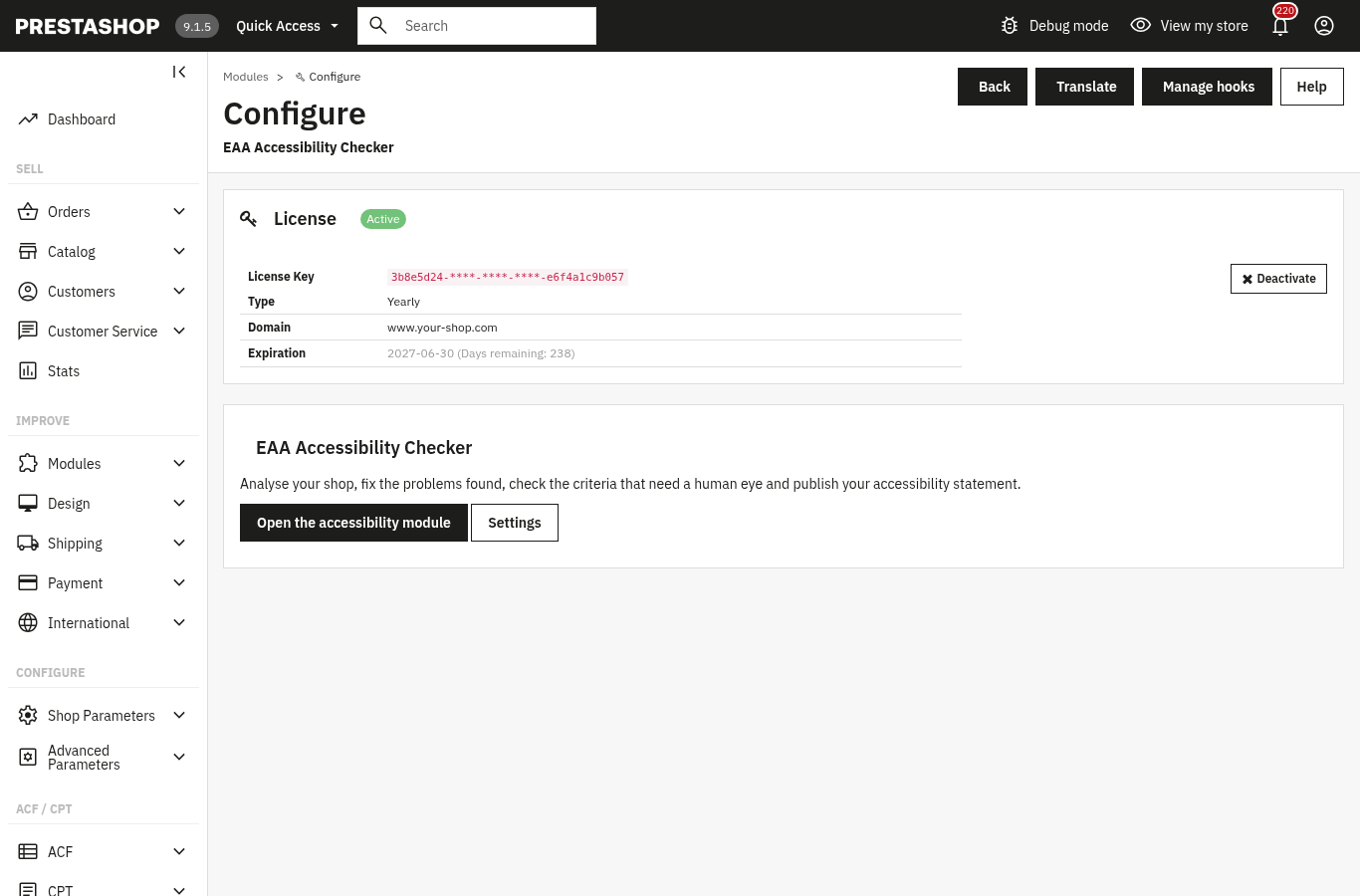
- Click Configure, enter the License Key and the License Secret from your customer account, then click Activate License.
- Open the module with the Open the accessibility module button or from the WePresta > Accessibility (EAA) menu.
- In 1. Analyse, keep In your browser (recommended) selected and the suggested pages ticked, then click Start the analysis. Keep the page open: about fifteen pages take around a minute.
- In 2. Fix, filter by severity and start with the serious issues that appear on many pages.
- In Settings, switch on the fixes you need, then run another analysis to measure their effect.
- Work through 3. Check, then prepare the statement in 4. Publish.
The browser analysis opens each page invisibly and checks it with axe-core, as your visitors see it. It measures contrast, ARIA attributes, content added by scripts and the effect of the fixes. The server analysis reads the HTML and serves scheduled scans; it does not measure contrast.
Is an automated scan enough to be compliant?
No. A scan finds technical defects, but it judges neither the relevance of an alternative text nor the clarity of an error message.
The automated analysis catches images without an alt attribute, fields without a label, headings in the wrong order and insufficient contrast. It cannot decide whether an alternative text really describes the image, whether a video has captions, whether the reading order makes sense, or whether an error message helps the customer correct the entry. Those criteria need a human eye.
The module checklist covers the 50 WCAG 2.1 A and AA criteria and, as an option, the 6 WCAG 2.2 criteria. For each one you read what it asks, what the analysis checks, then record your verdict: met, not met or not applicable. A note keeps track of what you checked, with the author and the date. A criterion counts as met only after your check, with no open issue against it.
Cadence matters as much as the first analysis. In Settings, switch on Analyse the shop automatically, choose the frequency, day and time, then the report recipients. Your host's cron task or the secret address starts the analysis; the report lists open, new and resolved issues since the previous run. The Report screen gives a printable version and CSV exports.
How do I fix issues without breaking my theme, and does keyboard navigation work through checkout?
Switch on the fixes one at a time, then test keyboard navigation on the home page, a product page, the cart and the checkout.
Six fixes sit in Settings. The skip link "Skip to main content" is added only when your theme has none. Buttons and links reduced to an icon get a readable name. Decorative icons are hidden from screen readers when the control already has a name. Fields that only have a placeholder get a label. Autocomplete is declared on account and address forms. Visible focus adds a clear ring around the element reached with the keyboard.
Each fix adds missing information and never removes what your theme declares. The Switch on the recommended corrections button switches on the first five; visible focus is separate because it changes how focus looks. The next browser analysis measures their effect.
For images, open Image captions. The screen shows the share of captioned images per language, then the images page by page, with filters for language, state and product. The Use the product name for the empty captions of this page button gives a first caption; each entry is saved as you type. Rewrite the captions that matter so they describe what the image shows, instead of repeating the product name.
The keyboard remains the fastest test of the checkout. On the order page, check that every field has a label, that error messages are announced and that focus stays visible. These points appear in the checklist and in the issues found by the analysis.
What should an accessibility statement contain?
It should state the level of compliance, the content that is not accessible and its alternatives, and how to reach you.
The 4. Publish screen prepares that document on the European template. You choose the reference country, the compliance status (fully, partially or not compliant), the contact and the response time. The Insert the criteria not met button takes your checklist and fills the inaccessible content. Texts are written in each shop language.
Switch on the Publish the statement on the shop option to put the page online at a readable address in each language. The footer link is a separate switch. Until the statement is published, its address answers "page not found" and you can preview it in the back office.
A valid license controls all of this. Since version 2.0.1, without a valid license the module disables itself completely: the statement answers "page not found", its footer link disappears, the automatic fixes stop and scheduled analyses no longer run. Your analyses, decisions, checklist, statement texts, captions, settings and secrets are kept. The configuration page stays available with the license form; after renewal, open it: the module re-enables and a published statement returns at the same address.
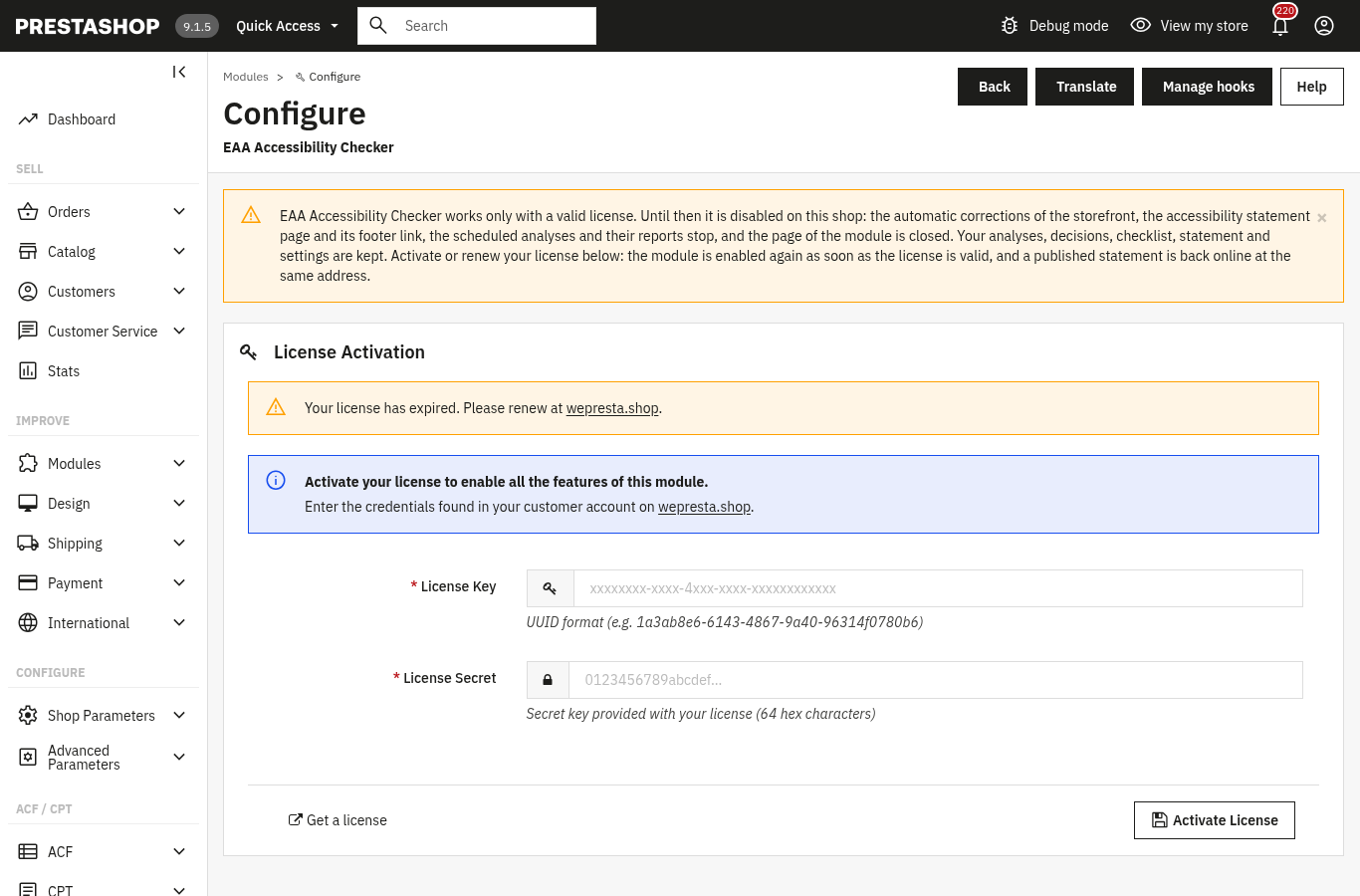
A transient license-server incident does not cut a paid license: the module allows 7 days of tolerance from the first error, and a renewed subscription is recognised at the next check. The end date is checked again at most once an hour, only once it is more than 7 days old. The Module Manager refuses to enable the module without a valid license.
For more detail, the module documentation describes every screen and setting, and the module page sums up the features and requirements. If your shop also sells products covered by other European duties, look at Anti-greenwashing EmpCo, the digital product passport and the security audit: they document other parts of the same transparency requirement.
Frequently asked questions
Is PrestaShop WCAG 2.1 AA compliant without a module?
Can an automated tool fix every accessibility issue?
What should an accessibility statement contain?
Can a customer order with the keyboard only on an accessible shop?
Is my online shop required to be accessible?
Products in this article

EAA & WCAG 2.1 AA accessibility audit
WCAG 2.1 AA accessibility analysis of the real pages, contrasts included Safe automatic fixes, switched on one...
EmpCo Green Claims Checker: find risky eco claims
Finds the wording to check in every text of the shop, in each active language A built-in dictionary in six...

Digital Product Passport (DPP): QR code & public page
A public passport page and a printable QR code for every product Composition, durability, repair, end of life,...

Security Audit Pro – Protect Your Store Against AI-Powered Attacks
Security Audit Pro helps merchants and agencies review store security across eight categories. Run a resumable...
Read also
How to take a deposit and partial payments with Stripe on PrestaShop
A customer hesitates over a large order: a deposit at checkout and the balance later, or equal instalments collected by Stripe, change the decision. Here are the rules,…
PrestaShop full page cache: when it helps and how to set it up
Cache Pro stores your PrestaShop pages and serves them before PrestaShop rebuilds them. Settings, carts, purges, pre-load and the 2.0.1 license change.
How to show conditional messages on PrestaShop product pages
One rule shows the right message, badge or button on the pages it targets, then removes it when the condition changes. Setup steps, a concrete case and limits.