Digital product passport in PrestaShop: public page and QR code
One public page and one QR code per product, with documents, operators and a CSV import for the whole catalog: what the DPP module does, how to set it up and what it leaves out.
A customer scans a code on a label and wants to know what they are buying: composition, origin, care, repair, documents. The digital product passport (DPP) brings that information together, and the European ecodesign regulation is making it a requirement for the products it covers. This guide shows how the Digital Product Passport (DPP) module creates a public page and a QR code for each product in PrestaShop, how to fill a catalog, and what it does not do.
What is a digital product passport, and what is it for?
It is an information sheet about a product, opened by scanning a code, that explains its composition, origin, lifetime, repair, care and end of life.
The digital product passport gives each product an identifier and a public page. Regulation (EU) 2024/1781 on ecodesign for sustainable products (ESPR), in force since 18 July 2024, makes it the information tool for the products it covers. The page has to stay available long after the sale, including for a product no longer sold.
In PrestaShop, the module creates a page at /en/dpp/
Is the digital product passport mandatory for my products?
Not yet for most products: the ESPR sets the required information for each product group, and each delegated act applies after a transition period.
The European Commission adopts these acts progressively. Its work plan lists textiles, furniture, tyres, mattresses, iron, steel and aluminium among the first groups. Until the act for your products is published, the passport informs customers and gathers your data for the day it applies.
Who needs it now? A merchant selling products likely to be covered, who wants to show this information without building pages by hand, or who already answers customers’ questions. Who can wait? A shop whose products fall outside the ESPR scope, or whose product group has no adopted act yet. Check the text that applies to your sector: the module publishes your information, it does not settle that question for you.
The GPSR (Regulation (EU) 2023/988), applicable since 13 December 2024, also requires online sellers to state the manufacturer and, where needed, the EU responsible person, with their contact details, plus product warnings and safety instructions. The passport page shows those operators and the instructions you enter.
How do I create passports for my products in PrestaShop?
Tick your passport categories, create the missing passports in bulk, then fill in each product in the Product passport tab.
- Install the module, then open Modules > Product passports (DPP) (WePresta > Product passports (DPP) on PrestaShop 9).
- In Categories and defaults, tick the categories whose products get a passport. A category covers its subcategories.
- In Defaults, enter once what your products share: country of manufacture, warranty, lifetime, care instructions, sorting, take-back, recycling channel. The nearest category wins over its parents and over the shop.
- In Economic operators, add the manufacturer, importer and EU responsible person (name, address, country, email, phone, website, identifier), then choose the shop’s default operators and the manufacturer of each brand.
- Open Passports: products in the chosen categories without a passport are counted. Click Create their passports to create them in bulk.
- Open a product, fill in its Product passport tab, then click Open the passport page to see the result.
A product that later enters a passport category gets its passport when it is saved. The passport of a product that leaves is hidden, not deleted. The module documentation details every screen and field.
How do I show the QR code on product pages without breaking my theme?
The module adds a Digital Product Passport button and a Product passport tab to the product page, on by default and switchable off in Settings.
Its styles load only on product pages and passport pages.
Each passport has its own address, and the QR code opens it. The module creates the code itself, with no external service. Download it from the product tab as SVG (vector, for printers) or as a PNG from 512 to 4096 pixels. For several products, select them in the Passports list and download a ZIP named by reference or EAN, with an index file. A ZIP holds 2,000 passports at most.
In Settings, choose the Error correction level (higher for labels exposed to rubbing) and the Language of the page opened by the QR code. Draw the QR codes again clears their cache after a change. A passport address never changes: a code printed today keeps opening the same passport.
Each product page display reads the passport from the database, with no write. If you prefer to show nothing on the product page, turn the button and tab off; the passport pages and QR codes keep working.
What goes into a passport, and how do I fill in a whole catalog?
A passport brings together composition, durability, repair, care, safety, end of life, environmental indicators, characteristics, labels, certifications, documents and economic operators.
Attach the useful documents: instructions for use, declaration of conformity, certificate, technical sheet, safety data sheet or another document (PDF, JPEG, PNG or WebP, 10 MB at most). Each document has a type, a title in every language and a position; the files are stored outside the module folder and served by the passport page. Add your own characteristics, such as "Weight: 180 g/m²", and the product’s labels or certifications with their number, validity date, verification link and document.
For a whole catalog, Import and export gives a CSV file with one row per product and one column per field and language. It opens in Excel, LibreOffice or Google Sheets and serves as a backup. Each row is matched by id_product, otherwise by reference, otherwise by ean13. The import is simulated first: rows read, passports to create or update, rows in error with the reason. Nothing is saved before you click Apply the import.
- A column missing from the file changes nothing; an empty cell empties the field.
- Texts have one column per language, ending with its code: fr, en, es, it, pl.
- Characteristics and certifications: one entry per line in the cell, parts separated by |.
- A file holds 20,000 rows at most.
A concrete case: a clothing shop ticks the Clothing category, enters the country of manufacture, warranty and care instructions in the defaults, then fills composition and certifications in the CSV. The QR codes then go on the labels, and each customer gets the same page in their language.
What happens if my license expires or I delete a product?
Without a valid license, the module switches itself off: passport pages, including those opened from an already printed QR code, answer "page not found", but your data stays and the module can be re-enabled from its configuration page.
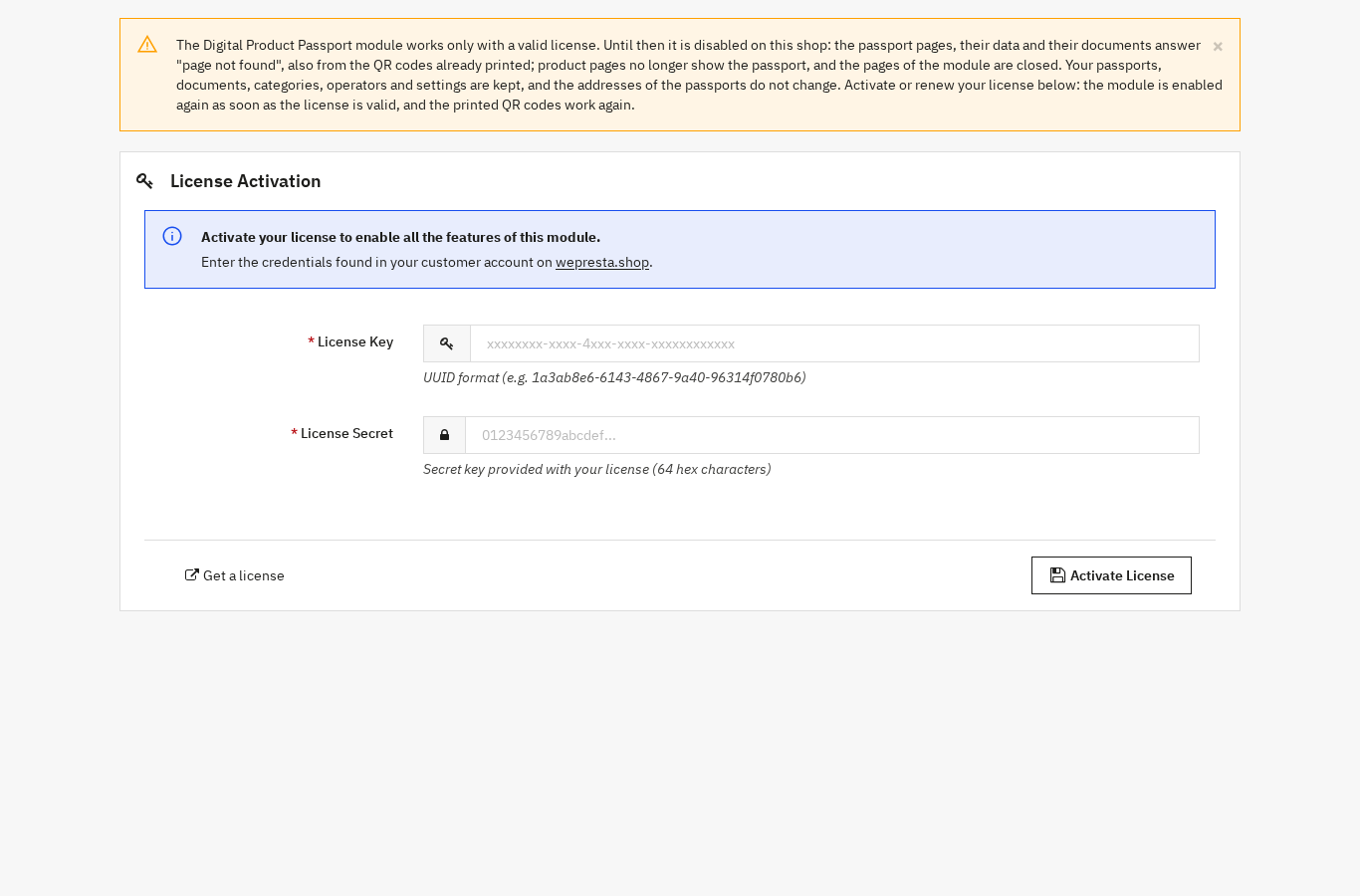
Version 2.0.1 applies this rule to every feature of the module. Passport pages, their data and their documents answer "page not found"; product pages no longer show the button or the tab; the module’s pages close, except the License Activation form, which stays on the configuration page. Your passports, documents, categories, operators, characteristics, certifications and settings are kept, and the addresses do not change.
As soon as the license is valid, open the configuration page: the module is enabled again and the printed QR codes work again. Products deleted while the module was off are archived at that point; products added meanwhile to your passport categories get theirs from the passports list.
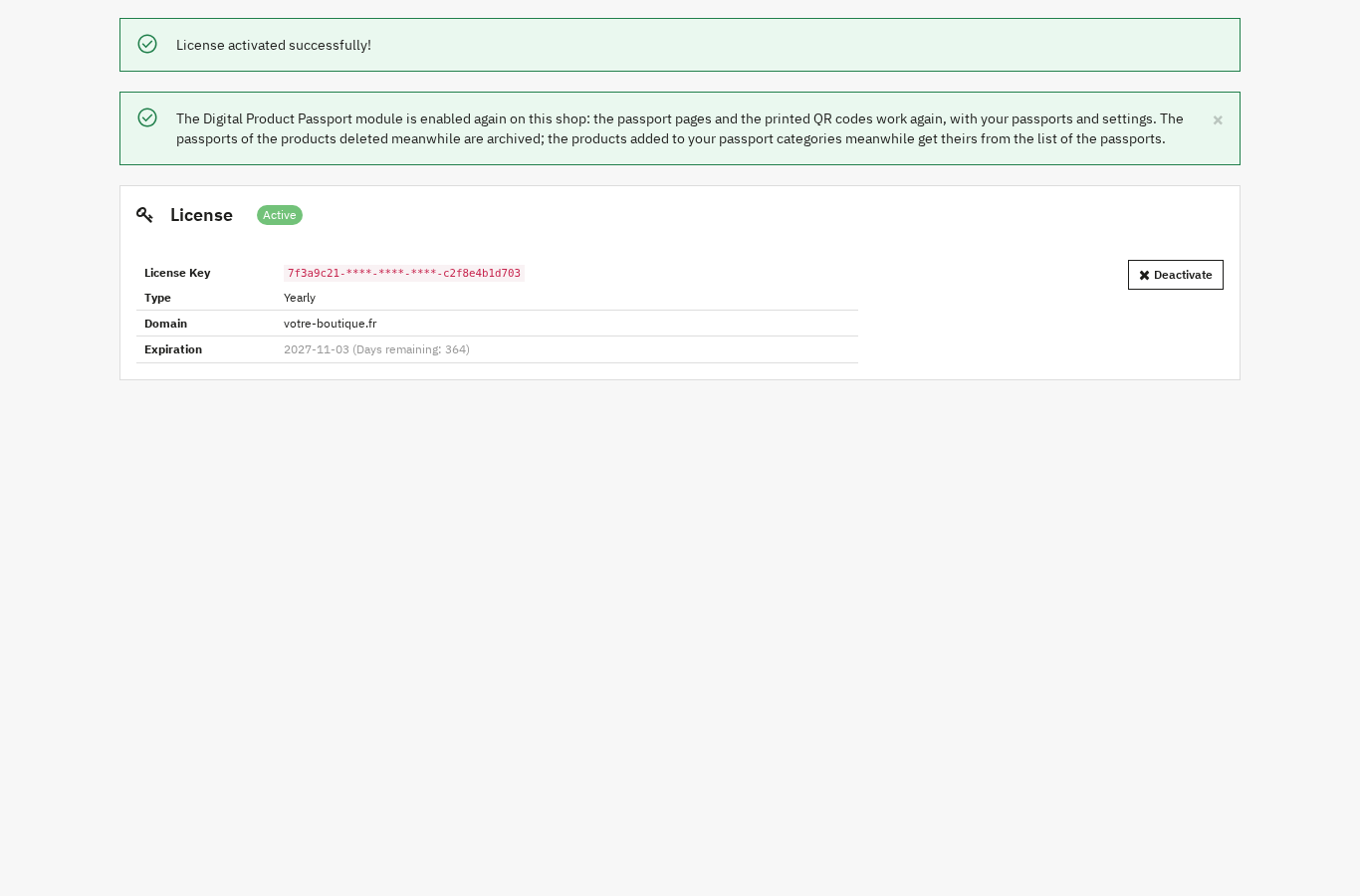
A paid license is not cut off by a transient server answer. For the seven days after the stored end date, the module stays active without contacting the server. Beyond that, it checks at most once an hour whether the subscription was renewed. A transient server answer (error, rate limit, clock skew, server unreachable) does not expire a valid license: the tolerance lasts seven days from the first failure. A definitive answer (expired, suspended or revoked license, unknown license, invalid domain or signature) applies immediately. A visitor may wait up to three seconds while the module checks for a renewal. In multistore, activate the license from the "All shops" view.
A deleted product leaves an archived passport with what remains of it (name, reference, EAN, manufacturer, photo); the page says the product is no longer sold. You can delete it permanently from the list. On uninstall, passports, documents and settings are kept unless you tick the option that deletes them.
What the module does not do
It does not decide for you whether your product needs a passport, and it does not replace legal advice.
The required content is set by the delegated acts for your product group. The module provides free fields and a public page; it does not validate the regulatory compliance of what you enter, and it sends no declaration to an authority. A QR code is not a certificate of authenticity: it opens a page, it does not on its own prove that the product is genuine.
Other texts require their own work. For deforestation, EUDR due diligence is prepared separately. For environmental claims, the Anti-greenwashing EmpCo module finds the wording to check in your texts. The passport does not replace those steps.
Finally, passport pages are not indexed by default, because they repeat the product page, which is the page to rank. You can allow indexing in Settings. The module works with PrestaShop 1.7.8, 8.0+ and 9.0+, with PHP 7.4 or later. Its module page presents the plans and support.
Frequently asked questions
Do I need a digital product passport to sell online in Europe?
How do I generate a QR code for each product in PrestaShop?
What happens if the module license expires or is not valid?
Does a QR code prove that a product is authentic?
What information should a digital product passport contain?
Products in this article
Digital Product Passport (DPP): QR code & public page
A public passport page and a printable QR code for every product Composition, durability, repair, end of life,...

EU Deforestation (EUDR): flag products at risk and track supplier DDS
Finds the products made from the regulation’s seven commodities: wood, coffee, cocoa, soya, palm oil, rubber and...

EmpCo Green Claims Checker: find risky eco claims
Finds the wording to check in every text of the shop, in each active language A built-in dictionary in six...

Schema Pro - Complete JSON-LD Structured Data & Rich Snippets
Product, ProductGroup, Organization, WebSite, BreadcrumbList, FAQPage, CollectionPage and ItemList generated from...
Read also
PrestaShop contact form: route every request by subject
One PrestaShop contact form per subject: conditional fields, routing to the right team, protected attachments, spam limits, GDPR consent and what version 2.0.1 changes…
B2B quotes on PrestaShop: requests, negotiated prices and orders
The full path of a B2B quote in PrestaShop: settings, a proposal with negotiated prices, acceptance, cart and the limits of the module.
PrestaShop back-office 2FA: how to secure admin sign-in
A merchant guide to PrestaShop back-office 2FA: TOTP setup, mandatory profiles, trusted devices, lost-phone recovery and what a licence change does.